# Activate your line for WhatsApp in Truora
In this guide you will learn how to activate your Whatsapp line to use it in Truora's **Whatsapp Customer Engagement** services.
To learn more about our WhatsApp services, follow the [Customer Engagement](/guides/customer_engagement_getting_started/) getting started guide.
## Prerequisites
To activate your **WhatsApp line** in Truora, ensure the following prerequisites are met:
- **Phone Number**: Have a phone number to activate with **Truora** that is not yet connected to WhatsApp and can receive a call/message on that line.
- **Facebook Business Account**: Have a verified Facebook business account to which you have administrator access with full control. Visit [Meta Business Help Center](https://www.facebook.com/business/help/1717412048538897?id=2190812977867143) for more information.
- **Login Requirements**: Before proceeding, ensure you are logged into your company's [Facebook Business Manager](https://business.facebook.com/) account and then log in to your [Truora account](http://account.truora.com/account#/auth/login) in the same browser. Once you have accessed both platforms, follow the steps below to add your line:
***Need help with the prerequisites?** Reach out to us at: developers@truora.com.*
## Add Account
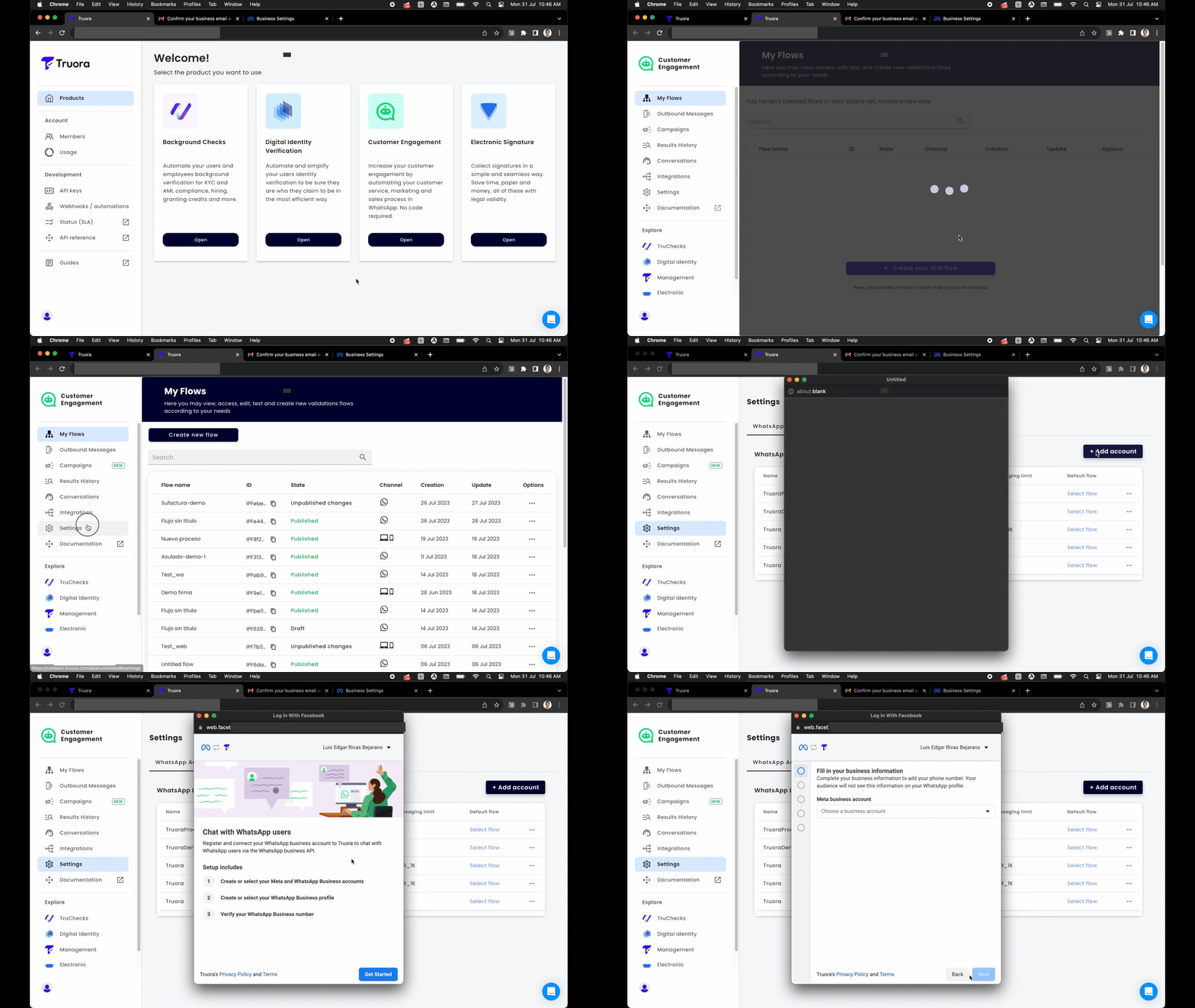
- In **Truora**, navigate to **Customer Engagement**, click on **Settings** in the sidebar and then click the top right **+ Add Account** button. If not yet logged in, you will be asked to access your facebook account to continue.
- Accept the terms and conditions. In the next view, allow **Truora** to be your WhatsApp API provider.
{{ }}
## Select Business Account
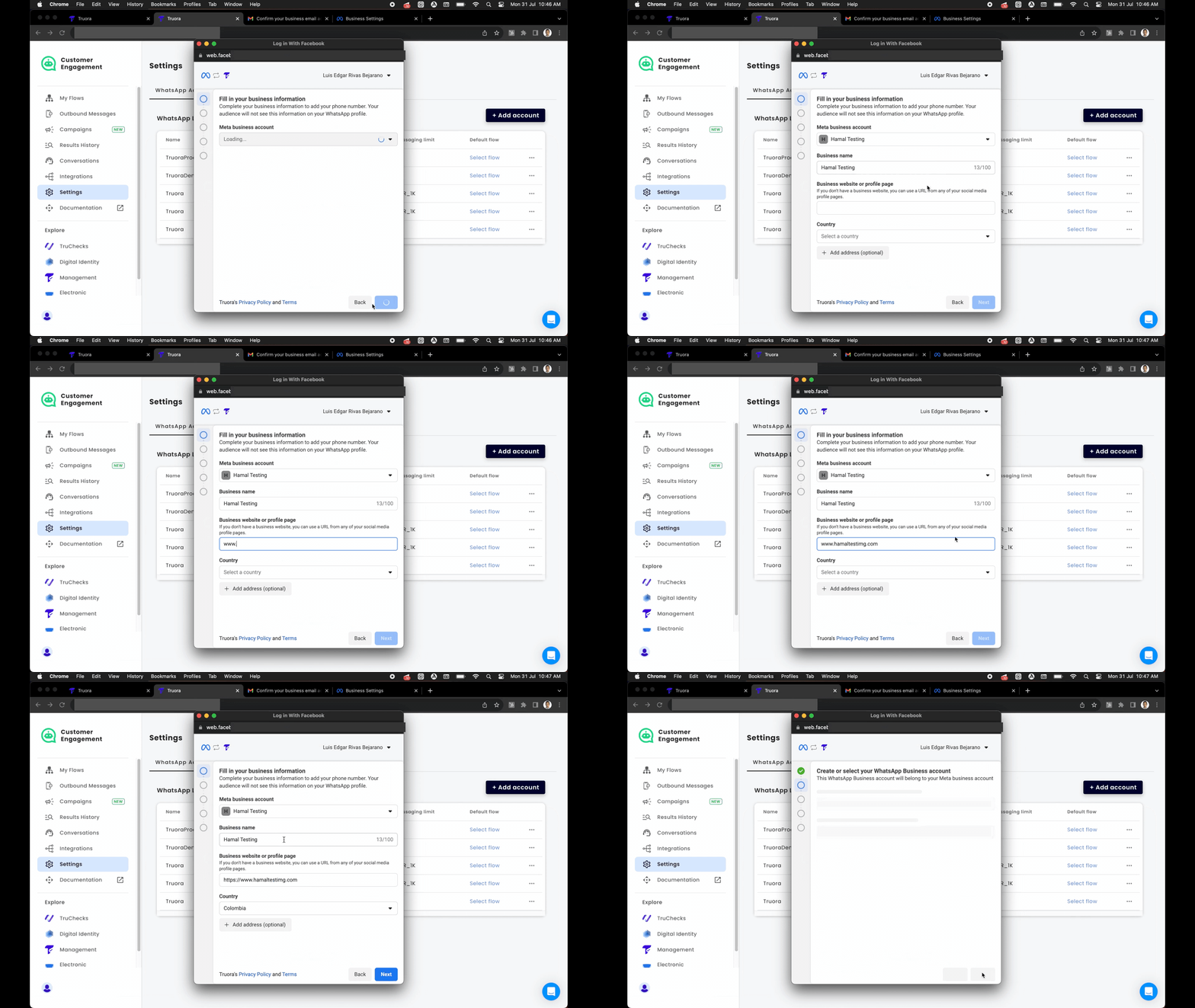
- Select your business account to associate with WhatsApp. If your business does not appear, you need to request a full business administrator role. Refer to the [Meta Business Help Center](https://www.facebook.com/business/help/1717412048538897?id=2190812977867143).
- Verify your business information before continuing, then click Next.
{{
}}
## Select Business Account
- Select your business account to associate with WhatsApp. If your business does not appear, you need to request a full business administrator role. Refer to the [Meta Business Help Center](https://www.facebook.com/business/help/1717412048538897?id=2190812977867143).
- Verify your business information before continuing, then click Next.
{{ }}
## Create WABA and Whatsapp line profile
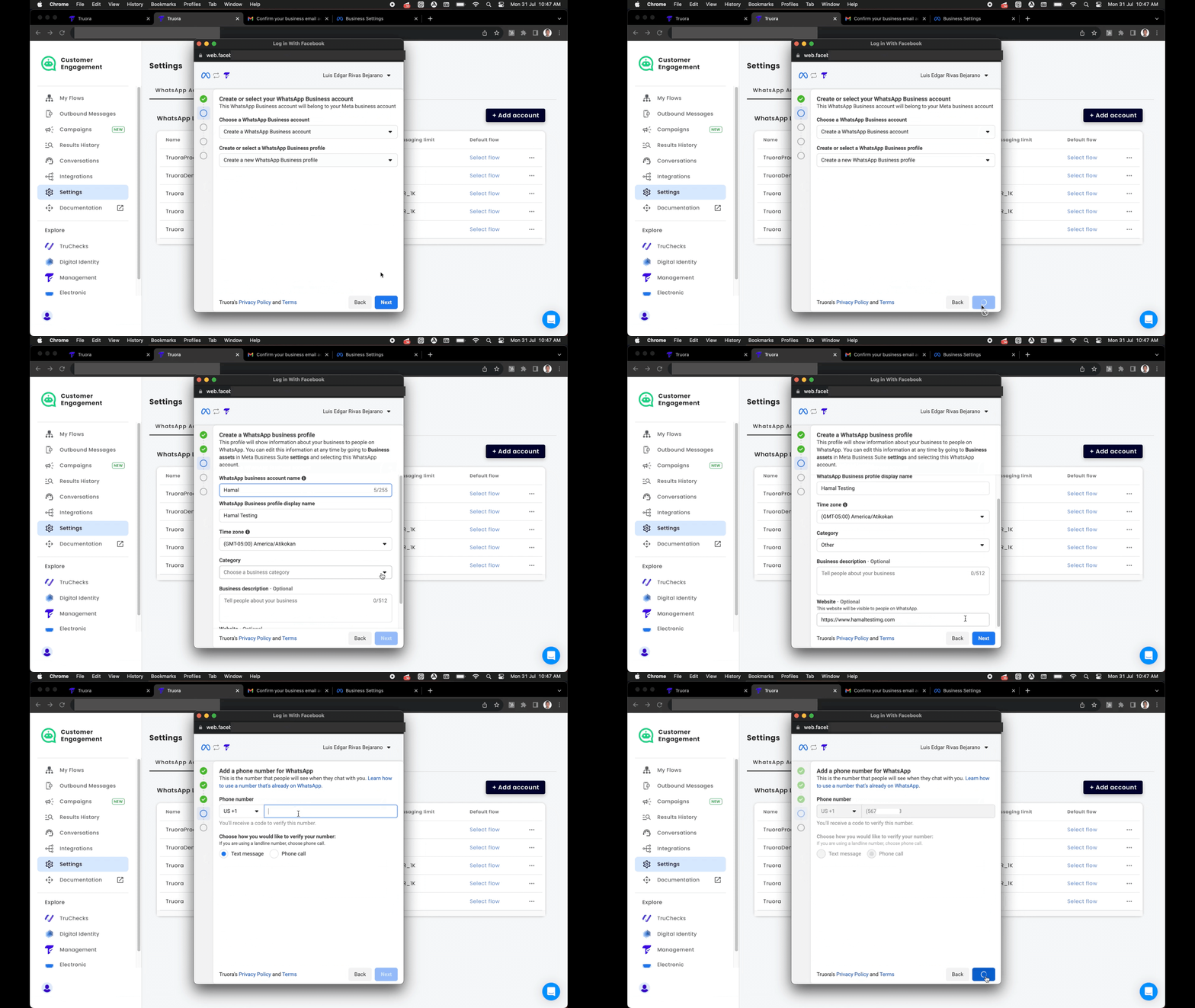
- Write the ***name*** and select the ***category*** of your business. You can also provide a brief description of the company.
> **Very important**: The business account name and the display name of the business profile must be the same as those of your **Facebook Business** account.
- Enter the phone number for Whatsapp with the country code and choose the **Phone call** option. Keep your phone nearby as the call will come to this number with a 6-digit code.
{{
}}
## Create WABA and Whatsapp line profile
- Write the ***name*** and select the ***category*** of your business. You can also provide a brief description of the company.
> **Very important**: The business account name and the display name of the business profile must be the same as those of your **Facebook Business** account.
- Enter the phone number for Whatsapp with the country code and choose the **Phone call** option. Keep your phone nearby as the call will come to this number with a 6-digit code.
{{ }}
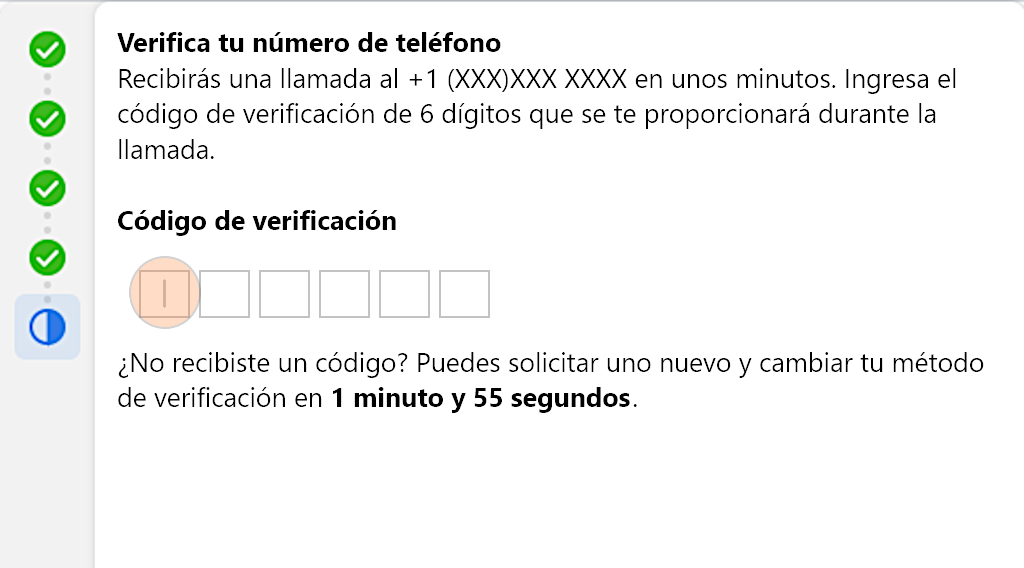
- Enter the code and once it loads, click Finish.
{{
}}
- Enter the code and once it loads, click Finish.
{{ }}
## Verify your New Line
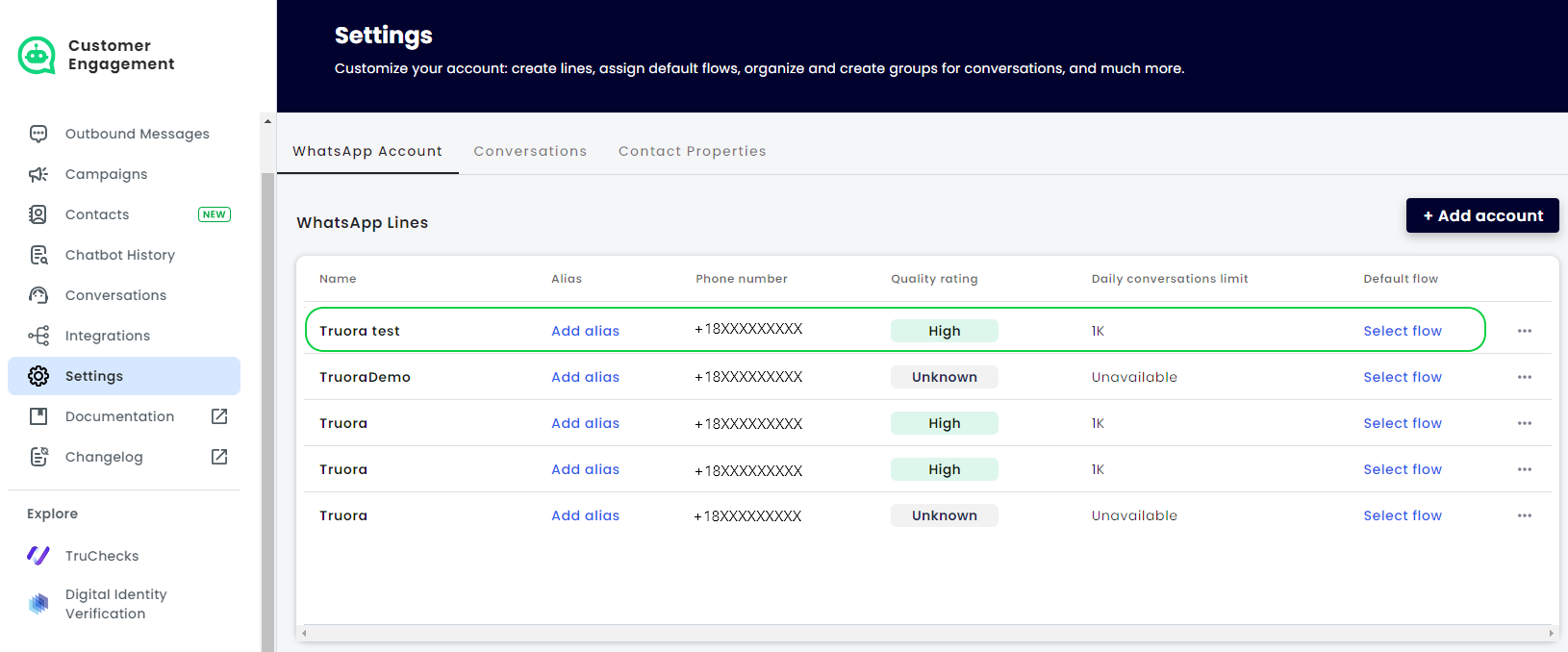
Return to **Truora** where the **New Line** should appear in the **Settings** list of **Whatsapp Lines**. If it doesn't appear right away, please refresh the page.
{{
}}
## Verify your New Line
Return to **Truora** where the **New Line** should appear in the **Settings** list of **Whatsapp Lines**. If it doesn't appear right away, please refresh the page.
{{ }}
}}