 }}
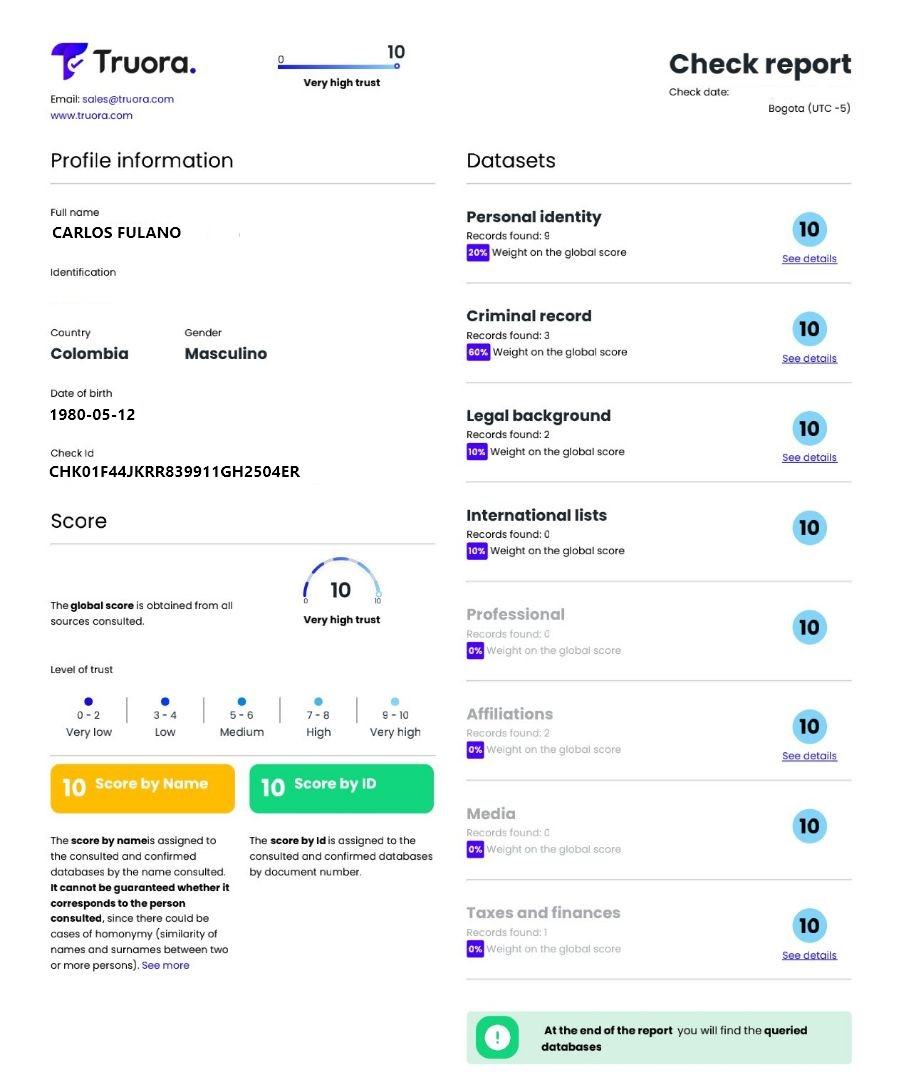
- **Using our Dashboard**
}}
- **Using our Dashboard**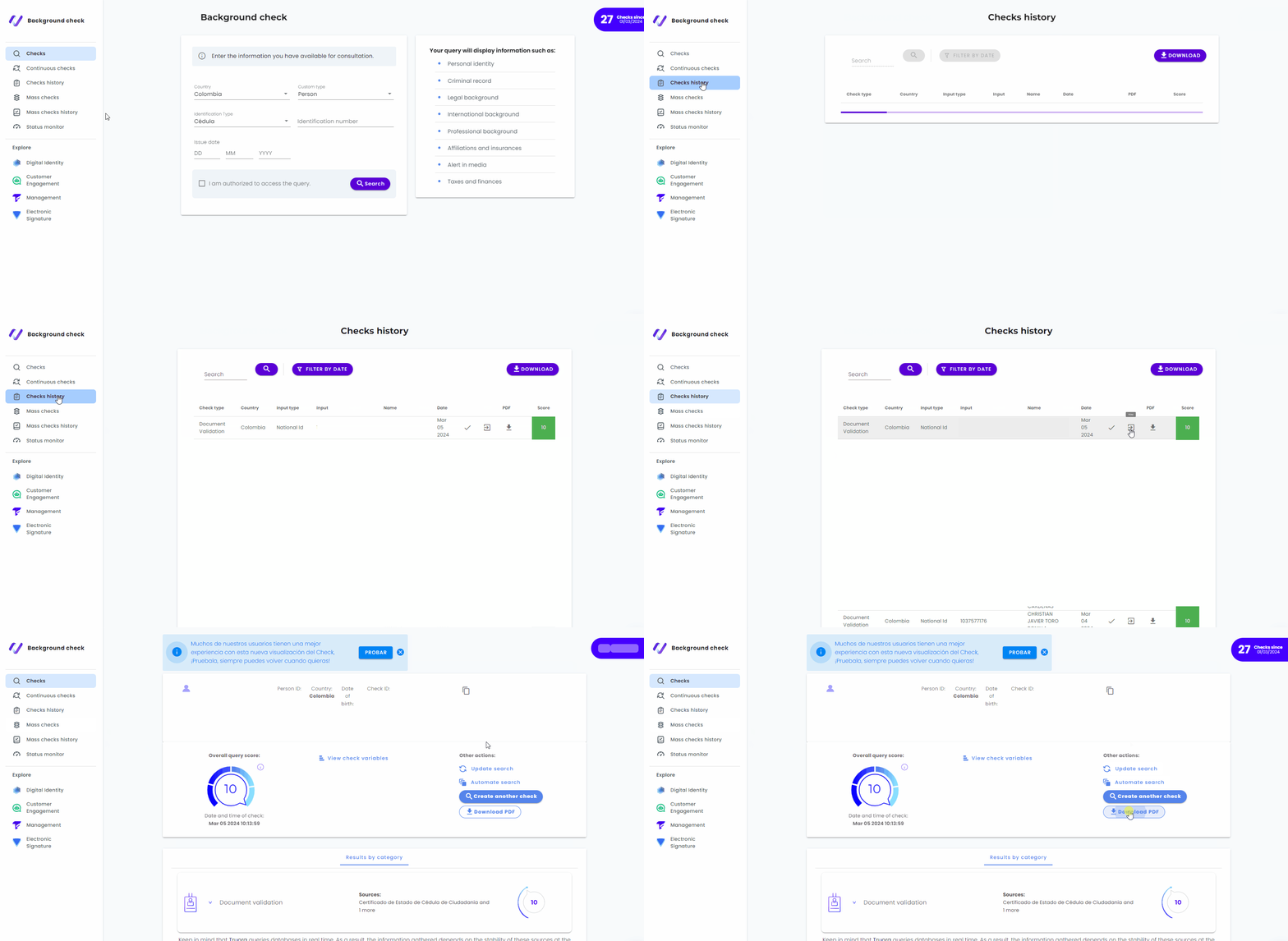 }}
## Variables
It will allow you to know the most relevant fields of a query, such as name, crime category, date of birth, or gender.
- **Using our API**
- Make a **GET** request to the following endpoint:
}}
## Variables
It will allow you to know the most relevant fields of a query, such as name, crime category, date of birth, or gender.
- **Using our API**
- Make a **GET** request to the following endpoint:}}
{
"check_id": "CHKedb1fe7b6c85f66bxxxxxxx",
"check": "/v1/checks/CHKedb1fe7b6c85f66bxxxxxxx",
"details": "/v1/checks/CHKedb1fe7b6c85f66bxxxxxxx/details",
"country": "country",
"check_status": "completed",
"variables_status": "completed",
"person": {
"criminal_records": {},
"date_of_birth": null,
"document_status": null,
"full_name": "Names and Surnames",
"gender": null,
"identity_status": "found",
"international_watchlist": {
"status": "not_found",
"watchlists": []
},
"is_politically_exposed": false,
"legal_records": {},
"social_security_status": "status",
"social_security_type": "type"
}
}
{{}}
- **Using our Dashboard**
Once in the [**Checks History**](/guides/checks#Results), click the **View Check Variables** button.
{{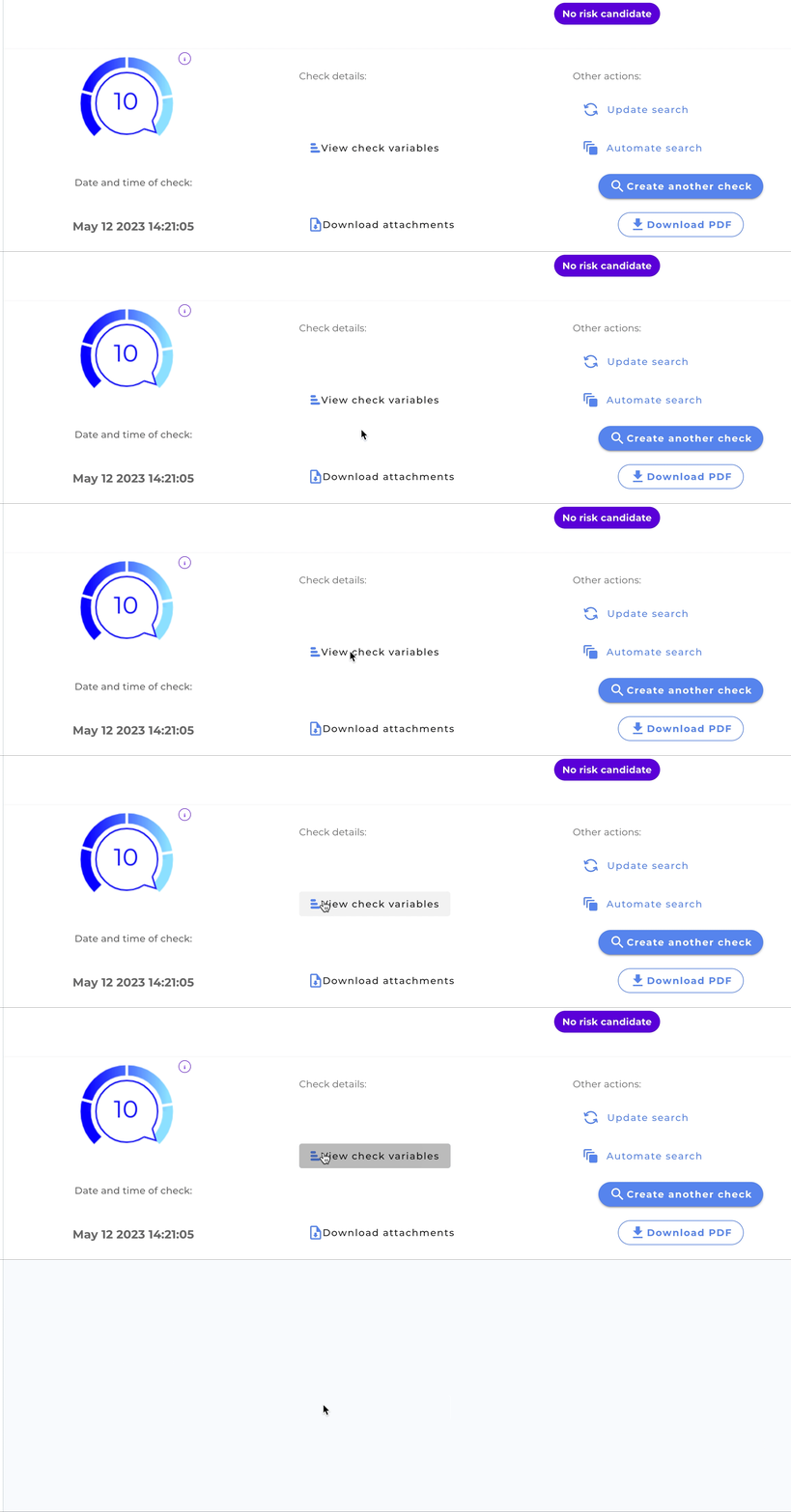 }}
## Attachments
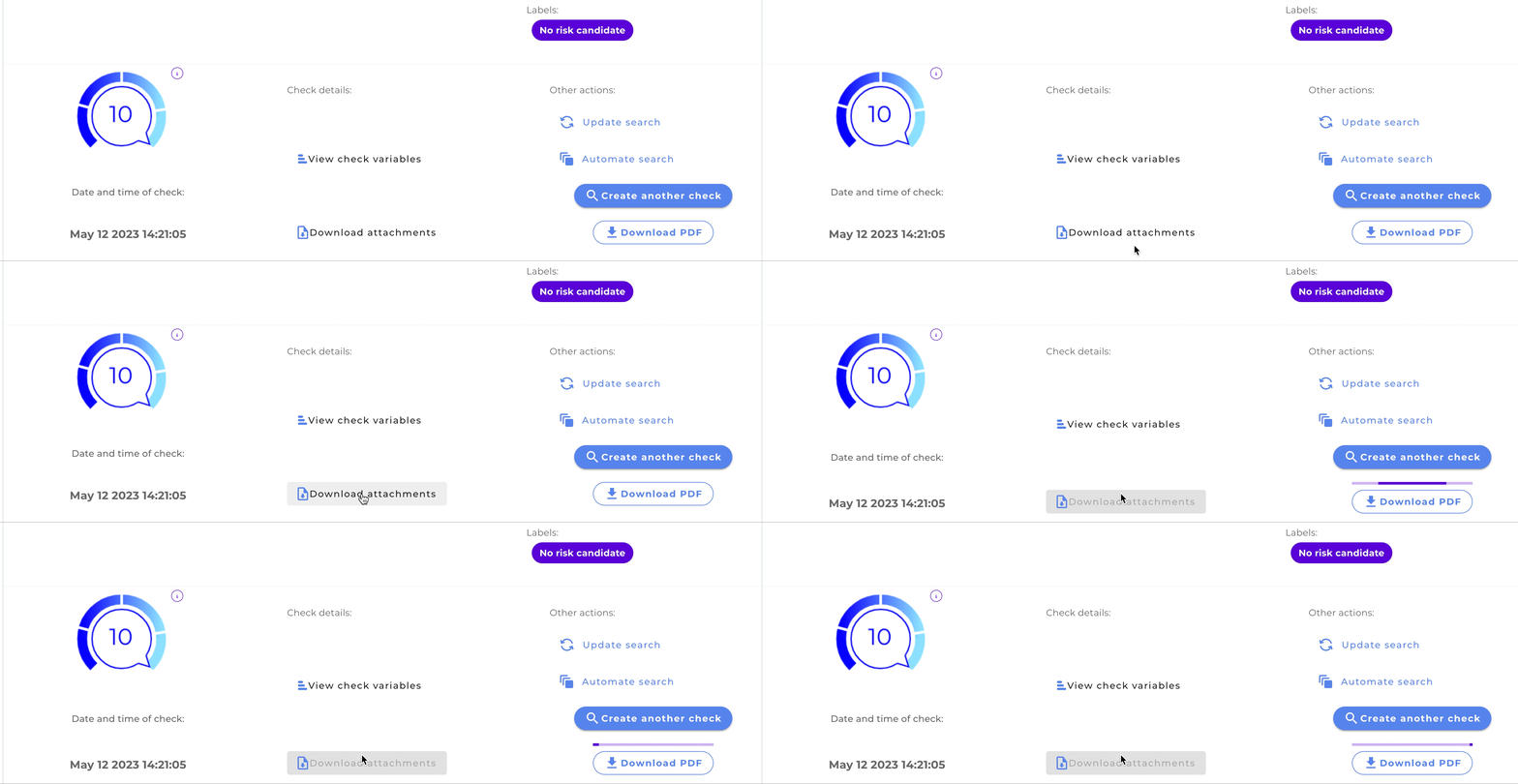
It will allow you to obtain the certificates that some databases issue as query support. These will be returned in PDF format.
}}
## Attachments
It will allow you to obtain the certificates that some databases issue as query support. These will be returned in PDF format.
Note:
If you need to enable this feature please contact us through WhatsApp
{{
}}
        {
            "total": 2,
            "files": [
                {
                "file_name": "database_1.pdf",
                "link": "https://link_pdf_database_1",
                "database_id": "database_id",
                "mime_type": "application/pdf"
                },
                {
                "file_name": "database_2.pdf",
                "link": "https://link_pdf_database_2",
                "database_id": "database_id",
                "mime_type": "application/pdf"
                }
            ],
            "self": "/v1/checks/CHKedb1fe7b6c85f66bxxxxxxx/attachments",
            "next": ""
        }
    {{
}}
- **Dashboard**
 }}
}}