# Start Conversations via API
This guide will walk you through the usage of **Truora's API** for sending an approved **Outbound Message** that triggers a **WhatsApp Flow** to guide the conversation upon customer acceptance.
To get started, ensure the following prerequisites are met before proceeding with the API steps.
## Prerequisites
1. **Truora Account**: If you don't already have one, learn how to {{< newtab href="/customer-engagement/account/" >}}Set up a Truora account{{< /newtab >}}.
2. **Truora API-Key**: This key grants access to our services. If you don’t have one already go to {{< newtab href="/customer-engagement/authentication/" >}}Create Truora API-Key{{< /newtab >}}.
3. **Activated WhatsApp line**: Follow this {{< newtab href="/guides/waba_acquisition/" >}}guide{{< /newtab >}} to acquire and activate WhatsApp lines in **Truora**.
4. **A Created WhatsApp Flow**: Have at least one flow already built. Learn how to {{< newtab href="/guides/flows" >}}Create a WhatsApp Flow{{< /newtab >}} in **Truora**.
5. **Created and Approved Outbound Message**: Ensure you have created an **Outbound Message** with **conversation type** set to **Flow**, and that it is approved in compliance with **META's** guidelines. This message will be used to initiate first contact with customers or to recontact them. Refer to the {{< newtab href="/guides/outbound/" >}}Outbound Message Guide{{< /newtab >}} for more information.
Once the prerequisites are in place, you'll need:
- **Flow ID**: ID of the flow you want to trigger.
- **Outbound ID**: ID of the **Outbound Message** that your user will receive before triggering the **Flow**.
The Outbound Message is what will be sent to your users, and it's linked to the specified flow to guide the conversation.
## Getting the Flow ID via Dashboard
1. In the {{< newtab href="/guides/dashboard/" >}}Dashboard{{< /newtab >}}, click **Open** under **WhatsApp Customer Engagement**.
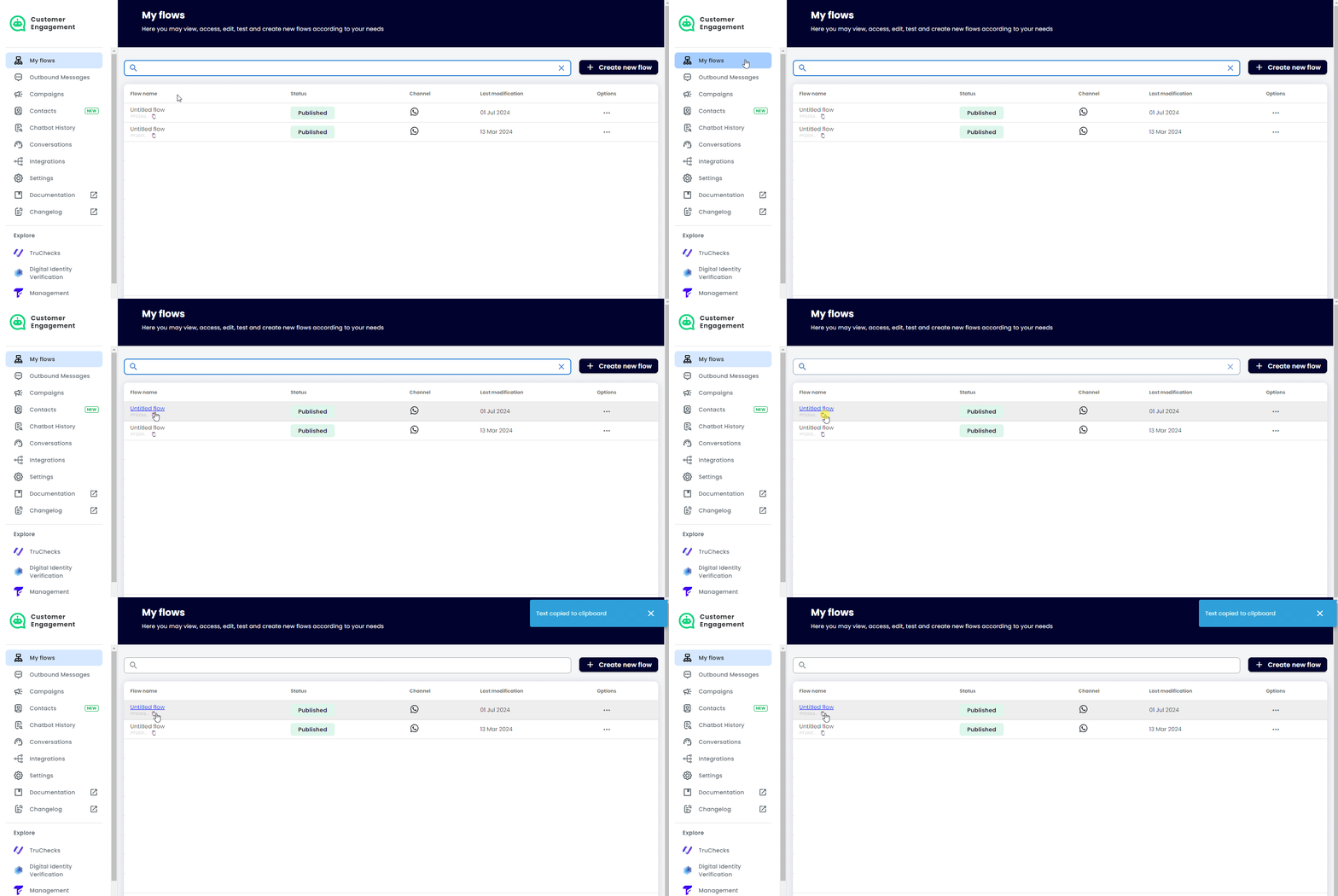
2. Navigate to **My flows** and click the **copy icon** next to the **Flow ID** of the desired flow.
{{ }}
## Getting the Outbound ID via Dashboard
1. In the Dashboard sidebar, click **Outbound Messages**.
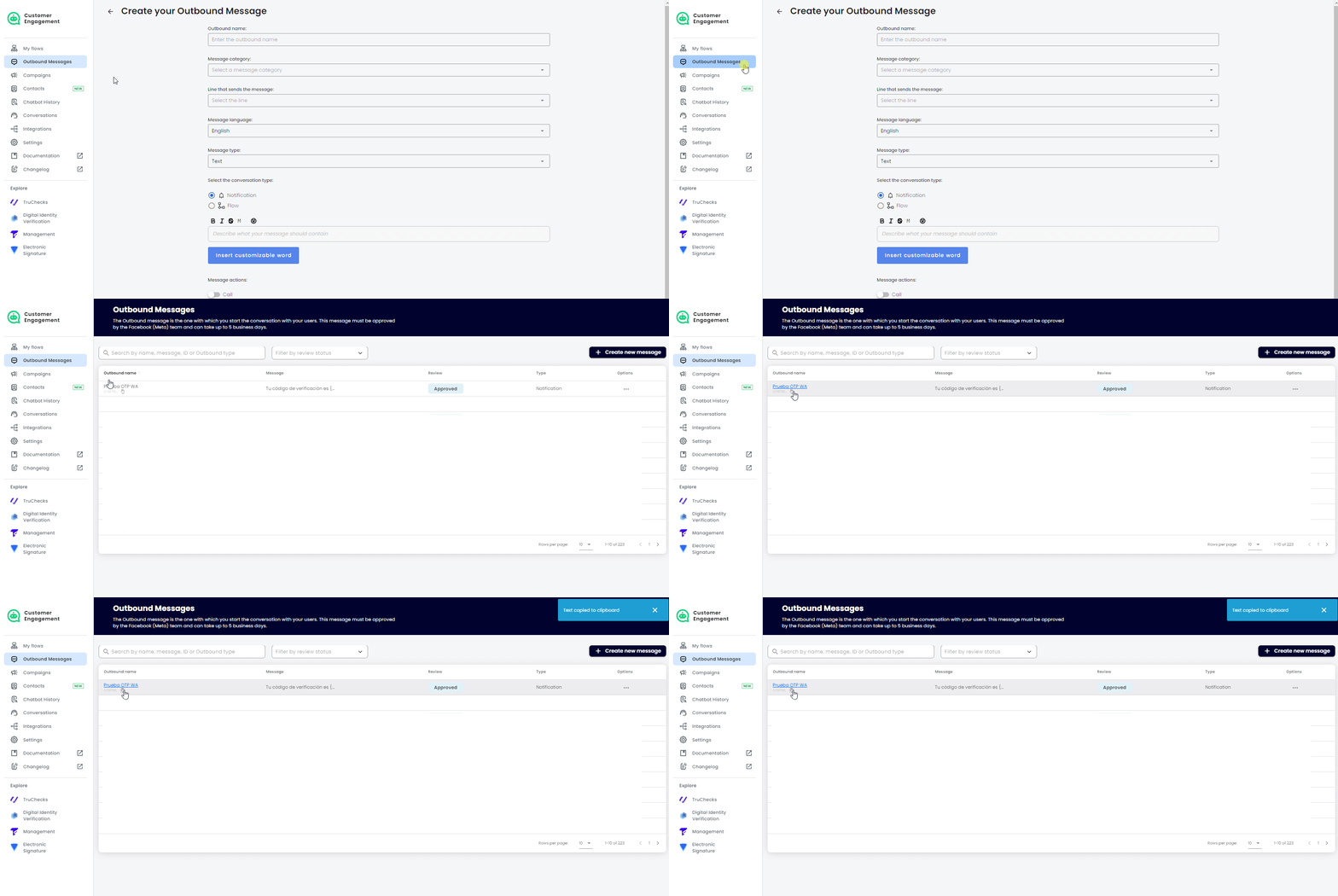
2. Find the desired **Outbound name** in the list and click the **copy icon** below it to copy the **Outbound ID**.
{{
}}
## Getting the Outbound ID via Dashboard
1. In the Dashboard sidebar, click **Outbound Messages**.
2. Find the desired **Outbound name** in the list and click the **copy icon** below it to copy the **Outbound ID**.
{{ }}
## Getting the Outbound ID via API
As an alternative to retrieving the **Outbound ID** through the Dashboard, you can use the **List Outbounds** API request to obtain all Outbound Messages linked to your **WABA line**. The API response will provide details on each message, including its status and ID, helping you quickly identify the Outbound Message you want to use.
To make the **List Outbounds** request:
1. Set the **Headers**
- ``Truora-API-Key``: Enter your Truora API Key.
2. Create a **GET** request to the endpoint ``https://api.connect.truora.com/v1/whatsapp/outbounds`` with the following **Query Parameter**:
- ``line`` [***Required***]: The WABA phone number to list outbounds from, including the country code without the '+' sign.
Send the request. The response should look something similar to the following:
{{
}}
## Getting the Outbound ID via API
As an alternative to retrieving the **Outbound ID** through the Dashboard, you can use the **List Outbounds** API request to obtain all Outbound Messages linked to your **WABA line**. The API response will provide details on each message, including its status and ID, helping you quickly identify the Outbound Message you want to use.
To make the **List Outbounds** request:
1. Set the **Headers**
- ``Truora-API-Key``: Enter your Truora API Key.
2. Create a **GET** request to the endpoint ``https://api.connect.truora.com/v1/whatsapp/outbounds`` with the following **Query Parameter**:
- ``line`` [***Required***]: The WABA phone number to list outbounds from, including the country code without the '+' sign.
Send the request. The response should look something similar to the following:
{{}}
[
{
"client_id": "TCI67c005XXXXXXXXXXXXXXXXX",
"outbound_id": "OTB29XXXXXXXXXXXXXXXX",
"outbound_name": "Demo template EN",
"outbound_status": "APPROVED",
"failure_reason": "",
"is_notification": false,
"outbound_message": "Hi! this is a TruConnect test. Select “Continue” and try your first flow. | [Continue] | [Cancel]",
"outbound_answers": [
{
"message": "Continue",
"action": "continue_process"
},
{
"message": "Cancel",
"action": "cancel_process"
}
],
"waba_phone_number": "+194XXXXXXXX",
"media_url": "undefined",
"outbound_type": "text",
"media_id": ""
},
{
"client_id": "TCI67c005XXXXXXXXXXXXXXXXX",
"outbound_id": "OTBe38eXXXXXXXXXXXXXXXXXXXX",
"outbound_name": "Demo Template PT",
"outbound_status": "APPROVED",
"failure_reason": "",
"is_notification": false,
"outbound_message": "Ola! este é um teste de TruConnect. Selecione “Continuar” e tente seu primeiro fluxo. | [Continuar] | [Cancelar]",
"outbound_answers": [
{
"message": "Continuar",
"action": "continue_process"
},
{
"message": "Cancelar",
"action": "cancel_process"
}
],
"waba_phone_number": "+194XXXXXXXX",
"outbound_type": "text",
"media_id": ""
},
{
"client_id": "TCI67c005XXXXXXXXXXXXXXXXX",
"outbound_id": "OTBbc9XXXXXXXXXXXXXXXXXXXX",
"default_flow_id": "IPFe6dccbc22634b9934cbbb1696bd5ca04",
"outbound_name": "Demo Template ES",
"outbound_status": "APPROVED",
"failure_reason": "",
"is_notification": false,
"outbound_message": "¡Hola! esta es una prueba de TruConnect. Seleccione “Continuar” y pruebe su primer flujo. | [Continuar] | [Cancelar]",
"outbound_answers": [
{
"message": "Continuar",
"action": "continue_process"
},
{
"message": "Cancelar",
"action": "cancel_process"
}
],
"waba_phone_number": "+194XXXXXXXX",
"outbound_type": "text",
"media_id": ""
}
]
{{}}
Locate the **Outbound Message** you want to use, and copy the ``outbound_id`` to include in subsequent requests. Additionally, you may confirm that the ``outbound_status`` is ``APPROVED`` before sending it to your users.
## Checking your Outbound Message via API
This step is optional but can be useful in some cases. You can use the **Get Outbound Message** API request to review details about a specific Outbound Message by using its ``outbound_id``. Among other information, the response will include:
- ``is_notification``: If ``false``, indicates the Outbound Message is intended to initiate a **Flow** when the user accepts to continue.
- ``outbound_message``: Displays the content of your Outbound Message.
- ``outbound_status``: Indicates if the message is ``APPROVED`` by Meta and ready to use. Other statuses include ``PENDING`` and ``REJECTED``.
- ``waba_phone_number``: The WABA line phone number associated with your Outbound Message.
To make the **Get Outbound message** request:
1. Set the **Headers**
- ``Truora-API-Key``: Enter your Truora API Key.
2. Create a **GET** request to the endpoint ``https://api.connect.truora.com/v1/whatsapp/outbounds/{outbound_id}``
- Replace the **Path Parameter** ``outbound_id`` with the ID of the Outbound Message you want to retrieve.
Send the request. The response should look something similar to the following:
{{}}
{
"client_id": "TCI67c005XXXXXXXXXXXXXXXXX",
"outbound_id": "OTB29XXXXXXXXXXXXXXXX",
"outbound_name": "Demo template EN",
"outbound_status": "APPROVED",
"failure_reason": "",
"is_notification": false,
"outbound_message": "Hi! this is a TruConnect test. Select “Continue” and try your first flow. | [Continue] | [Cancel]",
"outbound_answers": [
{
"message": "Continue",
"action": "continue_process"
},
{
"message": "Cancel",
"action": "cancel_process"
}
],
"waba_phone_number": "+194XXXXXXXX",
"media_url": "undefined",
"outbound_type": "text",
"media_id": ""
}
{{}}
## Sending the message via API
Finally, use the ``flow_id`` and ``outbound_id`` from previous steps to send the Outbound Message to your users:
1. Create a **POST** request to the endpoint ``https://api.connect.truora.com/v1/whatsapp/outbounds/send``
2. Set the **Headers**
- ``Truora-API-Key`` enter the value of your Truora API Key.
- ``Content-Type`` the value should be ``application/x-www-form-urlencoded``.
3. Set required values for the request body
- ``phone_number`` [***Required***]: The recipient's phone number **without the country code**.
- ``country_code`` [***Required***]: The country code for the phone number. Find a list of country codes [here](https://countrycode.org/).
- ``outbound_id`` [***Required***]: The ID of your approved Outbound Message.
- ``user_authorized`` [***Required***]: Indicates that the recipient has authorized the communication (opt-in). Must be set to ``true``.
- ``flow_id`` [***Optional***]: **Required** if ``is_notification`` field in the Outbound Message is set to ``false``. This indicates that the Outbound Message will be used to initiate a **Flow** when the user accepts to continue. Provide the **Flow ID** of the specific Flow that will start upon user acceptance of the message.
- ``var.`` [***Optional***]: **Required** if the Outbound Message includes variables. You must provide a key-value pair for each variable in the message, formatted as ``var.``. For example, if the message template is ``Hello {{.name}} {{.lastname}}``, include ``var.name: John`` and ``var.lastname: Doe`` to display *"Hello John Doe"*.
Send the request. If everything is set correctly, you should receive a response similar to the following:
{{}}
{
"user_phone_number": "+57314XXXXXXX",
"message": "conversation started with +57314XXXXXXX",
"session_id": "WDIS8ac148eXXXXXXXXXXXXXXXXXX",
"outbound_message": {
"client_id": "TCI67c005XXXXXXXXXXXXXXXXX",
"outbound_id": "OTB29XXXXXXXXXXXXXXXX",
"outbound_name": "Demo template EN",
"outbound_status": "APPROVED",
"failure_reason": "",
"is_notification": false,
"outbound_message": "Hi! this is a TruConnect test. Select “Continue” and try your first flow. | [Continue] | [Cancel]",
"outbound_answers": [
{
"message": "Continue",
"action": "continue_process"
},
{
"message": "Cancel",
"action": "cancel_process"
}
],
"waba_phone_number": "+19XXXXXXXX",
"media_url": "undefined",
"outbound_type": "text",
"media_id": ""
},
"flow_id": "IPF1160XXXXXXXXXXXXXXXXXXXX"
}
{{}}
## API Reference
For detailed information about our available API endpoints and requests, we encourage you to refer to our [API reference](/docs/#digital-identity_wa-engagement-section).