# CIBA over WhatsApp — implementation guide
This guide walks through the most common way teams use the [CIBA flow](/truora-pass/ciba_flow/): a **WhatsApp chatbot or contact-center agent authenticating a user in the middle of a conversation**. The user is already chatting with your business on WhatsApp — instead of asking them to switch to a browser, your backend starts a backchannel request and Truora Pass sends the approval into that same WhatsApp thread.
## When to use it
- **A WhatsApp conversation is your relying party.** Your bot (or a human agent working from a WhatsApp business console) needs to confirm who it's talking to, or get the user's consent to pull identity data, without ever leaving WhatsApp. This is the scenario this guide covers end to end.
- **Any other decoupled/backend flow** — call centers, kiosks, batch backend jobs — works the same way at the protocol level. See the [CIBA flow](/truora-pass/ciba_flow/) reference for the full request/response contract this guide builds on.
- **Your user is in your own browser or app instead of WhatsApp?** Use the [Authorization Code flow](/truora-pass/authorization_code_flow/) or the [Embedded SDK](/truora-pass/embedded_sdk/) — those redirect in-page rather than sending a message to a device.
## Prerequisites
- Your application is registered with the CIBA grant type, `urn:openid:params:grant-type:ciba`. See [Registering your application](/truora-pass/registering_your_application/).
- The user already has a Truora Pass account whose email matches your `login_hint`.
- That account has a **verified phone number** — this is where the WhatsApp approval message is delivered. A user with no verified phone cannot be reached by this flow (see [Troubleshooting](#troubleshooting)).
## What the user receives
When your backend calls `bc-authorize`, Truora Pass sends the user a WhatsApp message built from these pieces of your request:
- A greeting using the user's first name.
- Your application's name, framed as a request for the user's approval.
- Your `binding_message` as the line describing what is being asked.
- How long the request stays open, in whole minutes.
- A link the user taps to open the approval screen, where they sign in (if needed), review what's being requested, and approve or deny.
{{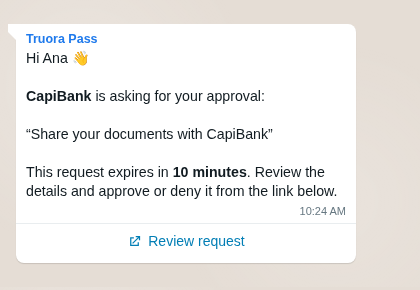 }}
The image above is an **illustrative mock**, not a live capture — it shows how the pieces above come together, not the literal wording of the message your users will see.
**Note**: today this message is sent in **English only**, regardless of the user's locale.
## Writing a good `binding_message`
`binding_message` is the line the user reads in WhatsApp as the reason for the request — write it so a user can decide, from that line alone, whether to approve. For example: `"Share your documents with CapiBank"` rather than `"Authorization request"`.
- It's shown to the user **exactly as you send it**.
- Longer messages are **truncated to 200 characters**.
- It is **required** whenever your request includes a sensitive scope: `documents`, `documents:images`, `biometric:image`, `background`, or `validations:write`. Omitting it on a sensitive-scope request is rejected with `invalid_request`.
See the [Scopes reference](/truora-pass/scopes_reference/) for the full scope catalog.
## End-to-end worked example
Say your WhatsApp bot for **CapiBank** is chatting with a user, Ana, and needs her to share her verified documents before continuing.
### 1. Your bot's backend starts the backchannel request
```bash
curl -X POST https://api.pass.truora.com/v1/oauth2/bc-authorize \
--data-urlencode "client_id=WLT_APP_your_client_id" \
--data-urlencode "client_secret=your_client_secret" \
--data-urlencode "scope=openid identity documents" \
--data-urlencode "login_hint=ana@example.com" \
--data-urlencode "binding_message=Share your documents with CapiBank" \
--data-urlencode "requested_expiry=600"
```
```json
{
"auth_req_id": "",
"expires_in": 600,
"interval": 5
}
```
### 2. Ana approves in the same WhatsApp
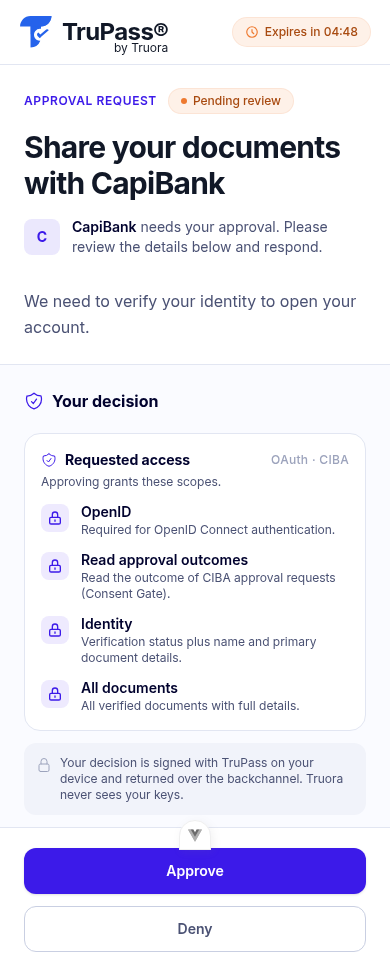
Truora Pass sends Ana the approval message described above, in the same WhatsApp app she was already chatting with your bot in. She taps the link, signs in if needed, reviews the requested scopes and your `binding_message`, and approves. Your bot's UI (or the WhatsApp thread) doesn't need to do anything during this step.
This is the approval screen Ana lands on:
{{
}}
The image above is an **illustrative mock**, not a live capture — it shows how the pieces above come together, not the literal wording of the message your users will see.
**Note**: today this message is sent in **English only**, regardless of the user's locale.
## Writing a good `binding_message`
`binding_message` is the line the user reads in WhatsApp as the reason for the request — write it so a user can decide, from that line alone, whether to approve. For example: `"Share your documents with CapiBank"` rather than `"Authorization request"`.
- It's shown to the user **exactly as you send it**.
- Longer messages are **truncated to 200 characters**.
- It is **required** whenever your request includes a sensitive scope: `documents`, `documents:images`, `biometric:image`, `background`, or `validations:write`. Omitting it on a sensitive-scope request is rejected with `invalid_request`.
See the [Scopes reference](/truora-pass/scopes_reference/) for the full scope catalog.
## End-to-end worked example
Say your WhatsApp bot for **CapiBank** is chatting with a user, Ana, and needs her to share her verified documents before continuing.
### 1. Your bot's backend starts the backchannel request
```bash
curl -X POST https://api.pass.truora.com/v1/oauth2/bc-authorize \
--data-urlencode "client_id=WLT_APP_your_client_id" \
--data-urlencode "client_secret=your_client_secret" \
--data-urlencode "scope=openid identity documents" \
--data-urlencode "login_hint=ana@example.com" \
--data-urlencode "binding_message=Share your documents with CapiBank" \
--data-urlencode "requested_expiry=600"
```
```json
{
"auth_req_id": "",
"expires_in": 600,
"interval": 5
}
```
### 2. Ana approves in the same WhatsApp
Truora Pass sends Ana the approval message described above, in the same WhatsApp app she was already chatting with your bot in. She taps the link, signs in if needed, reviews the requested scopes and your `binding_message`, and approves. Your bot's UI (or the WhatsApp thread) doesn't need to do anything during this step.
This is the approval screen Ana lands on:
{{ }}
### 3. Your backend receives the result
You have two ways to get the outcome: **poll** the token endpoint (shown below), or register **push delivery** so Truora Pass `POST`s the token response to a webhook you control the moment Ana decides — see [push delivery](/truora-pass/ciba_flow/#alternative-to-polling-push-delivery) in the CIBA guide. Polling looks like this:
```bash
curl -X POST https://api.pass.truora.com/v1/oauth2/token \
--data-urlencode "grant_type=urn:openid:params:grant-type:ciba" \
--data-urlencode "auth_req_id=" \
--data-urlencode "client_id=WLT_APP_your_client_id" \
--data-urlencode "client_secret=your_client_secret"
```
Once Ana approves, this returns tokens:
```json
{
"access_token": "",
"token_type": "Bearer",
"expires_in": 3600,
"scope": "openid identity documents",
"id_token": ""
}
```
### 4. Your bot reads Ana's identity
```bash
curl https://api.pass.truora.com/v1/oauth2/userinfo \
-H "Authorization: Bearer "
```
See [UserInfo and claims](/truora-pass/userinfo_and_claims/) for the full claim map, and the [CIBA flow](/truora-pass/ciba_flow/) guide for the complete polling-response reference (`authorization_pending`, `access_denied`, `expired_token`, and so on).
## Delivery modes
There are two ways the approval link reaches the user:
1. **Truora-delivered WhatsApp message (default)** — the flow described above. Truora Pass sends the WhatsApp message on your behalf; you never see the raw approval link.
2. **You deliver the link yourself** — for example, in your *own* WhatsApp bot conversation, an in-app chat, or any other channel you control, instead of Truora sending a WhatsApp message. This isn't a flag on the plain request above: self-delivery is part of the **approval requests (Consent Gate)** feature — you send `authorization_details` describing the prompt (instead of relying on `binding_message`) and set `delegate_notification_to_client=true`. Truora Pass then hands you the `approval_url` directly in the `bc-authorize` response instead of sending anything.
Using `authorization_details` also changes how you get the result: **any** approval request — self-delivered or not — is **not** redeemable at the token endpoint the way the example above is; you read the outcome from `GET /v1/oauth2/approval-outcome` instead. See [Approval requests (Consent Gate)](/truora-pass/approval_requests/) for the full request shape, the delegate-mode details, and how outcome retrieval works.
## Troubleshooting
| Situation | What happens | What to do |
|---|---|---|
| WhatsApp message could not be delivered | `notifier_unavailable` (HTTP 503) at `bc-authorize` | The request that failed to notify is not retryable by `auth_req_id` — the response never gave you one. Simply call `bc-authorize` again; the retry creates a brand-new request. |
| `login_hint` doesn't resolve to exactly one account | `unknown_user_id` | Confirm the email matches the user's Truora Pass account exactly, and that it isn't ambiguous. |
| Resolved user has no verified phone | `invalid_request` — "the resolved user has no verified phone for delivery" | The user must verify a phone number in Truora Pass before this flow can reach them. |
| Sensitive scope with no `binding_message` | `invalid_request` | Add a `binding_message` — see [Writing a good binding_message](#writing-a-good-binding_message). |
| Choosing `requested_expiry` | Default **300 seconds** (5 minutes) if omitted; values above **900 seconds** (15 minutes) are capped at 900. | Pick a window realistic for a user to notice and act on a WhatsApp message. |
| Polling too fast | No penalty — polling faster doesn't get you an earlier answer | Respect the `interval` in the `bc-authorize` response (currently **5 seconds**) to avoid unnecessary load. |
| Message language | Sent in **English only** today, regardless of the user's locale | Don't assume localized copy when writing user-facing support material. |
See [Errors and troubleshooting](/truora-pass/errors_and_troubleshooting/) for the full error reference across all Truora Pass endpoints.
## See also
- [CIBA flow](/truora-pass/ciba_flow/) — the full backchannel protocol reference this guide builds on.
- [Approval requests (Consent Gate)](/truora-pass/approval_requests/) — rich prompts, attachments, and self-delivering the approval link yourself.
- [Scopes reference](/truora-pass/scopes_reference/) — the full scope catalog, including which scopes require a `binding_message`.
- [Errors and troubleshooting](/truora-pass/errors_and_troubleshooting/) — error envelopes and fixes across the Truora Pass API.
}}
### 3. Your backend receives the result
You have two ways to get the outcome: **poll** the token endpoint (shown below), or register **push delivery** so Truora Pass `POST`s the token response to a webhook you control the moment Ana decides — see [push delivery](/truora-pass/ciba_flow/#alternative-to-polling-push-delivery) in the CIBA guide. Polling looks like this:
```bash
curl -X POST https://api.pass.truora.com/v1/oauth2/token \
--data-urlencode "grant_type=urn:openid:params:grant-type:ciba" \
--data-urlencode "auth_req_id=" \
--data-urlencode "client_id=WLT_APP_your_client_id" \
--data-urlencode "client_secret=your_client_secret"
```
Once Ana approves, this returns tokens:
```json
{
"access_token": "",
"token_type": "Bearer",
"expires_in": 3600,
"scope": "openid identity documents",
"id_token": ""
}
```
### 4. Your bot reads Ana's identity
```bash
curl https://api.pass.truora.com/v1/oauth2/userinfo \
-H "Authorization: Bearer "
```
See [UserInfo and claims](/truora-pass/userinfo_and_claims/) for the full claim map, and the [CIBA flow](/truora-pass/ciba_flow/) guide for the complete polling-response reference (`authorization_pending`, `access_denied`, `expired_token`, and so on).
## Delivery modes
There are two ways the approval link reaches the user:
1. **Truora-delivered WhatsApp message (default)** — the flow described above. Truora Pass sends the WhatsApp message on your behalf; you never see the raw approval link.
2. **You deliver the link yourself** — for example, in your *own* WhatsApp bot conversation, an in-app chat, or any other channel you control, instead of Truora sending a WhatsApp message. This isn't a flag on the plain request above: self-delivery is part of the **approval requests (Consent Gate)** feature — you send `authorization_details` describing the prompt (instead of relying on `binding_message`) and set `delegate_notification_to_client=true`. Truora Pass then hands you the `approval_url` directly in the `bc-authorize` response instead of sending anything.
Using `authorization_details` also changes how you get the result: **any** approval request — self-delivered or not — is **not** redeemable at the token endpoint the way the example above is; you read the outcome from `GET /v1/oauth2/approval-outcome` instead. See [Approval requests (Consent Gate)](/truora-pass/approval_requests/) for the full request shape, the delegate-mode details, and how outcome retrieval works.
## Troubleshooting
| Situation | What happens | What to do |
|---|---|---|
| WhatsApp message could not be delivered | `notifier_unavailable` (HTTP 503) at `bc-authorize` | The request that failed to notify is not retryable by `auth_req_id` — the response never gave you one. Simply call `bc-authorize` again; the retry creates a brand-new request. |
| `login_hint` doesn't resolve to exactly one account | `unknown_user_id` | Confirm the email matches the user's Truora Pass account exactly, and that it isn't ambiguous. |
| Resolved user has no verified phone | `invalid_request` — "the resolved user has no verified phone for delivery" | The user must verify a phone number in Truora Pass before this flow can reach them. |
| Sensitive scope with no `binding_message` | `invalid_request` | Add a `binding_message` — see [Writing a good binding_message](#writing-a-good-binding_message). |
| Choosing `requested_expiry` | Default **300 seconds** (5 minutes) if omitted; values above **900 seconds** (15 minutes) are capped at 900. | Pick a window realistic for a user to notice and act on a WhatsApp message. |
| Polling too fast | No penalty — polling faster doesn't get you an earlier answer | Respect the `interval` in the `bc-authorize` response (currently **5 seconds**) to avoid unnecessary load. |
| Message language | Sent in **English only** today, regardless of the user's locale | Don't assume localized copy when writing user-facing support material. |
See [Errors and troubleshooting](/truora-pass/errors_and_troubleshooting/) for the full error reference across all Truora Pass endpoints.
## See also
- [CIBA flow](/truora-pass/ciba_flow/) — the full backchannel protocol reference this guide builds on.
- [Approval requests (Consent Gate)](/truora-pass/approval_requests/) — rich prompts, attachments, and self-delivering the approval link yourself.
- [Scopes reference](/truora-pass/scopes_reference/) — the full scope catalog, including which scopes require a `binding_message`.
- [Errors and troubleshooting](/truora-pass/errors_and_troubleshooting/) — error envelopes and fixes across the Truora Pass API.