# Issuing and sharing credentials
This page walks through the [verifiable credential](/truora-pass/verifiable_credentials/) flows **as your users experience them** inside Truora Pass — issuing a credential into the wallet, sharing it through a link or QR code, approving your application's presentation requests, and revoking. Use it to design your onboarding copy and support material. All screens are available in English, Spanish, and Portuguese.
## Issuing a credential
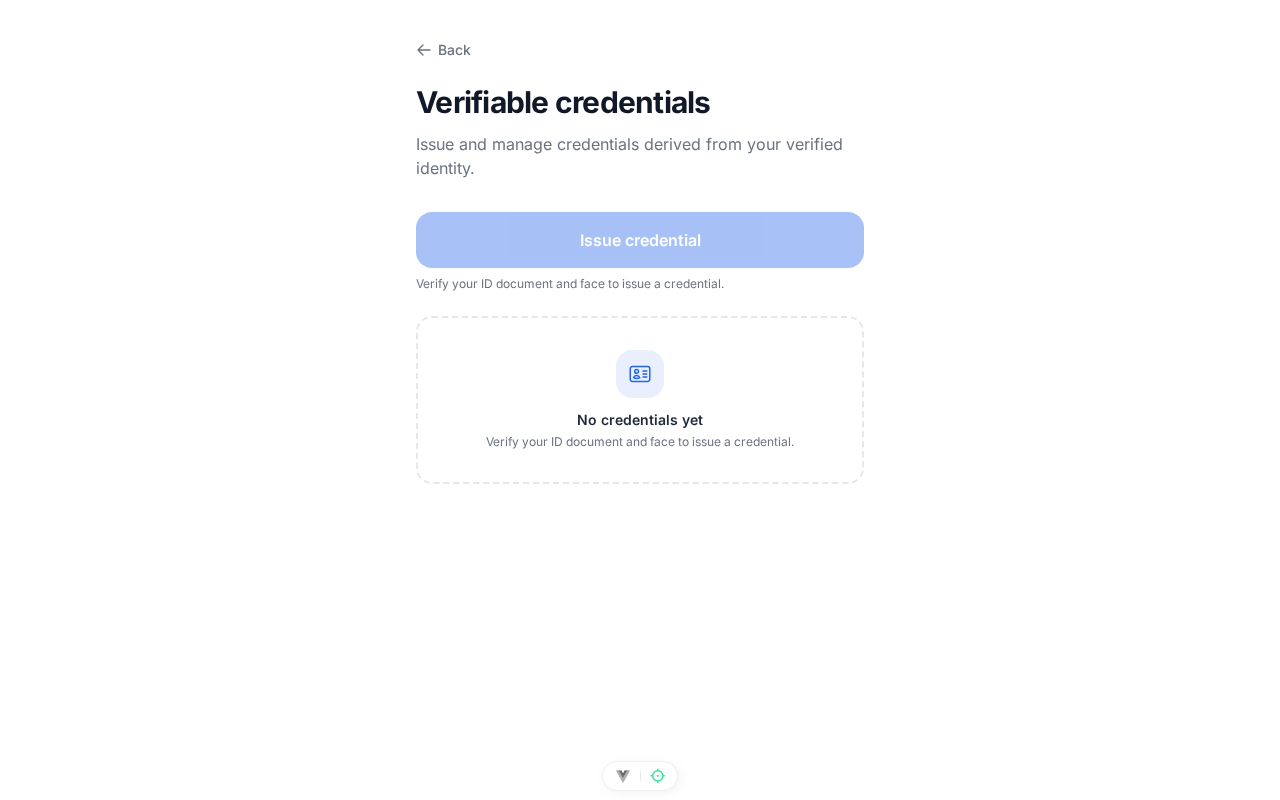
Users manage their credentials from the **Credentials** view in their Truora Pass account. To issue an identity credential, a user needs a **verified, unexpired identity document** and a completed **face verification** in Truora Pass — the same verifications behind the [identity claims](/truora-pass/userinfo_and_claims/). A user who has not completed them is guided through verification first.
{{ }}
When the user issues the credential:
1. Truora Pass generates a **holder key pair on the user's device** — the private key is non-extractable and never leaves the device.
2. Truora Pass signs an SD-JWT identity credential over the user's verified document and face data, bound to that key.
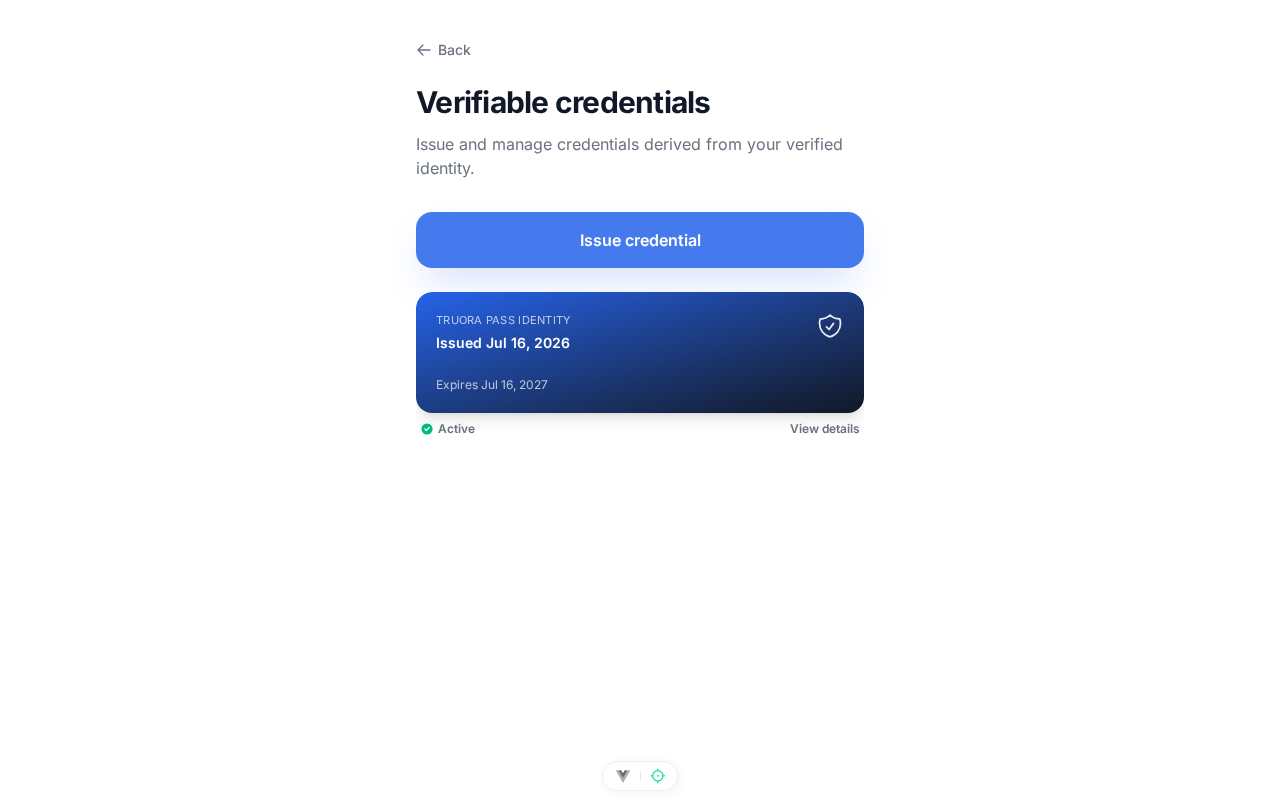
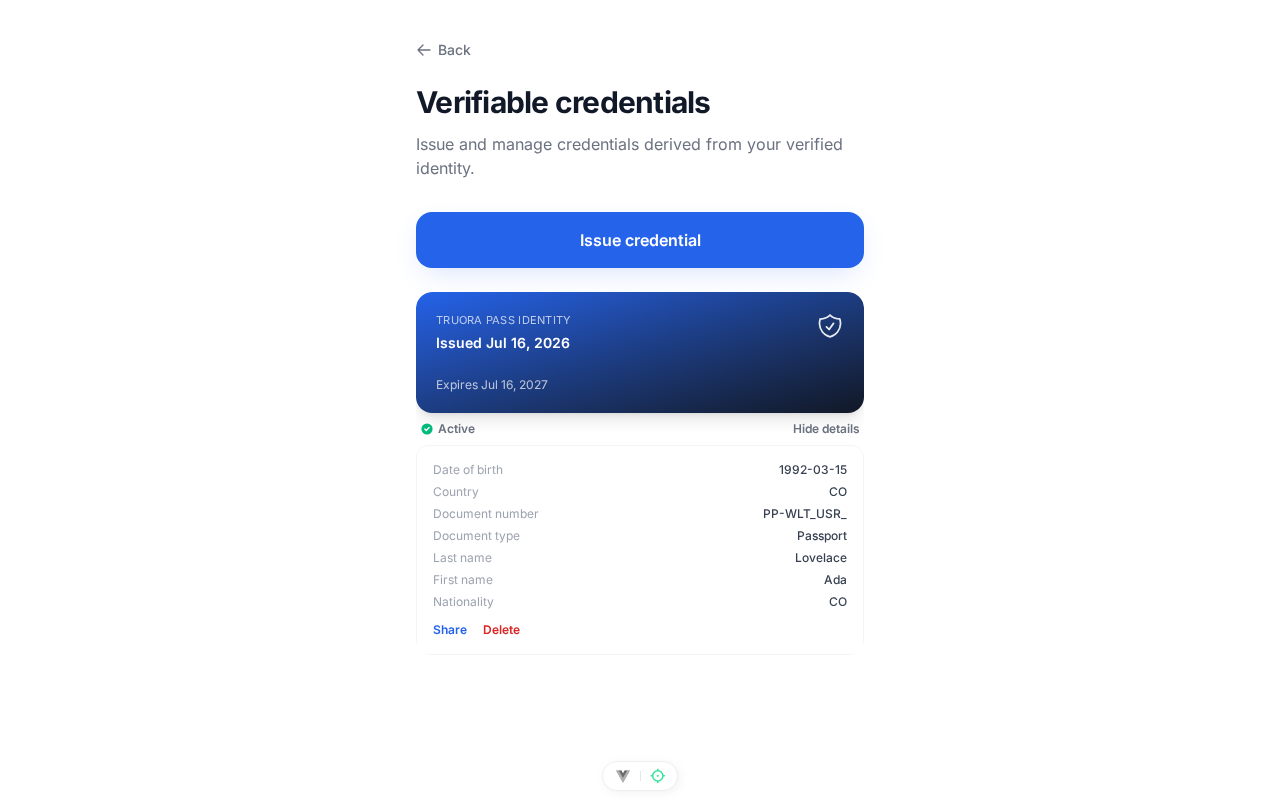
3. The credential is stored **on the device**, and appears in the Credentials view with its type, issue date, and status.
{{
}}
When the user issues the credential:
1. Truora Pass generates a **holder key pair on the user's device** — the private key is non-extractable and never leaves the device.
2. Truora Pass signs an SD-JWT identity credential over the user's verified document and face data, bound to that key.
3. The credential is stored **on the device**, and appears in the Credentials view with its type, issue date, and status.
{{ }}
**Note**: the credential and its claims live only on the user's device. Truora Pass keeps just administrative metadata (credential type, status, and dates) — never the credential itself. If the user clears their browser data or switches devices, the credential is gone from the wallet; they can simply re-issue, which revokes the previous credential. Each user holds at most **one active identity credential**.
## Sharing via link or QR
From a credential's detail view, the user can create a **share link**:
1. The user taps **Share** on the credential.
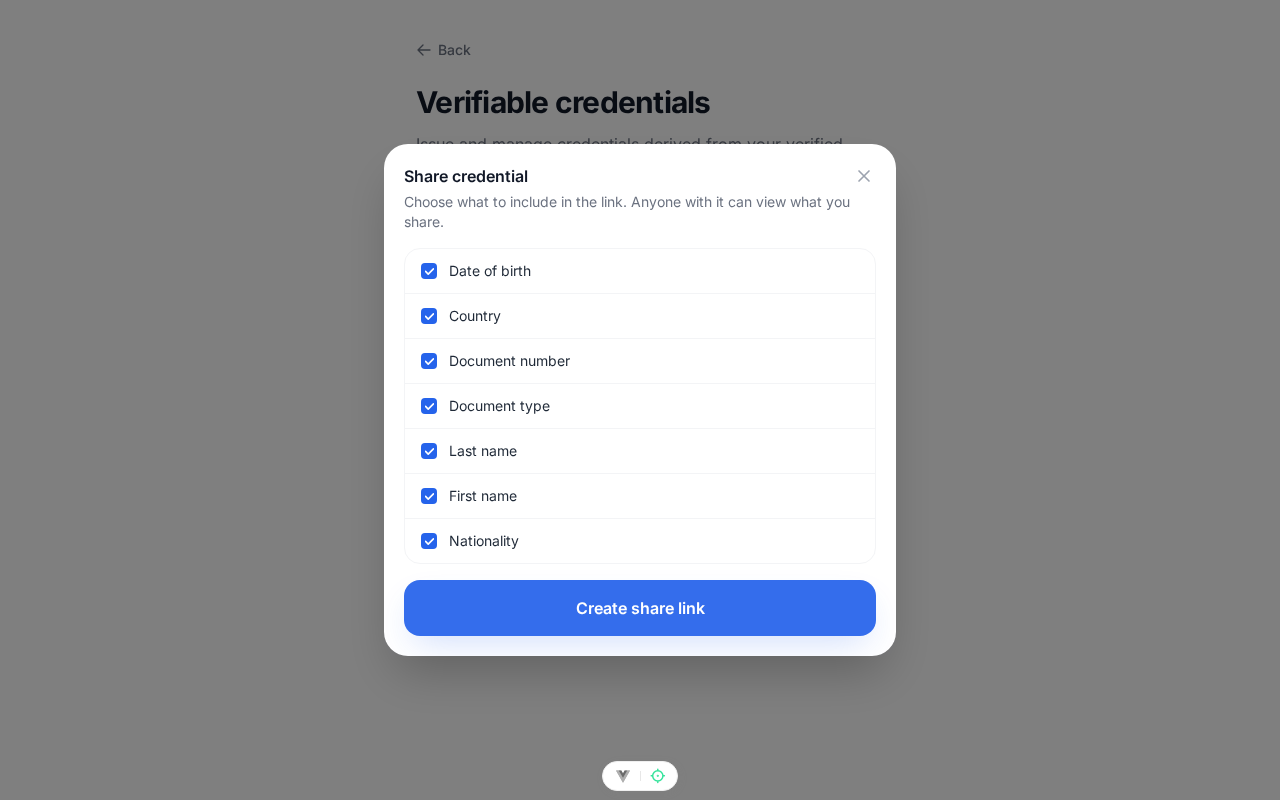
2. A claim-selection sheet lists every claim in the credential; the user picks exactly which ones to include.
{{
}}
**Note**: the credential and its claims live only on the user's device. Truora Pass keeps just administrative metadata (credential type, status, and dates) — never the credential itself. If the user clears their browser data or switches devices, the credential is gone from the wallet; they can simply re-issue, which revokes the previous credential. Each user holds at most **one active identity credential**.
## Sharing via link or QR
From a credential's detail view, the user can create a **share link**:
1. The user taps **Share** on the credential.
2. A claim-selection sheet lists every claim in the credential; the user picks exactly which ones to include.
{{ }}
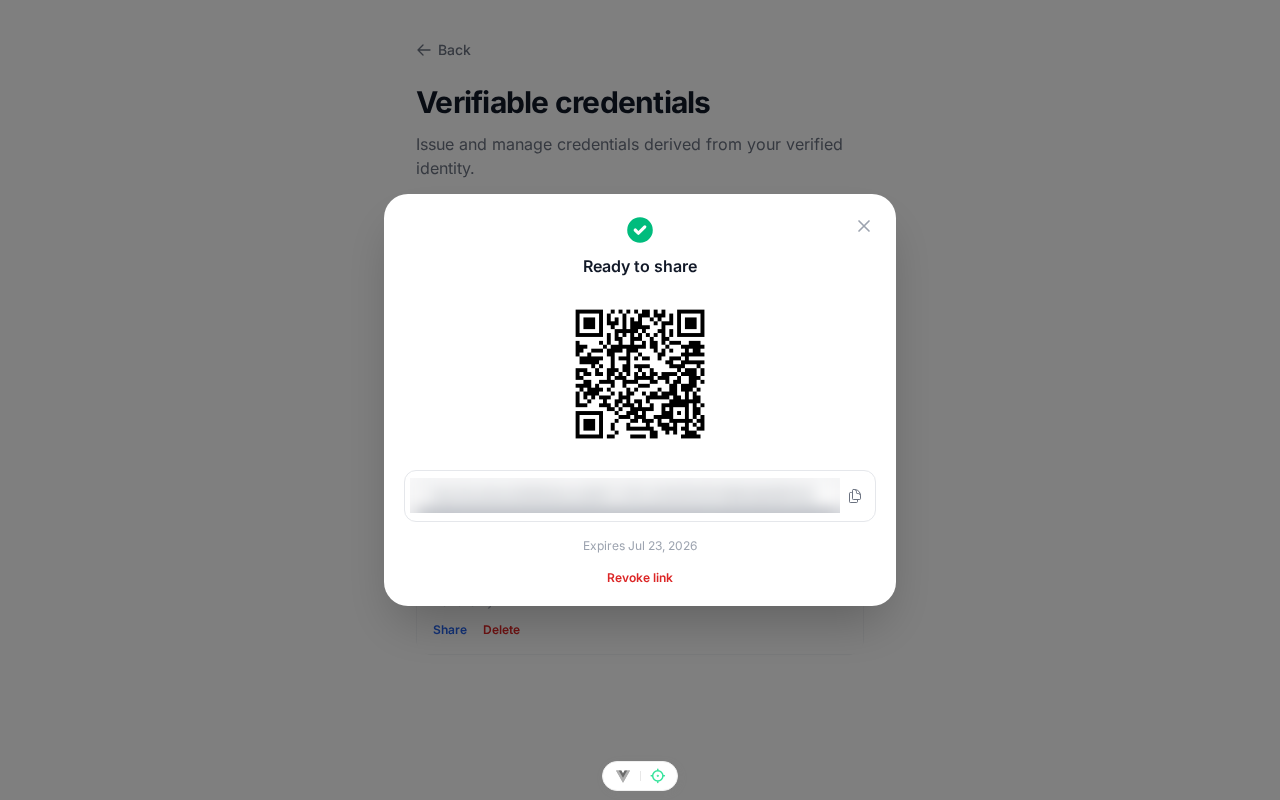
3. On the user's device, the wallet builds and signs a presentation (`vp_token`) over the selected claims and submits it to Truora Pass. The Truora Pass backend verifies that presentation and stores the verified result behind a public share page. The user gets a **link and a QR code** to hand out.
{{
}}
3. On the user's device, the wallet builds and signs a presentation (`vp_token`) over the selected claims and submits it to Truora Pass. The Truora Pass backend verifies that presentation and stores the verified result behind a public share page. The user gets a **link and a QR code** to hand out.
{{ }}
Anyone opening the link sees the **verified claims** the user selected, the credential's status, and the raw presentation (`vp_token`) for independent cryptographic verification — see [Verifying a shared credential](/truora-pass/verifying_presentations/#verifying-a-shared-credential).
{{
}}
Anyone opening the link sees the **verified claims** the user selected, the credential's status, and the raw presentation (`vp_token`) for independent cryptographic verification — see [Verifying a shared credential](/truora-pass/verifying_presentations/#verifying-a-shared-credential).
{{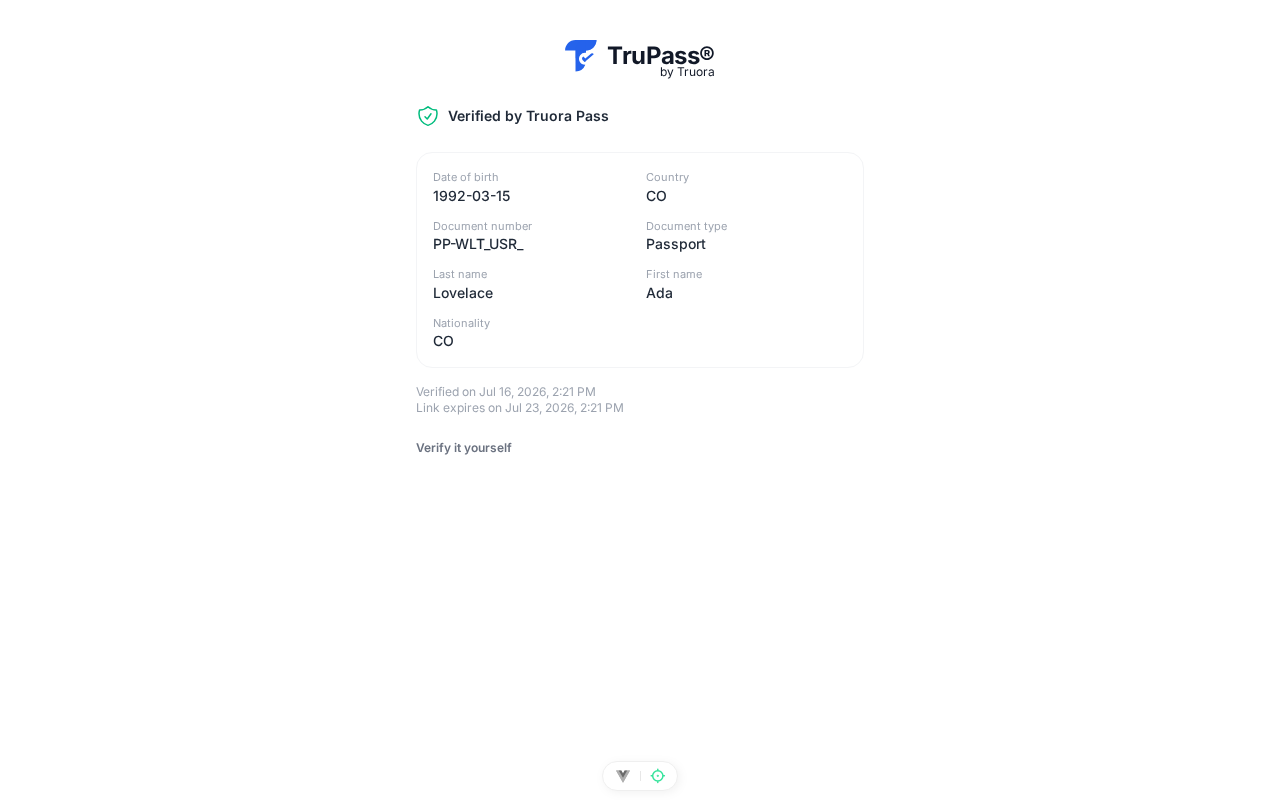 }}
Key properties of a share:
- It contains **only the claims the user selected** — nothing else from the credential is exposed.
- It expires **7 days** after creation.
- The user can **revoke the link** at any time before it expires; a revoked or expired link shows nothing (the API returns 404).
- Revoking a share link does **not** revoke the credential itself — only that link.
## Approving a presentation request
When your application [creates a presentation request](/truora-pass/verifying_presentations/), the user reviews it on the Truora Pass consent screen: your application's name and the claims you requested, each individually selectable. The user can approve everything, approve a subset, or decline.
{{
}}
Key properties of a share:
- It contains **only the claims the user selected** — nothing else from the credential is exposed.
- It expires **7 days** after creation.
- The user can **revoke the link** at any time before it expires; a revoked or expired link shows nothing (the API returns 404).
- Revoking a share link does **not** revoke the credential itself — only that link.
## Approving a presentation request
When your application [creates a presentation request](/truora-pass/verifying_presentations/), the user reviews it on the Truora Pass consent screen: your application's name and the claims you requested, each individually selectable. The user can approve everything, approve a subset, or decline.
{{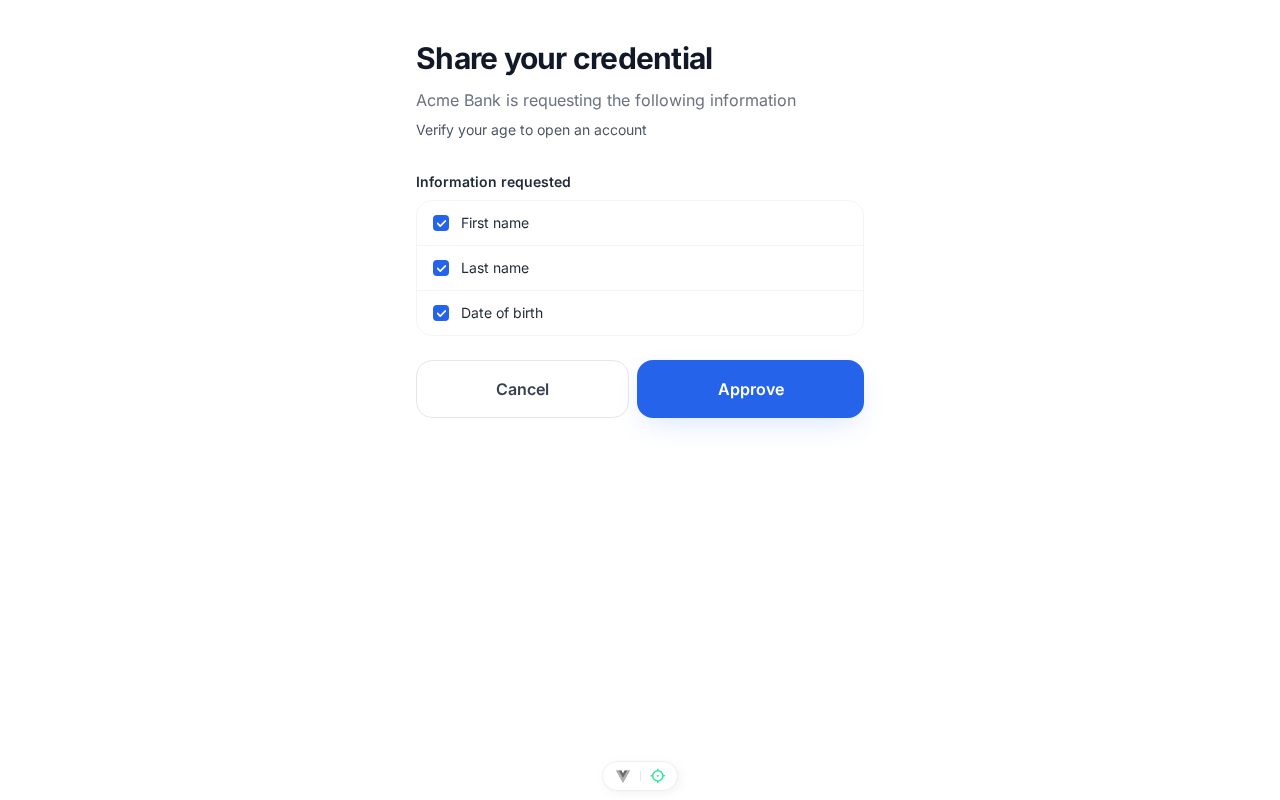 }}
Once approved, the wallet builds and delivers the presentation automatically — the user is done, and your backend picks up the verified result.
## Revoking a credential
The user can delete a credential from the Credentials view at any time. Deleting it:
- removes it from the device, and
- marks it **revoked** in the Truora Pass [status list](/truora-pass/verifiable_credentials/#revocation).
{{
}}
Once approved, the wallet builds and delivers the presentation automatically — the user is done, and your backend picks up the verified result.
## Revoking a credential
The user can delete a credential from the Credentials view at any time. Deleting it:
- removes it from the device, and
- marks it **revoked** in the Truora Pass [status list](/truora-pass/verifiable_credentials/#revocation).
{{ }}
Any later presentation of a revoked credential fails verification with the `credential_revoked` error code — including presentations from copies of the credential elsewhere. Re-issuing after a revocation is always available, provided the user's document verification is still valid.
}}
Any later presentation of a revoked credential fails verification with the `credential_revoked` error code — including presentations from copies of the credential elsewhere. Re-issuing after a revocation is always available, provided the user's document verification is still valid.