
Preconfigured lists (Form Builder)
This guide explains how to use preconfigured lists in form builder.
What are preconfigured lists?
Preconfigured lists are catalogs maintained by the system (countries, cities, departments/regions, etc.) that you can use as options in List, Checkbox, or Radio questions. Instead of typing options manually, you choose a list and, when applicable, configure its filters.
Benefits:
- Standardized options kept up to date by the system.
- Translation: option labels are shown in the language of the user filling the form (according to locale).
- Less maintenance: you do not need to load or edit items manually.
Where to configure them
Preconfigured list settings appear when:
- In the Form Builder you add or edit a question.
- The question type is List, Checkbox, or Radio.
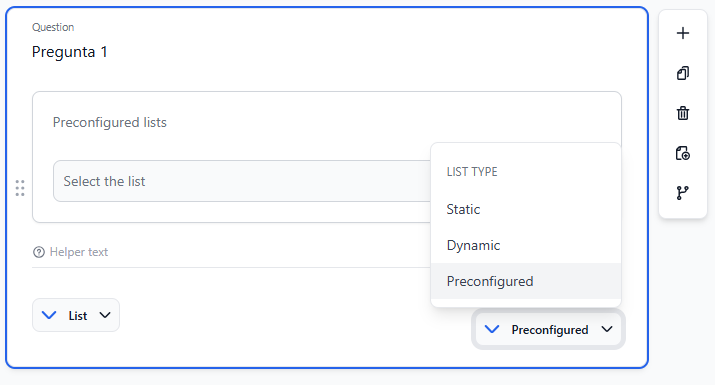
- In the list type selector you choose Preconfigured list.
After that, the “Preconfigured lists” block is shown, with the dropdown to select the list and, if the list has filters, the rows to configure each filter.
Available lists
Currently, preconfigured lists include, among others:
| List | Typical description | Common use |
|---|---|---|
| Countries | Country catalog | Country of residence, nationality |
| Departments / Regions | Regions or departments by country | Department/state/region |
| Cities | Cities, usually filtered by country | City of residence, city of birth |
How to configure a list
-
Choose the list
In “Select list” choose the list you want (e.g., Cities, Countries, Departments). -
Review filters
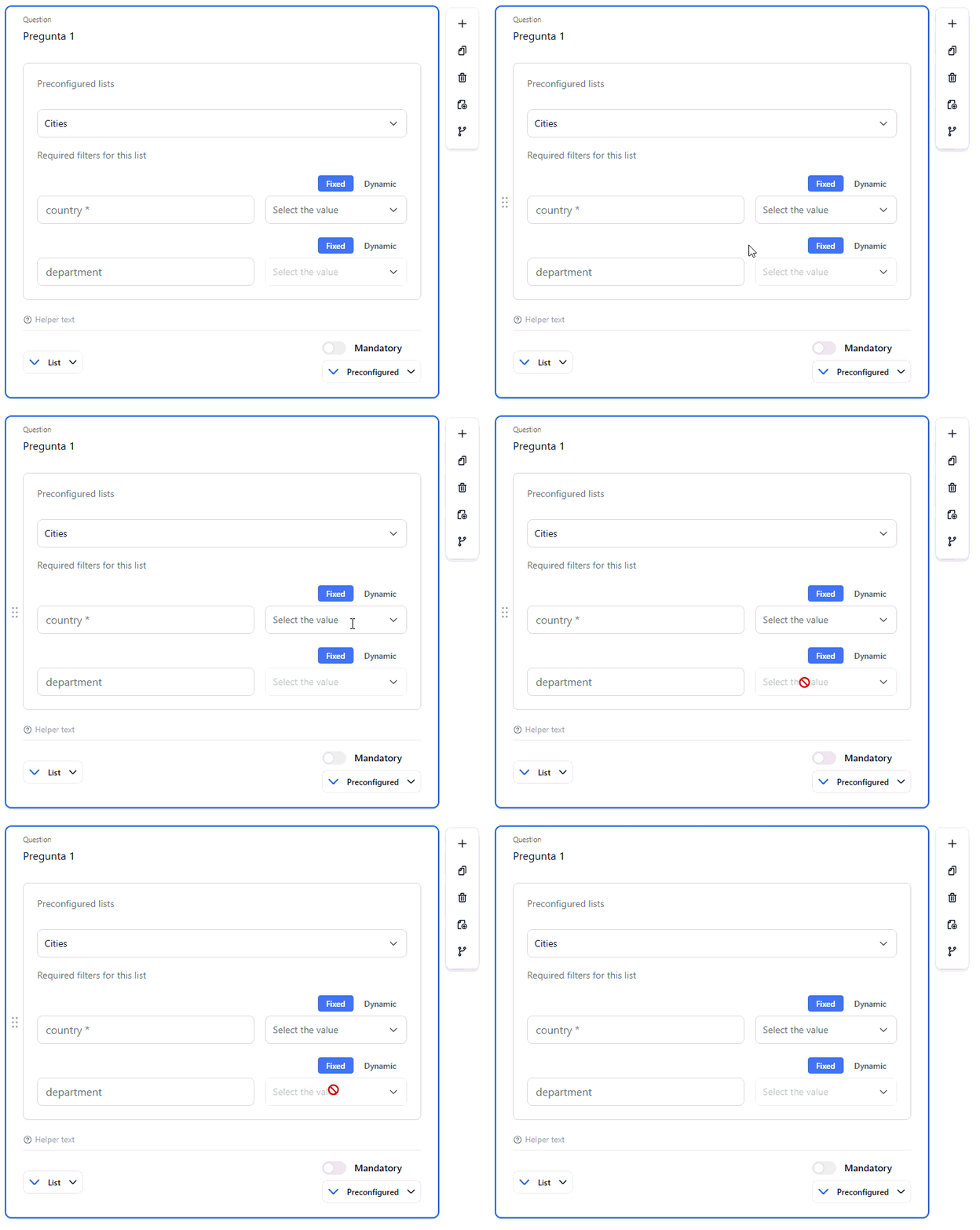
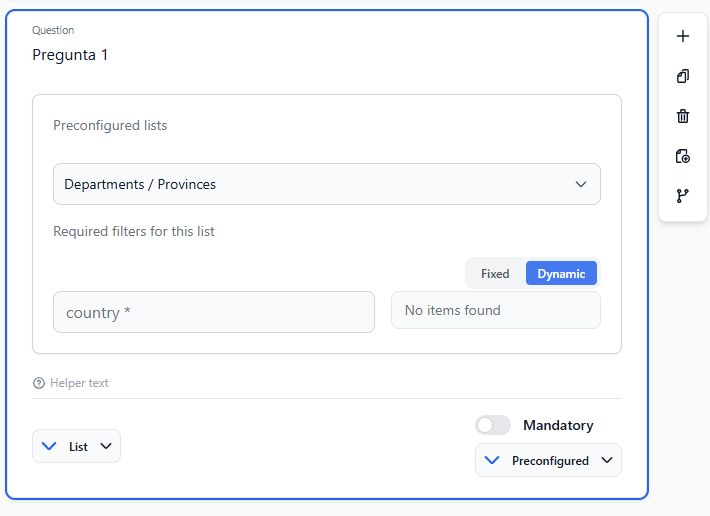
If the list has filters, the “Required filters for this list” section (or similar) appears below. Each row is a filter:- Filter name: e.g.
country,department. If required, it is usually shown with an asterisk (*).
- Filter name: e.g.
-
Choose mode per filter: Fixed or Dynamic
For each filter there are two options:- Fixed: you set the filter value in the form configuration (a single value, e.g. a country).
- Dynamic: the value comes from the user’s answer to another question in the same form (an earlier question that uses the same list or data type).
-
Set the filter value
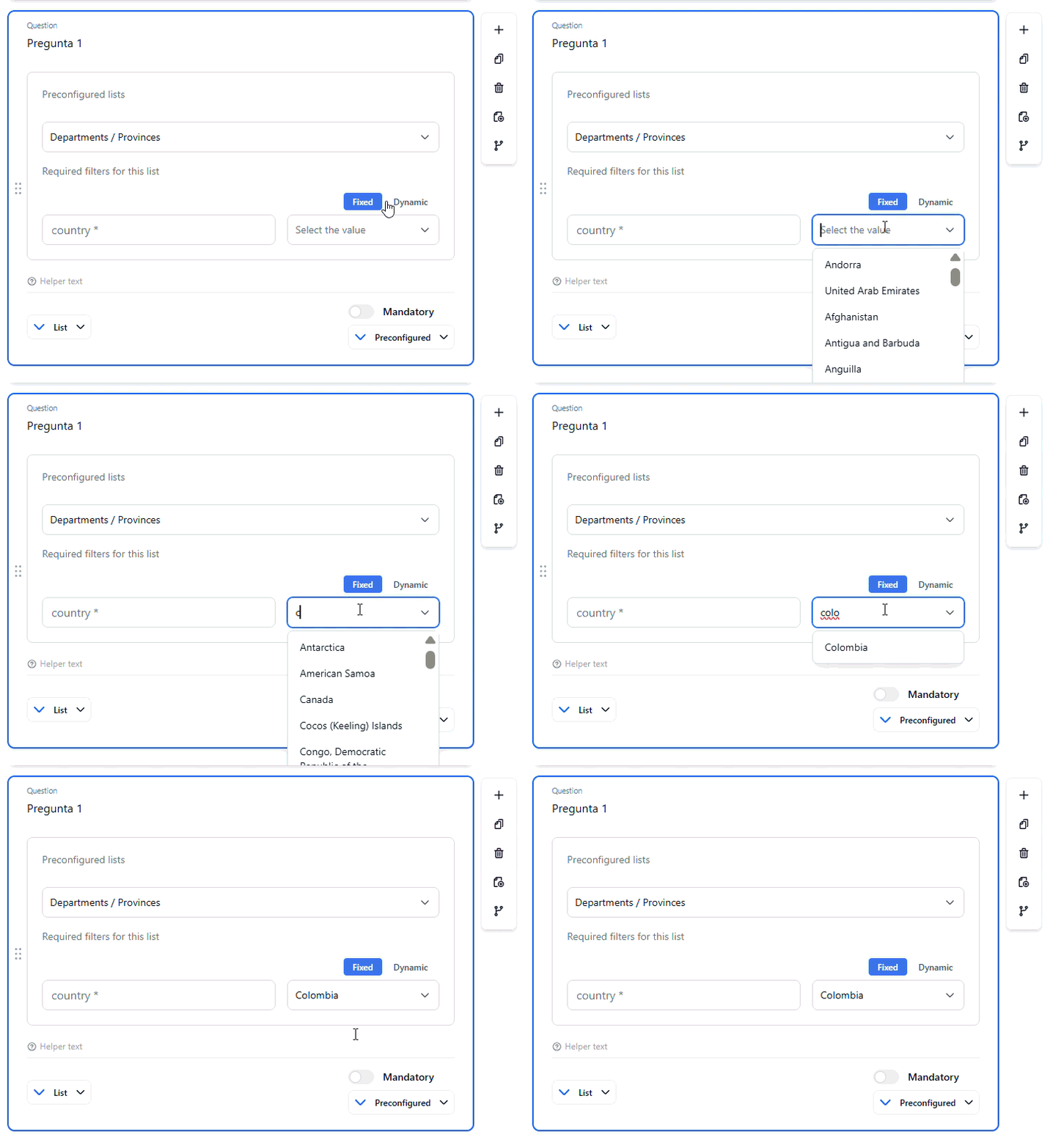
- If you chose Fixed: in that filter’s dropdown you select the value (country, department, etc.). Options load according to the list and any filters you already configured above.
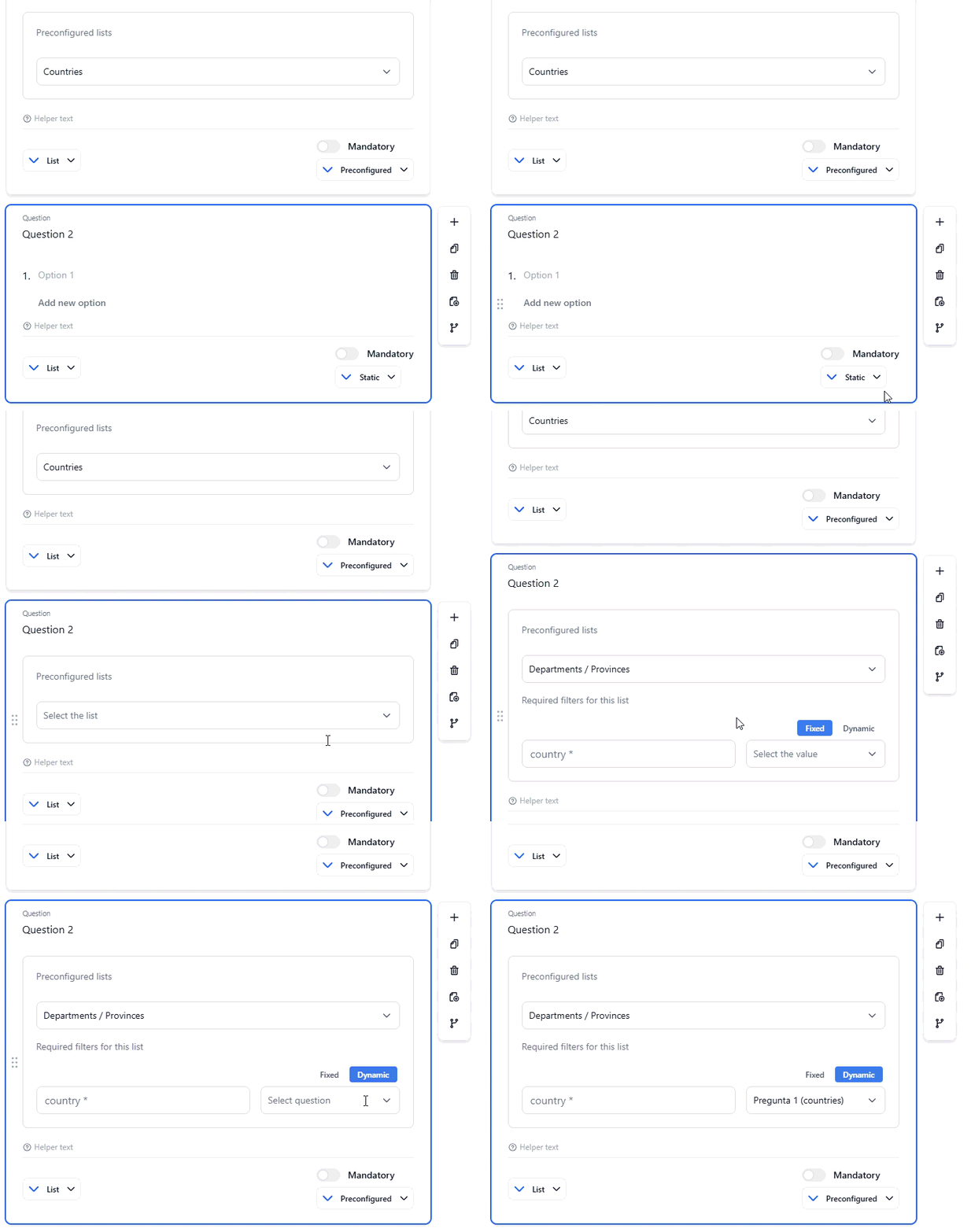
- If you chose Dynamic: in the dropdown you select the question (by name or ID) that will provide the answer. Only questions that appear earlier in the form and use the same preconfigured list (or the correct data type for that filter) are listed.
-
Filter order
If the list has multiple filters (e.g. country then department), configure them top to bottom. Until you set a value for the first filter, the next one may stay disabled or show no options.
Required and optional filters
-
Required (*)
Must be set for the list to work. If you leave any required filter unset, the form may show a configuration error (e.g. “Required filters for the list are not configured”). -
Optional
You can leave them empty if you do not need them.
In the UI, required filters are usually labeled with an asterisk (e.g. country *).
Fixed and dynamic values
Fixed value
- What it is: you choose one specific value in the form configuration (e.g. country = Colombia).
- What it does: when the question is shown to the user, the system uses that value to filter the list. For example, if the list is “Cities” and the country filter is fixed to “Colombia”, the user only sees cities in Colombia.
- Where to set it: in the filter’s dropdown with Fixed mode selected. The options are the list items (or sub-list) according to any filters you already set above.
Dynamic value
- What it is: the filter value is not set by you; it comes from another question in the same form.
- What it does: when the question is shown, the system uses the answer the user already gave in that other question to filter the list. For example, if you ask “Country” first and then “City”, you can set the “country” filter of the Cities list to Dynamic and point it to the “Country” question; then the user only sees cities for the country they selected.
- Where to set it: with Dynamic mode selected, in the dropdown you choose the question (by label or ID). Only questions that:
- Appear before the current question in the form.
- Use a preconfigured list and the same list (or the right type for that filter) are shown.
Rule: do not mix fixed and dynamic
All filters for the same question must be either all fixed or all dynamic. You cannot have one filter fixed and another dynamic for the same list.
- If you set Dynamic for one filter, the other filters for that list switch to dynamic (or fixed is disabled until everything is consistent).
- If you try to keep some fixed and some dynamic, the system will show an error such as: “Fixed and dynamic filters cannot be mixed.”
If you set a filter to Dynamic but there is no earlier question in the form that uses the same list (or correct type), the dropdown will show a message such as “No items found” until you add a compatible question above.
Which question types support them
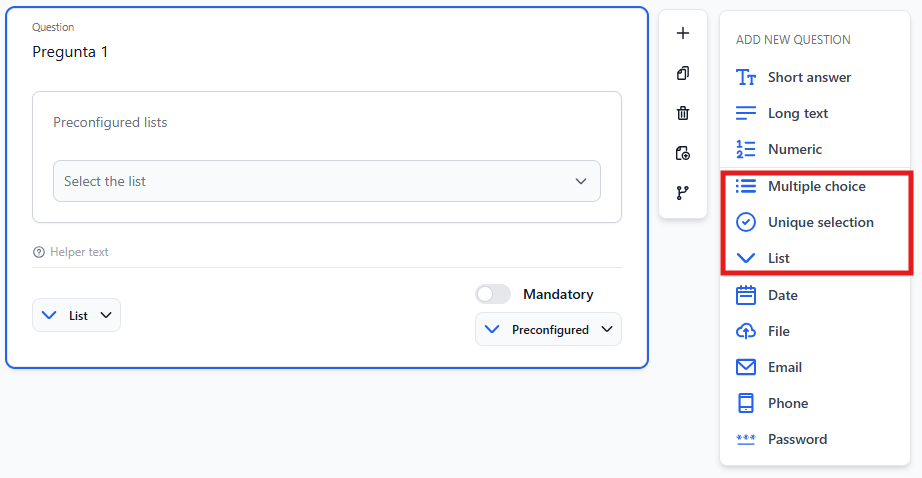
Preconfigured lists are used in:
- List (single-option dropdown/select).
- Checkbox (multiple selection).
- Radio (single selection from a list of options).
In the Form Builder, you first choose one of these question types, then set the list type to Preconfigured list. Only then does the preconfigured list configuration block appear.
Quick reference
| Concept | Description |
|---|---|
| Preconfigured list | System catalog (countries, cities, departments, etc.) used as options in List/Checkbox/Radio. |
| Translation | Option labels are shown in the language of the user filling the form. |
| Required filter | Must be configured for the list to be valid. |
| Fixed filter | You choose a single value in the configuration; that value is always used to filter the list. |
| Dynamic filter | The value comes from the user’s answer in an earlier question in the same form. |
| Do not mix | For a given question, all filters must be either fixed or dynamic. |
| Order | Configure filters in the order they appear (top to bottom); later filters may depend on earlier ones. |
For more on building forms, see the Create forms guide.