
Configure your flows to perform API requests
After configuring a Custom integration you’re now ready to use it within your Web flow to perform API requests during user interactions. In this guide, you will learn how to use the Custom integration block within Truora’s Flow builder through a practical example.
Before beginning
-
If this is your first time exploring our Customs integrations feature, you’ll need to understand how to set up an integration for your external API service before proceeding with this guide. We strongly recommend reading our Custom integrations guide to better understand how these integrations work. The integration configured in that guide will also be used as an example in this one.
- If you’re unfamiliar with Web flows, we recommend reading the guide on how to Create a Web flow using Truora’s flow builder.
To summarize, the integration mentioned above contains two actions:
- Create user validation: This action receives a username provided by the user, makes a request to the API, which sends an OTP code to the user’s email, and returns a Validation ID if the user exists. This Validation ID will be the input for the next action.
- Validate code: This action receives the Validation ID from the first action, along with the OTP code entered by the user, and makes an API request to validate the code.
Flow structure
For this guide’s purposes, we’ll create a Web flow that follows this simple process:
-
The user accesses the Web flow through a Web process link, which starts the flow execution.
-
The user is prompted to enter their username
-
The flow makes an API request using the provided username as input to the Create user validation action of the Custom integration.
-
The Create user validation action responds with the status of the API request. If successful, it returns a Validation ID, and an OTP Code is sent to the user’s registered email.
4.1. If the request fails, the flow follows a fallback path to allow the user to continue the validation through an alternative method. -
The user is prompted to enter the OTP Code received by email.
-
The flow makes an API request using the provided OTP Code and the Validation ID as inputs to the Validate code action of the Custom integration.
-
The Validate code action responds with the validation status.
Based on this result, the user is informed about the outcome of the validation, and the flow then ends.
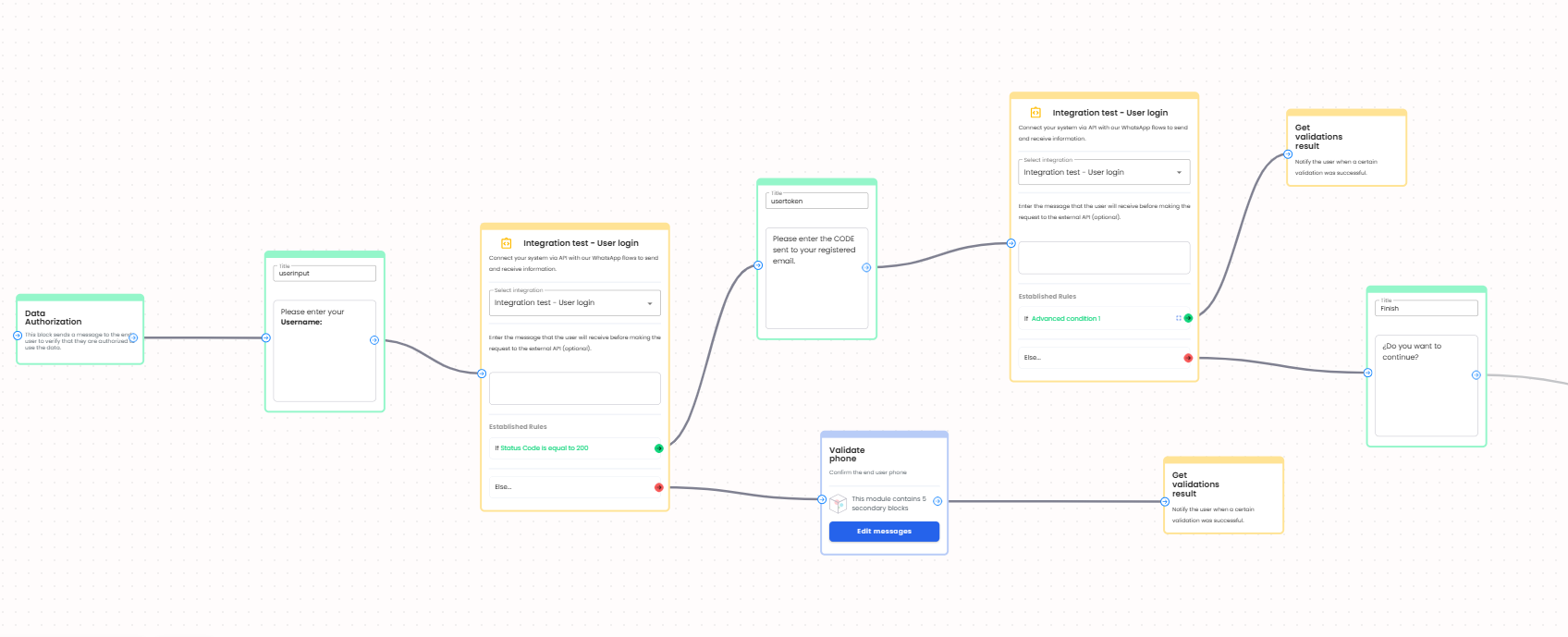
The following image shows the complete Web flow. Scroll horizontally to view each step of the flow execution. In the upcoming sections, we’ll walk you through how to configure each of these steps using the Flow builder.
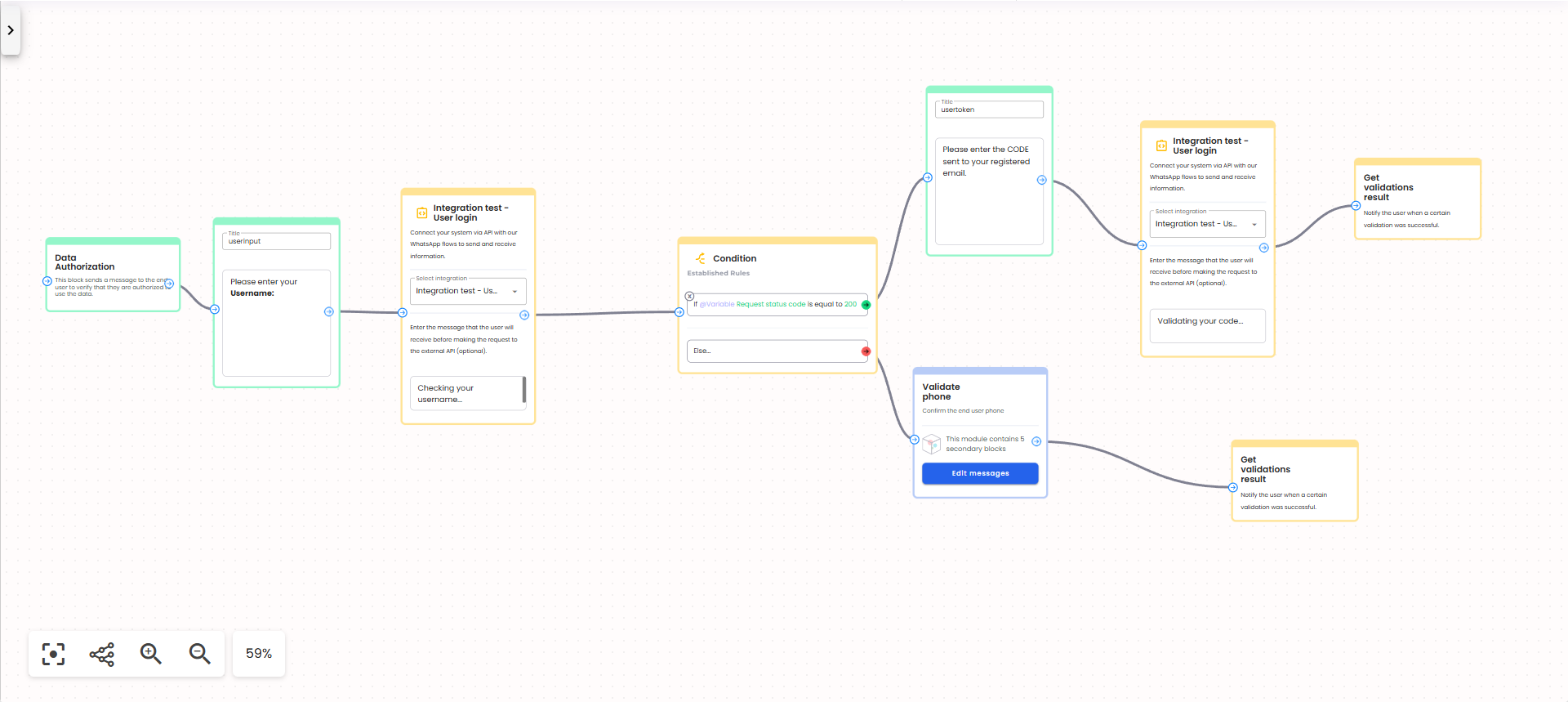
Creating the flow
Setting up the template
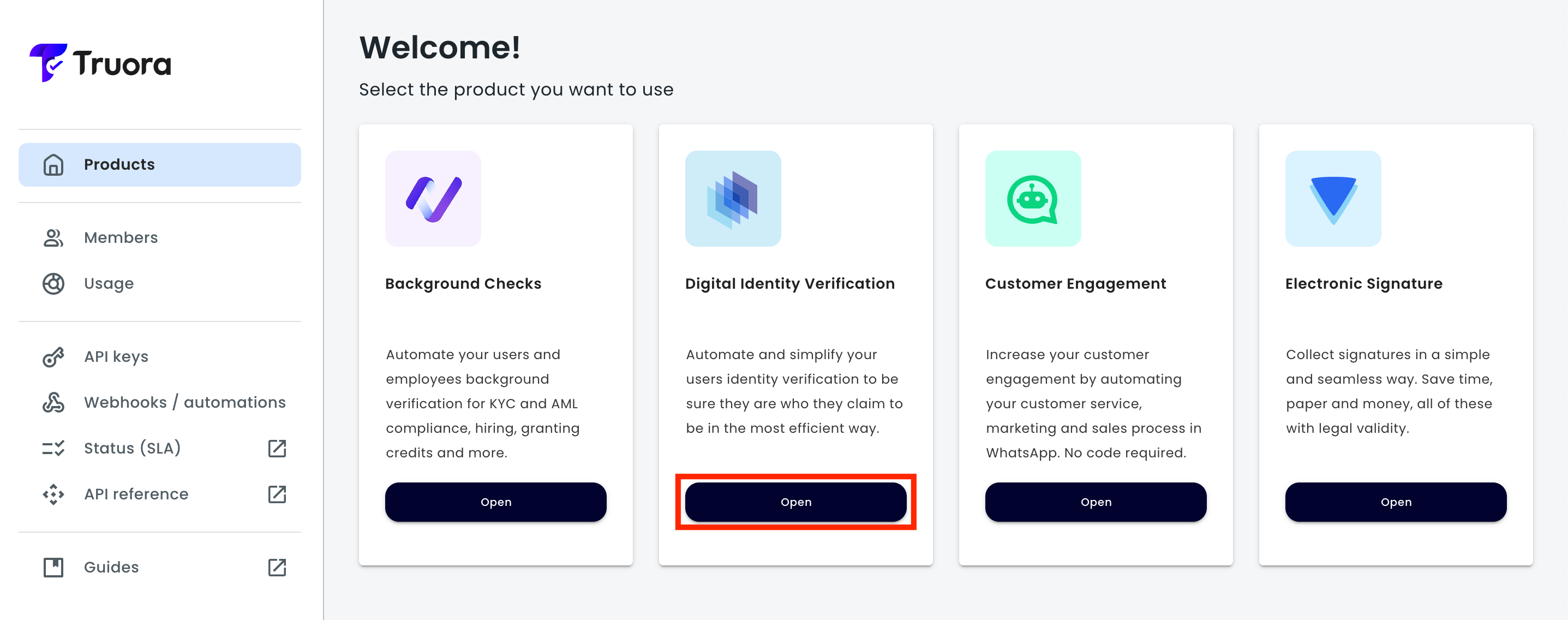
- Log into the Dashboard, and click the Open button in the Digital Identity Verification product.
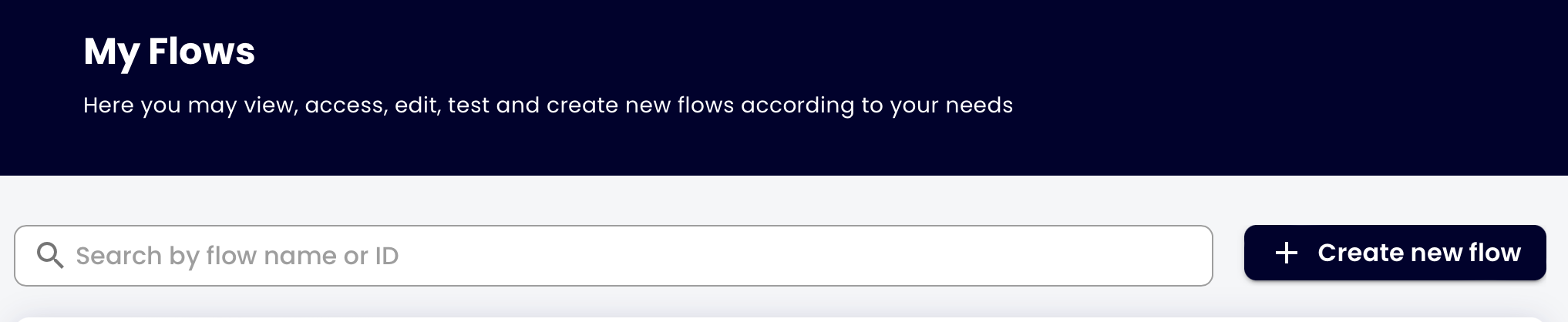
- Click on My flows and then on the Create new flow button.
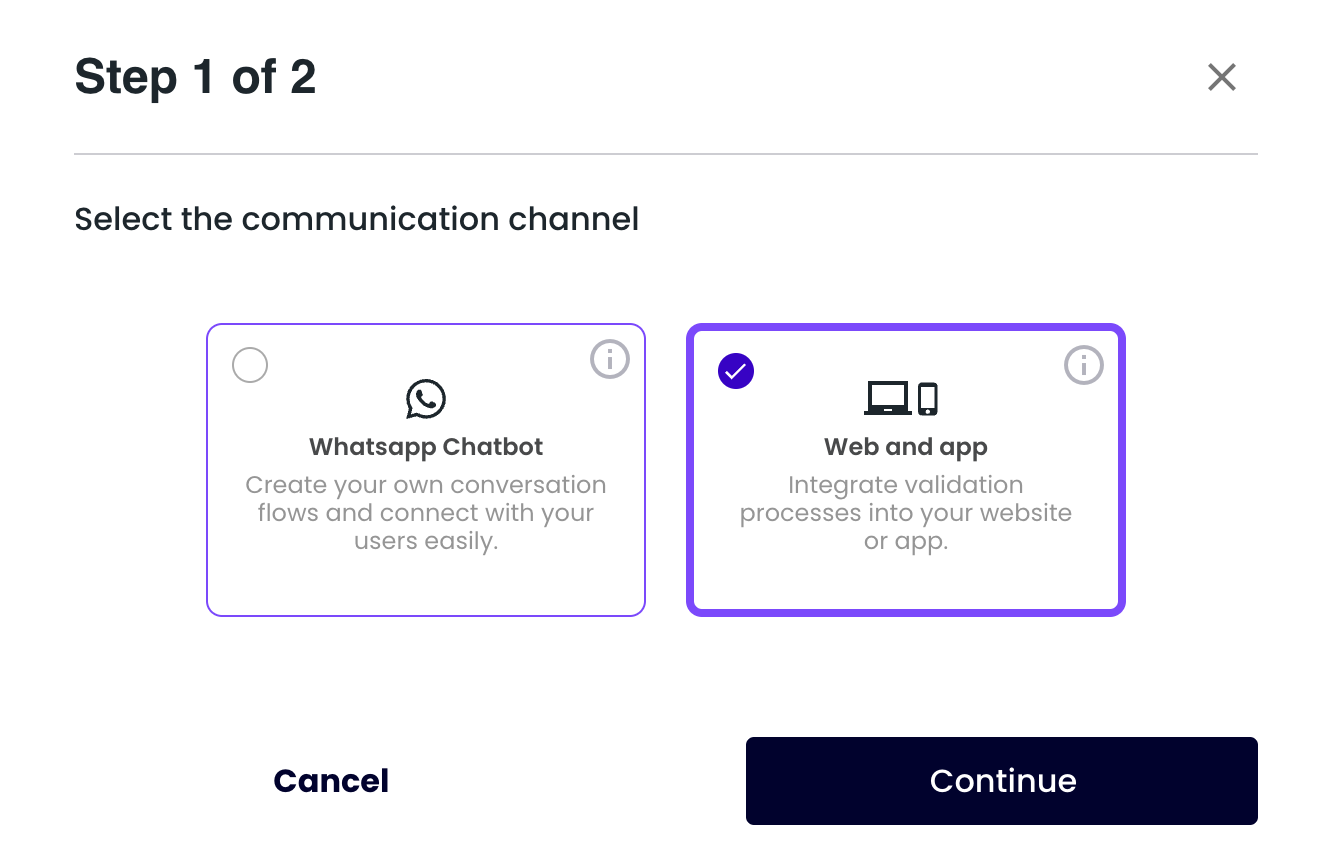
- Select the web communication channel and click on the Continue button.
- Now, in the tab Process using our flowbuilder’s drag & drop system, we will proceed to organize the next steps into sections that follow the flow structure mentioned before.
Adding the Data Authorization step
Unlike WhatsApp flows, Web flows are not triggered by Inbound or Outbound messages. Instead, they are accessed through a Web process link.
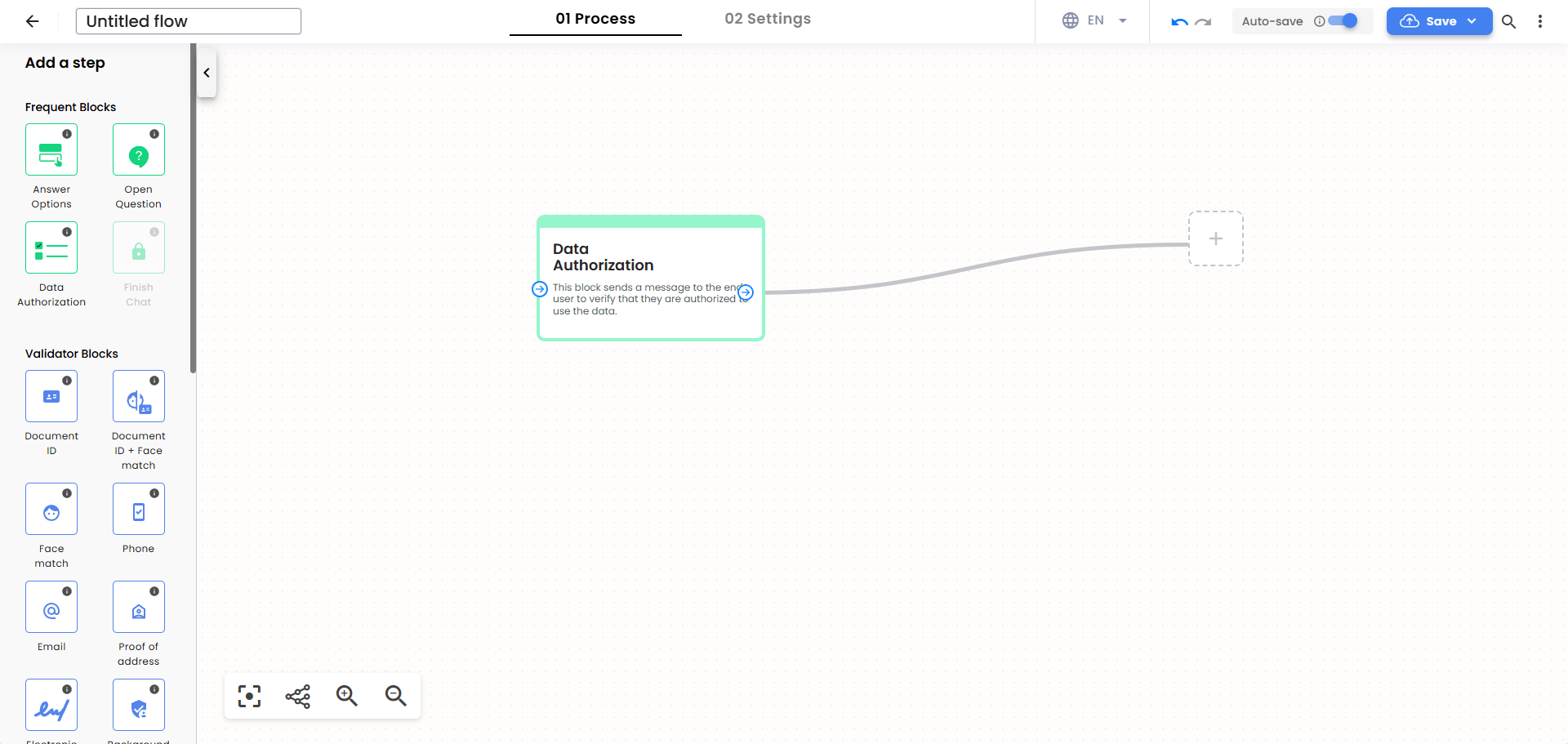
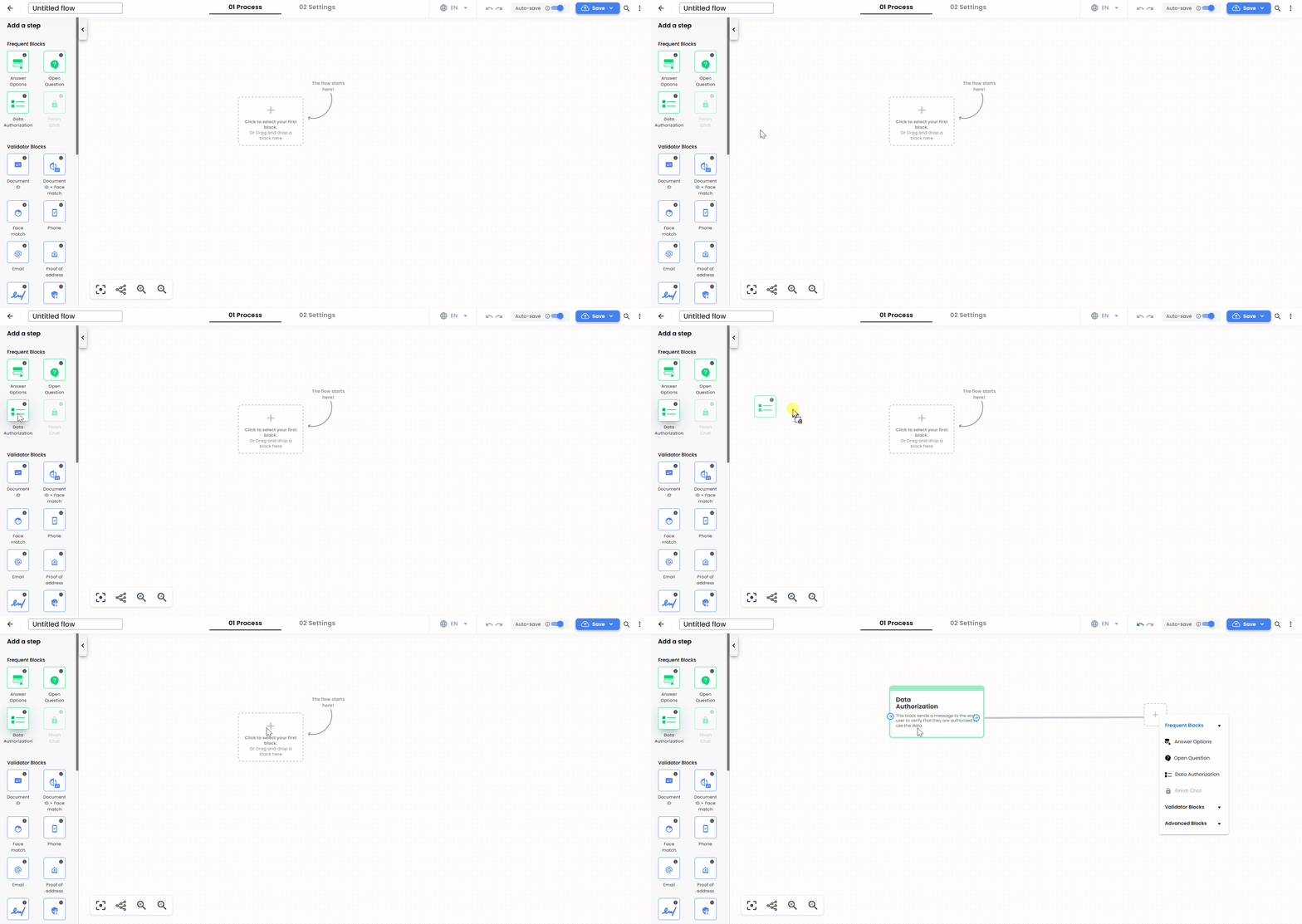
To start the Web flow, drag and drop the Data Authorization block from the Frequent Blocks section in the sidebar as the first step of the flow.
This block is used to inform the end user that their data will be processed as part of the verification flow and to request their authorization before continuing.
Asking for the Username
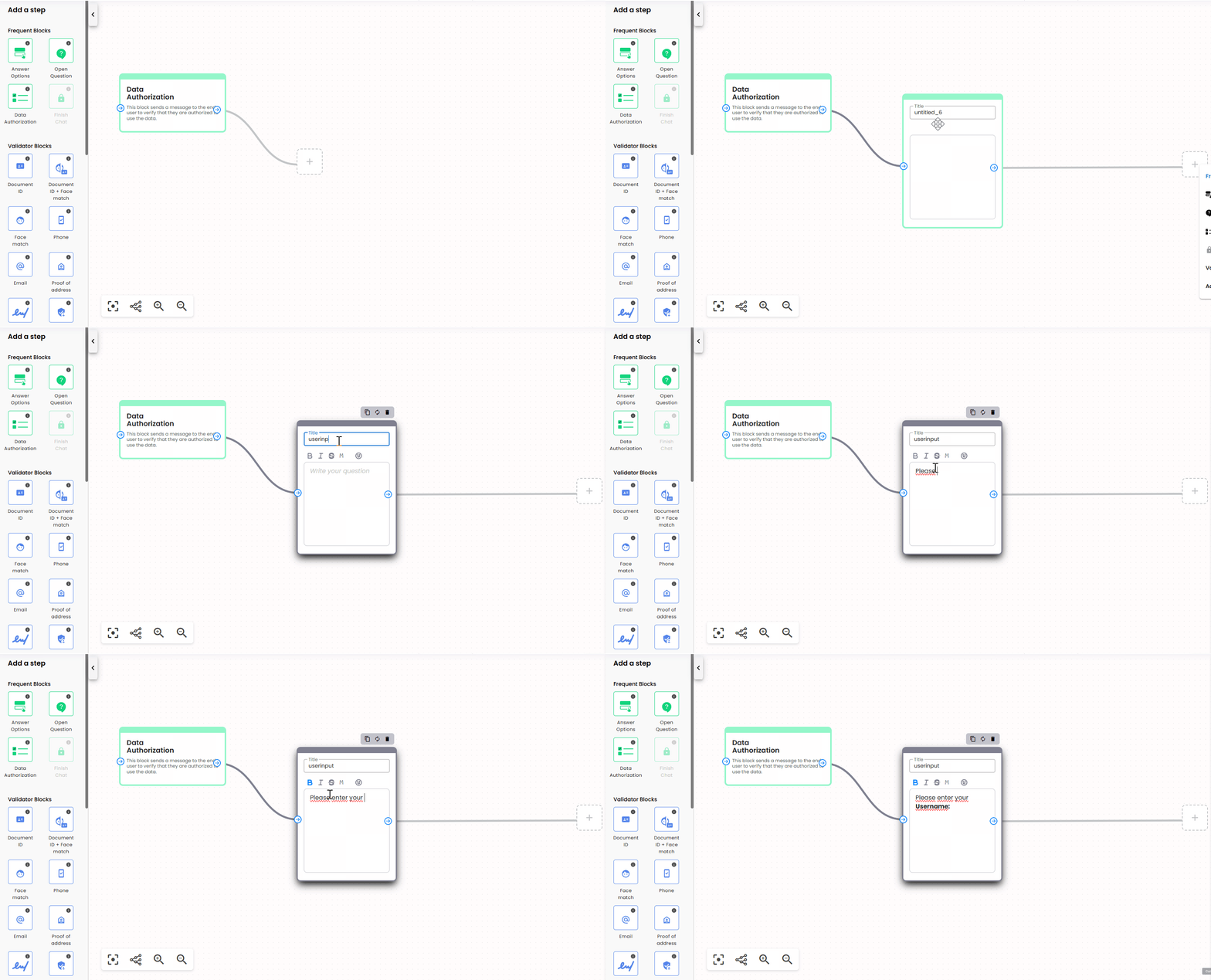
We need the user to provide their username in a message, so the second block in our flow will be an open question.
- Drag and drop an Open Question from the Frequent Blocks in the sidebar and connect it with the Data authorization block.
- Set a Title for this block. For example, “userinput”. A variable with this title will store the user’s answer.
- Enter the question for the user. For example, “Please enter your Username: “
Creating the validation with our Custom Integration
Next, we’ll send an API request using the provided username (userinput) as an input to the Create user validation action.
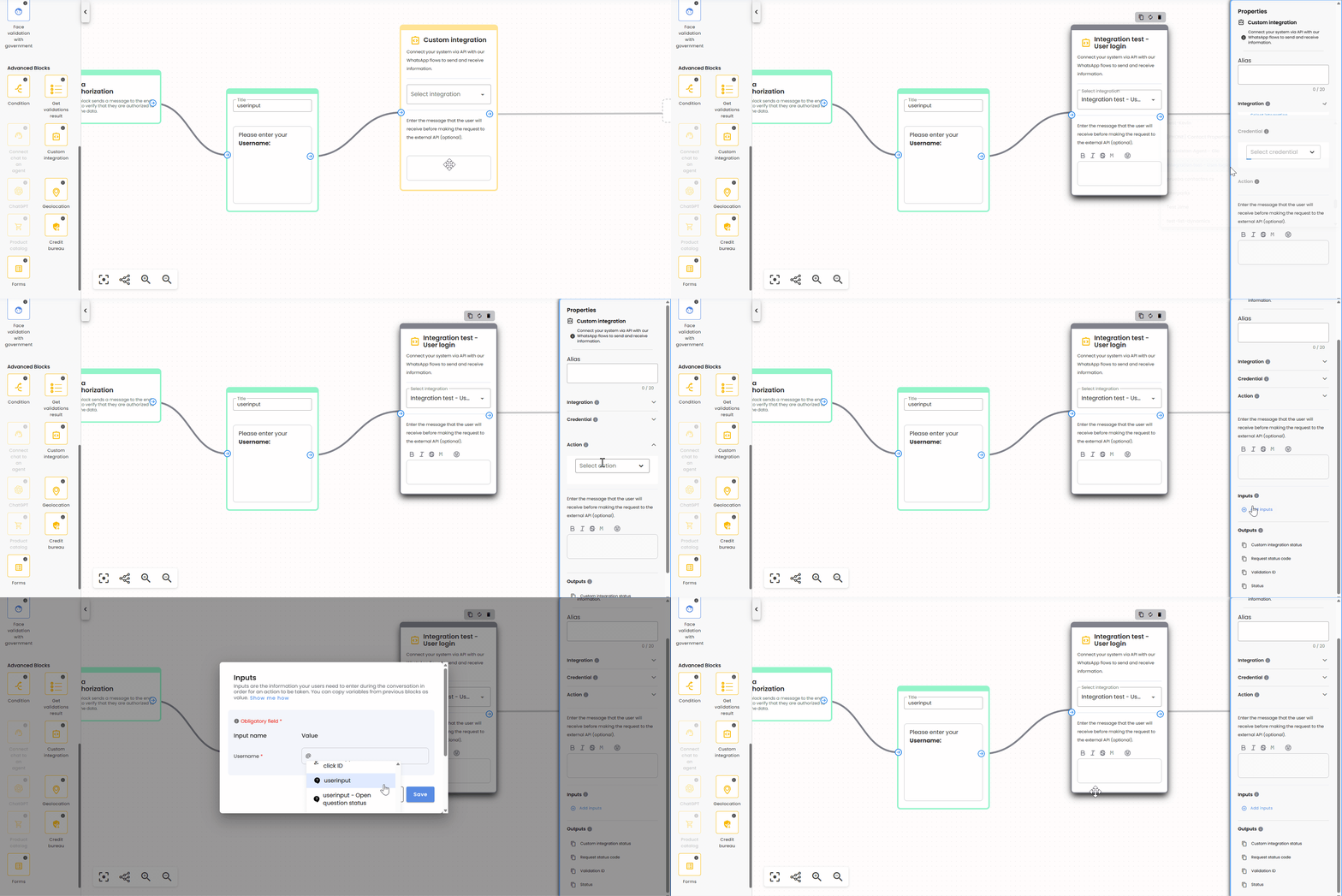
- Add a Custom Integration Block: Drag and drop a Custom integration block from the Advanced Blocks section in the sidebar and connect it with the Open Question block from the previous step. Note: If your account has no custom integrations, you won’t be able to select this block.
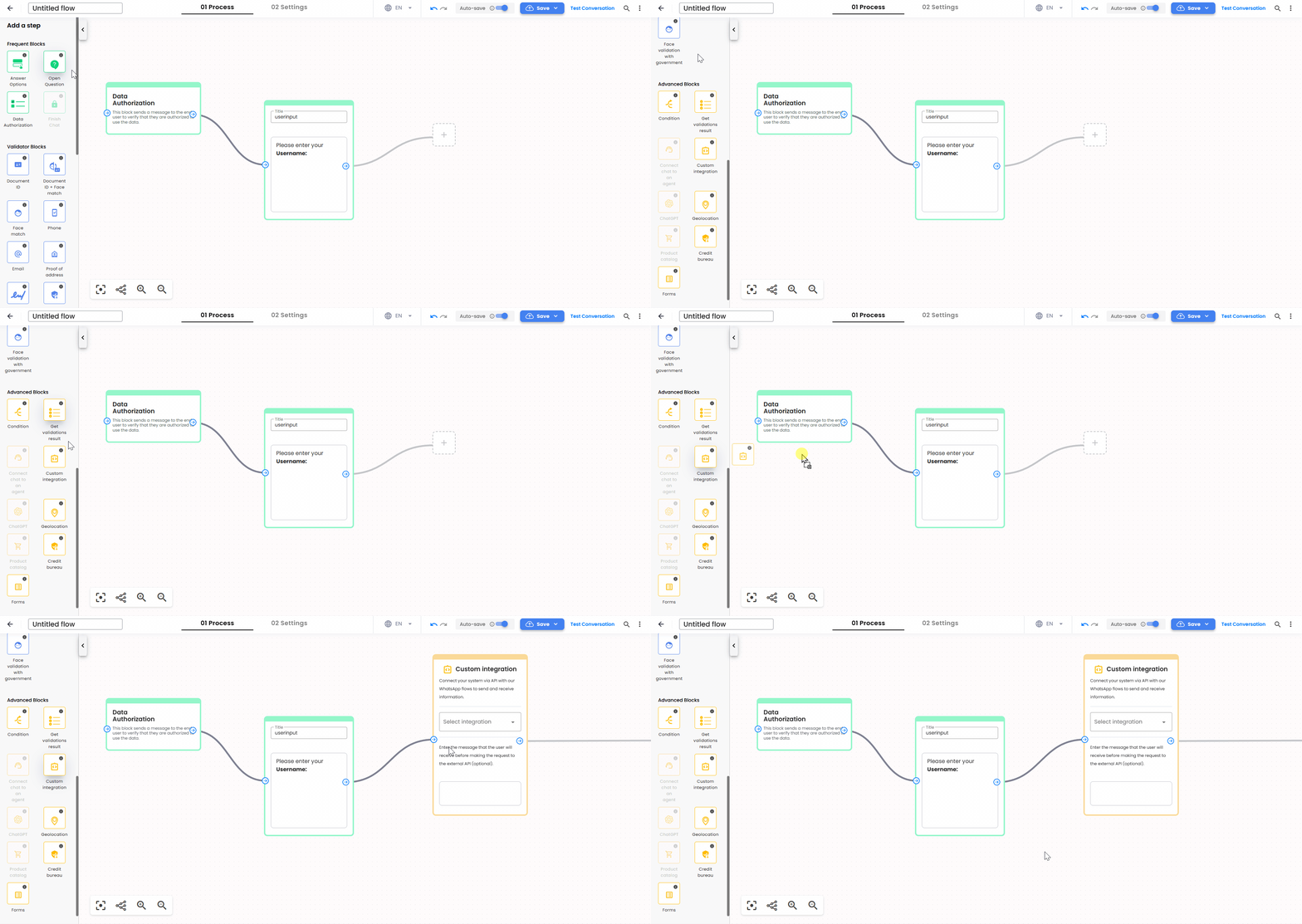
- Configure the Integration Block: Click on the block to display its menu and fill in the required fields:
- Integration: Select your created Custom integration from the dropdown menu. For this example, we selected Integration Test - User Login, which was set up in the Custom integrations guide.
- Credential: Select your created credential from the dropdown menu. In this example we only have 1 credential, so it’s straightforward.
- Action: Select the action of the Custom integration from the dropdown menu. For this step of the flow, we’re using the Create user validation action.
- Message (Optional): Enter the message that the user will receive before making the request to the external API. For example, “Checking your username…”.
- Inputs: Click on Add Inputs. Set or select the Variables for your inputs and click Save. In this example the action receives only the Username as an input, so we’ll use the Open Question variable created in the previous step, “userinput (Variable)”.
To reference this variable, type@in the input field and select it from the list of available variables.
The variable appears in the list because the Open Question block is connected to the Custom integration block. - Outputs: No action needed here, but take note of the following in the Outputs section:
- There are two default outputs for this block: “Custom integration status” and “Request status code”.
- The “Request status code” output will be used in the next step to evaluate whether the user exists.
- The “Validation ID” output (created when setting up the Custom integration) will be used as an input in the last Custom integration block of this example.
Verifying the username and asking for the code
Next, we’ll need to check the “Request status code” from the previous Custom integration block. If the request is successful (i.e., the user exists), we’ll proceed by asking the user for the OTP Code that was sent to their registered email, otherwise, if the request fails, we’ll end the chat and notify the user with “User not found”.
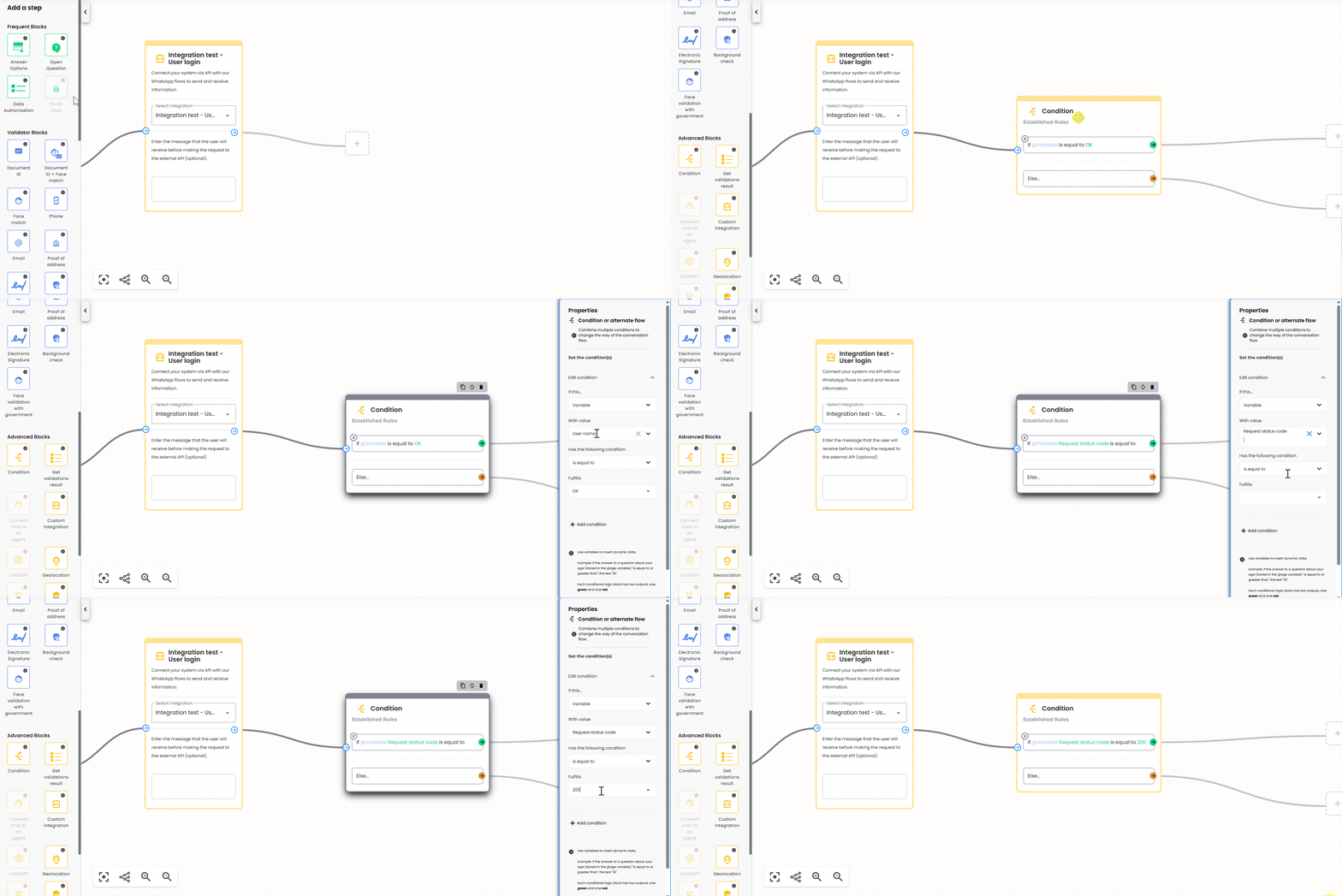
- Add a Condition Block: Drag and drop a Condition block from the Advanced Blocks section in the sidebar and connect it with the previous Custom integration block.
- Configure the Condition Block: Click on the block to display its menu, and in Set the conditions click on the default condition to edit it:
- If this…: Select “Variable” since we’ll check the status of a variable.
- With value: Choose the name of the variable to check. For our example, we’ll select “Request status code” which is generated by the connected Custom integration block.
- Has the following condition: Choose a comparison operator. In our example, we’ll select “is equal to”.
- Fulfills: Enter the value to compare against the variable. In this example, we’ll set it to “200”, which represents a successful “Request status code” response from the API.
-
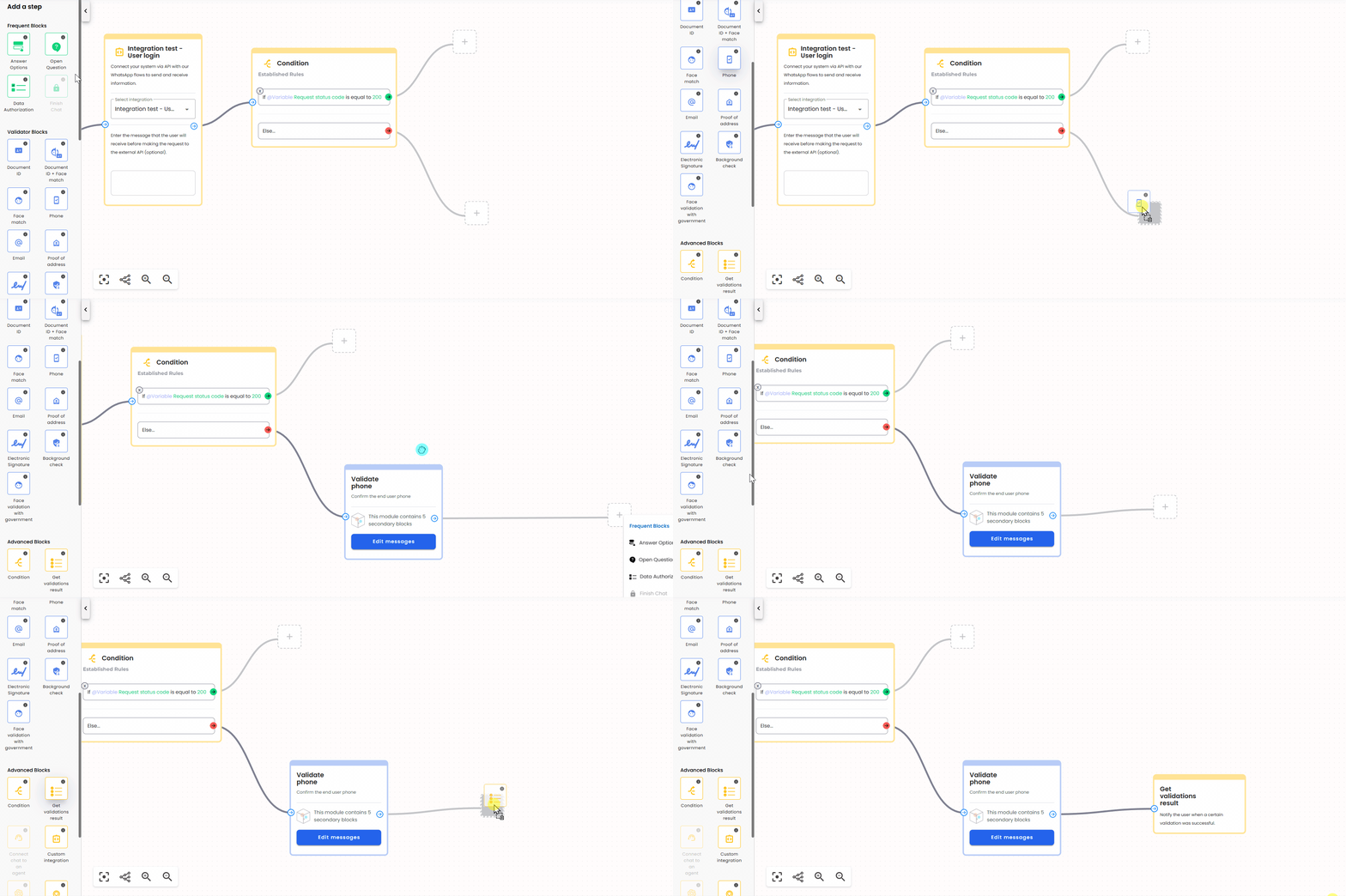
Handle unsuccessful request with a fallback path: If the API request is not successful, the flow should continue through an alternative verification path instead of ending immediately.
- Connect the else (red) arrow of the Condition block to the Phone Validator block.
- Configure the phone validation module to allow the user to verify their phone number by receiving a verification code through SMS or WhatsApp.
- After the phone verification is completed, connect the Phone Validator block to the Get validations result advanced block, which informs the user about the outcome of the validation.
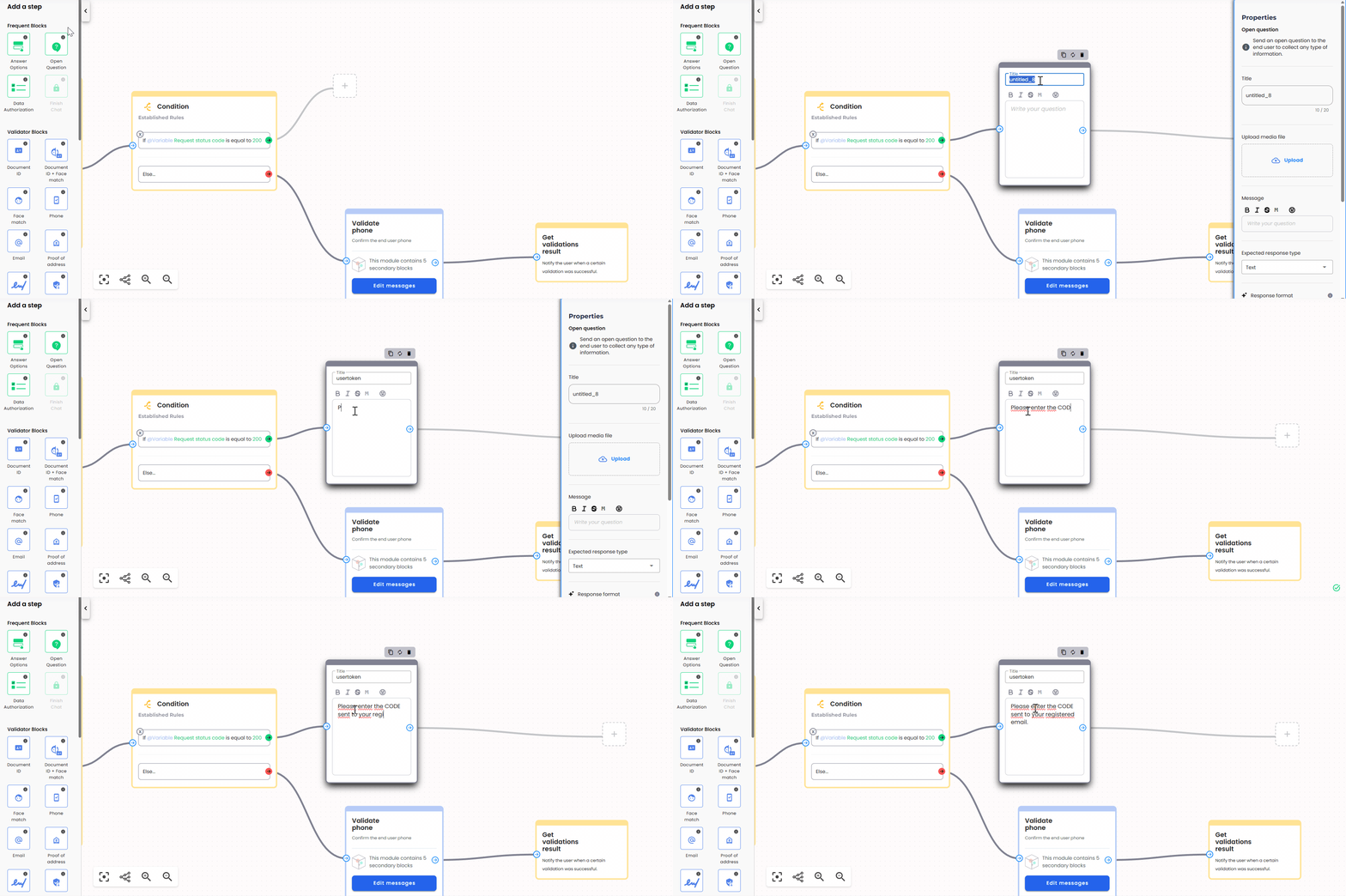
- Ask for the OTP Code if request is successful: Drag and drop an Open Question from the Frequent Blocks in the sidebar and connect it to the “if” green arrow of the Condition block.
- Set a Title for this block, for example “usertoken”. A variable with this title will store the user’s answer.
- Enter the question for the user, for example, “Please enter the CODE sent to your registered email.”
Validating the code with our Custom Integration
Next, we’ll send an API request using the OTP Code (usertoken) provided by the user and the “Validation ID” output from the Create user validation action as inputs to the Validate code action.
- Add a Custom Integration Block: Drag and drop a Custom integration block from the Advanced Blocks section in the sidebar and connect it with the Open Question block from the previous step.
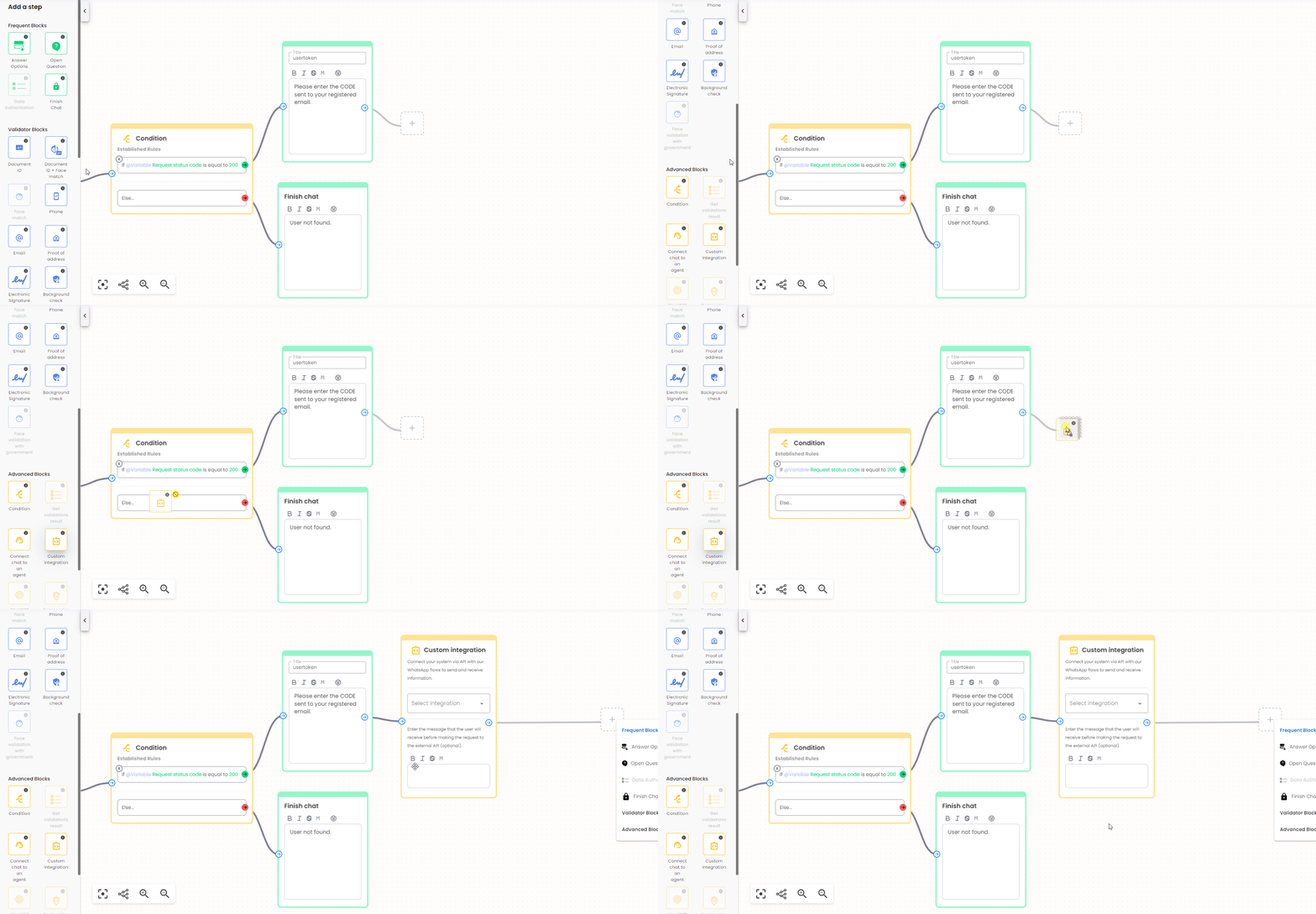
- Configure the Integration Block: Click on the block to display its menu and fill in the required fields:
- Integration: Select your created Custom integration from the dropdown menu. For this example, we selected Integration Test - User Login, which was set up in the Custom integrations guide.
- Credential: Select your created credential from the dropdown menu. In this example we only have 1 credential, so it’s straightforward.
- Action: Select the action of the Custom integration from the dropdown menu. For this step of the flow, we’re using the Validate code action.
- Message (Optional): Enter the message that the user will receive before making the request to the external API. For example, “Validating your code…”.
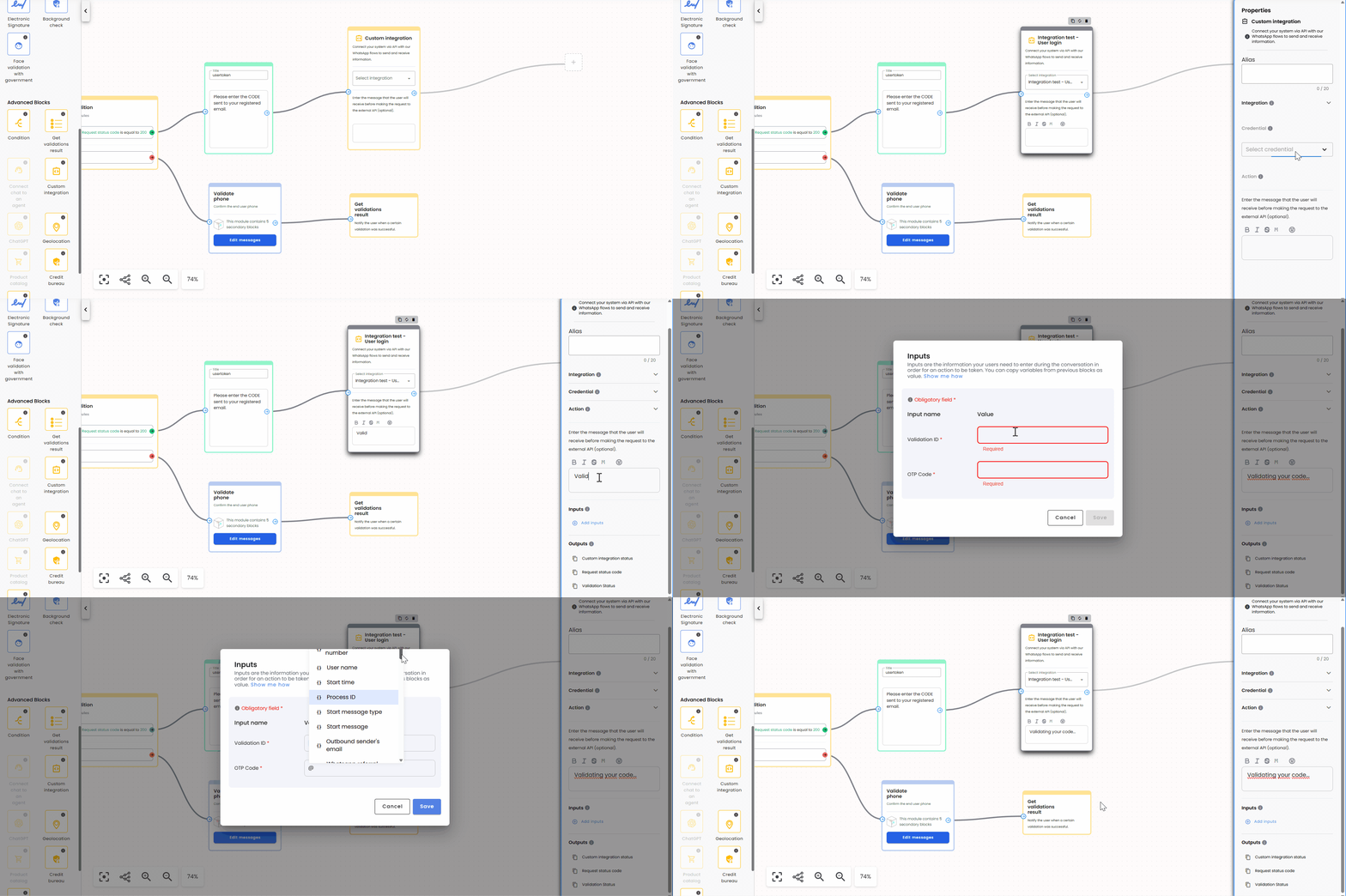
- Inputs: Click on Add Inputs. Set or select the Variables for your inputs and click Save. In this example, the action receives two inputs:
- OTP Code: We’ll use the Open Question variable created in the previous step, “usertoken (Variable)”. This variable is automatically recognized in the list because the Open Question block is connected to our Custom integration block.
- Validation ID: We’ll use the “Validation ID (Variable)” output from the Create user validation action.
- Outputs: No action needed here, but take note of the following in the Outputs section:
- There are two default outputs for this block: “Custom integration status” and “Request status code”, which you can use for other purposes. We won’t use any of these at this point.
- The “Validation status” output (created when setting up the Custom integration) will be used in the final steps to validate the login process in our example flow.
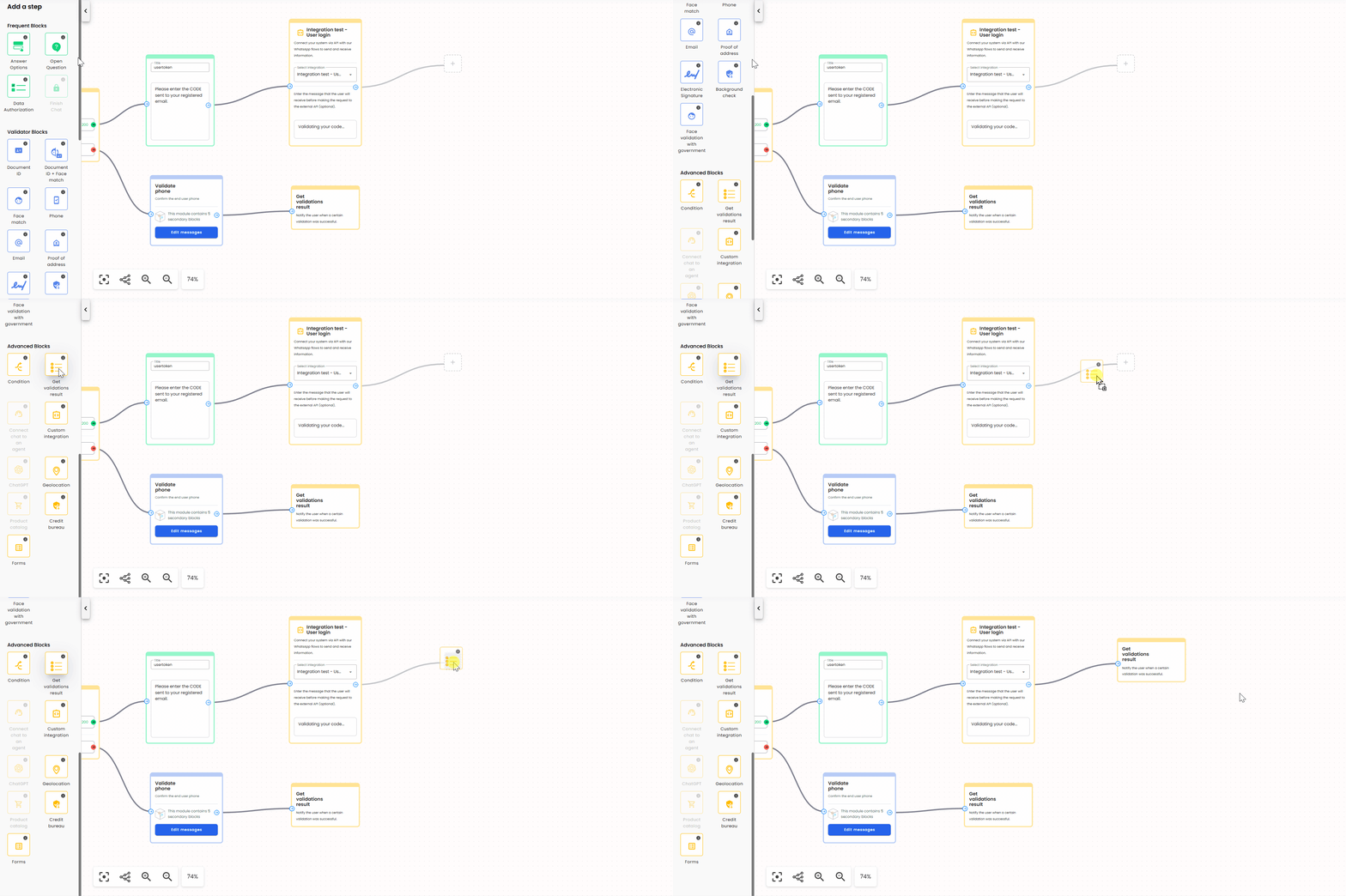
Showing the login process status to the user
In the Web flow example, the result of the login process is determined by the response returned by the Validate code action from the Custom integration.
Once the validation request is executed, the flow continues directly to a Get validations result advanced block.
This block is responsible for notifying the user about the outcome of the verification—whether the validation was successful or not—based on the result returned by the integration. After the result is displayed to the user, the Web flow ends.
Testing the completed Web flow
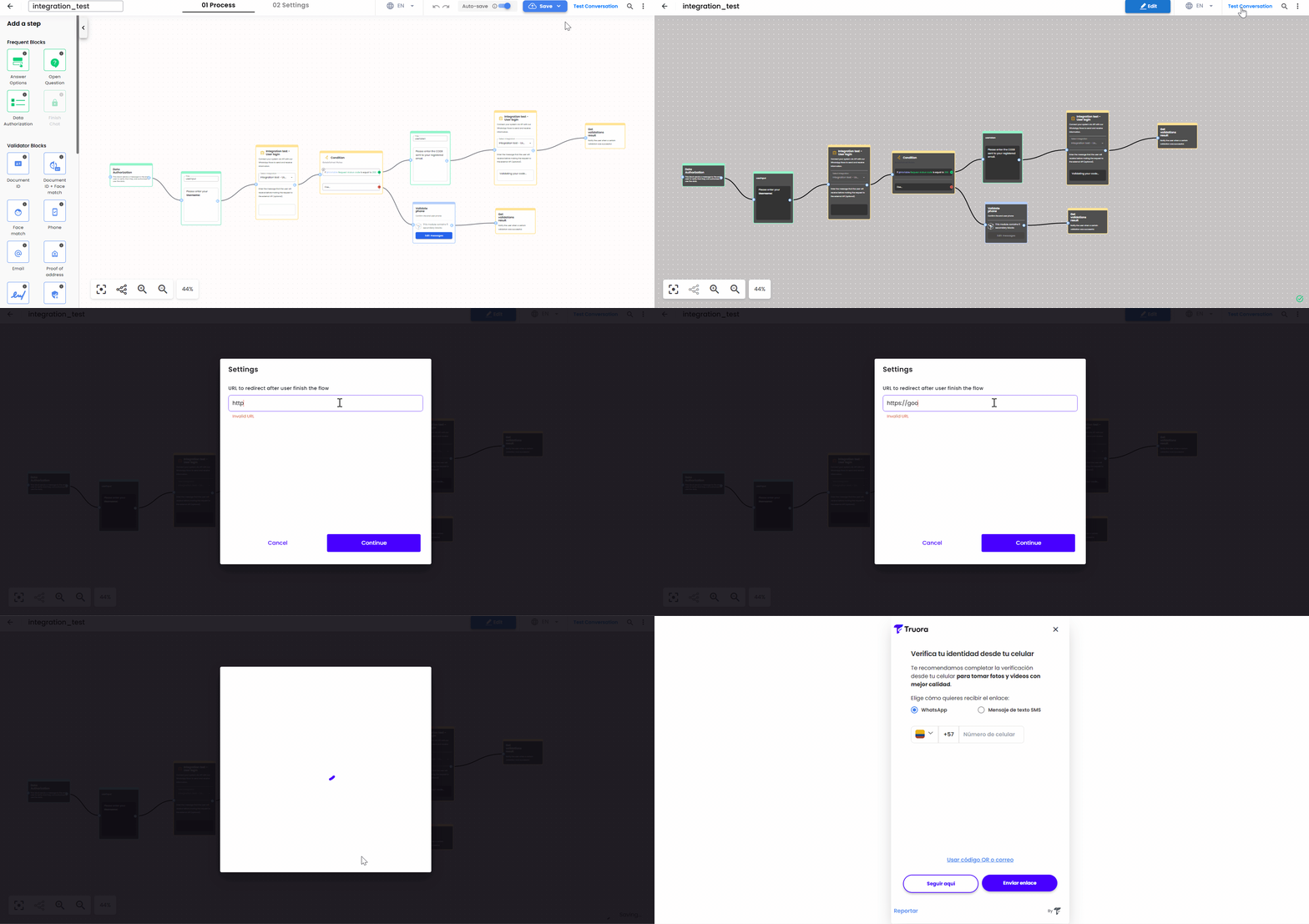
The final step is to test the flow. After you have saved and published the flow, follow these steps:
- Click on Save and Publish.
- Click on Test Conversation in the top-right corner of the editor.
- Configure the redirect URL that will be used after the flow has been completed:
- In the URL to redirect after user finish the flow field, enter a valid URL.
- The URL must include the full protocol (for example,
https://). - Invalid or incomplete URLs (such as
httpwithout a domain) will be rejected.
- Click Continue. You will be redirected to the Web process link, which starts the Web flow and allows you to test the full user experience.
Example Interactions with the Chatbot
- Nonexistent username provided - Fallback phone validation:
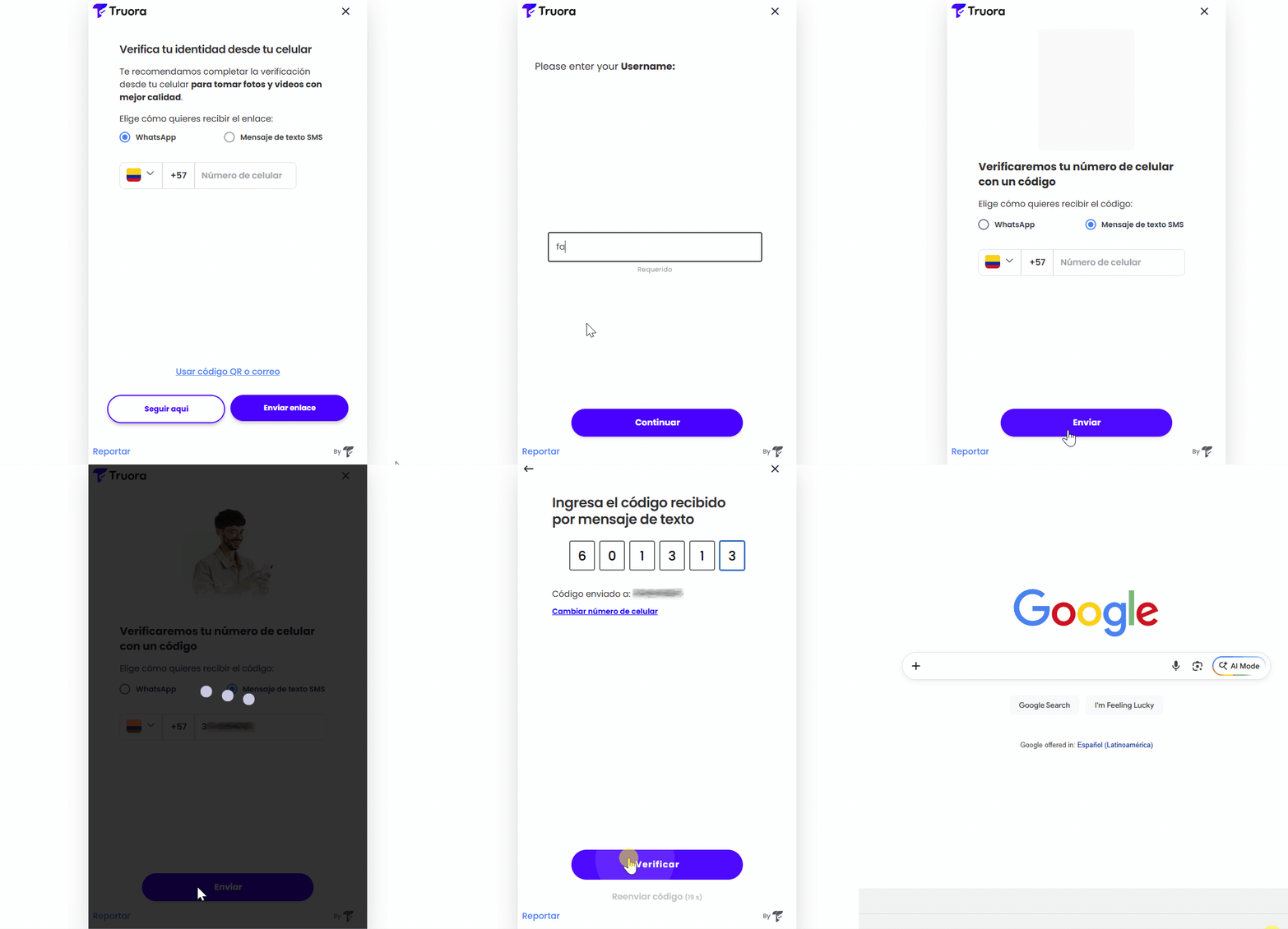
Handle responses from the custom integration block
By this point, we have successfully built a fully functional Web flow ready for publication. However, it is essential to explore a powerful tool within the Custom Integration block that can make your logic even more flexible while reducing visual complexity: Response management.
In this section, we will demonstrate how to transform our current flow into a more streamlined version, showcasing the versatility this option provides for managing API responses directly within the block.
Understanding response management
The Custom Integration block offers the capability to branch your flow directly based on the variables it generates. This can be achieved in two ways: using the Rules Builder or the JSONLogic Builder.
The Rules Builder
The Rules Builder operates similarly to a standard Condition block; however, it is specifically designed to work with variables originating from your integration. Any output values you have configured during the integration setup will be available here.
To streamline our flow, we will replace the external Condition block by configuring the rules directly within the integration:
-
Open the conditionals section: In the Custom Integration block menu, go to the section for defining conditions.
-
If this…: Select “Request status code” (or your specific status variable), as this is the data point we will use to determine the next step.
-
Operator: Choose a comparison operator. In this case, select “is equal to”.
-
Value: Enter “200”, which represents the successful status code we are looking for.
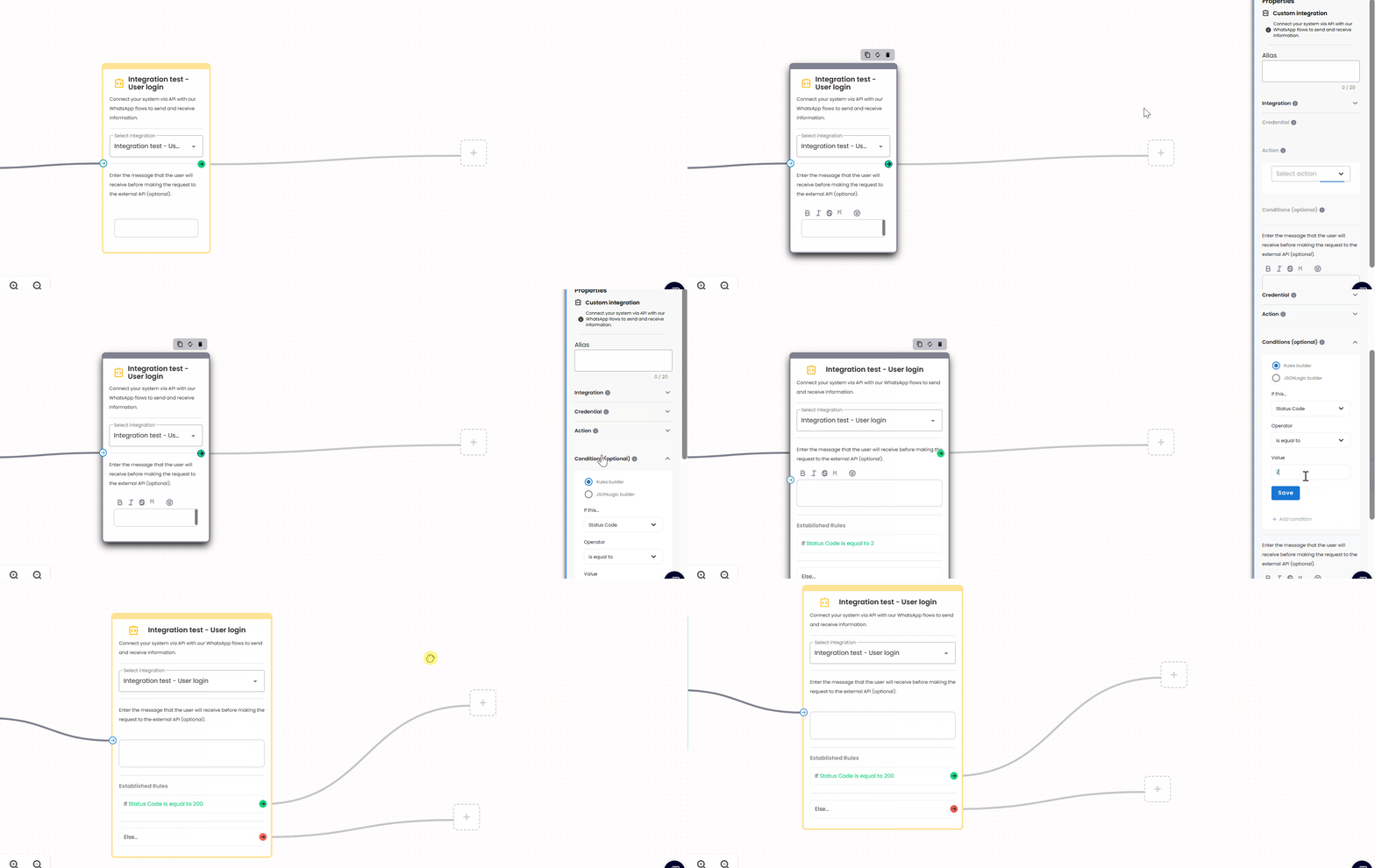
Once configured, you will notice that the block now has two output branches (the green if and the red else). It functions exactly like a standalone Condition block: the first branch follows your configured rule, while the else branch handles any other response that doesn’t match your criteria.
Now that your rules are set within the Custom Integration block, you can direct the flow based on the API outcome:
-
For the “Else” branch (failure): Connect your fallback path to the red arrow—for example, route to the Phone Validator block as in the fallback path earlier in this guide, or connect a Get validations result block if you only need to end the Web flow and show a failure outcome to the user (e.g., “User not found”).
-
For the “If” branch (success — status
200): Connect an Open Question block to the green arrow. This is where you will ask the user for the OTP code sent to their registered email, exactly as we did in the manual Condition example.
By doing this, you’ve successfully embedded the logic within the integration block itself, making your flow diagram much cleaner and easier to manage.
The JSONLogic Builder
The JSONLogic Builder is a more advanced tool for creating complex conditions using logic operators like AND and OR, or conditionals that cannot be expressed in the Rules Builder.
For this section, we highly recommend reviewing
Using Decision Variables in Flow Conditions. For the @ variable picker in the Flow Builder, see
Using variables in your WhatsApp flow — @ references work the same way in Web flows.
JSONLogic allows you to express conditionals as simple JSON objects. A basic structure looks like this:
Practical example
Let’s trigger a specific path only if the API call is successful and the user has “admin” privileges.
-
Open the conditionals section: In your Custom Integration block, navigate to the conditions area.
-
Select JSONLogic builder: Choose the JSONLogic builder option.
-
Enter the expression: Paste the following structure:
-
Map your variables:
-
Inside the first
varquotes, type the@symbol to trigger the variable dropdown and select Request status code. -
In the second
var, type@again and search for the variable from your initial Open Question block. This allows you to use any flow variable within your integration logic.
-
-
Save the configuration: Click Save.
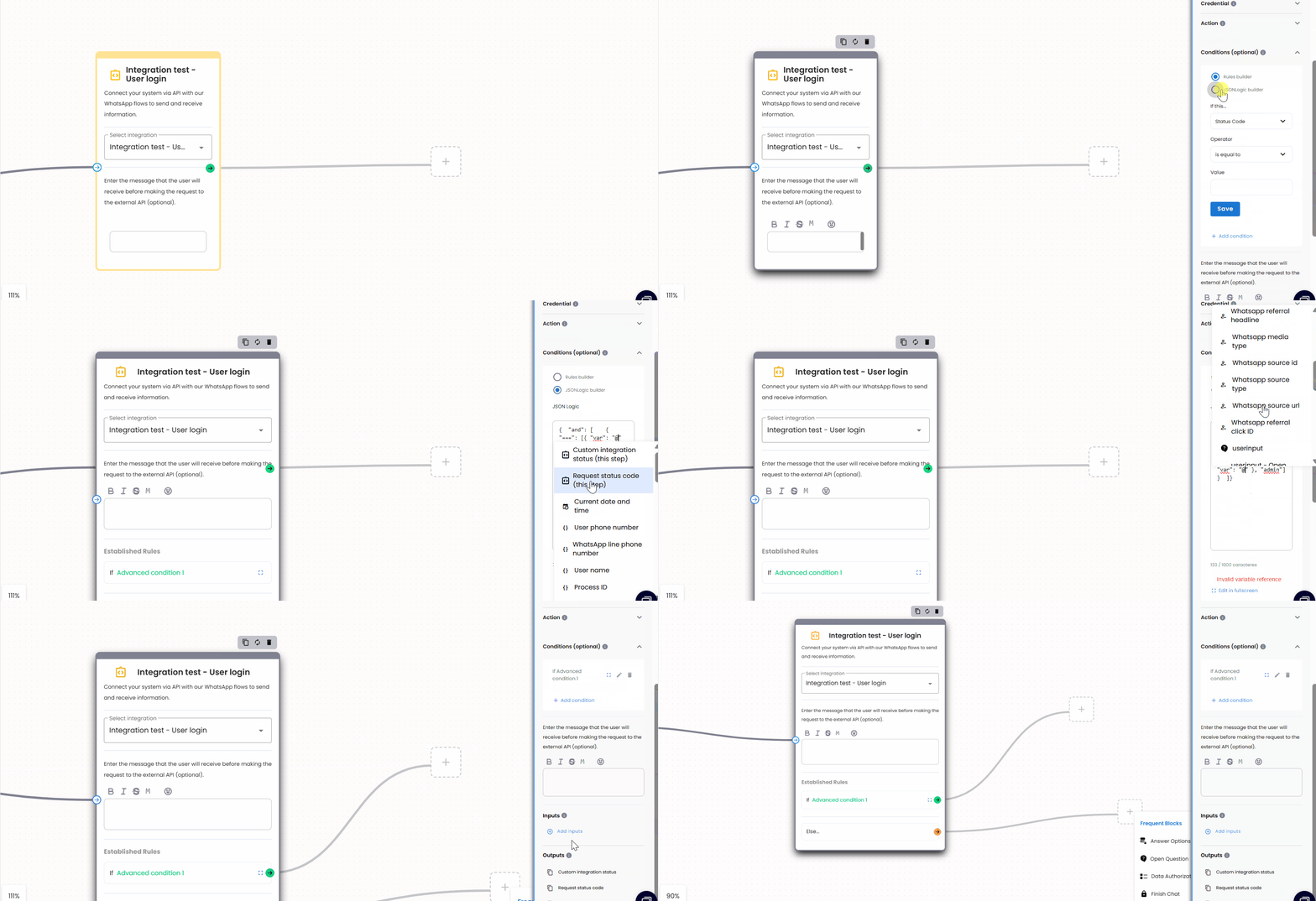
Your integration now handles a multi-layered condition: it checks if the API response is 200 and if the username entered was "admin". If both are true, the flow proceeds through the success branch; otherwise, it directs the user to the else path.
Our new flow
As a result, we can see that our Web flow has been significantly streamlined. By reducing the number of blocks and the horizontal space required, the diagram is much easier to read. Most importantly, it centralizes all response-handling logic directly within the Custom Integration block itself.
This approach not only makes the flow visually cleaner but also simplifies future maintenance, as all API-related conditions are managed in a single location.
Below is the final, optimized version of our flow.
- Optimized final Web flow
Conclusion
By following this guide, you’ve learned how to leverage custom integrations within our flow builder to enable users to interact with your services via Web. Whether you’re connecting to your internal systems or third-party APIs, custom integrations provide a powerful way to extend your chatbot’s capabilities.
As we continue to enhance our platform, keep an eye out for upcoming improvements and new features that will make it even more versatile and user-friendly.
Related guides
If you want to learn how to use Custom integrations with external services inside our Flow Builder for WhatsApp flows, check out the following guide: