
Credit History Credentials Management (Mexico)
This guide explains how to manage your Buró de Crédito and Círculo de Crédito credentials directly from the Truora platform. With this feature, you can create, edit, and delete your financial entity credentials autonomously, without needing to contact support.
Important: This feature is available exclusively for accounts that use Buró de Crédito and/or Círculo de Crédito databases in Mexico. Access to the Credentials Configuration tab is enabled by Truora through role-based permissions. If you don’t see this option, please contact your account manager or our support team to request access.
Prerequisites
- An active Truora account with Background Checks enabled for Mexico.
- Role-based permissions granted by Truora to access the Credentials Configuration tab.
- Valid credentials for Buró de Crédito (username and password).
- Valid credentials for Círculo de Crédito (username, password, x-api-key, private key, and CDC public key). See the Círculo de Crédito Credentials section below for details.
Credentials Overview by Provider
Buró de Crédito Credentials
Buró de Crédito requires standard authentication credentials:
| Credential | Purpose |
|---|---|
| username | Authentication with Buró de Crédito |
| password | Authorized access to the service |
These credentials are provided by Buró de Crédito as part of your contract agreement.
Important: Buró de Crédito credentials can expire every 30 days. Make sure to update them in the Credentials Configuration before they expire to avoid service interruptions.
Círculo de Crédito Credentials
Círculo de Crédito requires additional credentials beyond username and password to operate the service. All credentials listed below must be configured for the integration to work properly.
| Credential | Purpose |
|---|---|
| username | Grantor authentication |
| password | Authorized access |
| x-api-key | API consumption authorization token |
| private_key | Signs requests to generate the x-signature header |
| cdc_public_key | Validates the signature of responses from Círculo de Crédito |
Note:
- These credentials are obtained through your contract with Círculo de Crédito. Make sure to have them ready before configuring the integration in Truora.
- Círculo de Crédito credentials can expire every 90 days, so remember to update them in the Credentials Configuration before they expire to avoid service interruptions.
How to Obtain Círculo de Crédito Credentials
-
Username and Password: The
usernameandpasswordmust be the same ones you use to access the Círculo de Crédito Grantors Portal. -
API Key (x-api-key): The
x-api-keyis obtained from the apps section in the Círculo de Crédito Developer Portal. See steps 1 and 2 of the API Hub Integration Guide for details on creating an account and registering your application. -
Private Key and CDC Public Key: Círculo de Crédito’s API Hub recommends using OpenSSL to generate the key pair. For the full official walkthrough, see steps 5 and 6 of the API Hub Integration Guide. Below is a summary of the process:
- Step 1 — Generate the private key: The private key will be stored in the
pri_key.pemfile.OpenSSL
Warning: Never share your private key. Always keep it with proper access privileges in a secure location.
-
Step 2 — Generate the certificate (public key): The
certificate.pemfile contains your public key.OpenSSL -
Step 3 — Extract the private key value: From the output, take the
privvalue, remove all colons (:) and line breaks so it becomes a single continuous string. This is yourprivate_keyvalue.OpenSSL -
Step 4 — Upload your certificate and obtain the CDC public key:
- Go to the Círculo de Crédito Developer Portal.
- Navigate to My Account > Apps.
- Select the application you registered.
- Go to the Certificates section.
- In the Your certificate area, select the
certificate.pemfile and click Upload. - The portal will confirm your certificate was saved successfully.
- Download the CDC certificate (e.g.,
cdc_cert_####.pem).
-
Step 5 — Extract the CDC public key value: Replace
cdc_cert_####.pemwith the actual filename downloaded from the portal. From the output, take thepubvalue, remove all colons (:) and line breaks so it becomes a single continuous string. This is yourcdc_public_keyvalue.OpenSSL
- Step 1 — Generate the private key: The private key will be stored in the
For the complete integration guide including video tutorials, visit the Círculo de Crédito API Hub Integration Guide.
Accessing the Credentials Configuration
- Log into the Truora Dashboard.
- Navigate to the Background Checks product from the products view.
- In the sidebar menu, select Configuration.
- Once in the Configuration view, click on the Credentials Configuration tab.
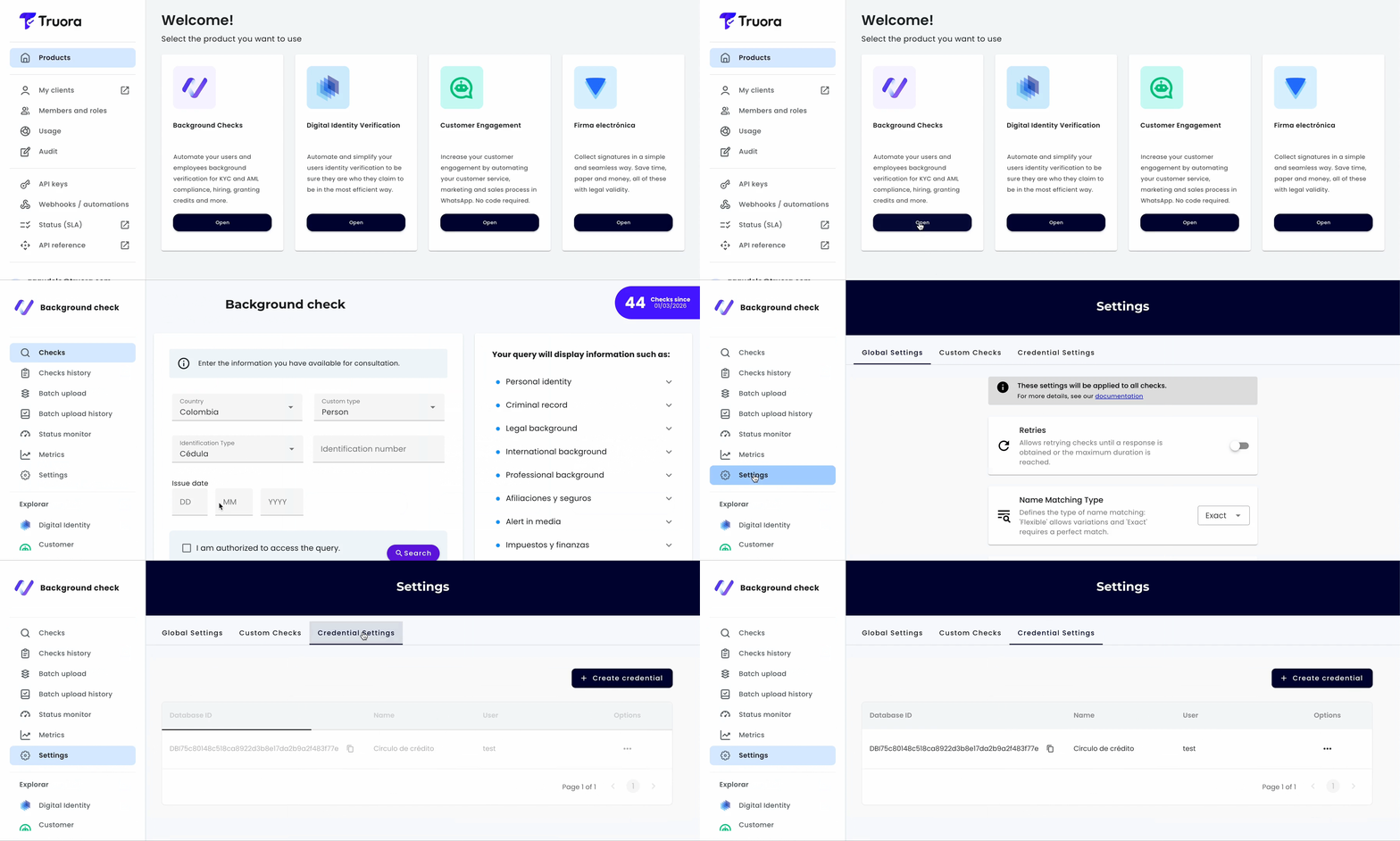
Note: If you don’t see the Credentials Configuration tab, it means your account doesn’t have the required permissions. Contact Truora support to enable this feature.
Creating a Credential
-
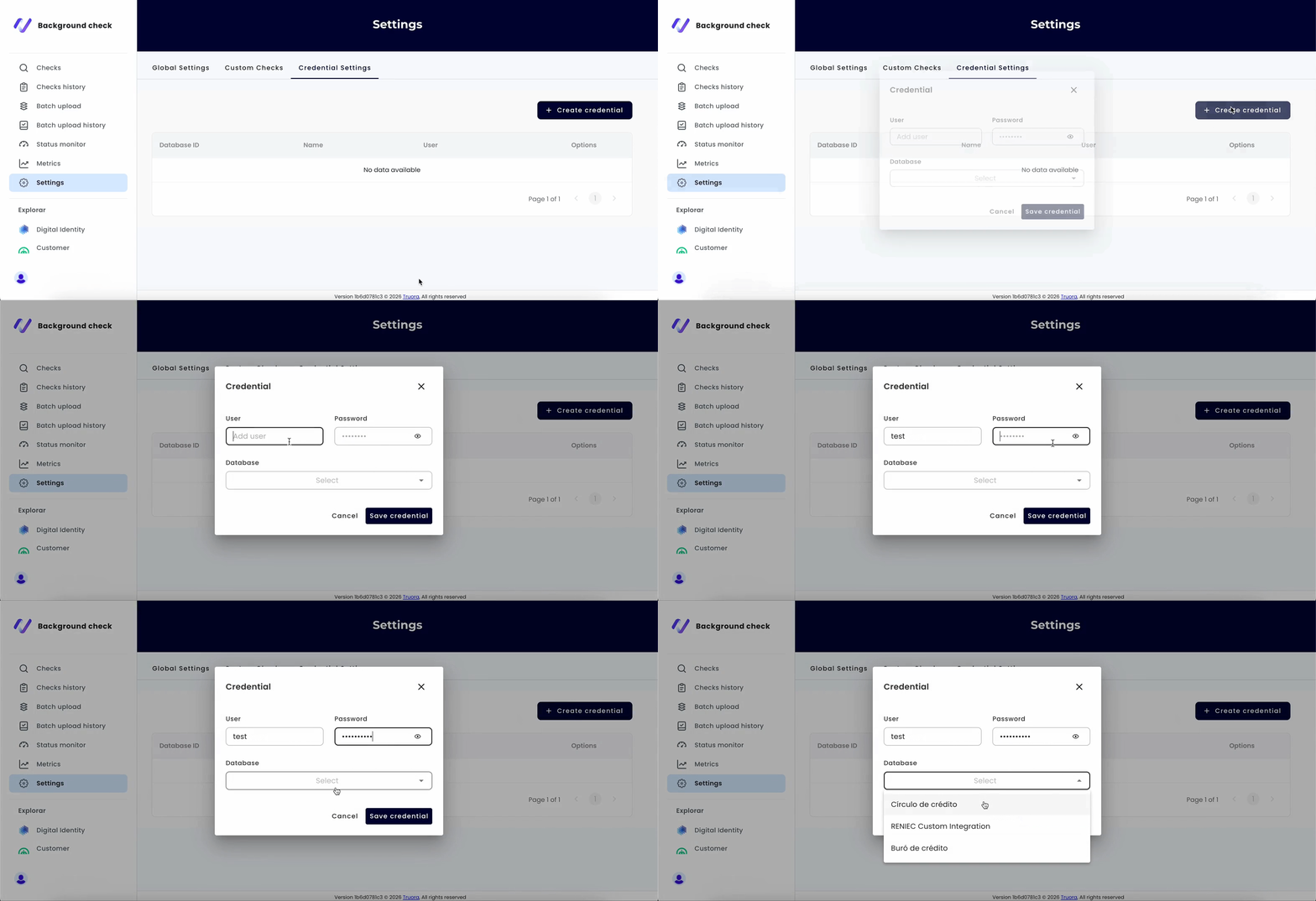
In the Credentials Configuration tab, click the + Create credential button located at the top right of the table.
-
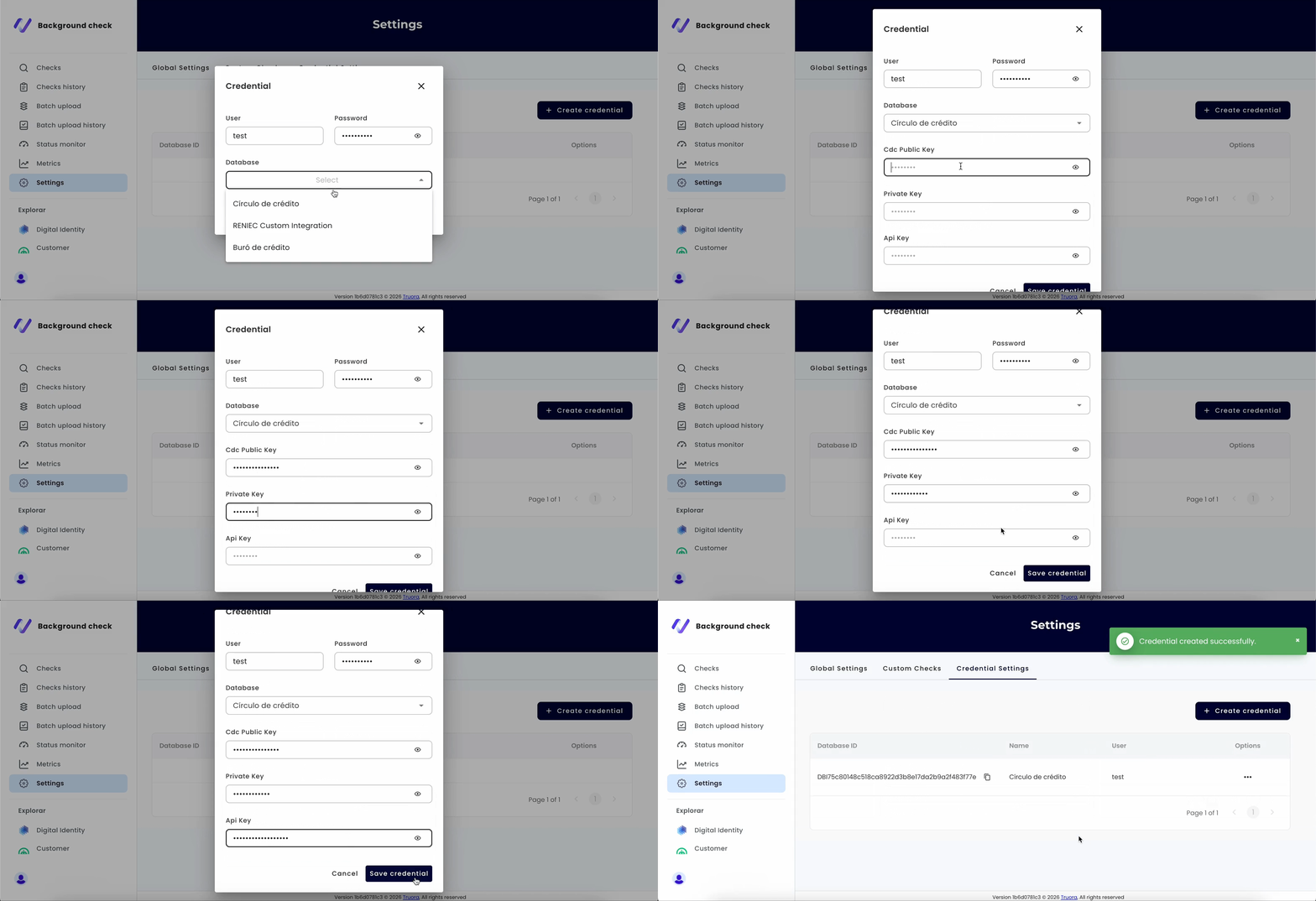
A modal window will appear with the following base fields:
- Username: Enter the username provided by the financial entity.
- Password: Enter the corresponding password.
- Database: Select the corresponding database from the dropdown menu (e.g., Buró de Crédito, Círculo de Crédito).
-
Depending on the selected database, additional fields may be required. For example, when selecting Círculo de Crédito, the following extra fields will appear:
- Cdc Public Key: The CDC public key value obtained from the Círculo de Crédito portal.
- Private Key: The private key value generated via OpenSSL.
- Api Key: The x-api-key obtained from the Círculo de Crédito Developer Portal.
See the Círculo de Crédito Credentials section for details on how to obtain these values.
-
Once all required fields are filled in, click Save credential to store the configuration.
Tip: Make sure your credentials are up-to-date. If your financial entity credentials expire or are changed, you’ll need to update them here to keep your background checks running smoothly.
Viewing Credentials
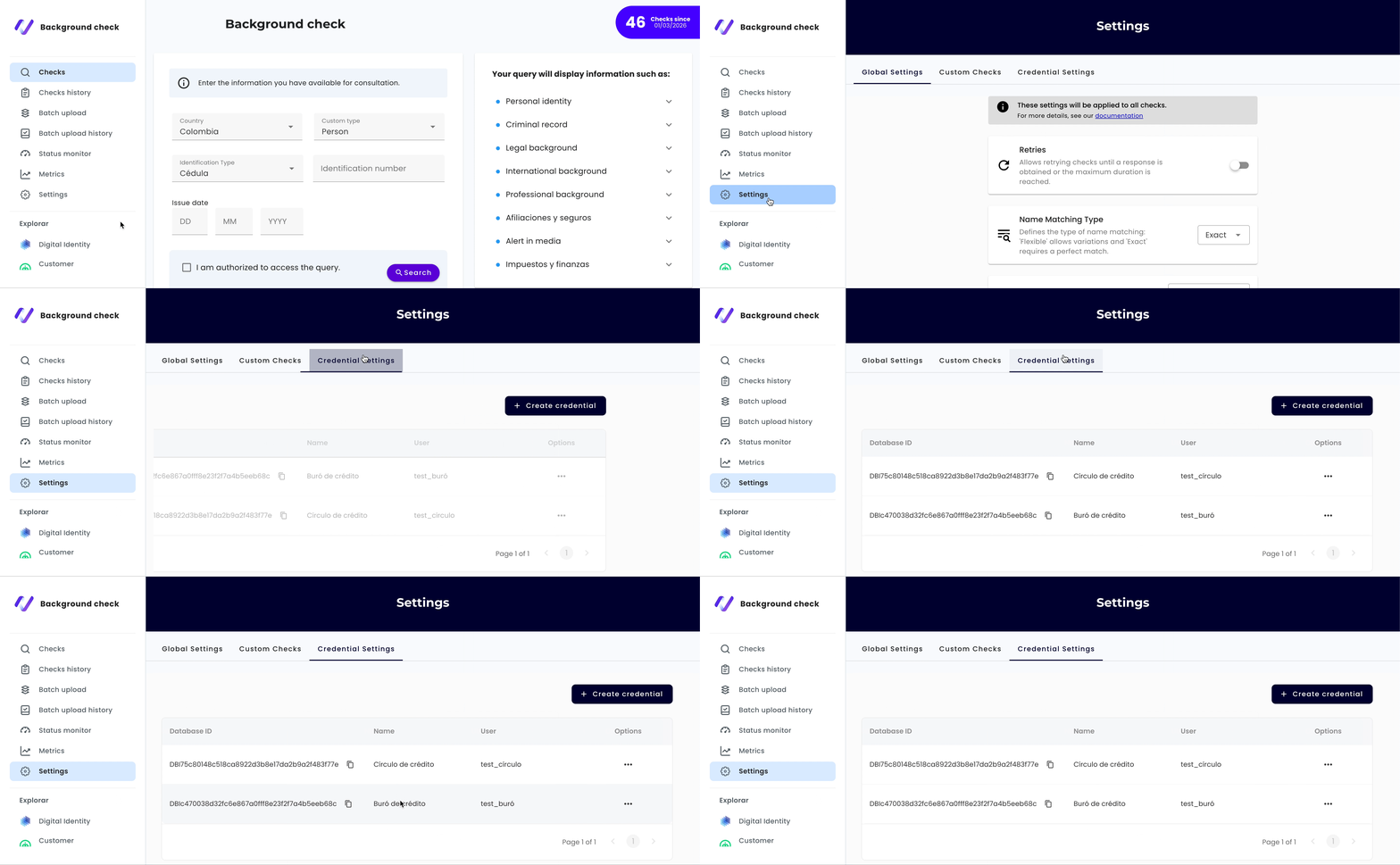
Once credentials have been created, they will appear in the credentials table with the following columns:
| Column | Description |
|---|---|
| Database ID | The unique identifier of the database configuration |
| Name | The name of the financial entity database (e.g., Buró de crédito) |
| Username | The username associated with the credential |
| Options | Actions menu for editing or deleting the credential |
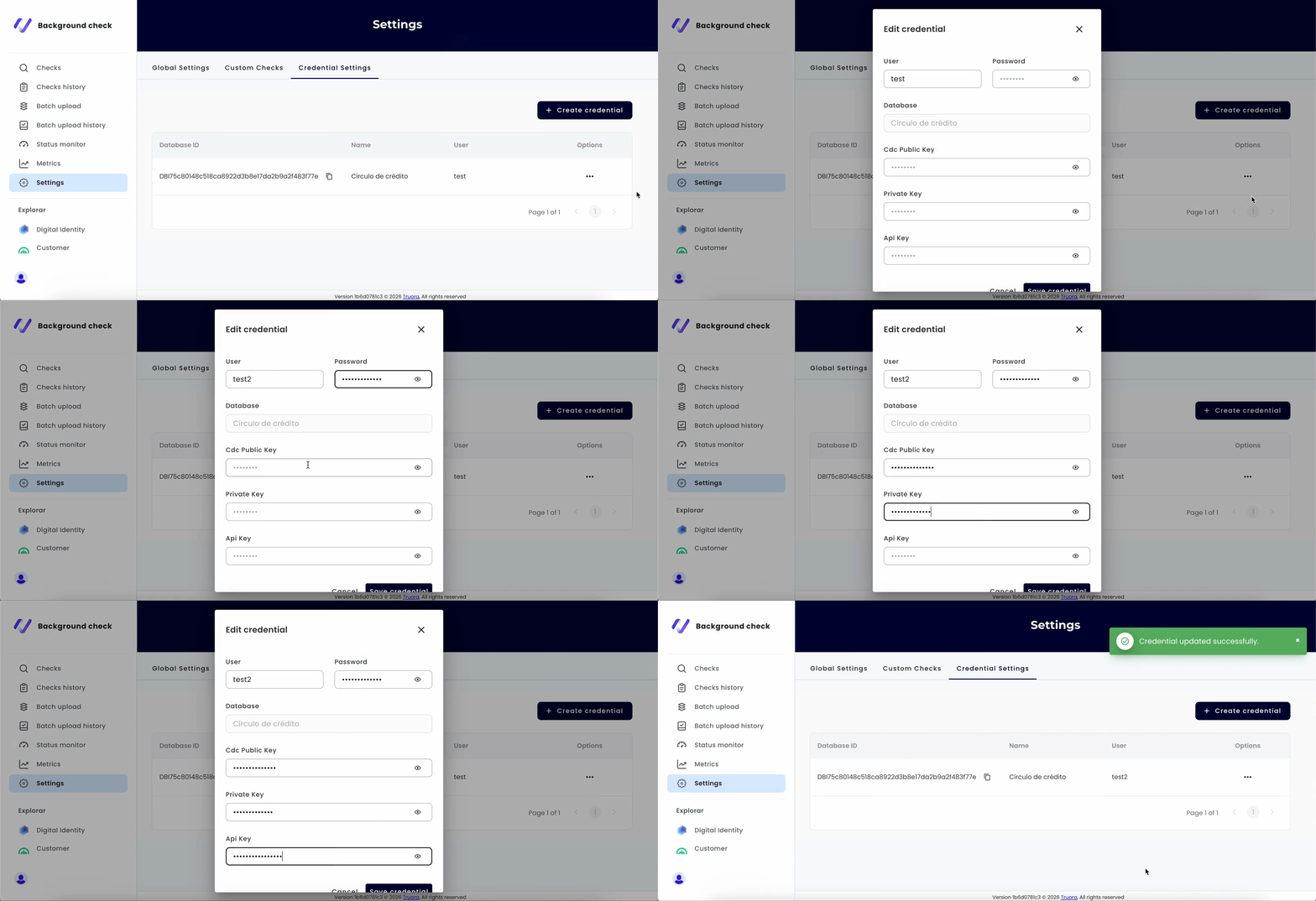
Editing a Credential
If you need to update a credential (for example, when a password changes):
- In the credentials table, locate the credential you want to modify.
- Go to the Options column and click the three-dot icon (⋯).
- A dropdown menu will appear. Select Edit.
- The edit modal will display all fields for the selected database. All fields are required and must be filled in, even if you only need to change one value. Re-enter all credential values to save the update.
- Click Save credential to apply the changes.
Important: When editing a credential, the modal does not pre-fill sensitive values (passwords, keys) for security reasons. You must provide all values again to successfully save the changes.
Deleting a Credential
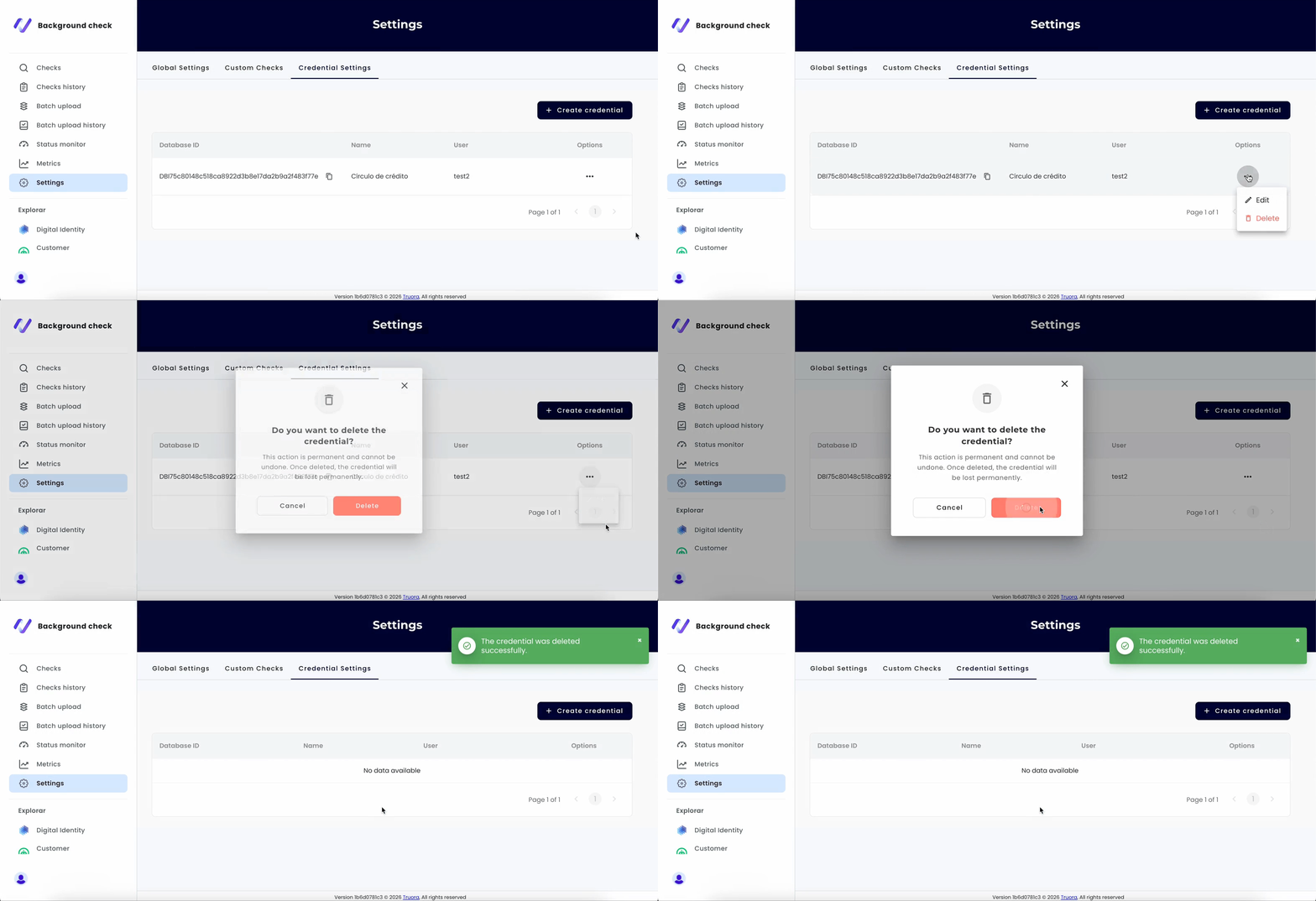
If you need to remove a credential:
- In the credentials table, locate the credential you want to delete.
- Go to the Options column and click the three-dot icon (⋯).
- A dropdown menu will appear. Select Delete.
- Confirm the deletion when prompted.
Warning: Deleting a credential will prevent background checks from querying the associated database. Make sure you no longer need this database before deleting its credentials.
Troubleshooting
| Issue | Solution |
|---|---|
| Credentials Configuration tab not visible | Contact Truora support to request role-based access for your account |
| Cannot save credential | Verify that all required fields (username, password, database) are filled in correctly |
| Background checks failing after credential change | Ensure the updated credentials are valid and active with the financial entity |
| Your contracted credit history database is failing in all checks | Review that the stored credentials for that database are valid and not expired. If they are expired, update them in the Credentials Configuration |
| Database not appearing in dropdown | Only databases enabled for your account will appear. Contact your account manager if a database is missing |
Important Notes
- Role-based access: The Credentials Configuration feature is controlled by role-based permissions. Only authorized users within your organization can manage credentials.
- Mexico only: This feature is currently available exclusively for Mexican financial entity databases (Buró de Crédito and Círculo de Crédito).
- Credential security: Passwords are stored securely and are not displayed in plain text after being saved.
- Immediate effect: Changes to credentials take effect immediately for all new background checks.
Need Help?
If you have any questions or need assistance, reach out to us through our WhatsApp channel.
Related Documentation
- Background Checks Configuration Module - Configure global settings and custom check types
- Background Checks via Dashboard - How to create background checks
- Account Setup and Access - Account management and access