


Issue and share identity credentials in Truora Pass
In simple terms: A credential is a digital proof of the user’s verified identity, kept on their own phone or computer. The user can share parts of it (for example only their name) with anyone through a link or a QR code, and can cancel it at any time. This guide shows what your users see, so you can write your onboarding and support material.
All the screens below are available in English, Spanish and Portuguese.
Issue a credential
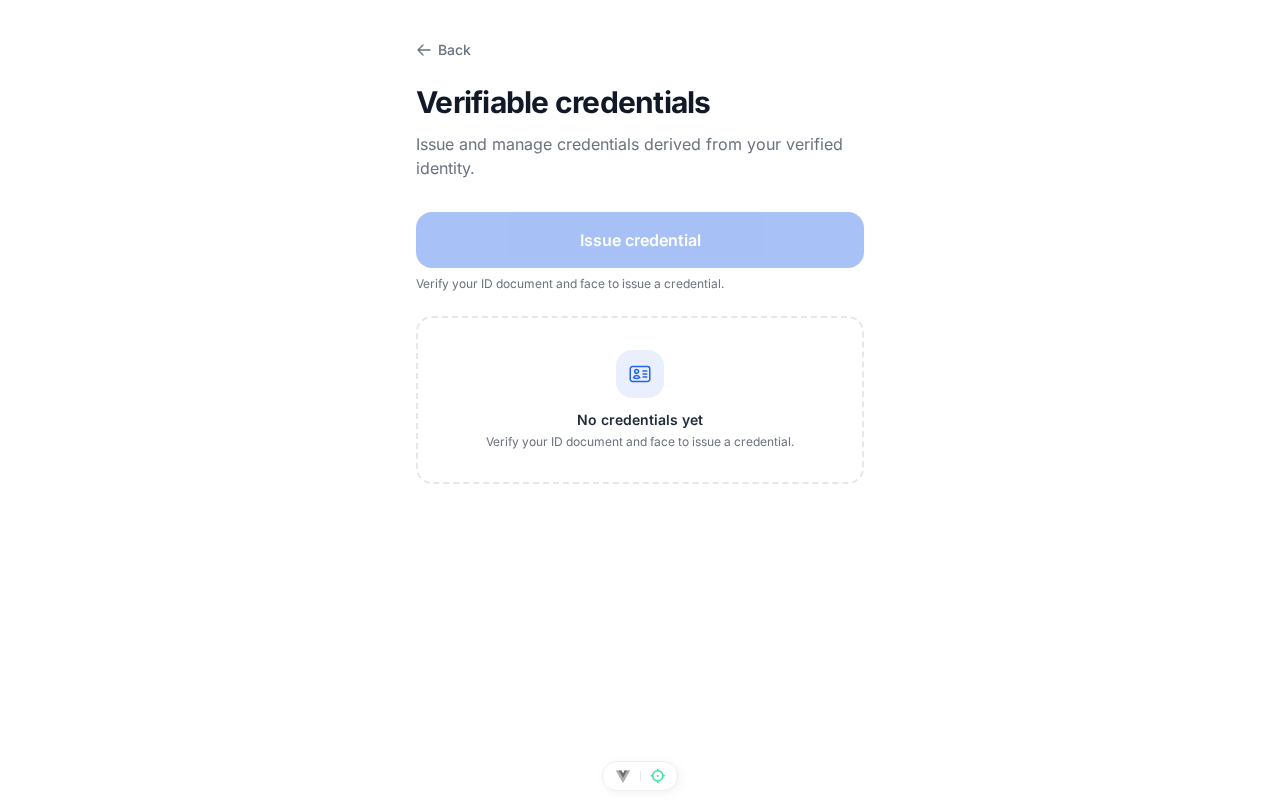
Users manage their credentials in the Credentials section of their Truora Pass account. To issue one, the user needs:
- A verified identity document that hasn’t expired.
- A completed face verification.
If they haven’t done these yet, Truora Pass guides them through them first.
Once issued, the credential appears in the list with its type, issue date and status.
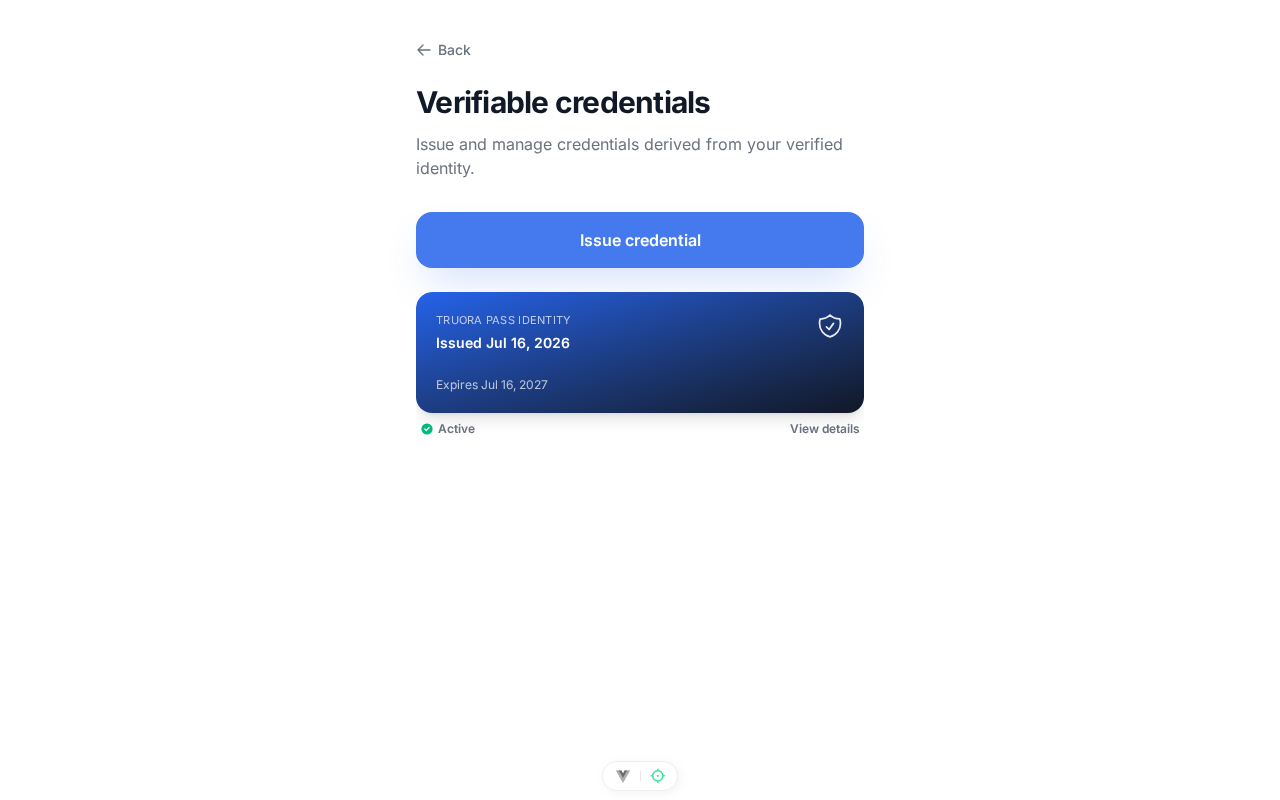
Good to know for support:
- The credential lives only on the user’s device. Truora Pass doesn’t keep a copy.
- If the user clears their browser data or changes device, the credential is gone. They can issue it again; this cancels the old one.
- Each user has at most one active identity credential.
Share it by link or QR code
- The user opens the credential and taps Share.
- They choose exactly which pieces of data to include.
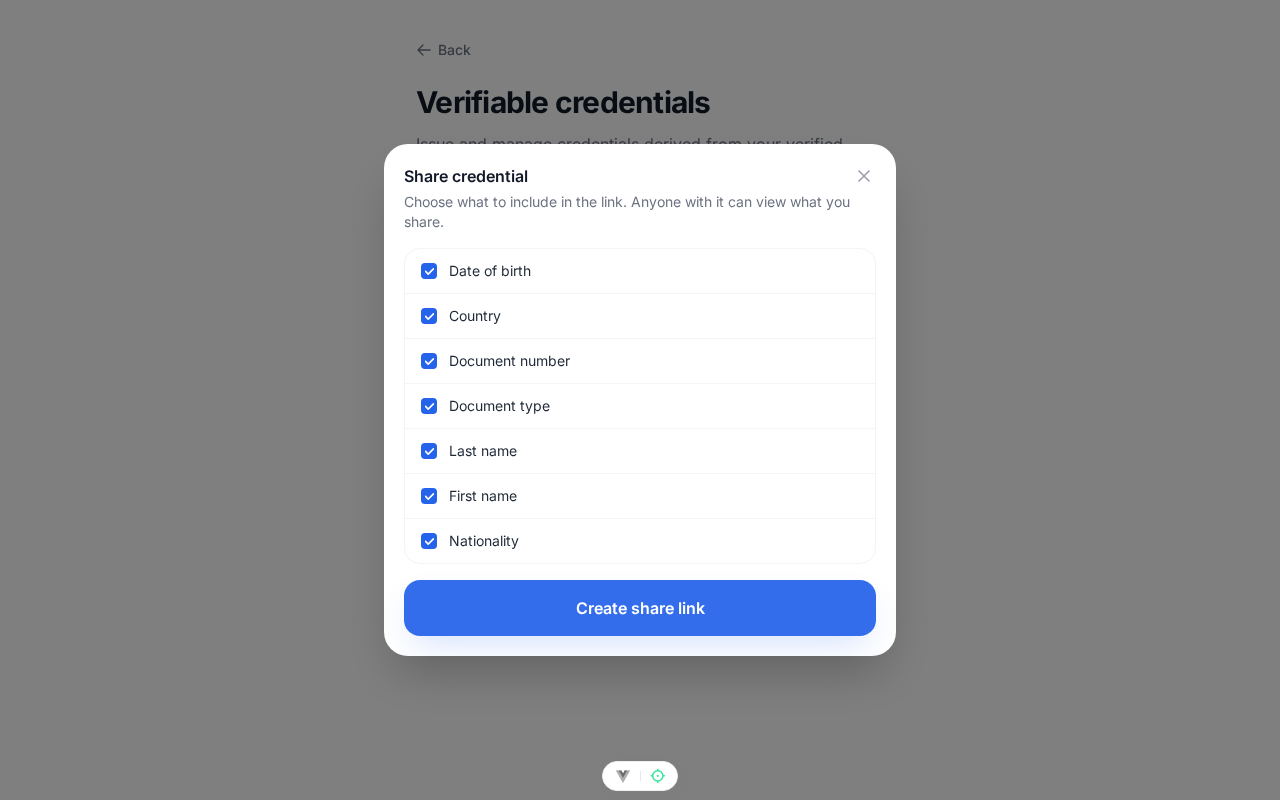
- They get a link and a QR code to hand out.
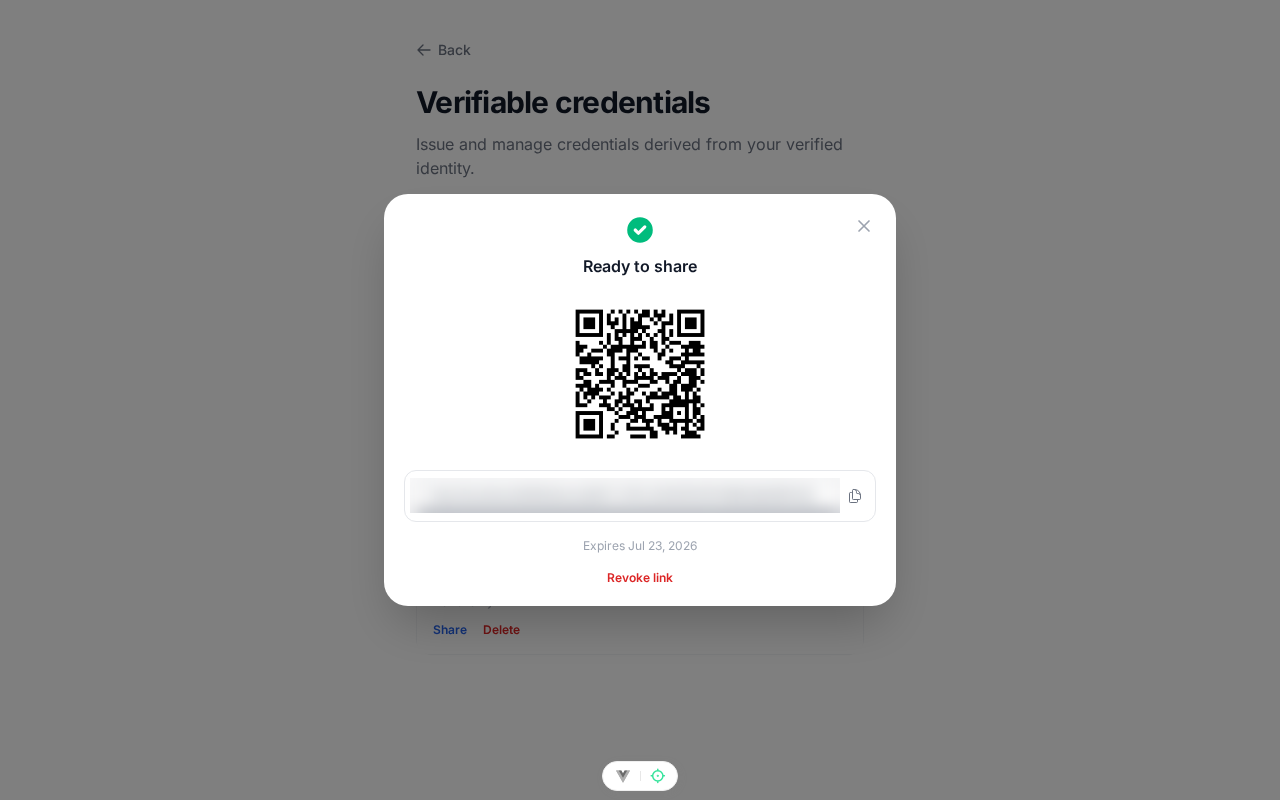
Anyone who opens the link sees the verified data the user chose and whether the credential is still valid.
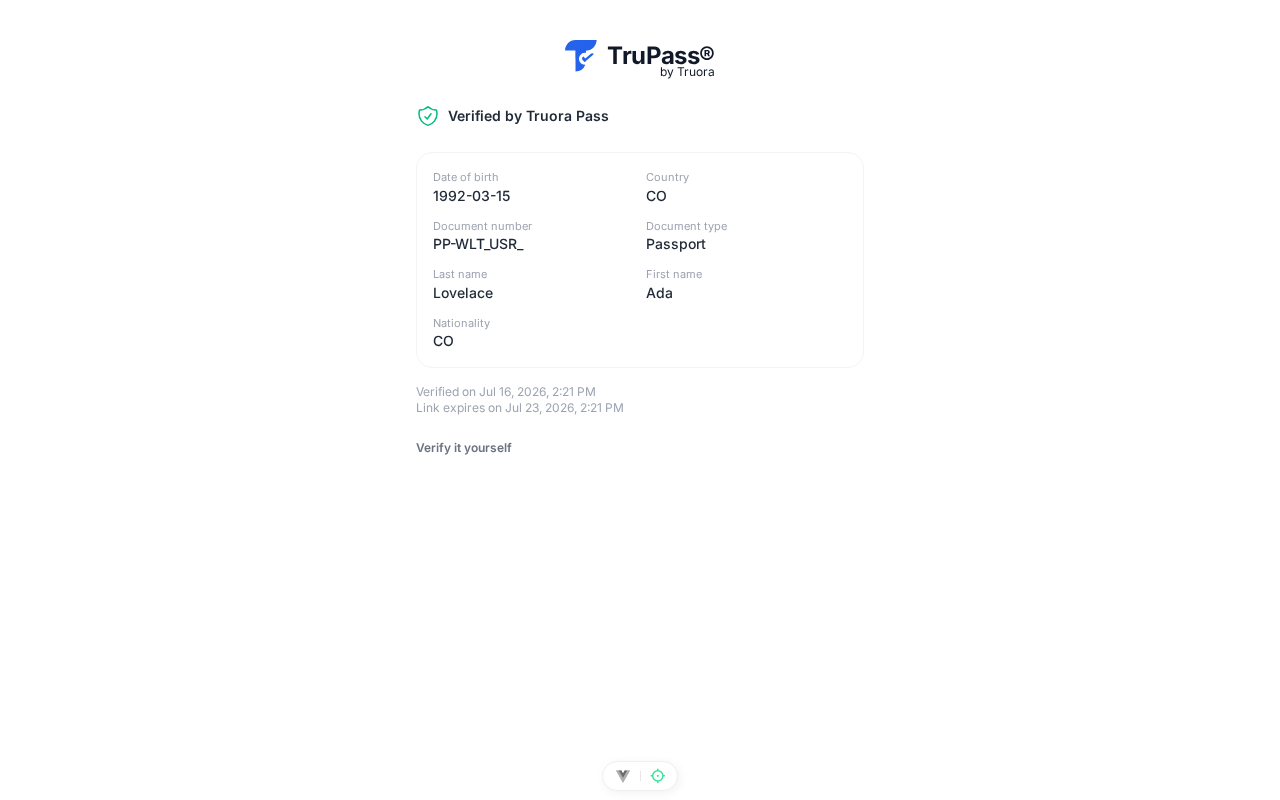
About shared links:
- They show only the data the user chose, nothing else.
- They expire after 7 days.
- The user can cancel a link at any time. A cancelled or expired link shows nothing.
- Cancelling a link doesn’t cancel the credential, only that link.
Approve a request from your application
Your application can also ask the user for data from their credential. The user sees your application’s name and the data you ask for, and can approve all of it, only some, or decline.
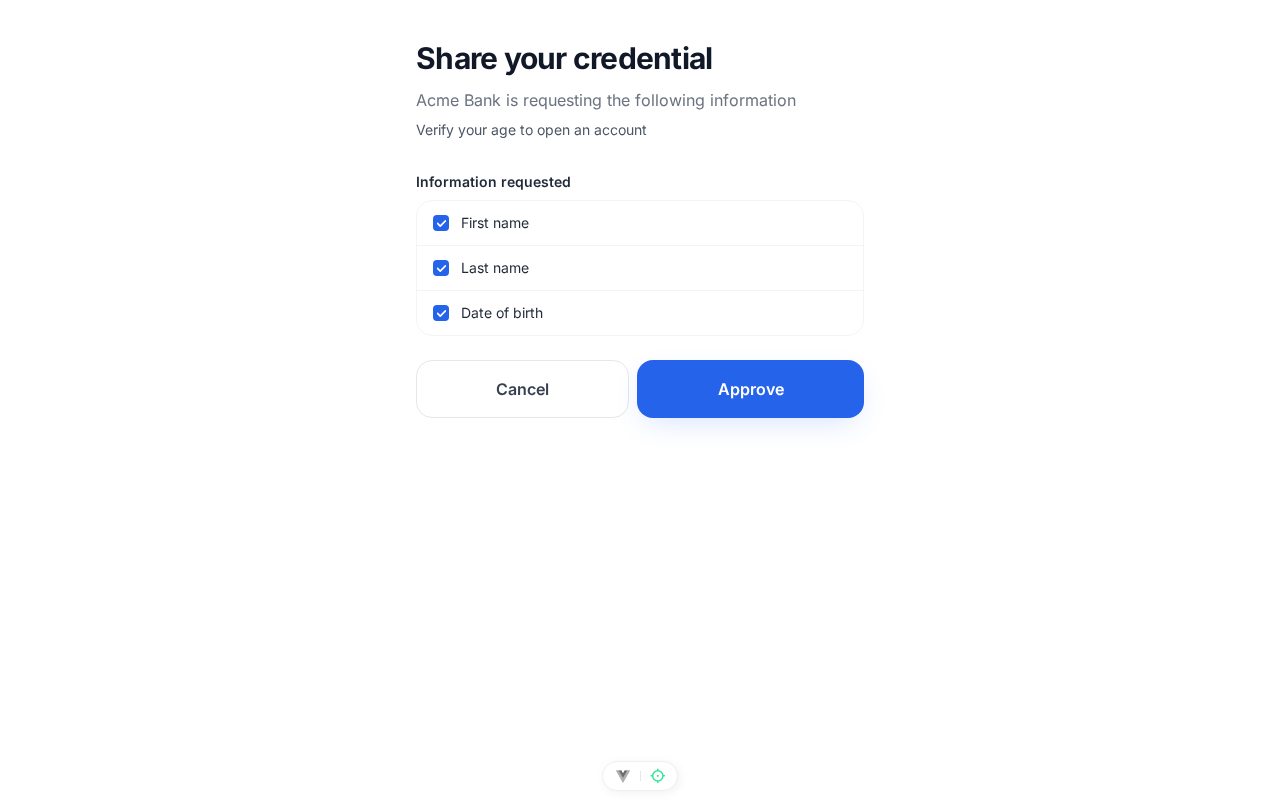
Once they approve, they are done; your application receives the verified data.
Revoke a credential
The user can delete the credential from the Credentials section at any time. This removes it from their device and marks it as revoked, so nobody can use it again, including from copies.
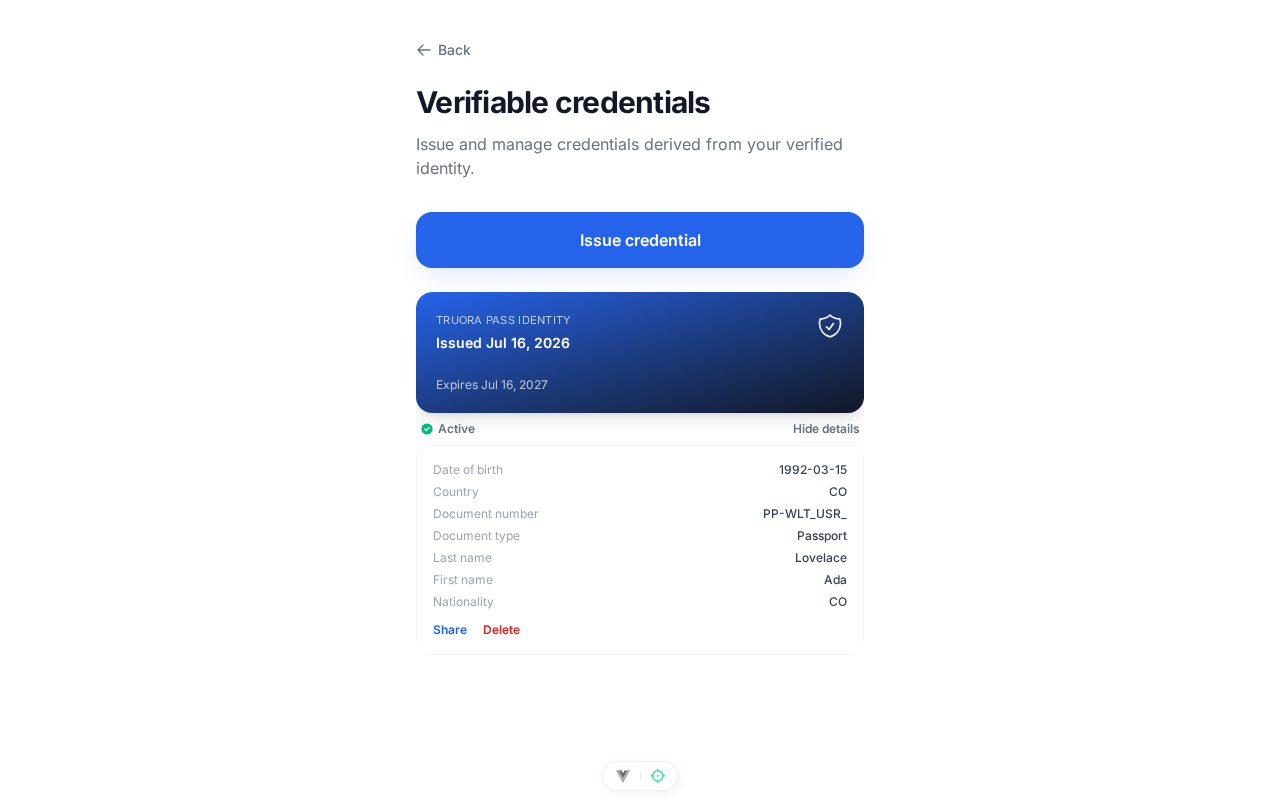
The user can issue a new one later, as long as their document verification is still valid.
For developers
How credentials work and how to verify them from your backend: