


Approve requests from your phone with Truora Pass
In simple terms: Your chatbot, call center or a backend process can ask a user to confirm who they are, share their data, or approve something (a payment, a refund, an expense), without sending them to your website. The user gets a link on their phone, reviews the request and taps Approve or Deny. Your team gets the answer right away.
When to use it
- A user is chatting with your WhatsApp bot or agent and you need to confirm who they are, or get their consent to read their data, without leaving the chat.
- The user is not on your website: a call center, a store, a bank branch.
- A person must approve something before a process continues: a large payment, a refund, an expense report.
What the user needs
- A Truora Pass account with the same email your team uses to find them.
- A verified phone number in that account. This is where Truora Pass sends the WhatsApp message.
If your team sends the link through its own channel instead (see Who sends the link), the phone doesn’t need to be verified, and the user can even create their account when they open the link.
What the user receives
By default, Truora Pass sends a WhatsApp message to the user’s verified phone. It includes:
- A greeting with the user’s first name.
- Your application’s name, asking for their approval.
- A short line written by your team saying what is being asked (for example “Share your documents with CapiBank”).
- How many minutes the request stays open.
- A link to open the approval screen.
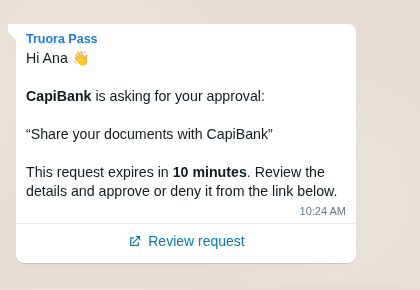
The image above is an illustration, not the exact wording.
How the user approves
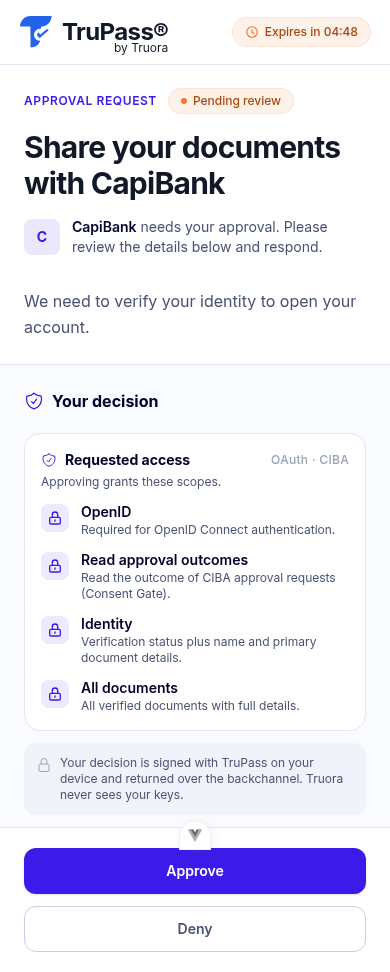
- The user taps the link.
- If they aren’t signed in, they sign in to Truora Pass on the same page.
- They see who is asking, the message, and the data being requested.
- They tap Approve or Deny.
Detailed approvals
When someone must approve something specific, the request can carry more than one line: formatted text, tables, images and files to read or download, and a short form to fill in (for example a reason or an amount).
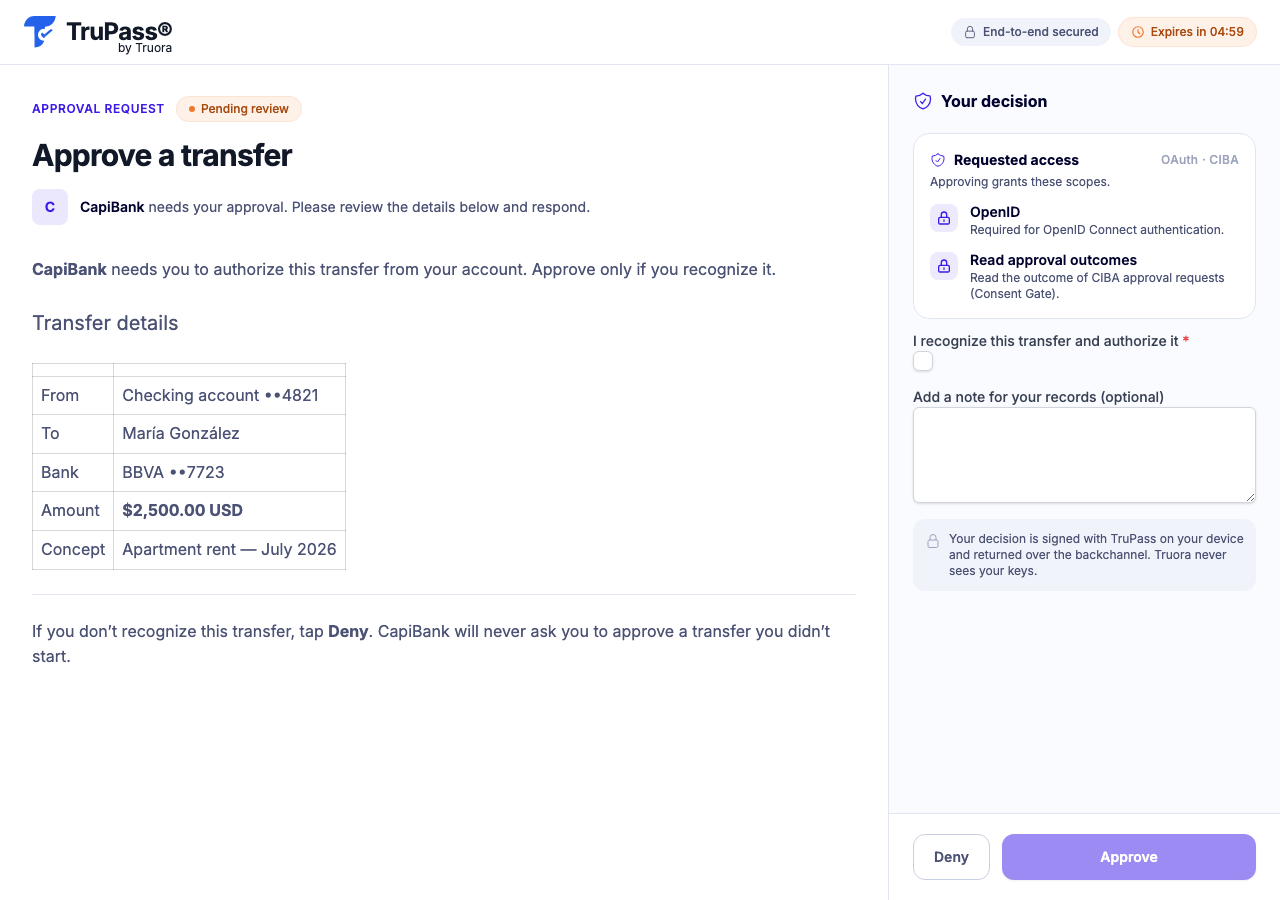
If there is a form, Approve stays disabled until the required fields are filled in.
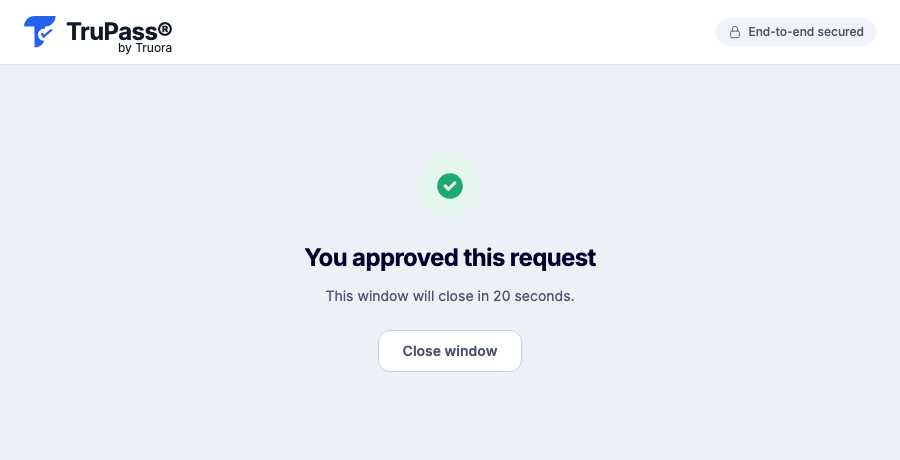
Once the reviewer decides, they see a confirmation.
Good to know for support
- The decision is final. There is no undo. To change it, your team must send a new request.
- The link works once. The user can open it several times, but once they decide it can’t be used again.
- Requests expire. By default after 5 minutes, at most after 15.
- The user may see one of these messages:
| Message | What it means |
|---|---|
| “This approval link has expired or already been used” | The link was already used or is too old. Ask your team to send a new request. |
| “The request has expired” | The user didn’t decide in time. Ask your team to send a new request. |
| “This request is no longer pending” | The user already approved or denied it. |
Who sends the link
- Truora Pass sends it by WhatsApp to the user’s verified phone. This is the default. For detailed approvals, this message carries only your application’s name, the time limit and the link.
- Your team sends it through your own channel: your WhatsApp conversation, your app, email or SMS. This is recommended for detailed approvals, because you control how the request is introduced, and the user doesn’t need a verified phone.
For developers
The technical side of these flows:
- CIBA flow: start a request and get the result.
- CIBA over WhatsApp: a worked chatbot example.
- Approval requests (Consent Gate): detailed approvals with files and forms.