

Conversations and Agents Management
The Conversations section in the Truora platform is the control center where your agents can directly interact with customers, managing messages and resolving inquiries in real-time.
Connecting with Agents
Flow Builder Configuration
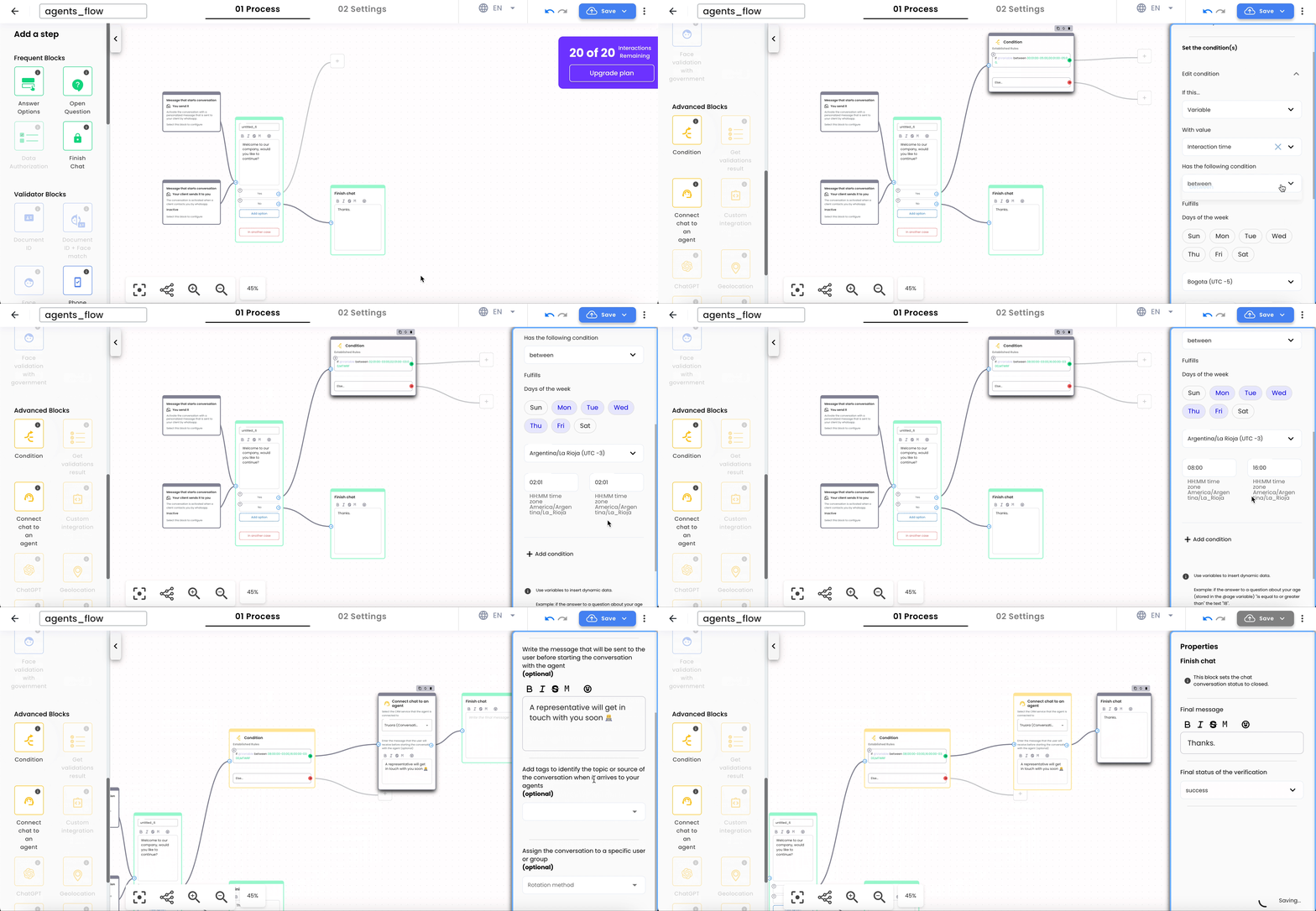
- In the Flow Builder, select the Advanced Blocks option.
- Find the “Connect a chat to an agent” block and add it to your flow as needed.
- In the block, you will find a section that prompts you to select the CMR service through which the agent will connect.
Please select the one that says “Truora (conversations)”.
Managing Conversations in the Agent Suite
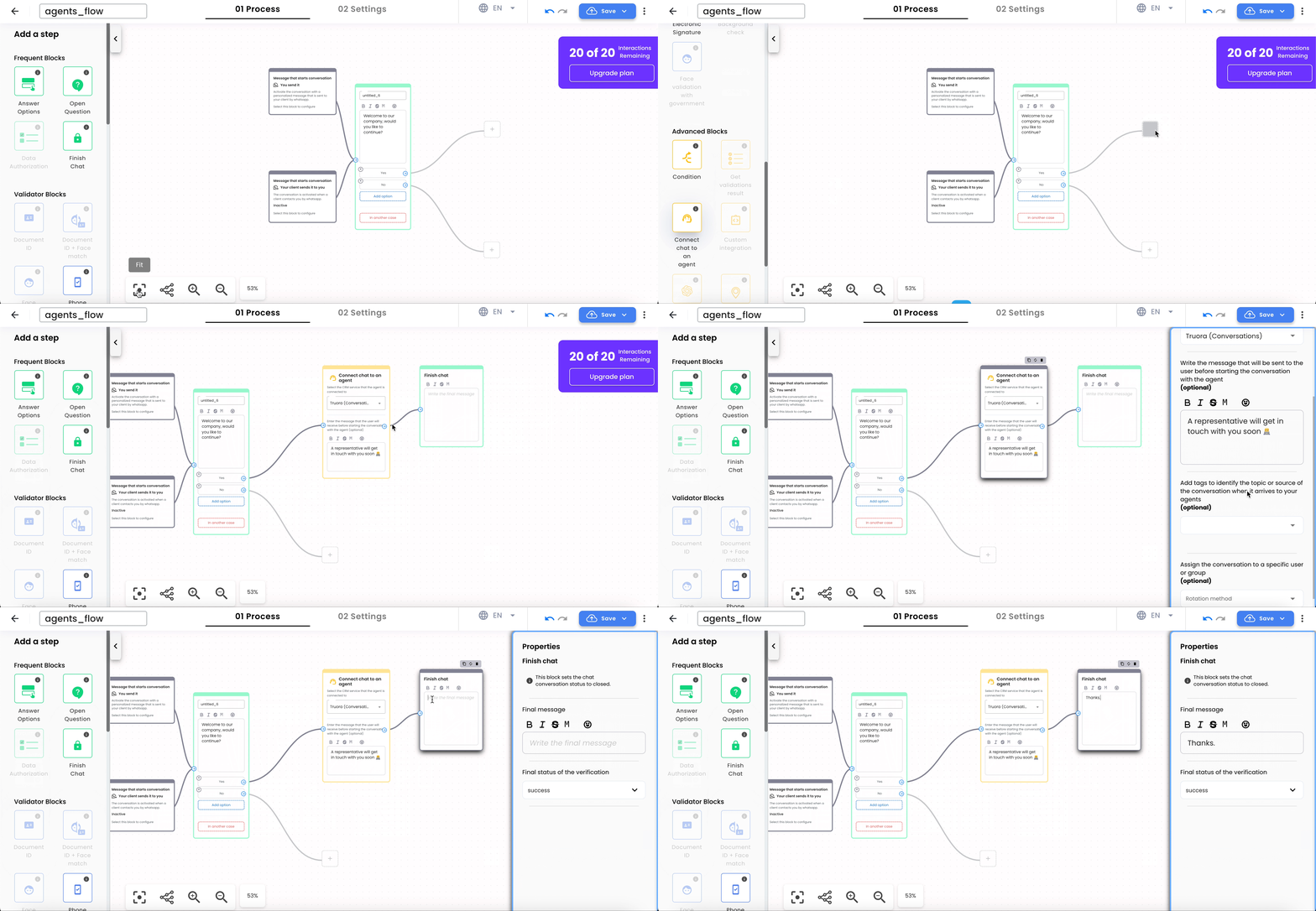
Once a customer selects the route that connects with an agent, a conversation will open in the agent’s suite. Here, the agent can:
-
Have a more human interaction and resolve specific issues.
-
View all previous responses, as the flow’s information is stored in the chat.
-
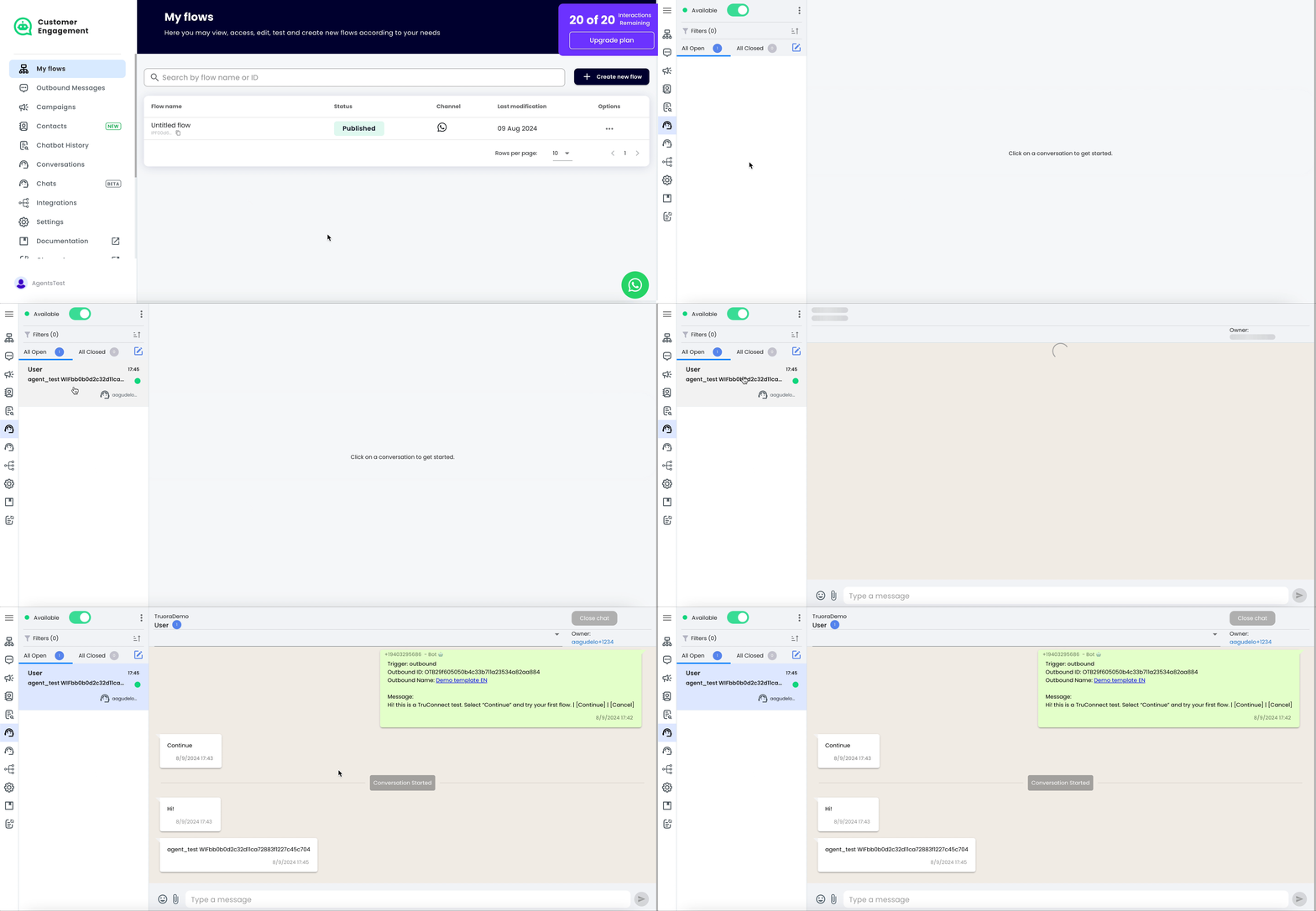
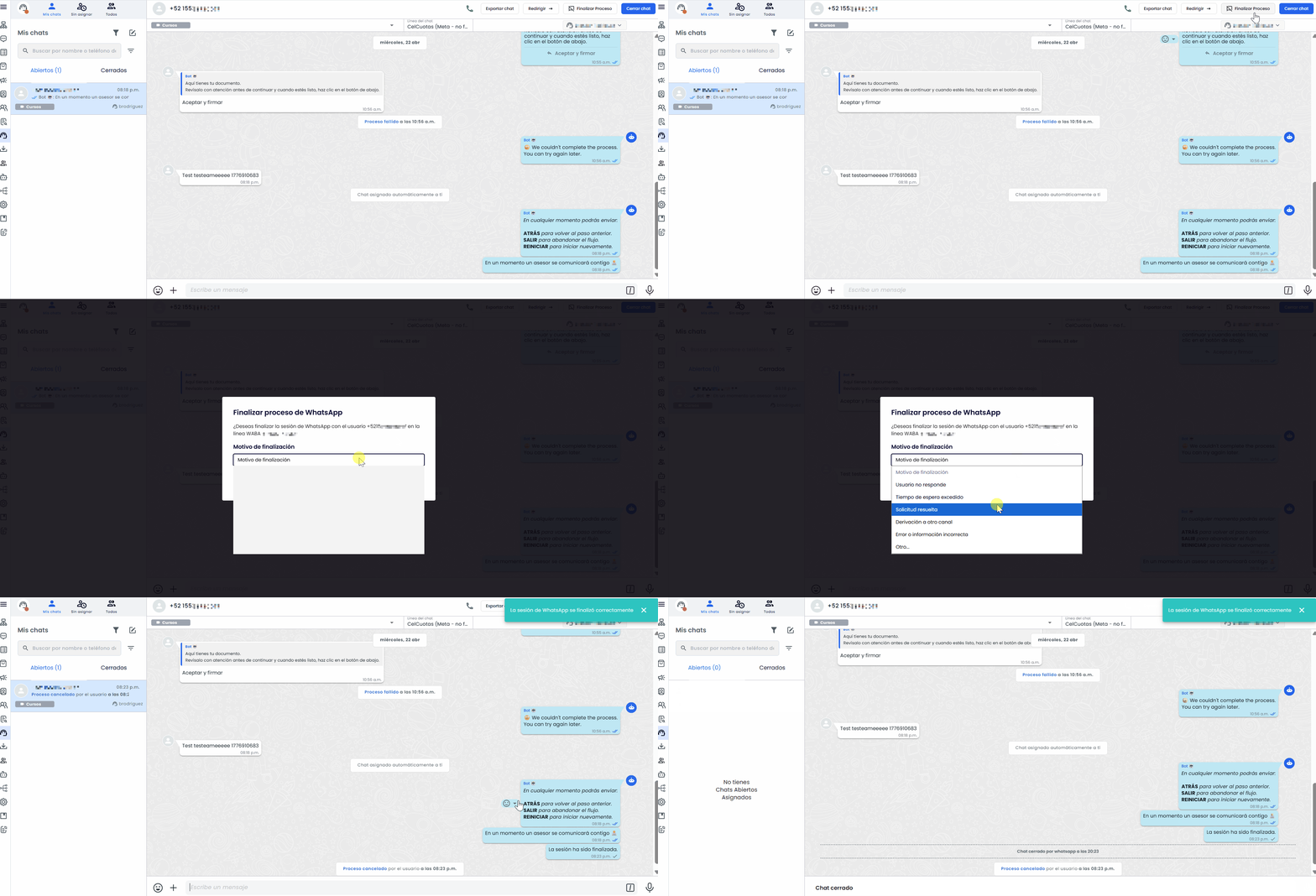
Closing Conversations:
- Closes the chat in the agent’s panel without affecting the user’s ongoing identity verification. Use this when the agent no longer needs to monitor the conversation but the user should continue their process.
- Conversations will automatically close 24 hours after they start, as per Meta’s policy,
or earlier depending on the expiration time defined in the flow.
-
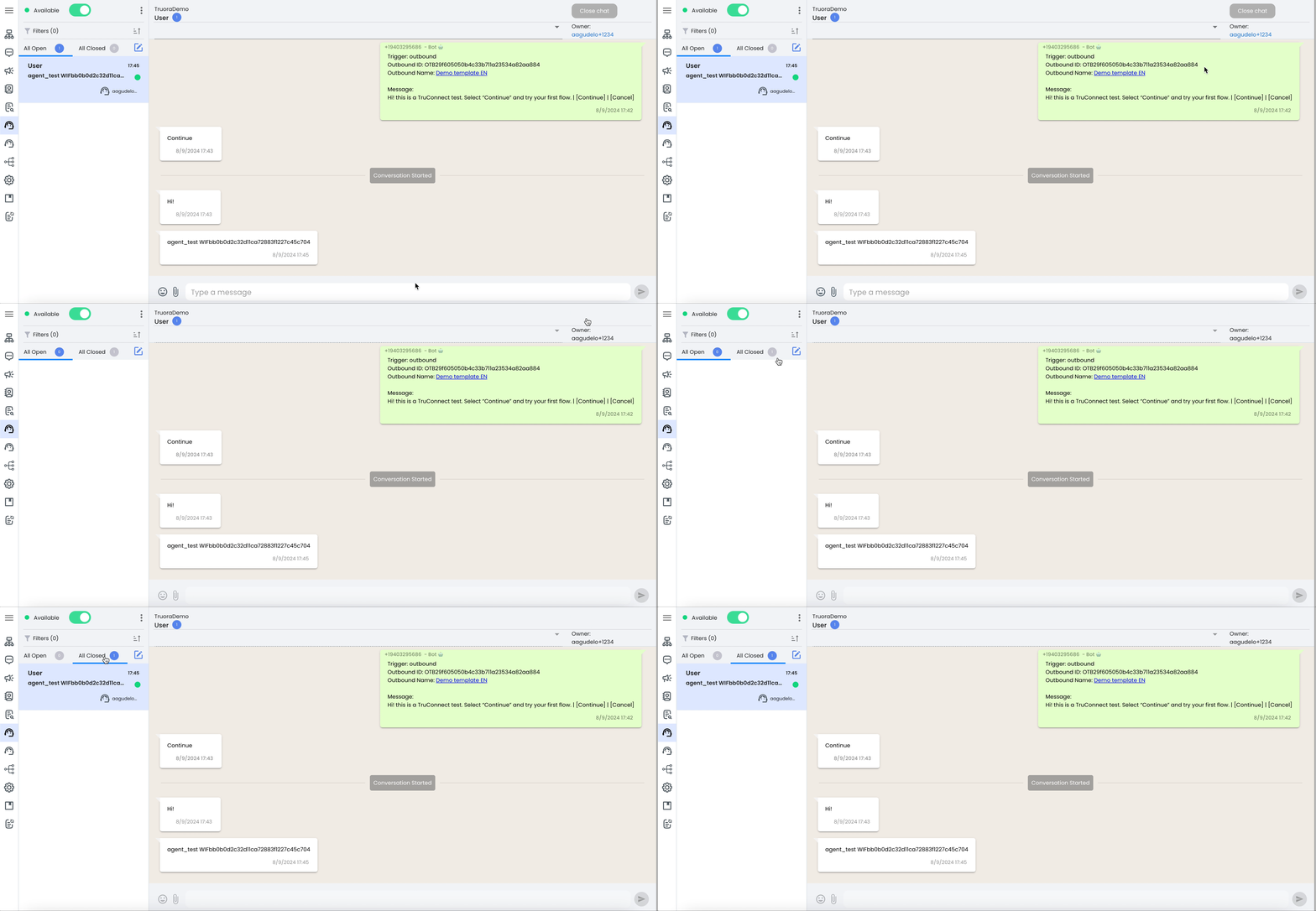
Finishing a WhatsApp process:
- Ends the conversation entirely — the user’s identity verification is cancelled, and they receive a WhatsApp notification that the process has ended. Use this when the verification needs to be stopped (e.g. wrong user, duplicate process, user requested it).
- To recontact the user after finishing a process, you must send a new approved Outbound Message and wait for their reply.
- This action has a progressive cooldown (5, 10, 15, 30 minutes) to prevent accidental repeated use.
Agent Groups
Chat Distribution
The platform allows incoming chats to be distributed among different agent groups, facilitating message management according to the company’s areas.
Agent Configuration
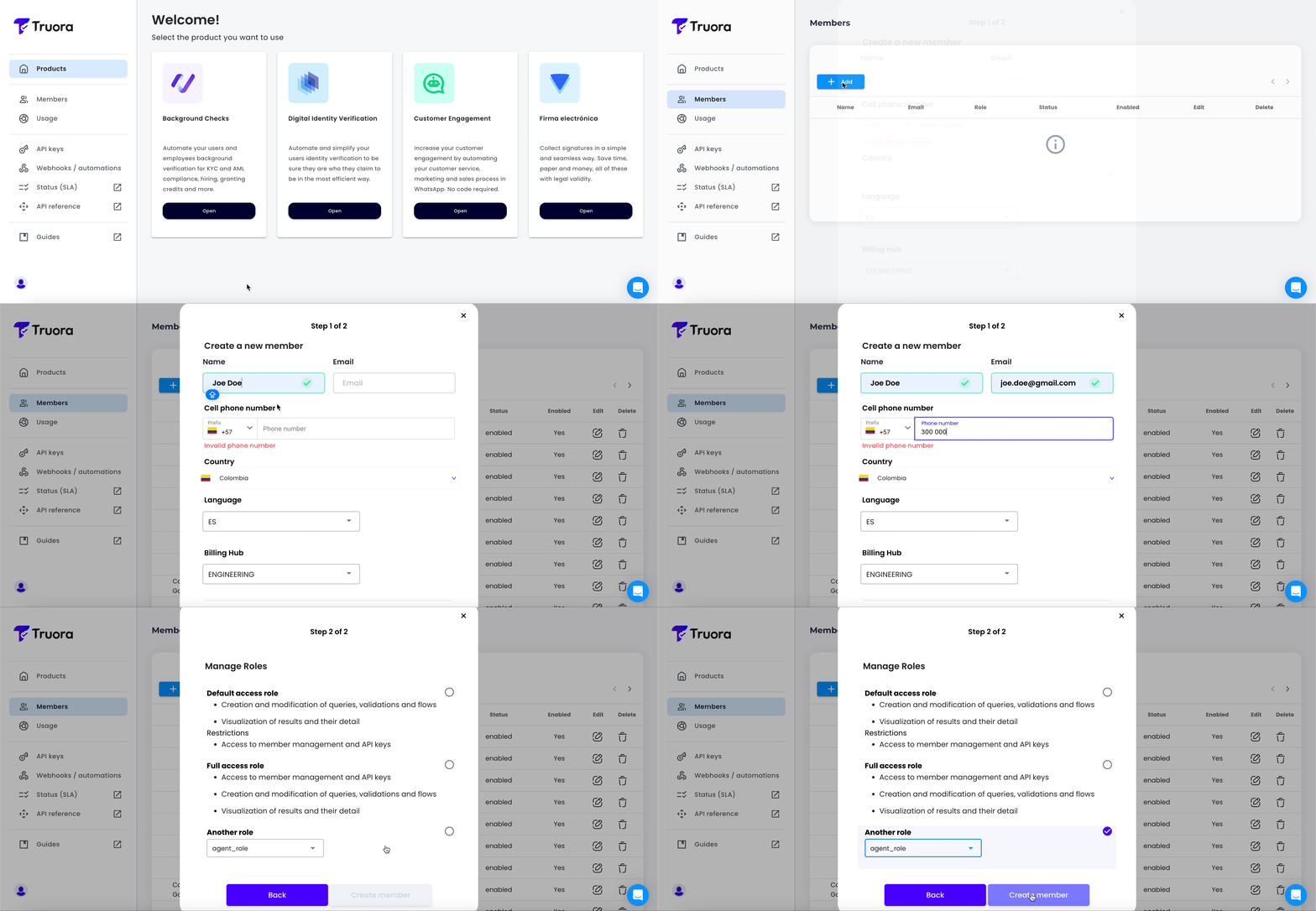
- Ensure your agents have access to the Truora platform.
- From the main screen, select “Members and roles” and click the blue “Actions” button and then select the “Add member” option.
- Enter your agents’ information and select “agent_role” in the “role” field.
If you don’t see this option, please contact your sales representative or our support line.
Creating Agent Groups
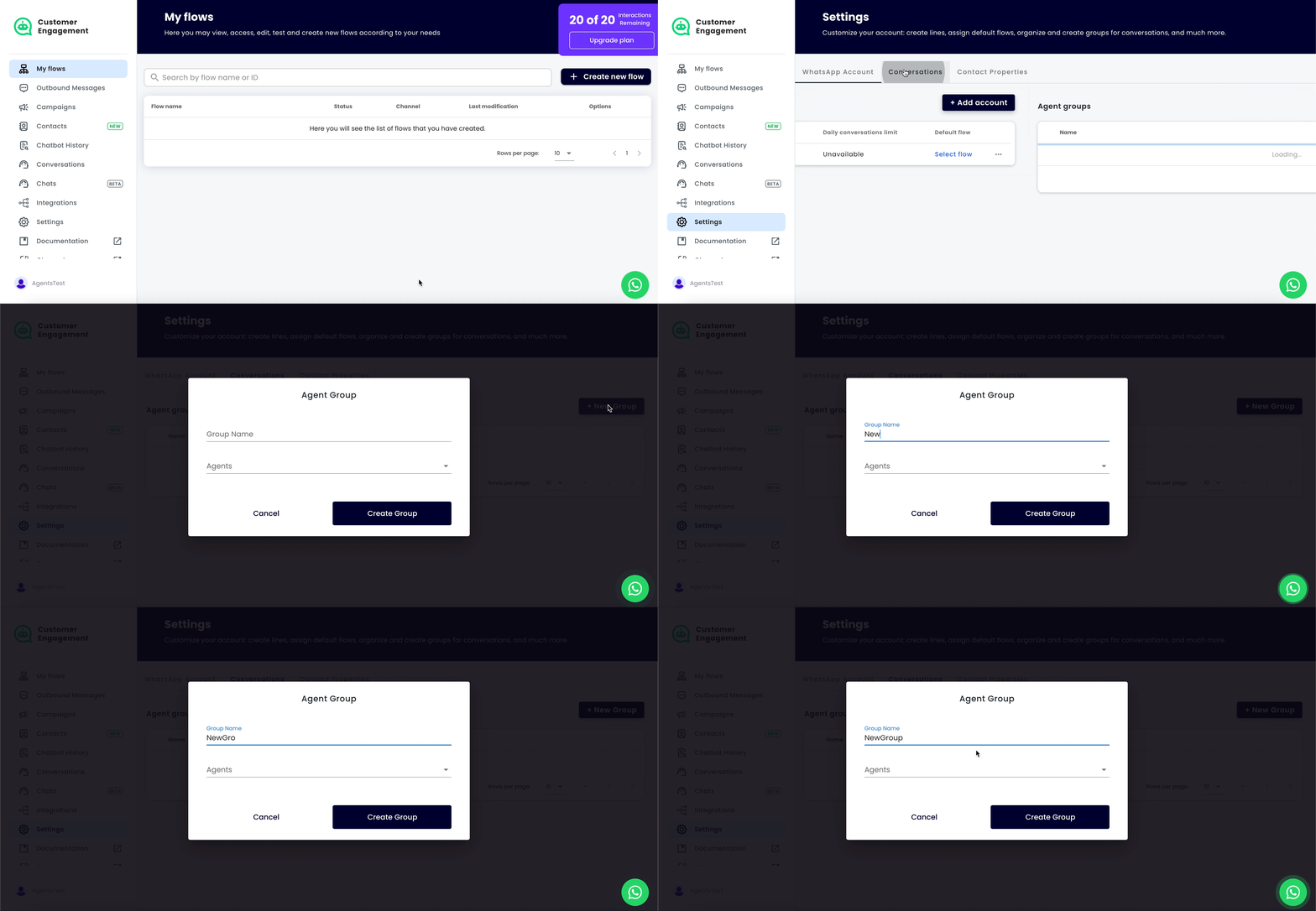
- Go to Customer Engagement and select Human Agents in the left menu.
- Click on Groups and then on the blue “+ New Group” button.
- Assign a name to the group and add the corresponding agents.
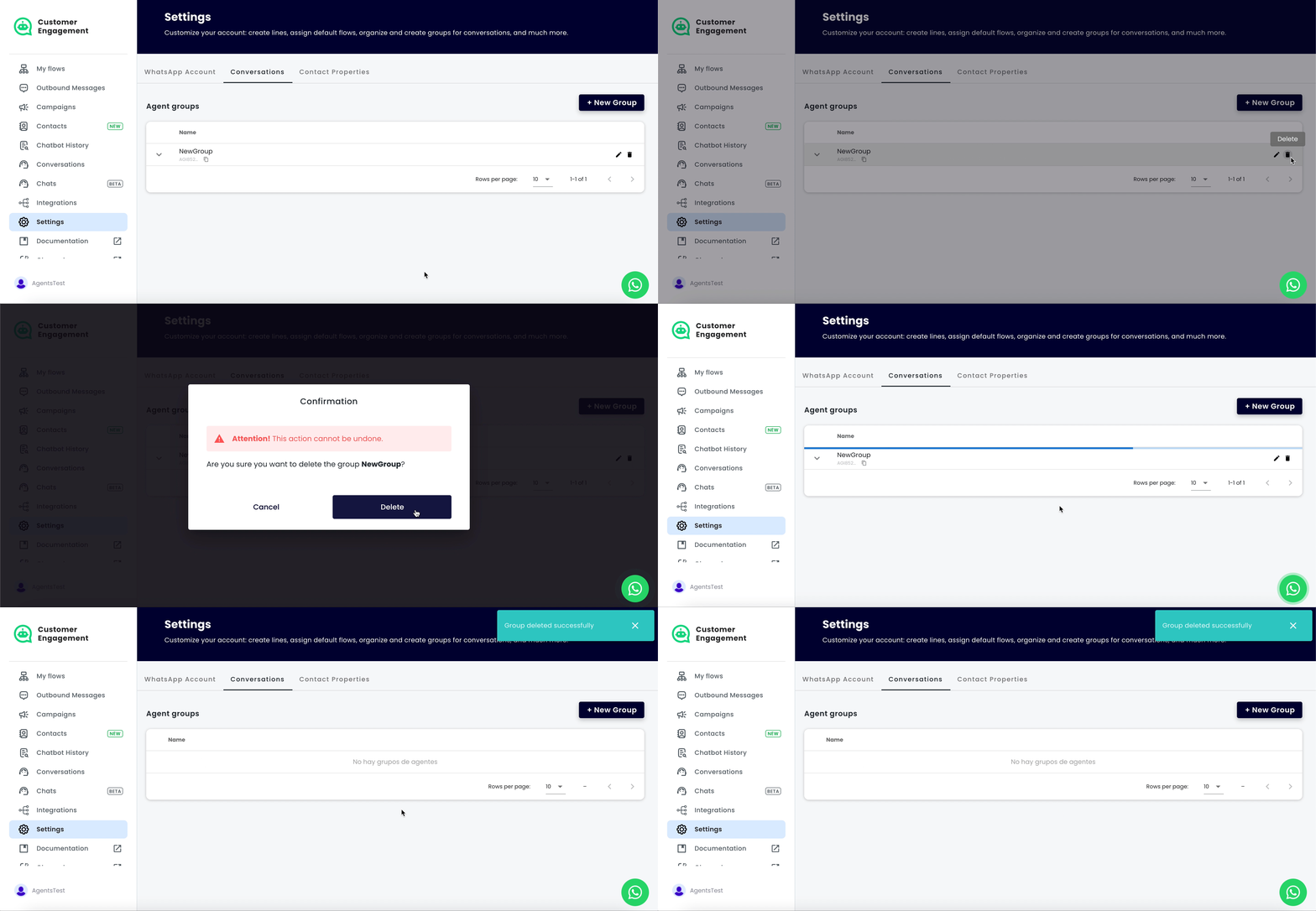
- To edit or delete groups, use the buttons to the right of the created group.
Assigning Conversations
- In the Flow Builder, in the agent block, select the group to which the incoming conversation will be assigned.
- Click on the agent block to open the menu and select “Assign the conversation to a responsible or group.”
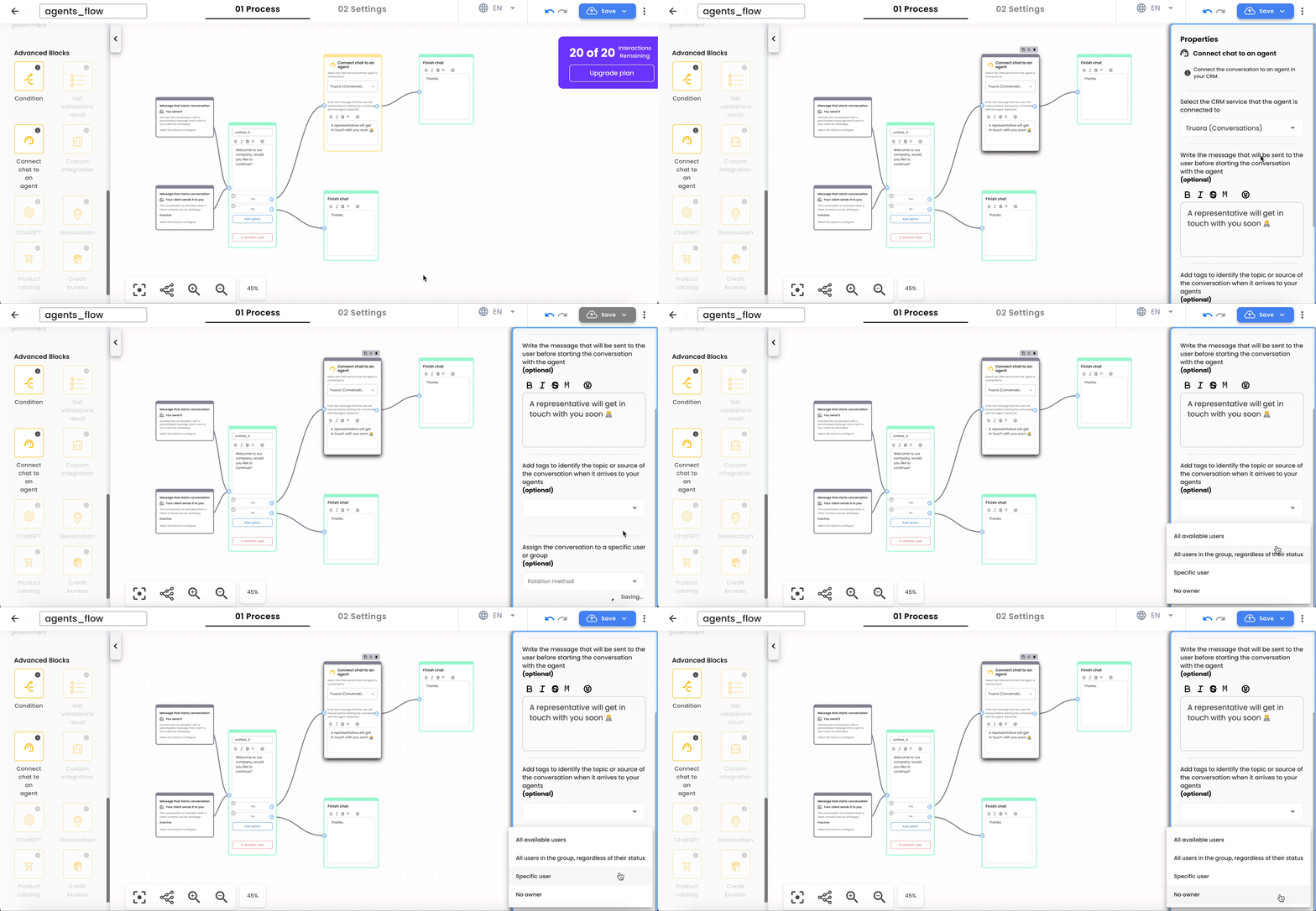
- Agent Rotation Types:
- Available users in the group: Agents with the “available” status will receive messages.
- All users in the group: Conversations will be assigned in rotation among the agents in that group, regardless of availability.
- Specific user: Assign chats to a single agent.
- No owner: Conversations will need to be manually assigned.
Agent Schedules
Notification Settings
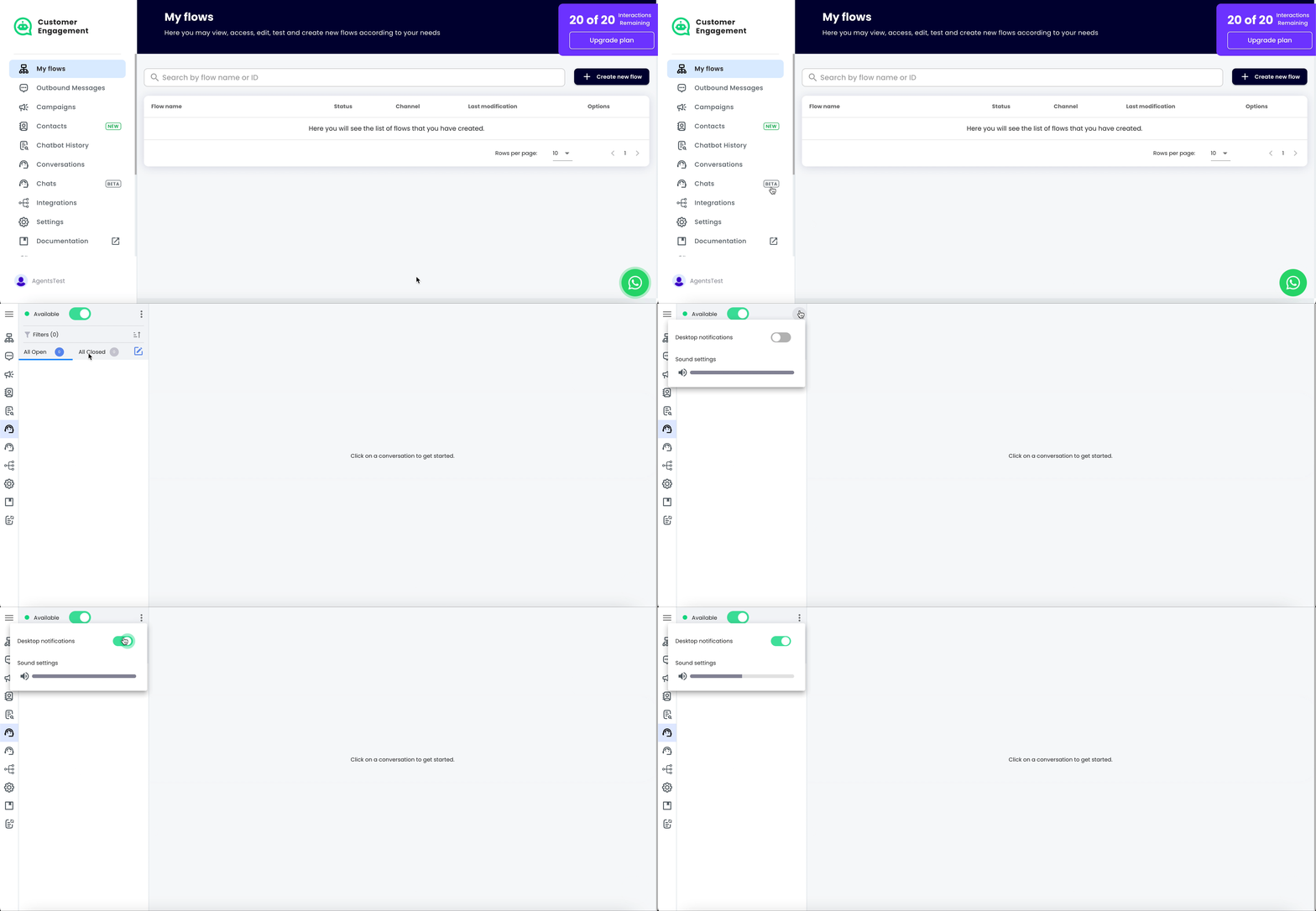
In Chats, next to the “My chats” button, there’s an agent icon. Click on it to see the notification settings
- Notifications: Displays a message when a new message arrives. This option can be turned on or off.
- Sound: Plays a sound when a new message arrives. This option is also configurable.
Time-Based Conditions
- In conditional blocks, set conditions based on the day and time the user reaches that point in the flow.
- If the conditions are met, the flow continues as defined; otherwise, it is redirected to another box.