

Approval requests (Consent Gate)
The Consent Gate is a decoupled, human-in-the-loop approval flow built on top of the CIBA flow. Where plain CIBA asks a user to authorize a set of OAuth scopes behind a single binding_message line, the Consent Gate asks a user to review and approve a rich prompt you compose — markdown, tables, attachments, images, and an optional structured decision form — and returns their decision (plus any form data they submitted) to your backend. This is also what backs the self-delivered WhatsApp link mode, for when you’d rather deliver the approval link yourself than have Truora Pass send it.
Use it when a backend process needs a specific person to sign off on something before it proceeds: an AI agent about to run a production change, a payment above a threshold, a refund, or any “are you sure?” that needs more context than one line can carry.
How it differs from the plain CIBA flow
| CIBA flow | Consent Gate (this guide) | |
|---|---|---|
| What the user approves | A set of OAuth scopes | A rich prompt you compose (authorization_details) |
| What you get back | Tokens | The decision (+ submitted form data), and tokens |
| How you receive it | Poll POST /v1/oauth2/token |
Push to your callback (approval requests are not redeemable at the token endpoint) |
| Extra content | binding_message (one short line) |
Ordered typed blocks + an optional answer form |
When to use it
- You want to deliver the approval link yourself — your own WhatsApp bot, in-app chat, email, SMS — instead of Truora Pass sending it. See Delegate mode below.
- You need to collect a small structured answer from the reviewer alongside their decision, via a JSON Schema form. See step 3.
- You’re requesting approval for someone who doesn’t have a Truora Pass account yet. See Deferred binding.
Prerequisites
- Your application must have the CIBA grant,
urn:openid:params:grant-type:ciba— see Registering your application. - Register the
approval:readscope on your application. It isn’t added automatically to any request — you need it in step 4 to read the decision and form data. - By default, Truora Pass delivers the approval link over WhatsApp to the reviewer’s verified phone, so the reviewer needs an existing Truora Pass account whose email matches your
login_hint. If you’d rather deliver the link yourself — recommended, since the default WhatsApp template can’t carry your rich prompt content, only a link — the reviewer doesn’t need an account yet either; see Delegate mode and Deferred binding below.
1. Configure token delivery (push)
The Consent Gate returns its result to a push callback. Configure this once on your application in the Truora Pass Dashboard, on the application create/edit form (also documented in Registering your application):
- Grant types — enable CIBA (backchannel approval).
- Token Delivery Mode (
backchannel_token_delivery_mode) — set to push. (pollis the default and applies to the plain CIBA flow; a Consent Gate approval request is not redeemable at the token endpoint.) - Backchannel Client Notification Endpoint (
backchannel_client_notification_endpoint) — the HTTPS URL on your backend where Truora Pass POSTs the decision. Must be an absolutehttpsURL; plainhttpis accepted only for loopback hosts (localhost,127.0.0.1,::1) during development.
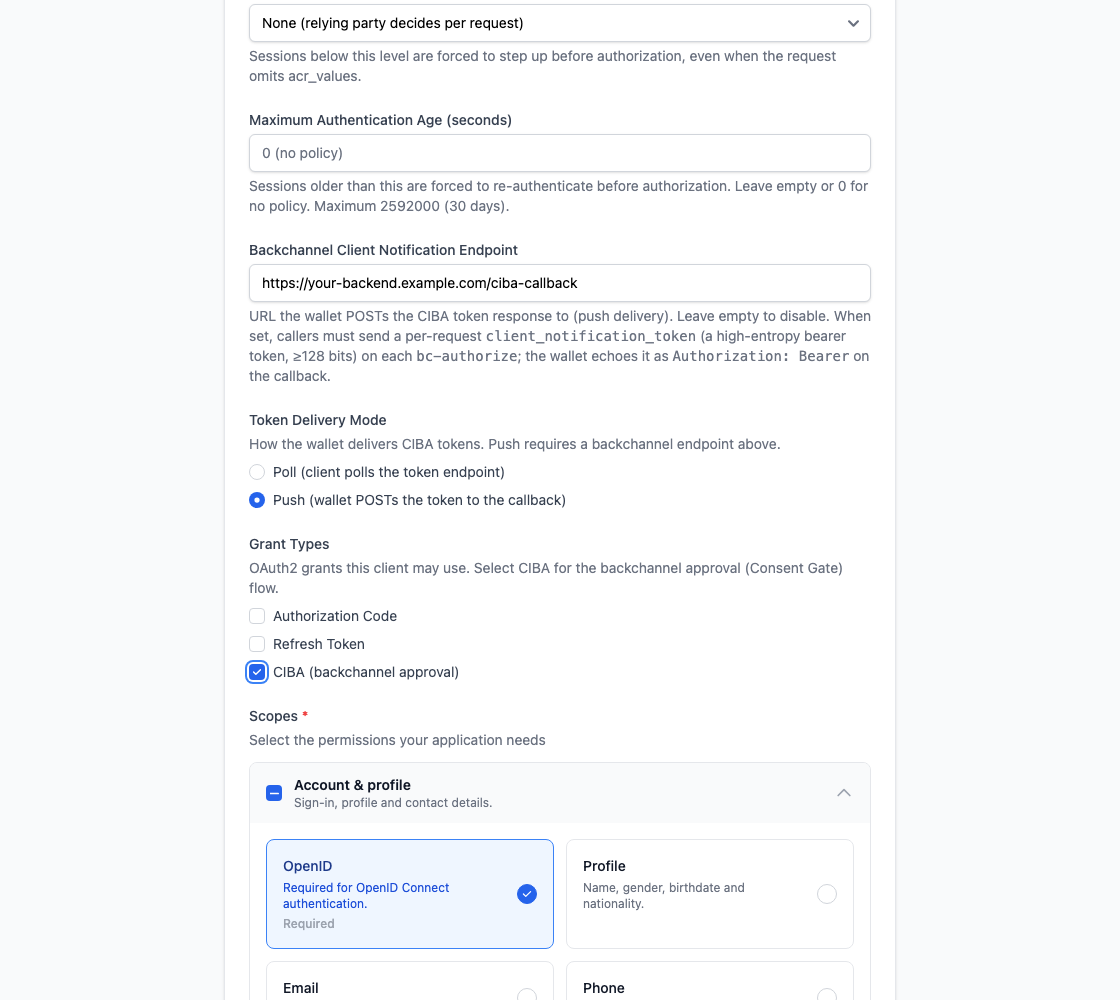
Both fields are self-serve — no need to contact Truora. Without a registered push endpoint, decisions still happen, but your application has no notification of the result and no token to read it with — see the recovery note below. Register before relying on this flow in production.
Note: The client_notification_token is not configured on the application — you send a fresh one per request (see step 4). Truora Pass echoes it back as the bearer credential on the push callback, so you can authenticate that the callback is genuinely yours.
2. (Optional) Upload attachments
If your prompt references a file — a plan, a CSV, an image, a PDF — upload it first. Truora Pass issues a presigned PUT so the bytes go straight to storage and never traverse the Truora Pass API. Do this once per file, before building the prompt.
curl -X POST https://api.pass.truora.com/v1/oauth2/approval-attachments \
  --data-urlencode "client_id=WLT_APP_your_client_id" \
  --data-urlencode "client_secret=your_client_secret" \
  --data-urlencode "login_hint=user@example.com" \
  --data-urlencode "file_name=tfplan.txt" \
  --data-urlencode "content_type=text/plain"
The response gives you an opaque s3_key (which you reference from a block) and a short-lived upload_url:
{
  "s3_key": "wallet-approval-docs/<client>/<app>/<hash>/<id>",
  "name": "tfplan.txt",
  "content_type": "text/plain",
  "upload_url": "https://...presigned-put...",
  "expires_in": 600
}
Then PUT the bytes to upload_url, with the same content type:
curl -X PUT "<upload_url>" \
  -H "Content-Type: text/plain" \
  --data-binary @tfplan.txt
| Parameter | Required | Description |
|---|---|---|
client_id / client_secret |
Yes | Your application credentials, sent in the form body (like bc-authorize) — this endpoint doesn’t take a bearer token. |
login_hint |
Yes | The reviewer’s email. Attachments are staged against this address, not a wallet account, specifically so you can upload before the reviewer has one — see Deferred binding. |
file_name |
Yes | The display filename. If it has an extension, it must match the declared content_type (e.g. .pdf for application/pdf); a filename with no extension is accepted as-is. |
content_type |
Yes | The MIME type. Allowed: image/png, image/jpeg, image/gif, image/webp, application/pdf, text/plain, text/markdown, text/csv, application/json. Active-content types (HTML, SVG) are refused. |
Note: Each file is capped at 10 MB, and the upload_url expires in 10 minutes — that’s the URL’s validity window, not the object’s retention; don’t rely on an s3_key remaining valid indefinitely, and reference it in an authorization_details block soon after uploading. When you start the request in step 4, Truora Pass re-reads each referenced object and sniffs its real bytes — a declared content_type that doesn’t match the actual content is rejected.
| Error | HTTP status | When |
|---|---|---|
invalid_request |
400 | Missing file_name/content_type, disallowed content_type, or extension/content-type mismatch. |
unknown_user_id |
400 | login_hint isn’t a valid email. |
invalid_client |
401 | Wrong client_id/client_secret. |
unauthorized_client |
400 | Your application isn’t allowed to use the CIBA grant. |
3. Build the approval prompt
The prompt travels as an RFC 9396 authorization_details array with a single entry of type urn:truora:wallet:approval. It has a title, an ordered list of typed blocks, and an optional decision form (answer_form_schema + answer_form_ui_schema, JSONForms).
[
  {
    "type": "urn:truora:wallet:approval",
    "title": "Production infrastructure change — approval required",
    "blocks": [
      { "type": "markdown", "text": "# Production change\nThe **Refund Agent** wants to run `terraform apply` against **production**." },
      { "type": "markdown", "text": "| Field | Value |\n|---|---|\n| Environment | production |\n| Risk | High |" },
      { "type": "divider" },
      { "type": "markdown", "text": "## Terraform plan" },
      { "type": "attachment", "s3_key": "wallet-approval-docs/.../tfplan" },
      { "type": "markdown", "text": "## Target architecture" },
      { "type": "image", "s3_key": "wallet-approval-docs/.../diagram", "alt": "Target architecture" },
      { "type": "file", "s3_key": "wallet-approval-docs/.../audit", "label": "Download audit.json" }
    ],
    "answer_form_schema": {
      "type": "object",
      "required": ["justification", "rollbackTested"],
      "properties": {
        "justification": { "type": "string", "minLength": 10, "title": "Justification" },
        "rollbackTested": { "type": "boolean", "title": "I confirm the rollback plan was tested" }
      }
    },
    "answer_form_ui_schema": {
      "type": "VerticalLayout",
      "elements": [
        { "type": "Control", "scope": "#/properties/justification", "options": { "multi": true } },
        { "type": "Control", "scope": "#/properties/rollbackTested" }
      ]
    }
  }
]
| Field | Type | Notes |
|---|---|---|
type |
string | Must be exactly urn:truora:wallet:approval. |
title |
string | Optional; trimmed; shown at the top of the approval screen. |
blocks |
array | Ordered list of typed content blocks — see below. |
answer_form_schema |
JSON Schema | Optional — see Collecting structured answers below. |
answer_form_ui_schema |
JSONForms UI schema | Optional; if provided, answer_form_schema must be present too. |
Block types
| Type | Required fields | Optional fields | Renders as | Limit |
|---|---|---|---|---|
markdown |
text (non-blank) |
— | Formatted text — headings, lists, tables, inline code. | 16 KB per block |
attachment |
s3_key |
name |
The file’s content shown inline if small enough (rendered as markdown for text/markdown, plain text otherwise) — see step 5. |
— |
image |
s3_key |
alt, name |
An inline image. | — |
file |
s3_key |
label, name |
A download link. | — |
divider |
— | — | A horizontal rule. | visual separator only |
attachment/image/file blocks reference an object staged with the endpoint from step 2 — s3_key is the value it returned; name overrides the display name.
Rules across the whole prompt:
- Up to 50 blocks per prompt.
- The combined
textacross allmarkdownblocks is capped at 64 KB. - The whole
authorization_detailsvalue is capped at 64 KB. - Any other
typevalue, or a block missing its required field, is rejected withinvalid_request— “approval blocks are invalid”.
Collecting structured answers (optional)
Ask the reviewer to fill out a small form alongside their decision by supplying answer_form_schema (a JSON Schema) and, optionally, answer_form_ui_schema (a JSONForms UI schema controlling how it renders). Each is capped at 32 KB. The submitted answers come back in the data field when you read the outcome in step 7.
Errors from this step, and from the block/attachment rules above, use the standard OAuth 2.0 error envelope ({"error": "...", "error_description": "..."}):
| Error | HTTP status | When |
|---|---|---|
invalid_request |
400 | authorization_details exceeds 64 KB or isn’t a valid JSON array; a block is invalid (unknown type, missing required field, or over its size limit); an attachment referenced by a block is missing, too large, or its content doesn’t match its declared type; or either form schema exceeds 32 KB, answer_form_schema isn’t a valid JSON Schema, or answer_form_ui_schema doesn’t resolve against it (e.g. it references a field the schema doesn’t define, or the schema requires a field the UI schema never asks for). |
invalid_authorization_details |
400 | More than one urn:truora:wallet:approval entry was included, or none of the entries matched a known type. |
4. Start the request
POST the prompt to the backchannel endpoint, form-encoded — authorization_details as a JSON string, and a fresh client_notification_token:
curl -X POST https://api.pass.truora.com/v1/oauth2/bc-authorize \
  --data-urlencode "client_id=WLT_APP_your_client_id" \
  --data-urlencode "client_secret=your_client_secret" \
  --data-urlencode "login_hint=user@example.com" \
  --data-urlencode "scope=openid approval:read" \
  --data-urlencode "client_notification_token=$(openssl rand -hex 32)" \
  --data-urlencode 'authorization_details=[{"type":"urn:truora:wallet:approval","title":"...","blocks":[...]}]'
| Parameter | Required | Description |
|---|---|---|
client_id / client_secret |
Yes | Your application credentials. |
login_hint |
Yes | The reviewer’s email address (must contain @). |
authorization_details |
Yes | The JSON array from step 3. Exactly one urn:truora:wallet:approval entry. |
scope |
Optional | Unlike plain CIBA, scope isn’t required on a rich request. Include approval:read if you want the pushed access token to be able to read the outcome — see Scopes alongside the prompt below and step 7. |
client_notification_token |
Yes | A per-request secret you generate. Required because your application has a registered callback endpoint. Truora Pass echoes it back as the bearer credential on the push callback, so you can authenticate it. RFC 6750 token68 grammar, up to 1024 characters. |
requested_expiry |
No | How long the request stays approvable, in seconds. Default 300 seconds (5 minutes) if omitted, capped at 900 seconds (15 minutes). Contact Truora if a longer window would help — for example a team-approval workflow that should stay open for a working day. |
acr_values |
No | Advanced: requested authentication context (step-up). |
On success:
{
  "auth_req_id": "<opaque request identifier>",
  "expires_in": 900,
  "interval": 5
}
Note: interval is always present in the response, but polling auth_req_id at the token endpoint for an approval request always fails — see step 7. Ignore interval for this flow; it only applies to plain CIBA polling.
Errors use the OAuth 2.0 envelope {"error": "...", "error_description": "..."}:
| Error | Meaning |
|---|---|
invalid_authorization_details |
Missing/unknown type, or more than one urn:truora:wallet:approval entry. |
invalid_request |
A block or form schema is invalid, an attachment is missing/too large/mismatched, or client_notification_token is missing or malformed. |
unknown_user_id |
No Truora Pass user resolves from the login_hint (not applicable in delegate mode with deferred binding). |
invalid_client |
Wrong client_id / client_secret (HTTP 401). |
unauthorized_client |
Your application is not allowed to use the CIBA grant. |
Scopes alongside the prompt
scope can be combined with authorization_details:
- If you include
scope, the requested scopes are shown to the reviewer as a “Requested access” card, in addition to yourtitle/blocksprompt — see step 5. binding_messagehas no effect in this flow —titleandblocksfully replace it as the “what am I approving” surface. Sending it is simply ignored.- The sensitive-scope rule that makes
binding_messagemandatory on plain CIBA (fordocuments,background, etc. — see the Scopes reference) does not apply here; your prompt is trusted to convey what’s being requested. - If the request is approved and your application is registered for push delivery, those scopes become the actual scopes on the access token you’re pushed — exactly as in plain CIBA.
5. The reviewer approves on their device
Truora Pass delivers a WhatsApp message to the reviewer’s verified phone with a link to the approval screen (unless you’re delivering the link yourself). Opening it doesn’t require the reviewer to already be signed in — they’re prompted to sign in (or sign up, for a deferred request) inline, without leaving the page, and the prompt loads once they do.
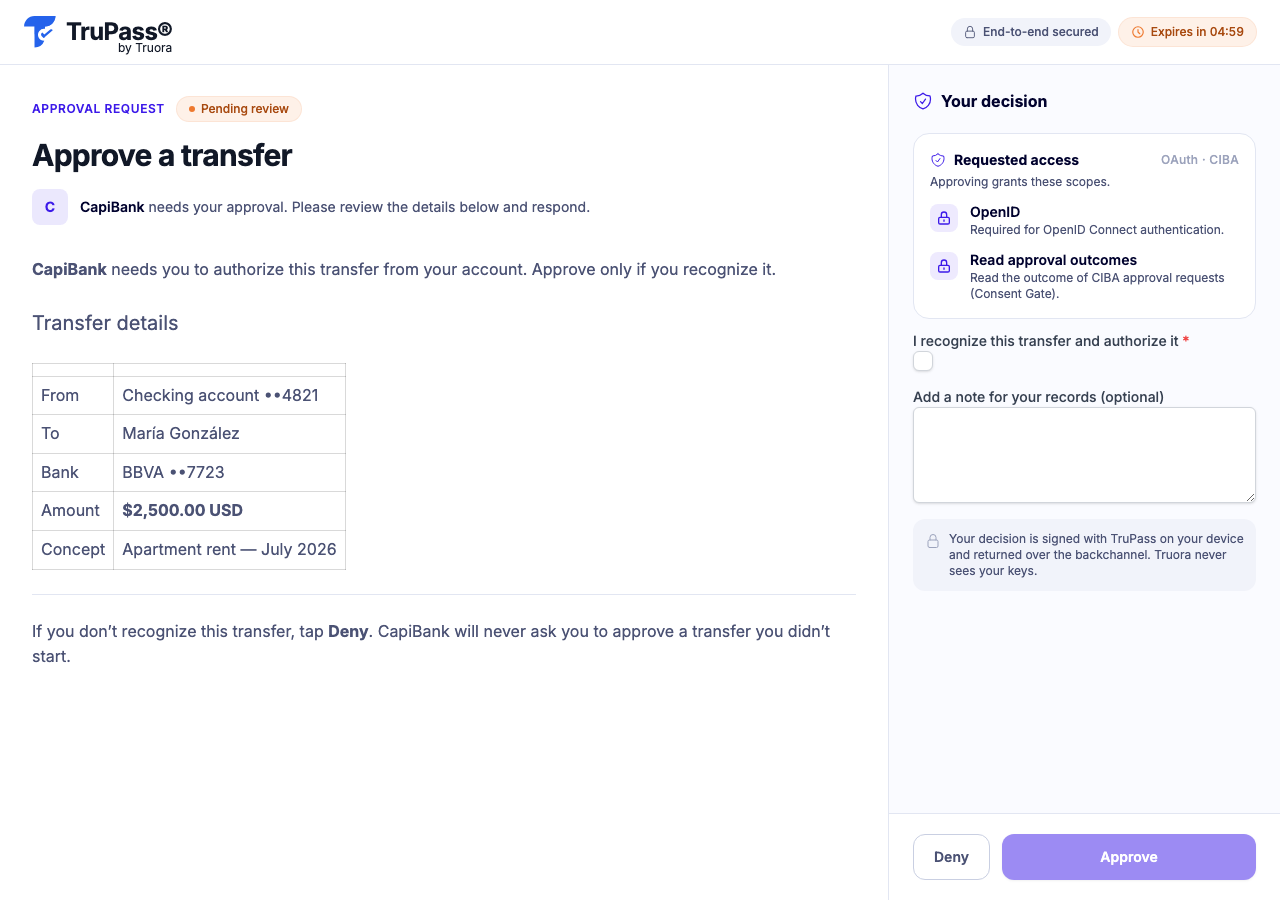
Here is what a prompt with a markdown block and an image block looks like on the reviewer’s phone:
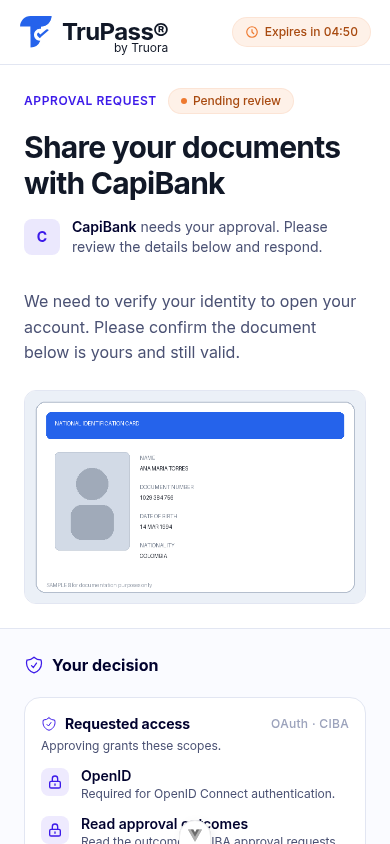
Each block renders as:
| Block | What the reviewer sees |
|---|---|
markdown |
Rendered, formatted text. |
attachment |
Read inline (rendered as markdown for text/markdown, or as plain text otherwise) if the object is small enough; larger objects are automatically presented as a downloadable file instead. |
image |
Displayed inline. |
file |
A labeled row the reviewer opens or downloads via a temporary link. |
divider |
A visual separator. |
If scope was included in step 4, a “Requested access” card lists it alongside the prompt:
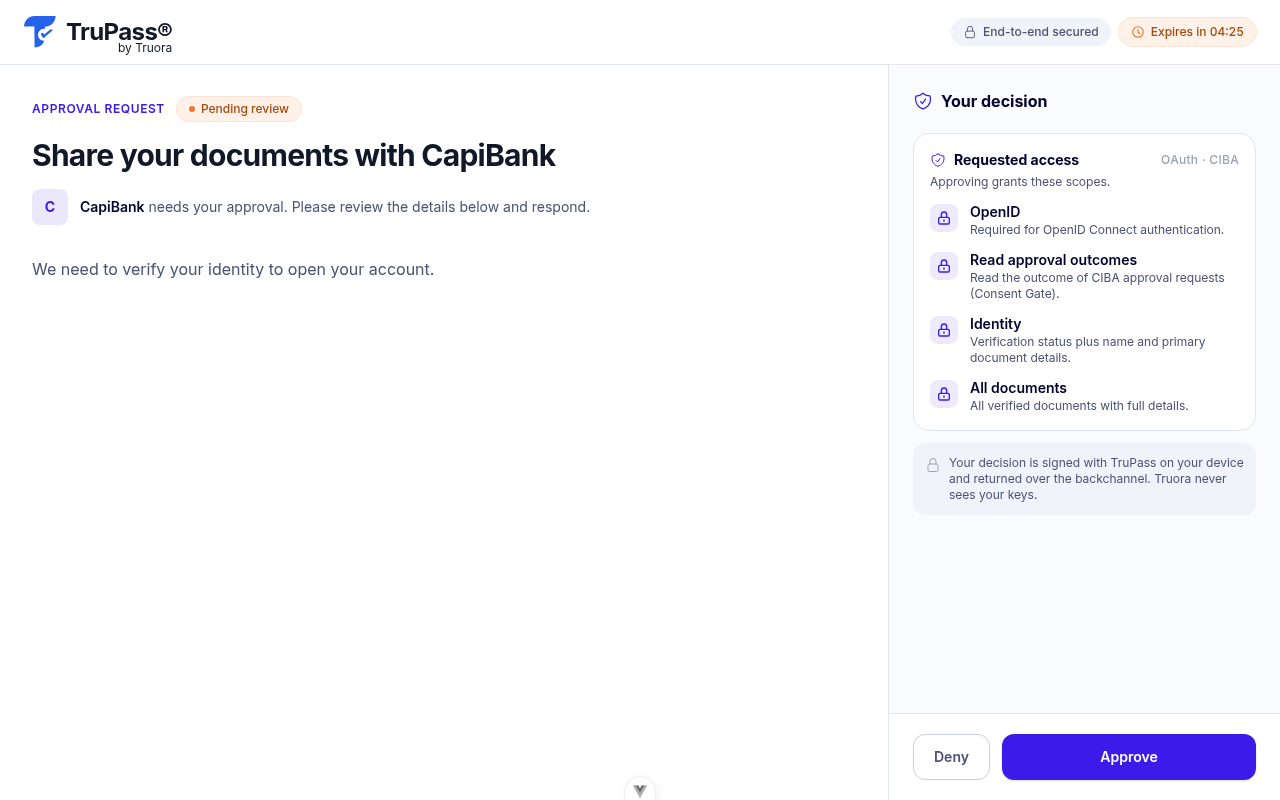
If you supplied answer_form_schema, the reviewer also fills in the decision form. Approve is disabled until the required fields are valid. The reviewer then approves or denies — a decision is final: there’s no undo or re-decide, and the approval link itself is single-use (viewing it doesn’t consume it, but deciding does).
| Situation | What the reviewer/your integration sees | HTTP status |
|---|---|---|
| Link already used or expired | “This approval link has expired or already been used” | 401 invalid_token |
| The request behind the link expired before a decision | “The request has expired” | 410 request_expired |
| Already approved or denied | “This request is no longer pending” | 409 already_decided |
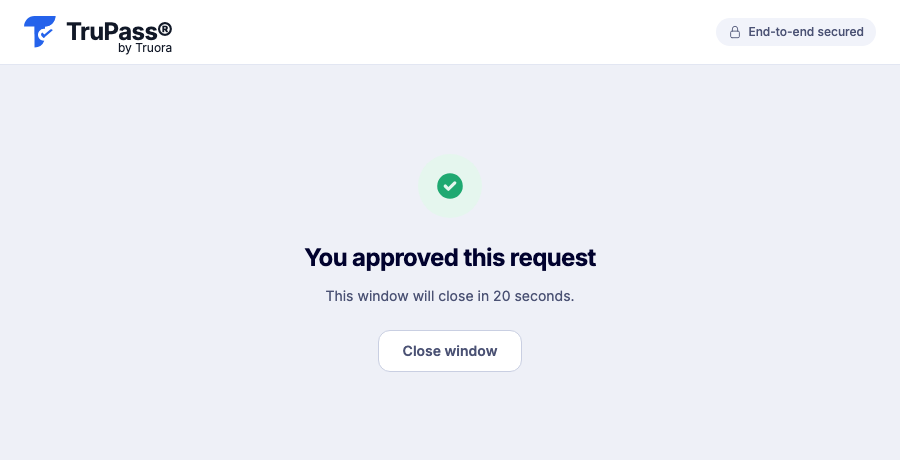
Once the reviewer decides, they see a confirmation and your backend receives the result on your callback.
6. Receive the decision on your callback
At decision time Truora Pass POSTs a JSON body to your backchannel_client_notification_endpoint, authenticated with your per-request token as a bearer:
POST /your-callback
Authorization: Bearer <the client_notification_token you sent in step 4>
Content-Type: application/json
On approve, the body is the auth request id plus a full token response:
{
  "auth_req_id": "<same auth_req_id>",
  "access_token": "<access token>",
  "token_type": "Bearer",
  "expires_in": 3600,
  "scope": "openid approval:read",
  "id_token": "<id token, only when the openid scope was granted>"
}
On deny, the body carries the error instead:
{ "auth_req_id": "<same auth_req_id>", "error": "access_denied" }
Note: The CIBA flow does not issue a refresh_token. When the delivered access token expires, start a new request if you still need access.
7. Read the submitted form data
The push body carries the decision and the tokens, but not the reviewer’s form answers or a way to verify what they actually saw — a token response has no room for either. Read them from the outcome endpoint:
curl "https://api.pass.truora.com/v1/oauth2/approval-outcome?auth_req_id=<auth_req_id>" \
  -H "Authorization: Bearer <access_token>"
{
  "decision": "approved",
  "data": { "justification": "promoting after a successful staging soak", "rollbackTested": true },
  "prompt_checksum": "<sha-256 digest of the exact prompt the reviewer saw>"
}
decision—pending,approved,denied, orexpired.data— the reviewer’s form answers, already validated by Truora Pass against youranswer_form_schema; only populated whendecisionisapprovedand you supplied a schema.prompt_checksum— a digest over the exact prompt shown at decision time: the title, every block (including a content fingerprint of any attachment/image/file, not the raw bytes), and the form schemas. Empty while pending.- Attachments themselves are not echoed here — you already have them, since you supplied the
s3_keyvalues.
Which tokens work here: any valid access token issued to your application that carries the approval:read scope — not only the one pushed for this specific request. approval:read is never added automatically; it only ends up on a token if you asked for it in scope on bc-authorize (step 4). Because the endpoint accepts any token your application holds with that scope, this has two practical consequences:
- You can observe
pending: with a previously obtainedapproval:readtoken you can read a request’s outcome before the reviewer decides. - A missed push is recoverable: the approval record persists after the decision (reading it doesn’t consume it, and it can be read repeatedly) — so if your callback endpoint was down when Truora Pass pushed, read the outcome here with any valid
approval:readtoken you hold. If you hold none for this application, the pushed token was your only credential and the outcome is unreadable; monitor your callback endpoint’s availability.
A client may only read the outcome of its own approvals.
| Error | HTTP status | When |
|---|---|---|
| Missing or invalid Bearer token | 401 | The Authorization header is absent, malformed, or the token is invalid or expired. |
insufficient_scope |
403 | The token doesn’t carry approval:read. |
forbidden |
403 | The request belongs to a different client than the one presenting the token. |
not_found |
404 | auth_req_id doesn’t exist, or exists but isn’t an approval request (the two cases aren’t distinguishable). |
invalid_request |
400 | auth_req_id is missing. |
8. Validate the result
Before acting on a decision, confirm all of the following:
- Authenticate the callback. Check the incoming
Authorization: Bearervalue equals theclient_notification_tokenyou sent for thatauth_req_id. Reject anything else — this is what proves the callback is genuinely from Truora Pass. There is no separate cryptographic signature on the callback body; the bearer match plus theprompt_checksum(step 7) is the integrity guarantee. - Match the request. Confirm the
auth_req_idin the body is one you started and are still waiting on. - Check the decision. Only proceed on
decision: "approved"; treataccess_denied/expiredas a stop. - Record the
prompt_checksum. Store it with your action as proof of what the reviewer approved (consent integrity). - Treat tokens as opaque. Do not decode or verify the
access_token/id_tokenyourself — read the user’s identity fromGET /v1/oauth2/userinfowith the access token.
Delegate mode: delivering the approval link yourself
Delegate mode is the recommended way to deliver approval requests. Without it, Truora Pass falls back to the same WhatsApp delivery as plain CIBA — but that message template is built for plain CIBA requests, so for an approval request it carries only your application’s name, the expiry, and the link, without a personalized greeting or description line. Since your rich prompt (title and blocks) is what gives the reviewer context, deliver the link through your own channel — your WhatsApp conversation, your app, your agent desktop — where you control the framing. Set delegate_notification_to_client=true on the bc-authorize request to take over delivery:
curl -X POST https://api.pass.truora.com/v1/oauth2/bc-authorize \
  --data-urlencode "client_id=WLT_APP_your_client_id" \
  --data-urlencode "client_secret=your_client_secret" \
  --data-urlencode "login_hint=ana@example.com" \
  --data-urlencode 'authorization_details=[{"type":"urn:truora:wallet:approval","title":"Share your documents with CapiBank","blocks":[{"type":"markdown","text":"We need to verify your identity to open your account."}]}]' \
  --data-urlencode "delegate_notification_to_client=true"
{
  "auth_req_id": "<opaque request identifier>",
  "expires_in": 300,
  "interval": 5,
  "approval_url": "<link to the approval screen — deliver this to the reviewer yourself>"
}
- Truora Pass does not send anything — you’re responsible for getting
approval_urlto the reviewer (your own WhatsApp bot conversation, in-app chat, email, SMS, etc.). - The reviewer’s phone doesn’t need to be verified for this mode — you’re the one delivering the link, over whatever channel you choose.
- This parameter has no effect on plain, scope-only CIBA requests (ones without
authorization_details) — it’s only read on the rich approval-request path documented on this page.
Deferred binding: approving for someone without an account yet
In delegate mode, login_hint doesn’t need to resolve to an existing Truora Pass account. If no account matches, the request is created without one attached to it; the first person to sign in with a verified email matching your login_hint — including signing up on the spot — claims it. From then on it behaves exactly like a request created against an existing account.
If you’re staging attachments (step 2) for a not-yet-registered recipient, use the same email as login_hint on both approval-attachments and bc-authorize — attachments are staged per email precisely to support this.
Related
- CIBA flow — the plain, scope-based backchannel flow (poll-based).
- CIBA over WhatsApp — implementation guide — the
binding_message-only flow this feature extends, including the default Truora-delivered WhatsApp path. - Scopes reference — the full scope catalog, including
approval:read. - Registering your application — enabling the CIBA grant and configuring push delivery.
- UserInfo and claims — reading identity with the delivered access token.