

CIBA flow (decoupled authorization)
CIBA (Client-Initiated Backchannel Authentication) lets your application request a user’s authorization when the user is not in your application’s browser — for example from a call center, a point of sale, or a purely backend process. Instead of redirecting a browser, your backend starts a backchannel request; Truora Pass sends an approval request to the user’s own device, and your backend polls the token endpoint until the user approves.
Prerequisites
- Your application must be registered with the CIBA grant type,
urn:openid:params:grant-type:ciba. See Registering your application. - The user must already have a Truora Pass account whose email matches your
login_hint, with a verified phone number — the approval request is delivered to the user over WhatsApp.
Flow at a glance
- Your backend calls
POST /v1/oauth2/bc-authorizeand receives anauth_req_id. - Truora Pass sends the user a WhatsApp message with an approval link.
- The user opens the link and approves (or denies) the request in Truora Pass on their device.
- Your backend polls
POST /v1/oauth2/tokenwith the CIBA grant until it receives tokens.
1. Start the backchannel request
Send a form-encoded request to the backchannel authorization endpoint:
curl -X POST https://api.pass.truora.com/v1/oauth2/bc-authorize \
  --data-urlencode "client_id=WLT_APP_your_client_id" \
  --data-urlencode "client_secret=your_client_secret" \
  --data-urlencode "scope=openid identity documents" \
  --data-urlencode "login_hint=user@example.com" \
  --data-urlencode "binding_message=Share your documents with CapiBank" \
  --data-urlencode "requested_expiry=600"
| Parameter | Required | Description |
|---|---|---|
client_id |
Yes | Your application’s client ID. |
client_secret |
Yes | Your application’s client secret. |
scope |
Yes | Space-delimited scopes to request. See the Scopes reference. |
login_hint |
Yes | The user’s email address (it must contain @). This is how Truora Pass resolves which user to ask. |
binding_message |
Conditional | A short human-readable message shown to the user on the approval screen. Required when the request includes a sensitive scope such as documents or background. Longer messages are truncated to 200 characters. |
requested_expiry |
No | How long the request stays approvable, in seconds. Default 300; values above 900 are capped at 900. |
acr_values |
No | Advanced: requested authentication context (step-up). |
Note: binding_message is displayed to the user exactly as you send it. Use it to tell the user what they are approving and for whom — a missing binding_message on a sensitive-scope request is rejected with invalid_request.
2. Read the response
On success the endpoint returns:
{
  "auth_req_id": "<opaque request identifier>",
  "expires_in": 600,
  "interval": 5
}
auth_req_ididentifies this authorization request in your token polling.expires_inis how many seconds the request remains approvable.intervalis the minimum number of seconds to wait between polls (5).
Errors at this step use the standard OAuth 2.0 envelope {"error": "...", "error_description": "..."}:
| Error | Meaning |
|---|---|
invalid_request |
A required parameter is missing or invalid — including a missing binding_message on a sensitive-scope request, or a resolved user with no verified phone for delivery. |
unknown_user_id |
No Truora Pass user could be resolved from the login_hint. |
invalid_client |
Wrong client_id / client_secret (HTTP 401). |
notifier_unavailable |
The WhatsApp approval message could not be delivered (HTTP 503). Retry later. |
3. The user approves on their device
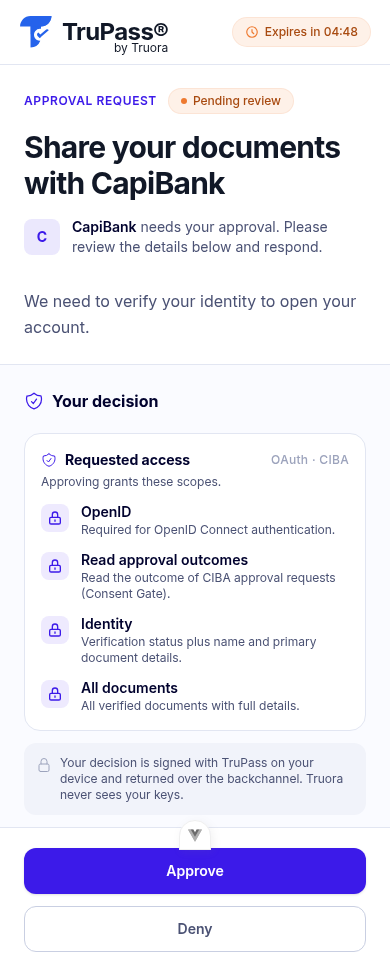
Truora Pass delivers a WhatsApp message to the user’s verified phone with a link to the approval screen. There the user sees your application, the requested scopes, and your binding_message, and approves or denies the request. Nothing happens in your application’s UI during this step — your backend just keeps polling.
For the WhatsApp side of this flow in depth — message contents, delivery modes, a worked chatbot example — see the CIBA over WhatsApp implementation guide.
4. Poll the token endpoint
Poll POST /v1/oauth2/token with a form-encoded body (unlike the authorization code exchange, which is JSON), waiting at least interval seconds (5) between attempts:
curl -X POST https://api.pass.truora.com/v1/oauth2/token \
  --data-urlencode "grant_type=urn:openid:params:grant-type:ciba" \
  --data-urlencode "auth_req_id=<auth_req_id from step 2>" \
  --data-urlencode "client_id=WLT_APP_your_client_id" \
  --data-urlencode "client_secret=your_client_secret"
5. Handle the polling responses
While the request is pending or after it terminates without approval, the endpoint answers with the OAuth 2.0 error envelope:
| Error | What to do |
|---|---|
authorization_pending |
The user has not decided yet. Keep polling, respecting interval. |
access_denied |
The user declined. The request is consumed — stop polling; start a new request only with the user’s renewed intent. |
expired_token |
The request expired before approval, or was already redeemed. Start a new backchannel request. |
invalid_grant |
The auth_req_id was issued to a different client. |
invalid_client |
Wrong client_id / client_secret (HTTP 401). |
unauthorized_client |
Your application is not allowed to use the CIBA grant. |
unsupported_grant_type |
The grant_type value is wrong. |
6. Receive the tokens
Once the user approves, the poll returns a token response:
{
  "access_token": "<access token>",
  "token_type": "Bearer",
  "expires_in": 3600,
  "scope": "openid identity documents",
  "id_token": "<id token, only when the openid scope was granted>"
}
Note: the CIBA flow does not issue a refresh_token. When the access token expires (60 minutes by default), start a new backchannel request if you still need access.
Treat the tokens as opaque and read the user’s identity with the access token at GET /v1/oauth2/userinfo — see UserInfo and claims.
Alternative to polling: push delivery
Instead of polling the token endpoint, your backend can receive the result as a webhook: Truora Pass POSTs the outcome to an endpoint you register, the moment the user decides.
To use it:
- On your application in the dashboard, register a Backchannel Client Notification Endpoint (an HTTPS URL you control) and set the Token Delivery Mode to
push— see Registering your application. - Include a
client_notification_tokenin everybc-authorizecall — a bearer credential you generate per request (up to 1024 characters, RFC 6750 token68 format). It is required once a callback endpoint is registered:
curl -X POST https://api.pass.truora.com/v1/oauth2/bc-authorize \
  --data-urlencode "client_id=WLT_APP_your_client_id" \
  --data-urlencode "client_secret=your_client_secret" \
  --data-urlencode "scope=openid identity documents" \
  --data-urlencode "login_hint=user@example.com" \
  --data-urlencode "binding_message=Share your documents with CapiBank" \
  --data-urlencode "client_notification_token=a-secret-you-generate"
At decision time Truora Pass sends a single POST to your endpoint with Authorization: Bearer <your client_notification_token> — verify it matches the token you sent for that request before trusting the body. On approval the body is the token response plus the auth_req_id it fulfills:
{
  "auth_req_id": "<the request's auth_req_id>",
  "access_token": "<access token>",
  "token_type": "Bearer",
  "expires_in": 3600,
  "scope": "openid identity documents",
  "id_token": "<id token, only when the openid scope was granted>"
}
On denial:
{ "auth_req_id": "<the request's auth_req_id>", "error": "access_denied" }
Respond with a 2xx quickly — delivery is a single best-effort POST (no retries), and once the result is pushed the request is consumed, so it can no longer be redeemed at the token endpoint. If your endpoint might miss deliveries, stay on poll mode instead.
See also
- CIBA over WhatsApp — implementation guide — a worked, end-to-end walkthrough of this flow for the common case: a WhatsApp chatbot or contact-center agent authenticating a user mid-conversation.
- Approval requests (Consent Gate) — replace
binding_messagewith a rich, multi-block prompt (text, images, files), collect structured answers, or deliver the approval link yourself instead of over WhatsApp.