
Background Checks Configuration Module
The Background Checks Configuration Module is an interface that allows you to configure global settings for all checks in your account and manage custom check types per country. This module gives you full autonomy to customize your background checks configurations without needing to contact support or use the API.
This module provides a user-friendly interface for configurations that can also be done programmatically via API. For API-based configuration, see Configure Background Checks Parameters (API) and Create a Custom Type (API).
Before using this module, we recommend understanding the basic concepts of Background Checks, Datasets, Scores and Types, and how scores are calculated.
Accessing the Configuration Module
- Log into the Truora Dashboard.
- Navigate to the Background Checks product from the products view. This will redirect you to the Background Checks dashboard.
- In the Background Checks dashboard, access the Configuration Module through the sidebar or navigation menu.
- The Configuration Module is organized into two main tabs:
- Global Settings: Configure settings that affect all checks in your account
- Custom Types: Create and manage custom check types per country
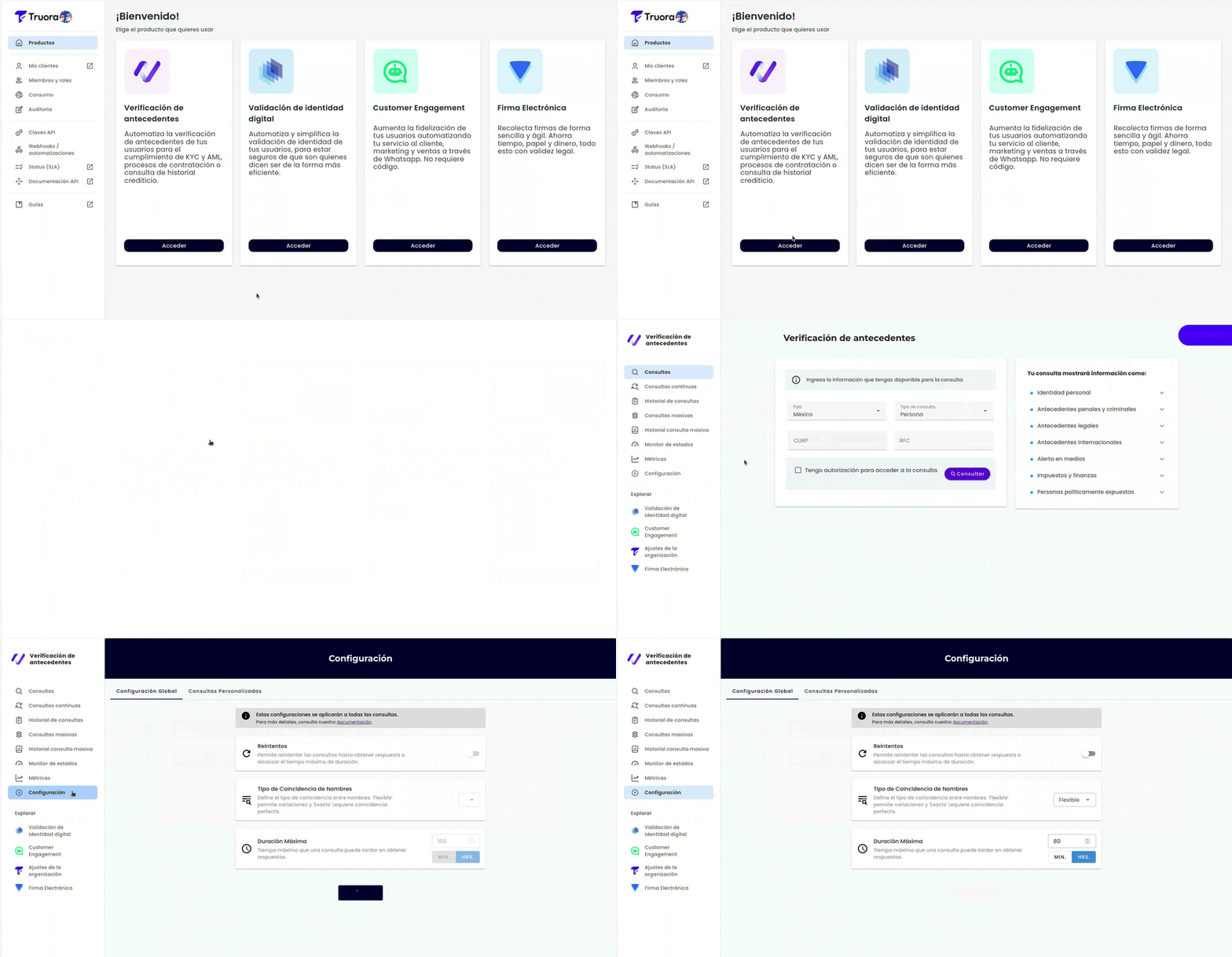
Global Settings
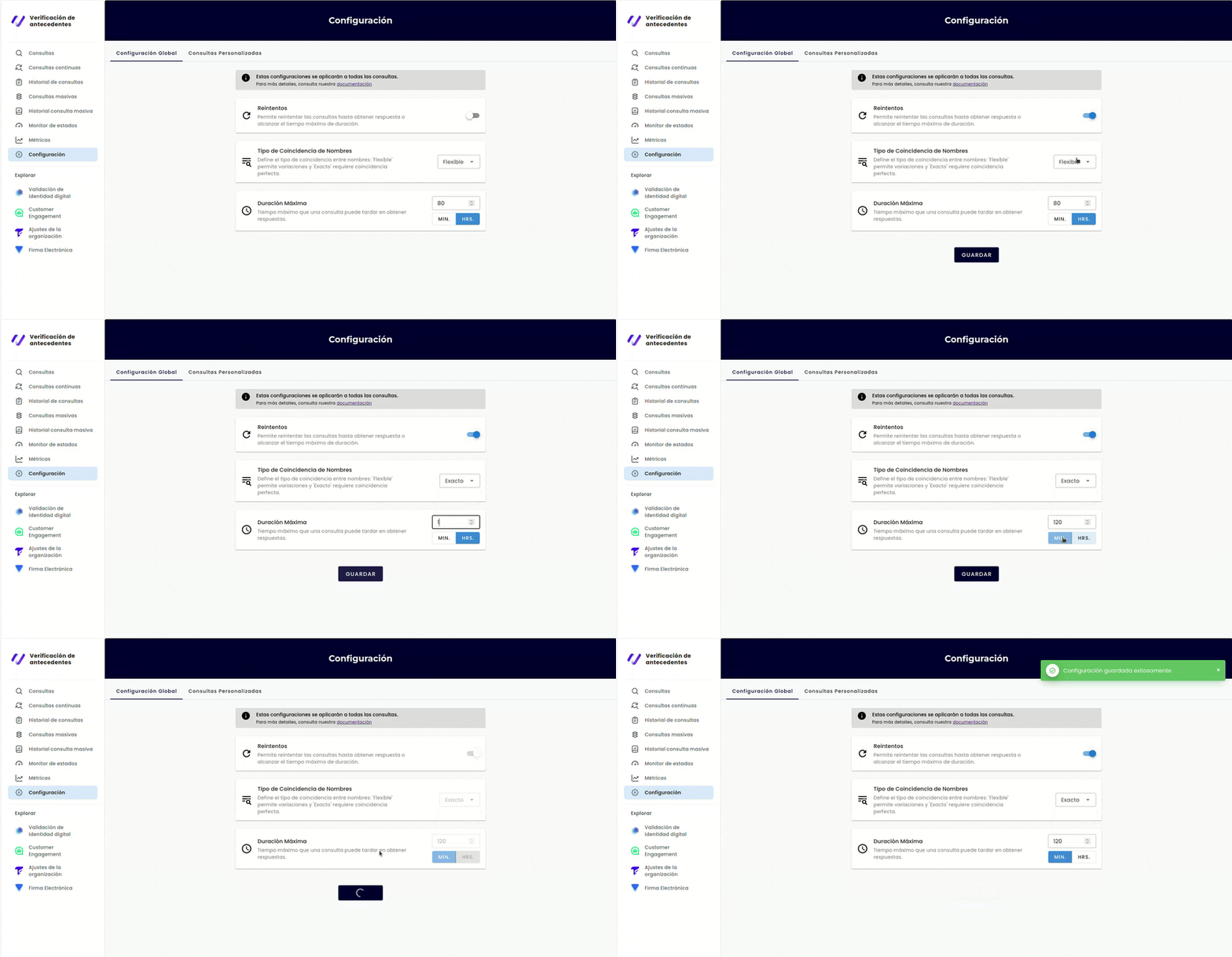
The Global Settings tab allows you to configure parameters that apply to all background checks performed in your account. These settings help you to control checks behavior.
Important: Changes to Global Settings affect ALL checks in your account, regardless of check type or country.
Configuration Options
| Setting | Description | Options/Range |
|---|---|---|
| Retries | Enables automatic retry of database queries when they fail | Toggle on/off |
| Name Matching Type | Defines how strict name comparisons are when matching records | Flexible/Exact |
| Max Duration | Maximum time a check can take to complete | 2 minutes - 168 hours (7 days) |
Retries
When Retries is enabled, the system will automatically retry database queries that return an error (for example, when a data source is temporarily unavailable). The system will continue retrying until it successfully receives a response or until the Max Duration time expires.
Key points:
- While retries are running, the check status will appear as “delayed” in the dashboard
- Enabling retries provides more complete results but may increase check response time
- Retries are configured per account, meaning all countries and databases under the same account share the same retries configuration
- For more information about check statuses and lifecycle, see Checks Lifecycle: Deep Dive
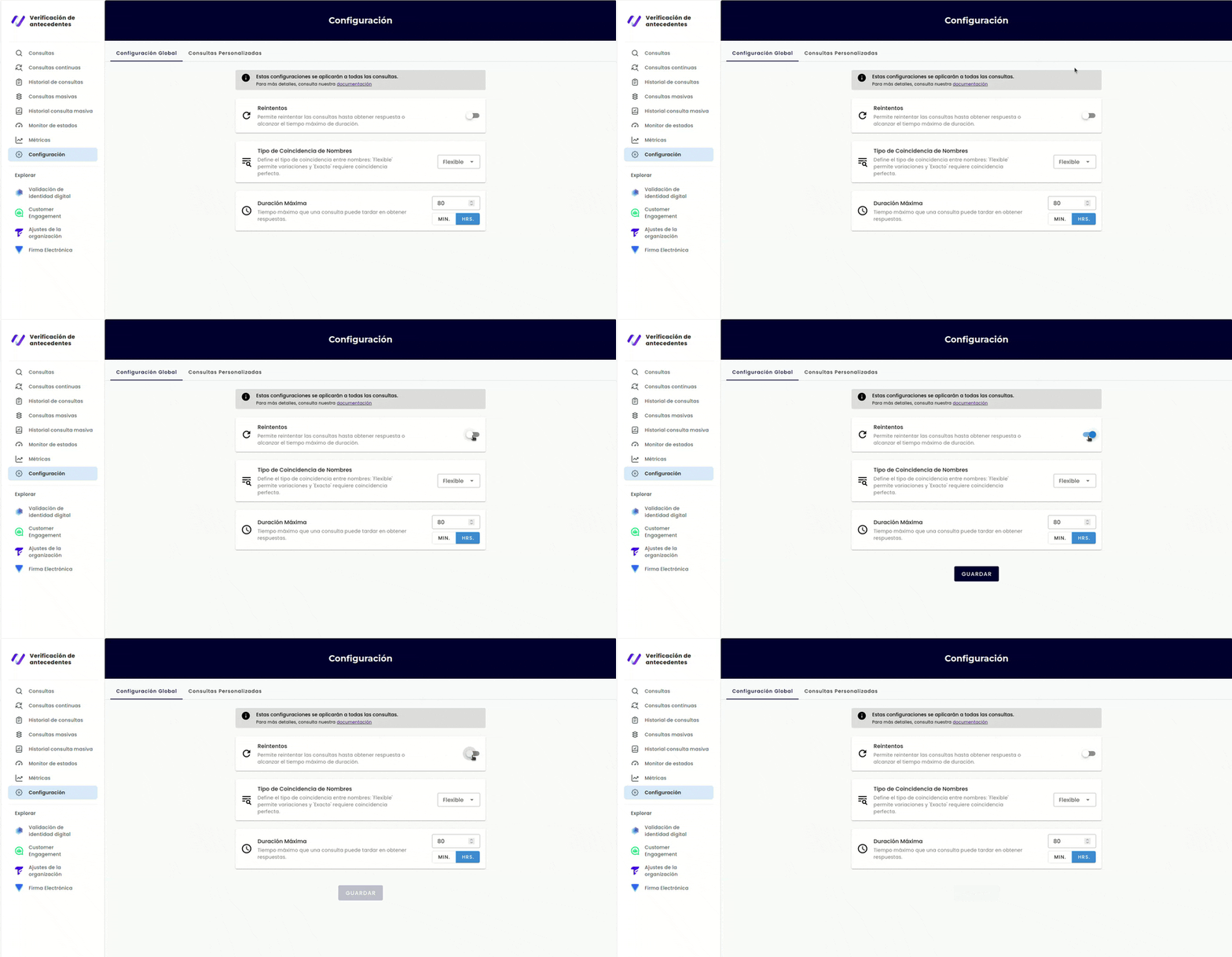
To configure Retries:
- In the Global Settings tab, locate the Retries toggle
- Toggle it on to enable automatic retries, or off to disable
- The Save button will appear when you make changes
Name Matching Type
The Name Matching Type parameter defines how strictly names are compared when matching records from identity databases with records from government databases (criminal, legal, and international records).
Options:
- Flexible (soft): Allows names that are similar enough to be recognized as the same person. For example, “Maria Alejandra Gomez” would match “Alejandra Gomez”
- Exact (default): Requires perfect name matches. Only instances where names are identical will be considered. For example, “Maria Alejandra Gomez” would only match “Maria Alejandra Gomez”. This helps reduce the risk of homonyms
For more information about how name matching affects scores and homonyms, see the Scores and Homonyms section in the Datasets, Scores and Types guide.
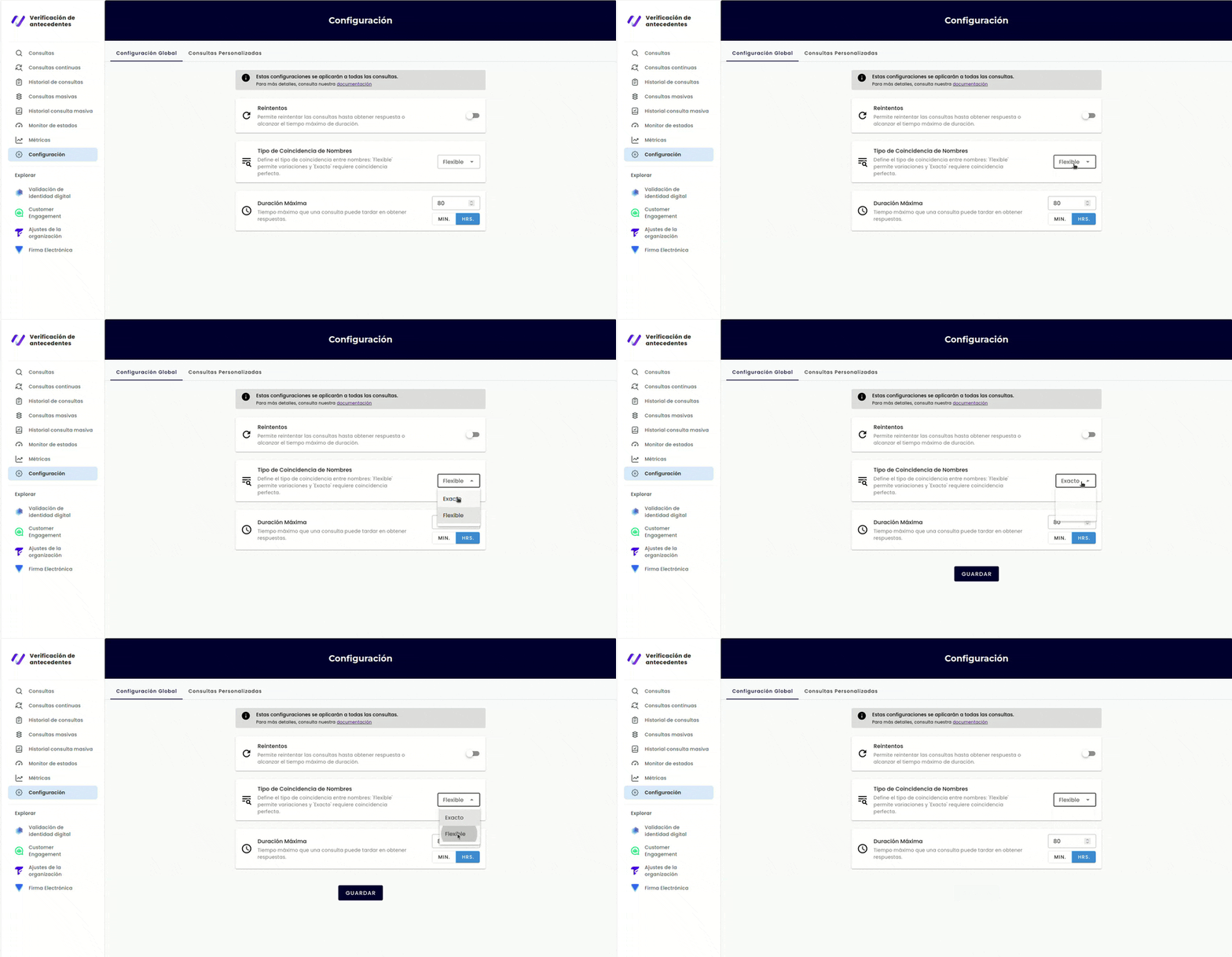
To configure Name Matching Type:
- In the Global Settings tab, locate the Name Matching Type dropdown
- Select either Flexible or Exact
- The Save button will appear when you make changes
Max Duration
The Max Duration parameter sets the maximum amount of time a background check can take to fetch responses. This is represented in the format Xunits where X is a number and units can be either minutes (m) or hours (h). For example, 25m indicates 25 minutes, and 2h indicates 2 hours.
Key points:
- Max Duration can range from 2 minutes to 7 days (168 hours)
- If Retries is enabled, the default Max Duration is 48 hours
- If Retries is disabled, the default Max Duration varies by country:
- 3 hours for Colombia, Mexico, Peru, and Brazil
- 48 hours for Chile and international searches
- 72 hours for Costa Rica
For detailed timing information and country-specific defaults, see the Configure Background Checks Parameters (API) guide.
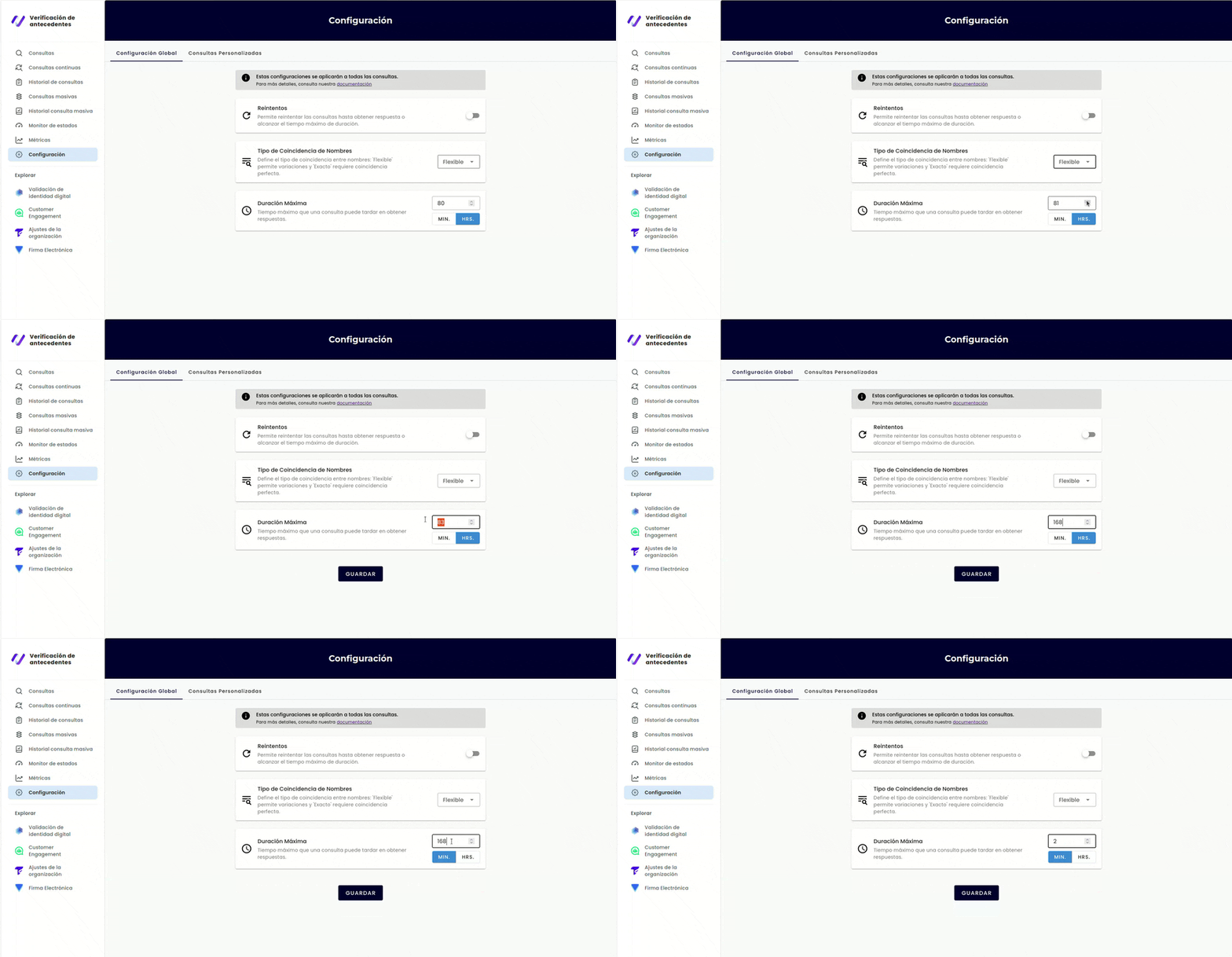
To configure Max Duration:
- In the Global Settings tab, locate the Max Duration input field
- Enter a value in the format Xm (minutes) or Xh (hours), where X is a number
- Ensure the value is between 2 minutes and 168 hours (7 days)
- If the value is invalid, an information card will appear below the input with guidance
- The Save button will appear when you make changes
Saving Global Settings
After making changes to any Global Settings:
- Review your changes
- Click the Save button that appears when modifications are detected
- A confirmation message will appear once the settings are successfully saved
- The changes will immediately apply to all new checks created in your account
Note: Changes to Global Settings do not affect checks that have already been completed. Only new checks will use the updated configuration.
Custom Types Management
The Custom Types tab allows you to create, view, edit, and delete custom check types. Custom check types let you define which datasets are queried and how much each dataset contributes to the final score calculation.
Key Concepts
Before creating custom types, it’s important to understand these concepts:
-
Custom Types: User-defined check configurations that determine which datasets are queried and their weight in the final score. For the API equivalent, see Create a Custom Type (API)
-
Datasets: Categories of information used to group related data sources. For a complete list of available datasets and their descriptions, see Datasets, Scores and Types
-
Weights: The percentage contribution of each dataset to the overall risk score. The total weights of all selected datasets must equal 100%. For more information on how weights affect score calculation, see the Scores section
-
Reserved Types: The system includes three default check types that cannot be edited or deleted:
person- See Check Type Personcompany- See Check Type Companyvehicle- See Check Type Vehicle
Viewing Custom Types
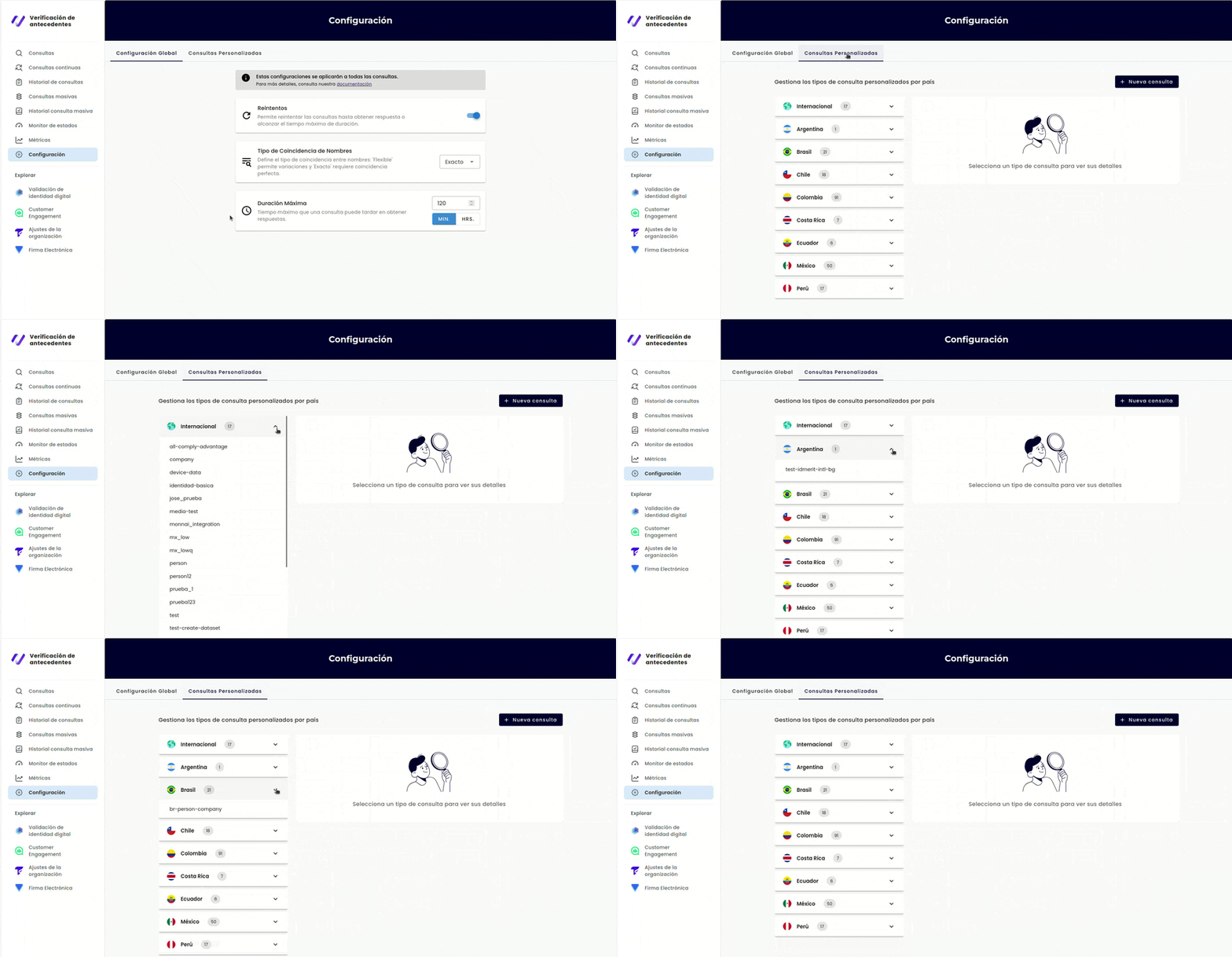
Custom types are organized by country in collapsible cards:
- In the Custom Types tab, you’ll see country cards with flags and country names
- Each card can be expanded to show the list of custom types for that country
- Click on a country card to expand or collapse it
- Custom types are listed within each country card
Viewing Custom Type Details
To see the details of a custom type, including which datasets it uses and their weights:
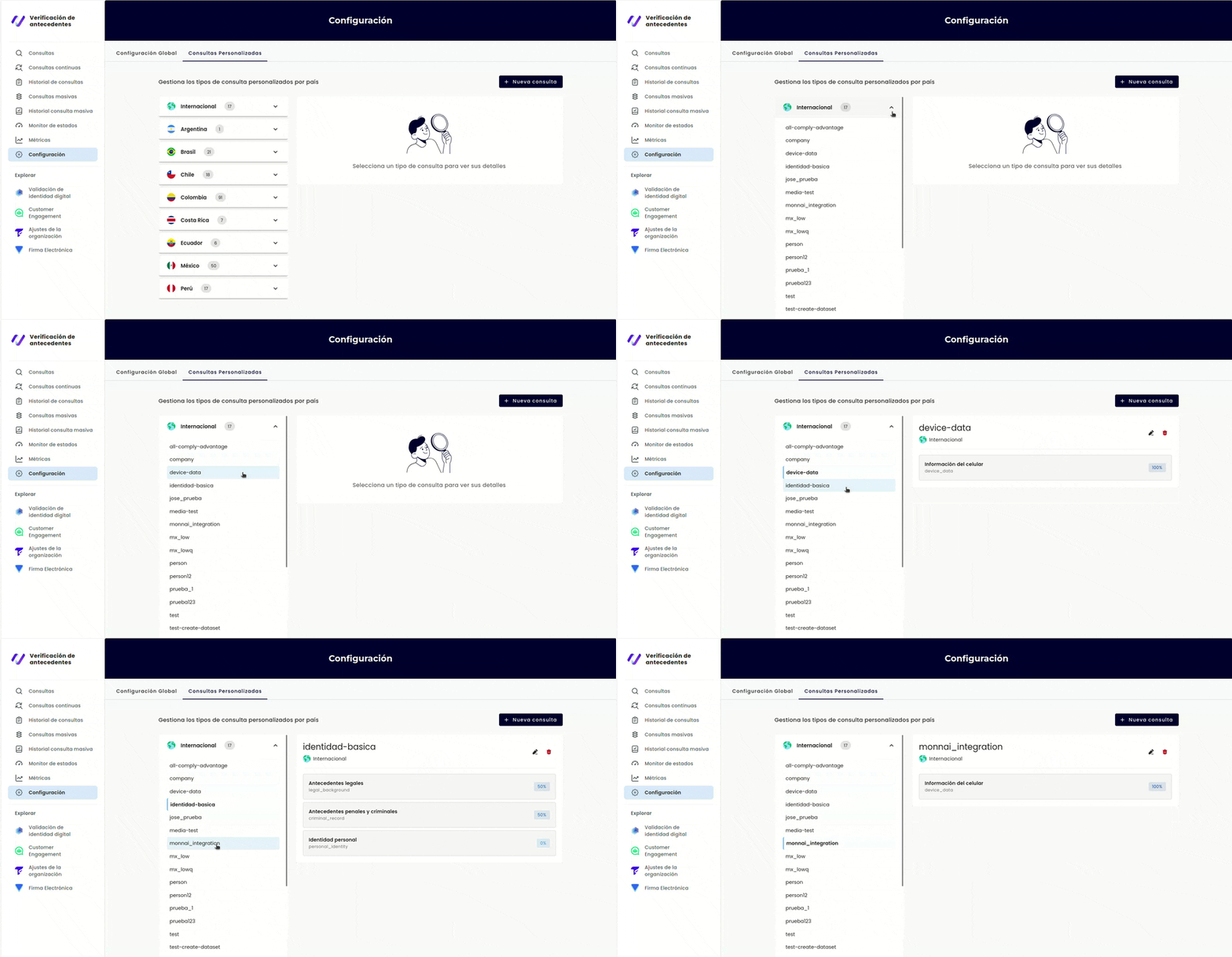
- Click on a custom type name in the list
- A details panel will appear showing:
- The type name
- The country it applies to
- A list of all datasets included in the type
- The weight (percentage) assigned to each dataset
Creating a Custom Type
You can create custom types in two modes: Simple Mode (for quick setup) or Advanced Mode (for precise control).
Simple Mode
In Simple Mode, you select which datasets to include, and the system automatically distributes weights equally among them.
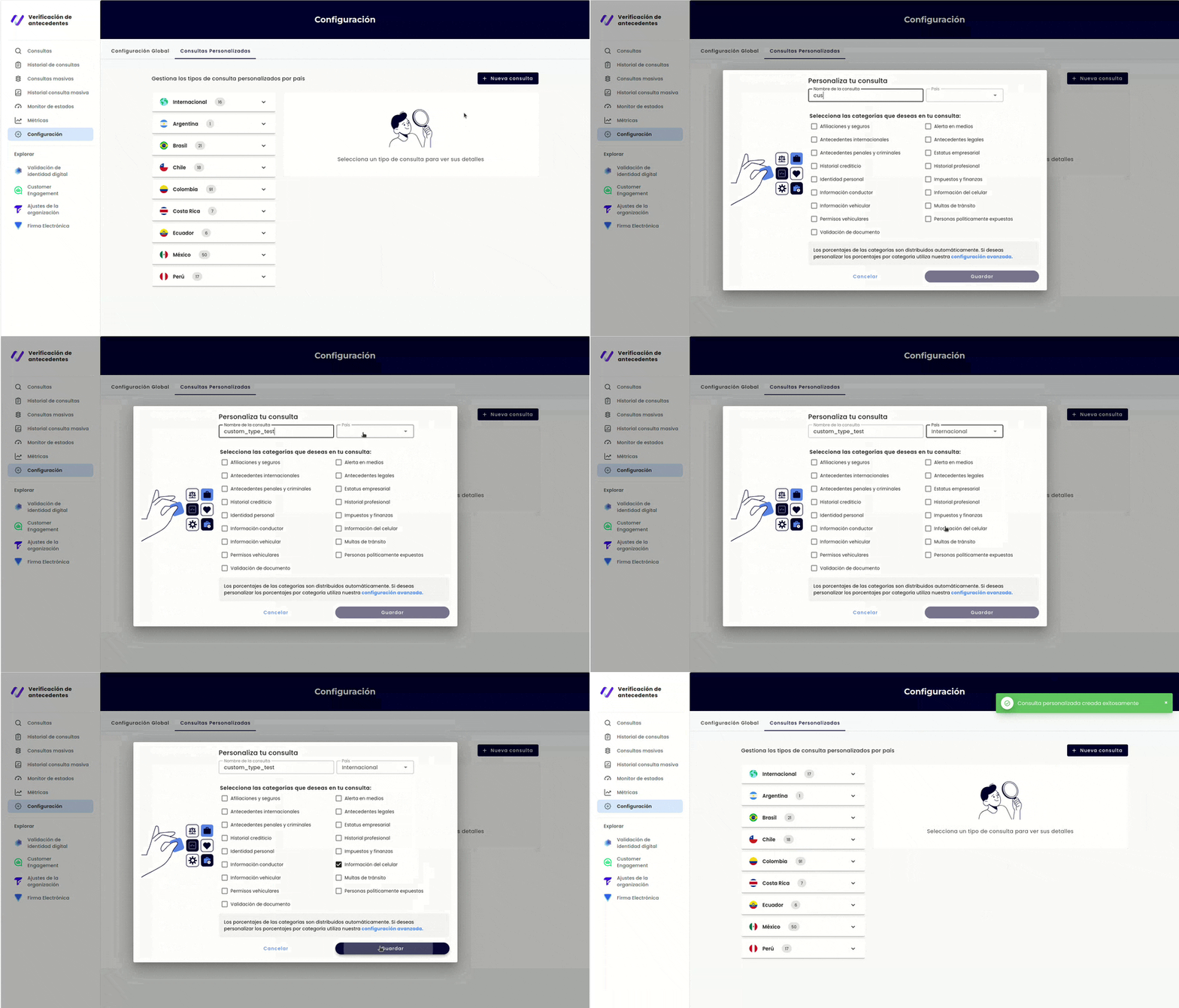
- Click the Create New Type button
- Select Simple Mode in the modal
- Enter a name for your custom type (reserved names
person,company, andvehicleare not allowed) - Select the country where this custom type will be available
- Check the boxes for the datasets you want to include
- The system will automatically calculate equal weights for all selected datasets
- Review the configuration and click Create
Advanced Mode
In Advanced Mode, you manually set the percentage weight for each dataset.
- Click the Create New Type button
- Select Advanced Mode in the modal
- Enter a name for your custom type (reserved names
person,company, andvehicleare not allowed) - Select the country where this custom type will be available
- For each dataset you want to include:
- Enter a percentage value (0-100) in the weight field
- Ensure the total of all weights equals exactly 100%
- If the total doesn’t equal 100%, a validation message will appear
- Review the configuration and click Create
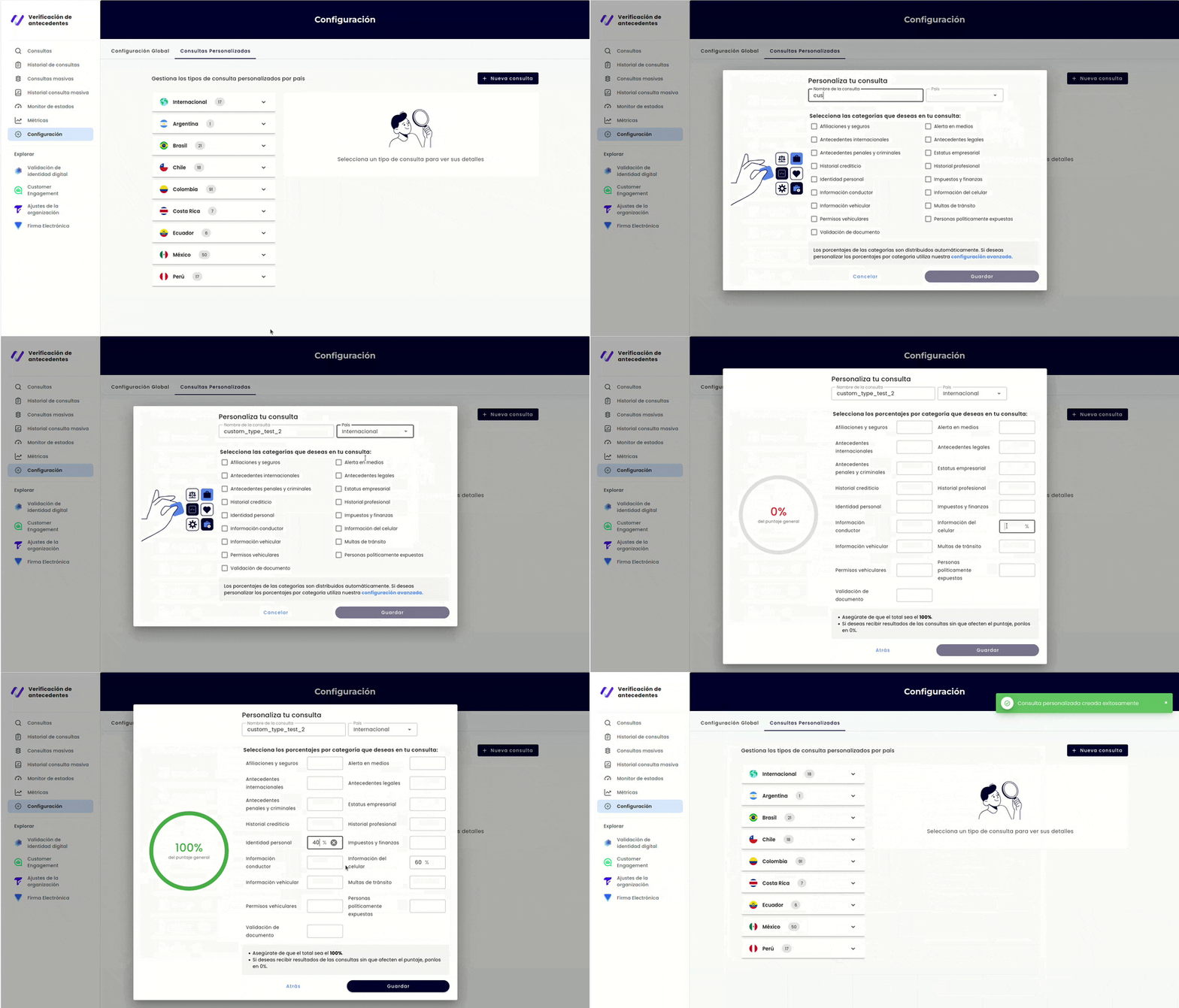
Note: Available datasets vary by country. For a complete list of datasets and their availability, see Create a Custom Type (API).
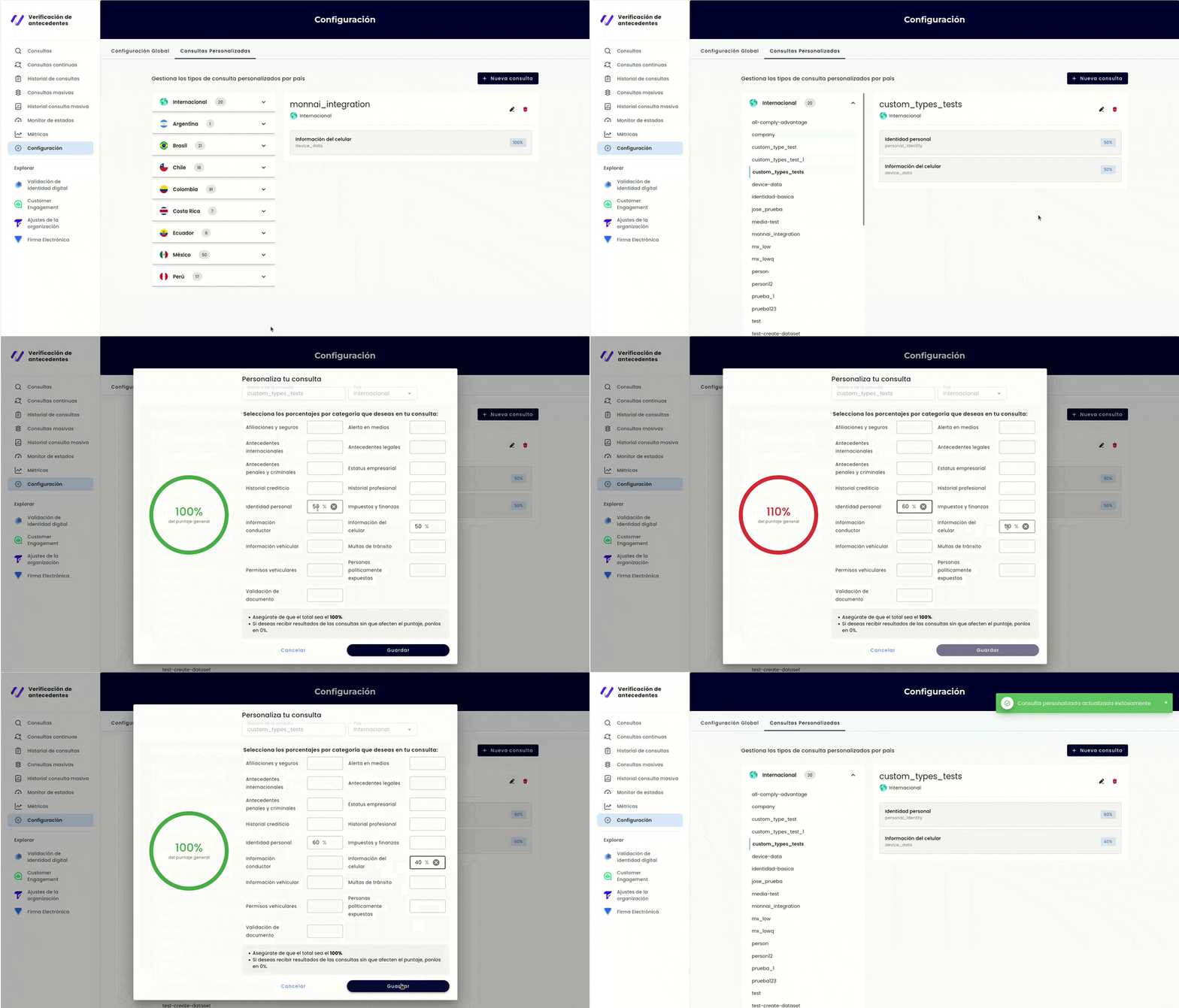
Editing a Custom Type
You can edit the weights of existing custom types, but the name and country cannot be changed.
- Select the custom type you want to edit from the list
- Click the Edit button
- The edit modal opens in Advanced Mode (only weights can be modified)
- Adjust the percentage weights for each dataset
- Ensure the total of all weights equals exactly 100%
- Click Save to apply changes
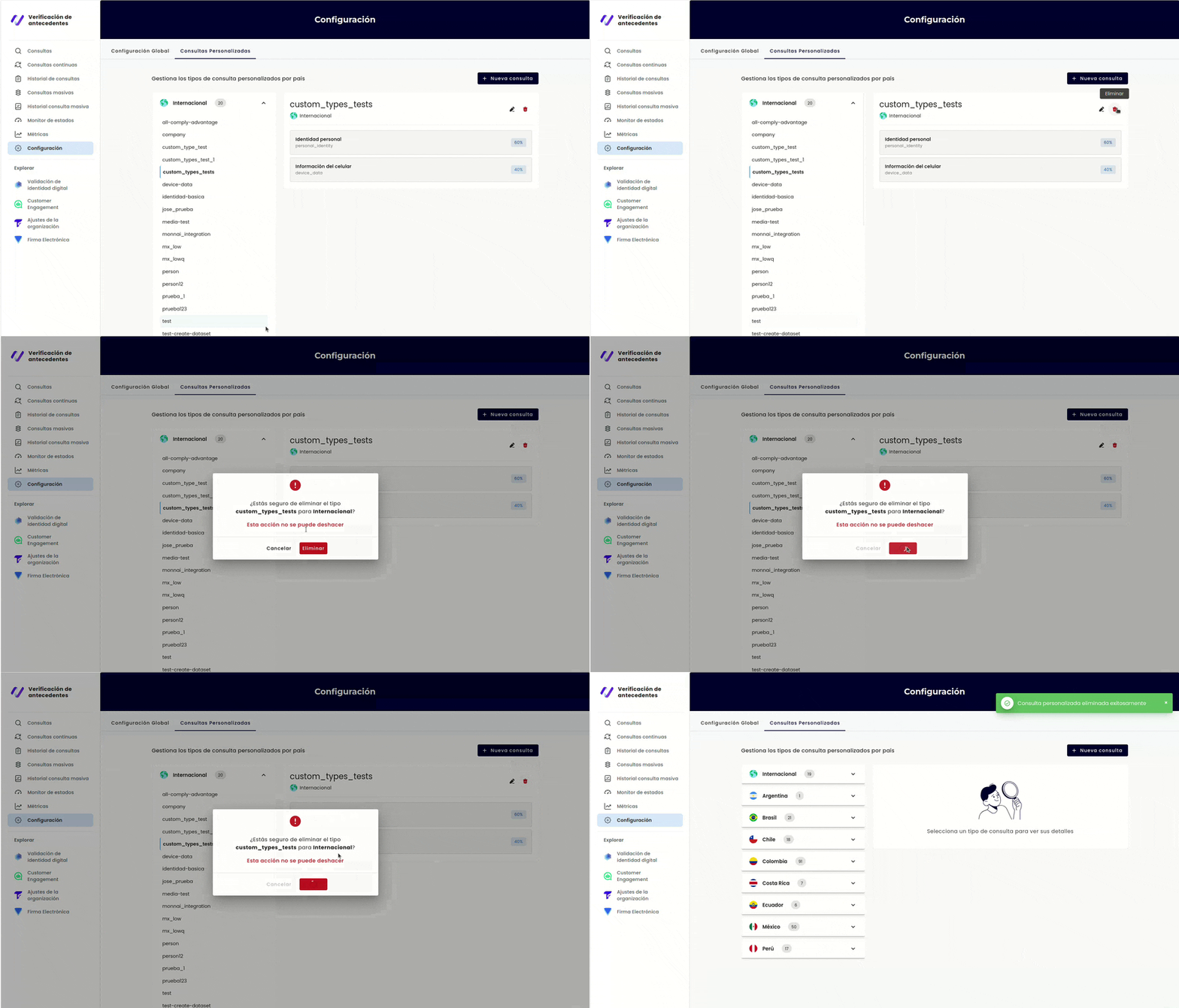
Deleting a Custom Type
You can delete custom types that you’ve created. Reserved types (person, company, vehicle) cannot be deleted.
- Select the custom type you want to delete from the list
- Click the Delete button
- A confirmation modal will appear warning that this action is irreversible
- Review the warning and confirm deletion, or cancel to keep the custom type
Use Case Example
Here’s a real-world example of how custom types can be used:
Scenario: A ridesharing company in Mexico needs to screen drivers with a focus on safety.
Custom Type: “Conductor Seguro MX”
Configuration:
- Criminal Record: 50% (Critical - highest priority for driver safety)
- Traffic Fines: 30% (High - important for driving history)
- Credit History: 20% (Lower - less critical but still relevant)
This configuration ensures that if a candidate has criminal records, their score will drop significantly, while credit issues will have a smaller impact on the overall assessment.
Using Custom Types in Checks
Once you’ve created a custom type, it becomes available for use when creating background checks:
- Via Dashboard: Custom types appear in the type dropdown when creating checks through the dashboard. See Creating a Background Check via dashboard for details
- Via API: When creating checks programmatically, use the custom type name as the value for the
typeparameter. See Creating a Background Check (API) for API usage
Note: Custom types are country-specific. Make sure to select the appropriate country when creating a check that uses a custom type.
Important Notes
Warning: Global Settings affect ALL checks in your account. Changes to these settings will impact every new check created after the change is saved.
- Custom types are country-specific: Each custom type is created for a specific country and can only be used for checks in that country
- Changes don’t affect completed checks: Modifications to settings or custom types only apply to new checks. Already completed checks remain unchanged
- Reserved type names: The names
person,company, andvehicleare reserved for default types and cannot be used for custom types - Dataset availability: Not all datasets are available in all countries. Refer to Create a Custom Type (API) for the complete list of available datasets per country
Related Documentation
Dashboard Guides
- How to use the Dashboard - General dashboard navigation
- Background Checks via dashboard - Creating checks using custom types
API Guides (for programmatic configuration)
- Configure Background Checks Parameters (API) - API equivalent for Global Settings
- Create a Custom Type (API) - API equivalent for Custom Types
Foundational Concepts
- Understanding Background Checks - Background checks basics
- Datasets, Scores and Types - Understanding datasets, weights, and score calculation
Default Check Types
- Check Type Person - Person check details and usage
- Check Type Company - Company check details and usage
- Check Type Vehicle - Vehicle check details and usage
Creating and Using Checks
- Creating a Background Check (API) - How to create checks programmatically using custom types