


Electronic Signature Validator
In simple terms: Electronic Signature lets users sign documents digitally with legal validity. This guide explains how the validator works and how to integrate it into your flows.
The Electronic Signature validation API provides a link for performing an electronic signature on a document created in ZapSign online.
We have 2 types of integrations available for this validator:
- You can use it in your DI Web or WhatsApp flows.
- You can integrate it via API.
DI Web or WhatsApp flows:
- It’s necessary for you to set up the Zapsign integration in your Truora account. This procedure can be done through the Truora platform or via API.
- You must create a Web or WhatsApp DI flow.
Create Zapsign and Truora Integration
Creates a new integration between Truora and Zapsing for your account.
Note: Follow this step only if you want to include the electronic signature validator in your Web or WhatsApp DI flow, and it only needs to be done once. Remember that the integration process between Zapsign and Truora is done only once per account.
To do it via API, you must follow these steps:
- Create a POST request to the endpoint
api.account.truora.com/v1/integrations. - Set the following
key : valueswithin the requestbodyandx-www-form-urlencodedformat:integration_type: Represents how the services are going to be used. For example: zapsign.config.token: Represents Zapsign API Key get ZapSign api key.
- Please make a GET request to the endpoint
api.account.truora.com/v1/integrations/{{customer_integration_id}}. It is important to validate that thestatushas been set toenabled.
API integration
Create Validation
This request generate the link to sign the document
To do it you must follow these steps:
-
Create a POST request to the endpoint
api.validations.truora.com/v1/validations. -
Set the following
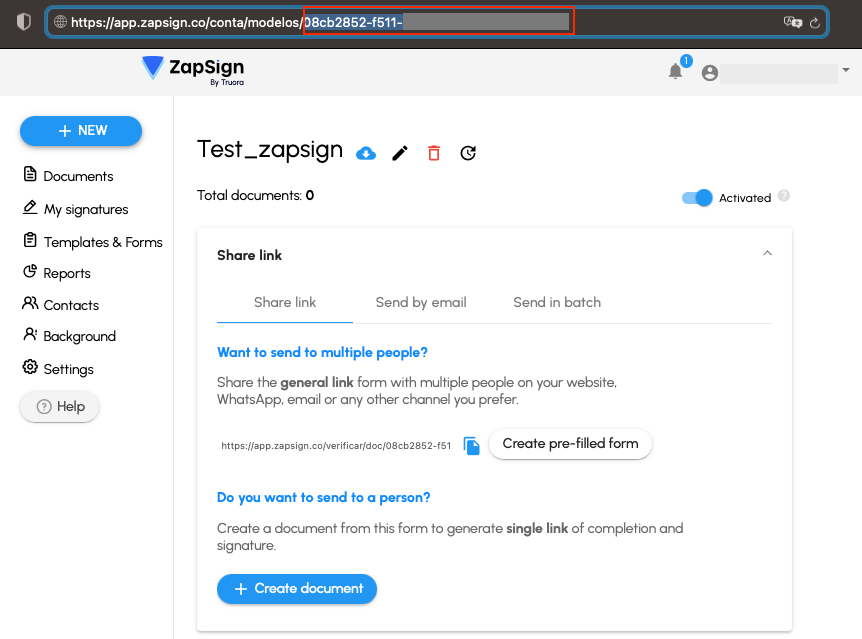
key : valueswithin the requestbodyandx-www-form-urlencodedformat:type: [Required] Validation type. Allowed: electronic-signature.user_authorized: [Required] Indicates whether the validation subject consents to be validated. Must be true for the validation to proceed.zapsign_document_type: template or document.zapsign_id: [Required] ID of the document/template created in ZapSign. You can find this ID in the URL of your browser when you create a document or template in ZapSign.
name: [Required] Name of the person assigned as signer of the document created in ZapSign.account_id: ID of the account registered to this validation. If not provided a default value is generated in our API *.var.NAME: Name of the variable in the Zapsign template and its value.face_validation_id: ID of the Face Recognition. The validation_status must be success *.document_validation_id: ID of the document validation. The validation_status must be success *.async: [Optional] When set totrue, the validation is created asynchronously. This is useful when generating validations from large templates where document creation may take a significant amount of time. Whenasyncistrue, the response will not include thesigner_link; you must retrieve it later using the Get Validation Result endpoint once the document has been created.
- You must use the same account ID of the document and face recognition to ensure that they are linked properly. This will ensure that the validation process runs smoothly and that the results are accurate.
Note: In case you require the used inputs of document + face recognition, you must also send the validation identifiers in the face_validation_id and document_validation_id inputs. Keep in mind that the validation_status of those validations must be success in order to use this new functionality.
Answer synchronous creation (default, async not set or false):
Answer asynchronous creation (async: true):
Note: When using asynchronous mode, the signer_link, zapsign_document_url and zapsign_document_name are not returned immediately since the document is still being generated. Once the document is ready, you can retrieve the full result — including the signer_link — by polling the Get Validation Result endpoint using the validation_id.
Get Validation Result
Validation result can be obtained by polling.
To do it you must follow these steps:
- Create a GET request to the endpoint
api.validations.truora.com/v1/validations/{{validation_id}}.
Note: Use the provided validation_id from the Validation Creation step. If you wish to inquire about all integrations associated with the account, simply make a GET request to the respective endpoint without sending the validation_id.
Answer before signing (validation_status: pending):
Answer after signing (validation_status: success):
Note: Once the document has been signed, the response includes additional fields such as signed_document_url, signature_image_url, email, geolocation data, and signed_at timestamp.