

How to view identity verification results
In simple terms: Every time someone goes through your flow, Truora creates a process. This guide shows you where to find those processes in the dashboard, how to tell if they passed or failed and why, how to download them, and how to see everything one person has done in their profile.
Find a process
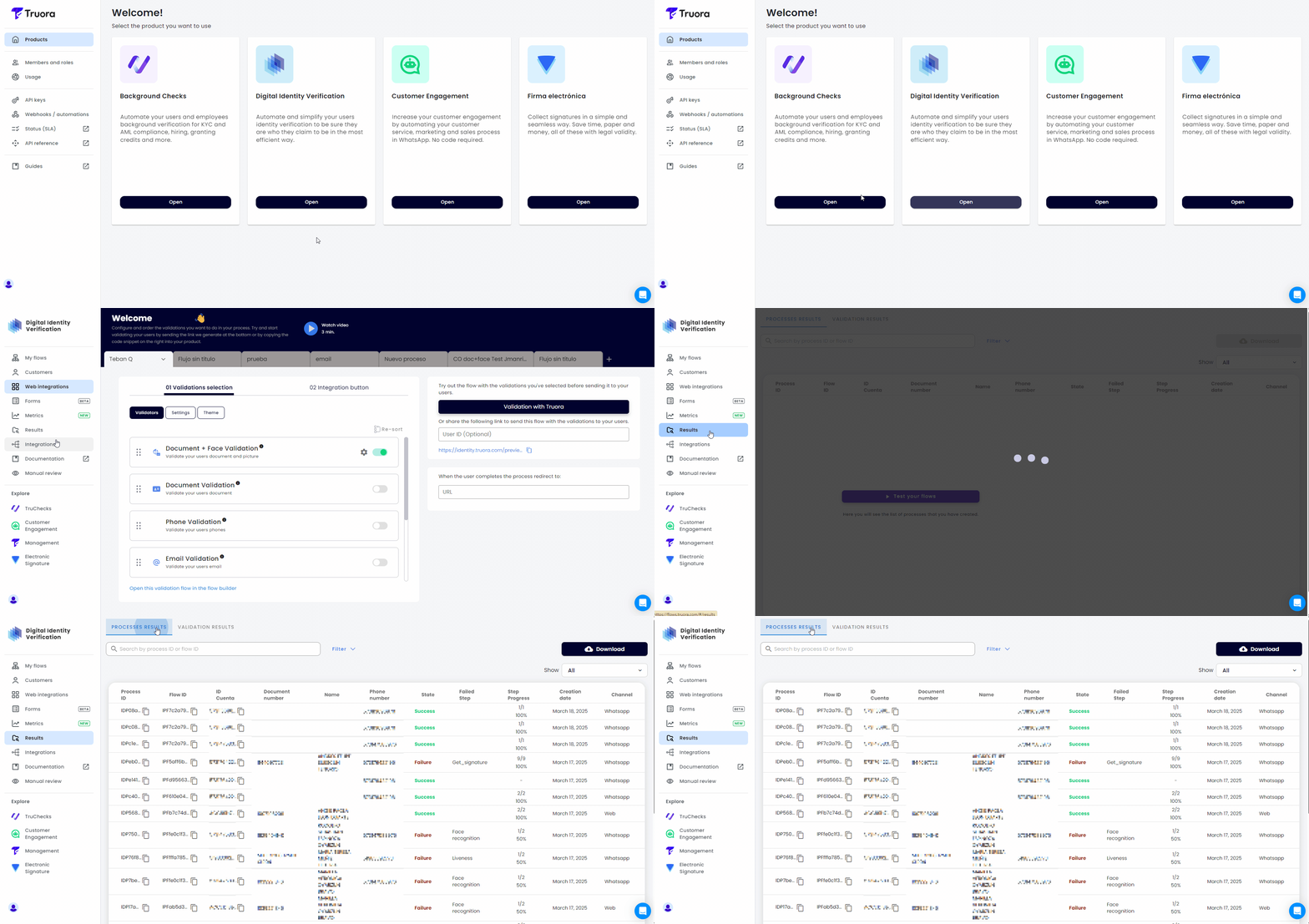
- In the Digital Identity dashboard, go to Results in the side menu.
- At the top, select PROCESSES RESULTS.
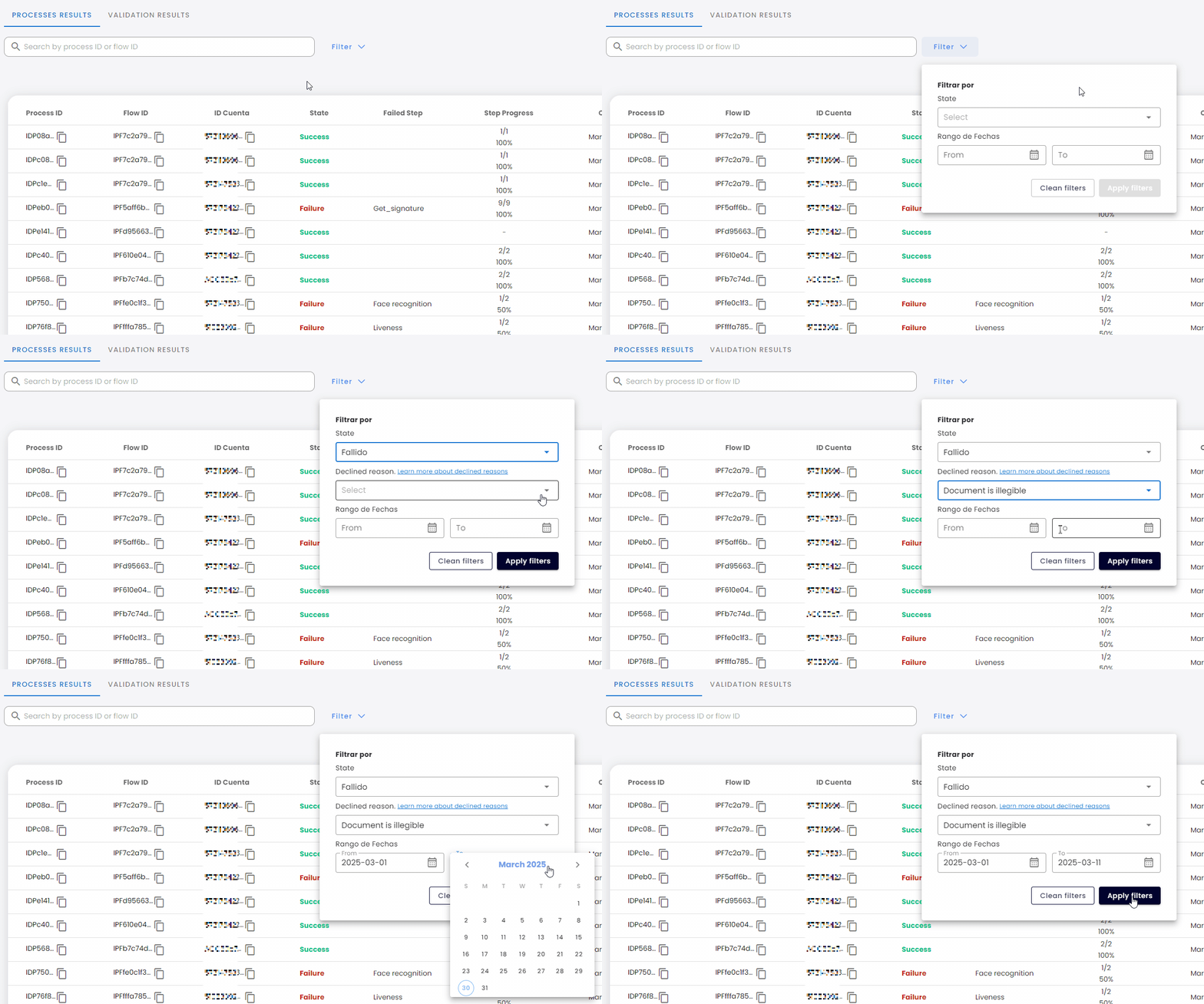
- Use the Search bar to find a process by:
- Process ID or Flow ID (exact match).
- Account ID, Document number, Phone number, or Name (partial match).
- Click Filter to narrow the list by:
- State: Success, Pending, or Failure. With Failure, you can also filter by declined reason.
- Date range.
Read the results list
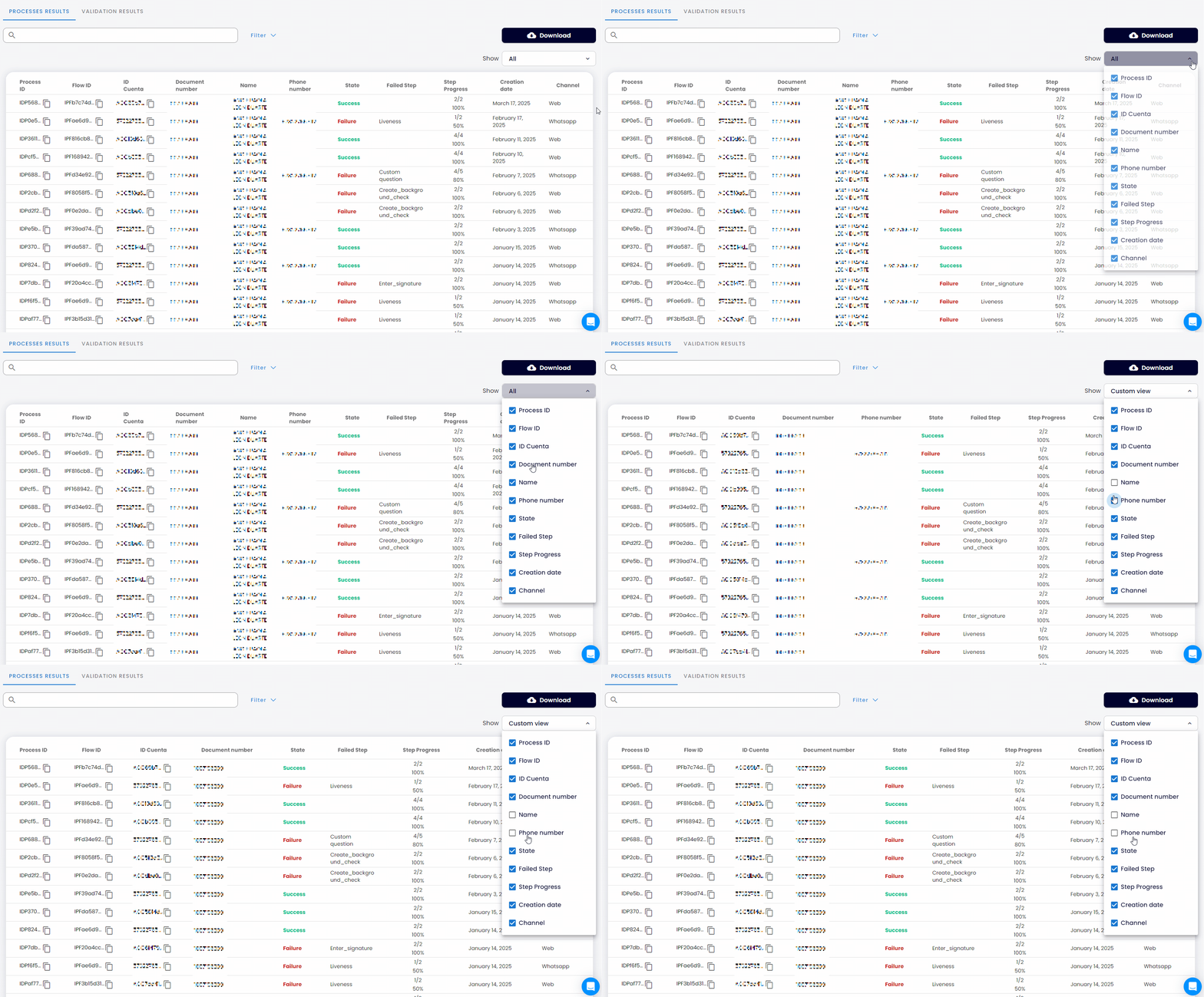
For each process, check these three columns first:
- Process ID: the unique identifier of the process.
- State: Success, Pending, or Failure.
- Failed step: the step where the process failed, when it failed.
Use the Show menu to choose which columns you see. The list can also show the flow, user details, channel (Web or WhatsApp), creation date, and step progress.
Open the detail of a process
Click the Process ID of the process you want to review.
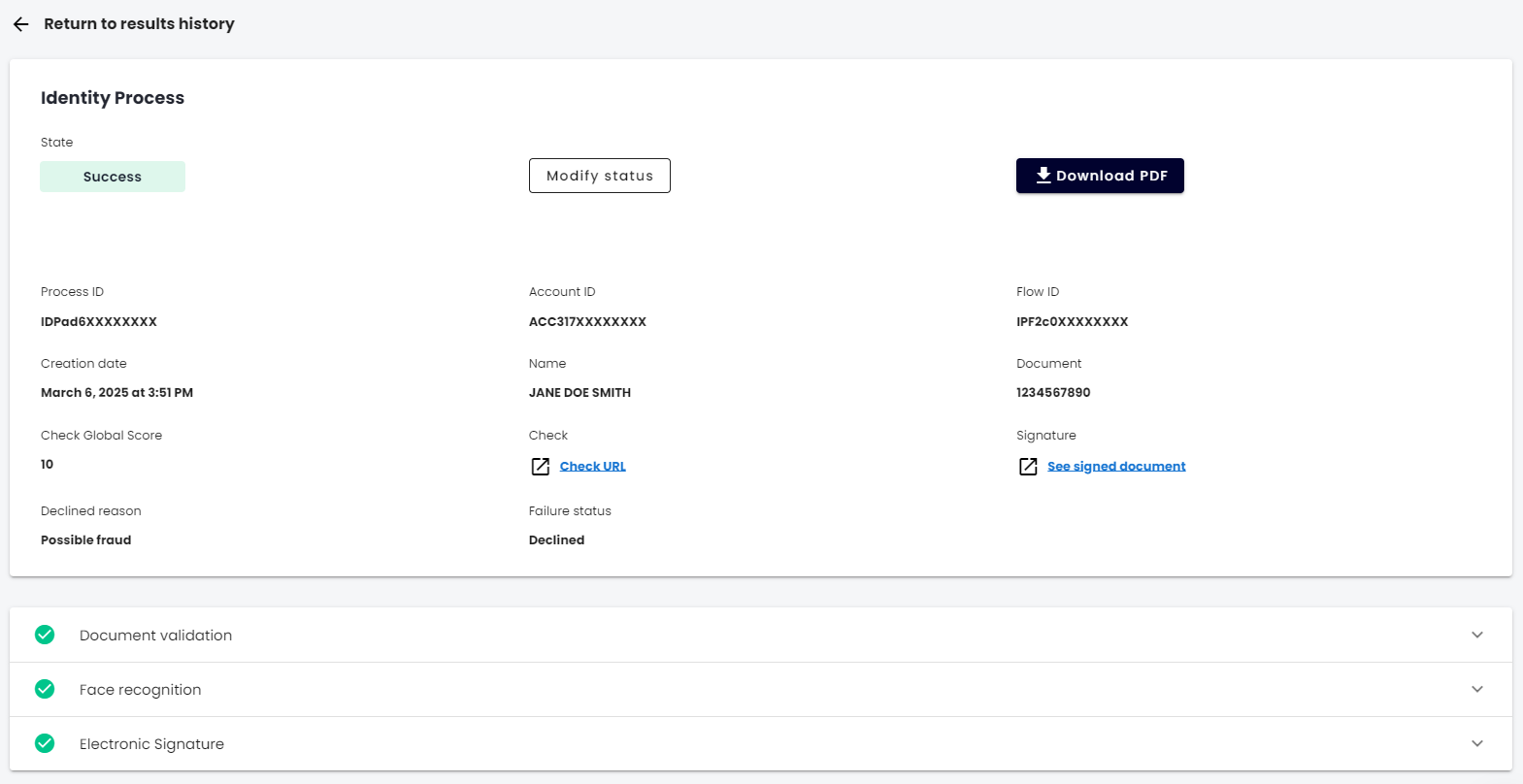
- Successful process: shows the process data and each validation the user completed. Expand a validation at the bottom to see its outcome.
- Failed process: also shows the failure reason, which tells you why the process failed. To learn what each reason means and which ones can be fraud, see Declined reasons details.
If you have the permission, Modify status lets you change the final status of a finished process. See Override process status.
Download results
One process (PDF)
In the detail of a process, click Download PDF. The PDF has the full detail of that identity validation process. See Download an identity process PDF.
Many processes (CSV)
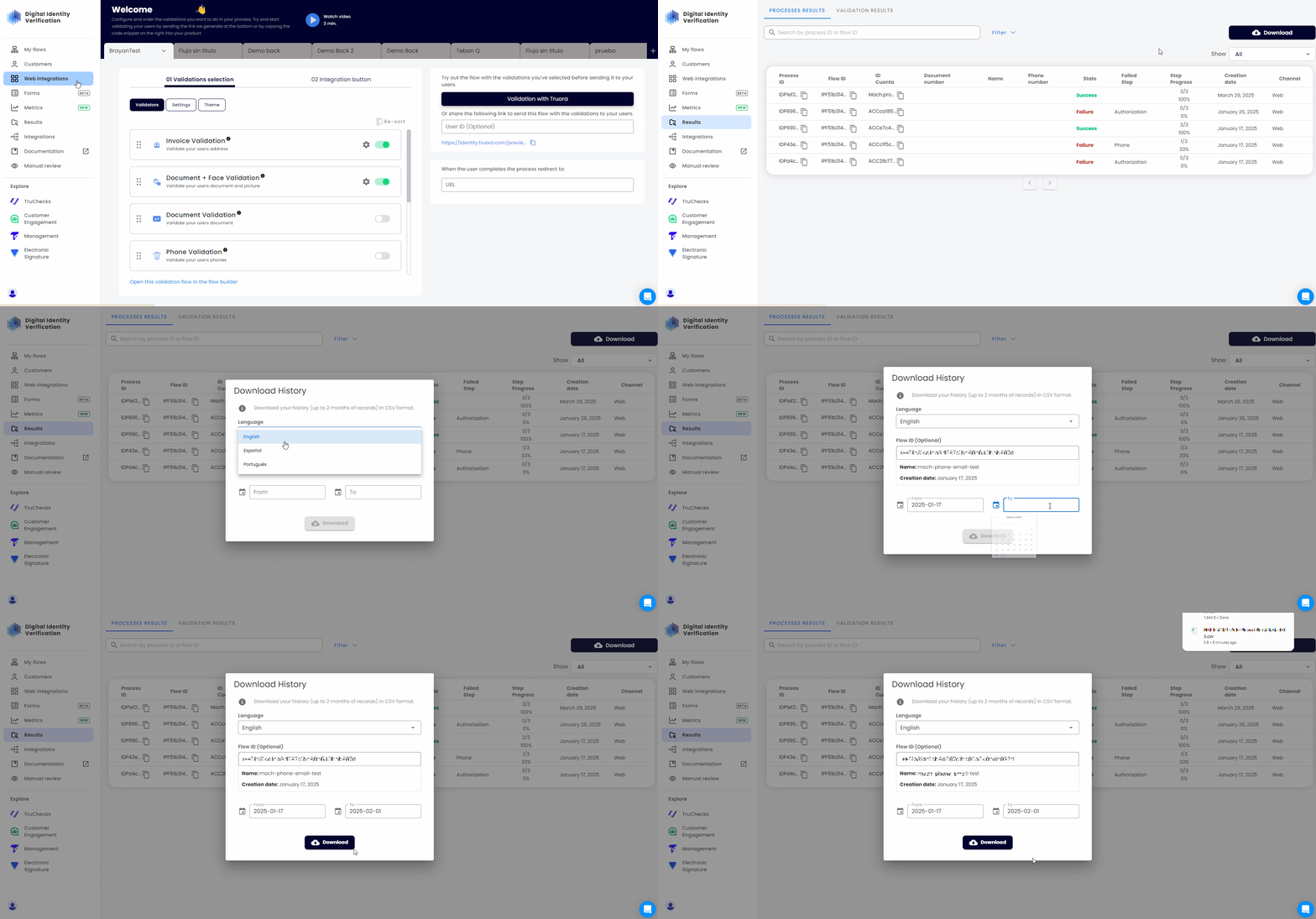
- In Results, click Download.
- Select the language: English, Spanish, or Portuguese.
- Select a date range of up to two months. To get only one flow, add its Flow ID.
- Optionally, open Advanced options to add more data, such as custom integration variables, geolocation, or agent conversations.
- Click Download.
View user profiles
A profile is the single record of one user. It keeps every identity validation process that person has run.
- Open the profiles list.
- Search by name or document number.
- Open the profile to see that user’s process history.
- Click a process ID to open the detail of that process.
Note: Only completed processes have an ID.