
Advanced Blocks in the Flow Builder
The Flow Builder in Truora’s Digital Identity Verification product allows you to create verification flows by combining different types of blocks. Beyond the Frequent Blocks and Validator Blocks, the Flow Builder offers a set of Advanced Blocks that unlock more complex logic, integrations, and user interactions within your flows.
This guide walks you through how to access the Advanced Blocks section and provides an overview of each block, including its purpose, availability, and links to detailed configuration guides where available.
How to access the Advanced Blocks
To reach the Advanced Blocks section in the Flow Builder, follow these steps:
-
Log in to your account: Go to account.truora.com and sign in with your credentials.
-
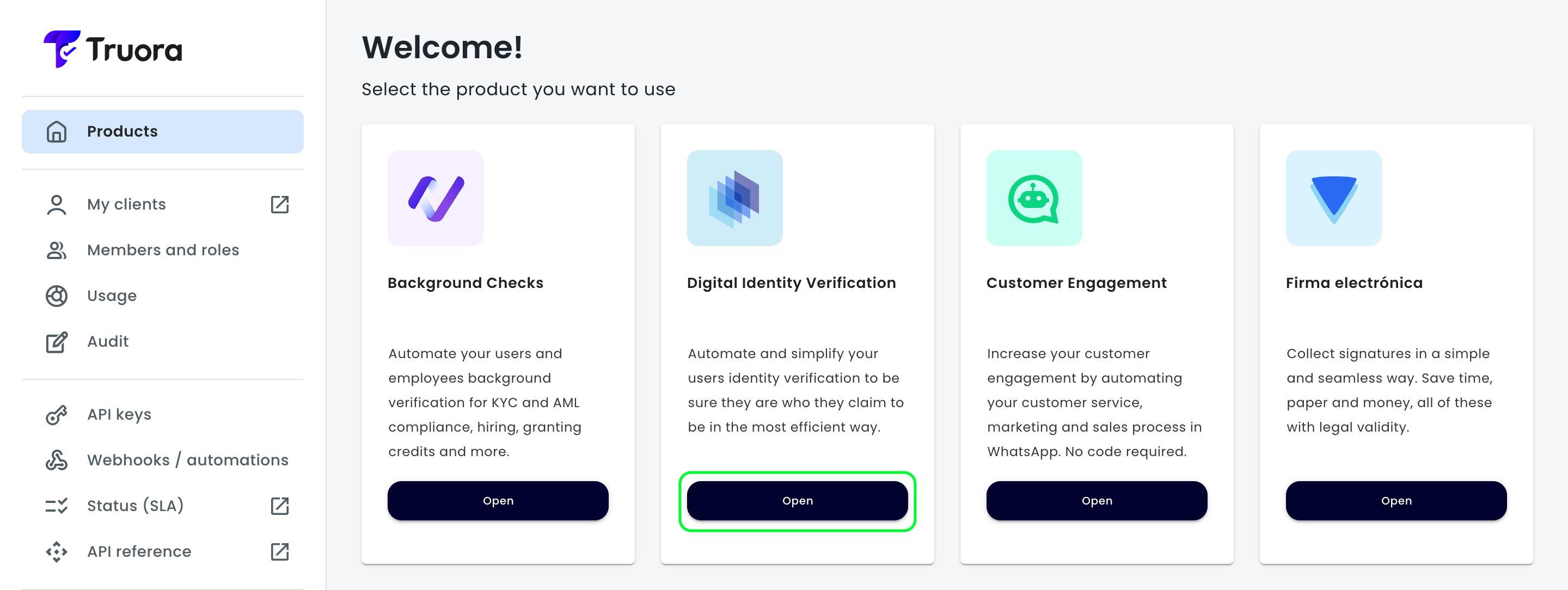
Open the Digital Identity Verification product: On the Home screen, you will see a list of available products. Click on Digital Identity Verification to be redirected to the flows dashboard.
-
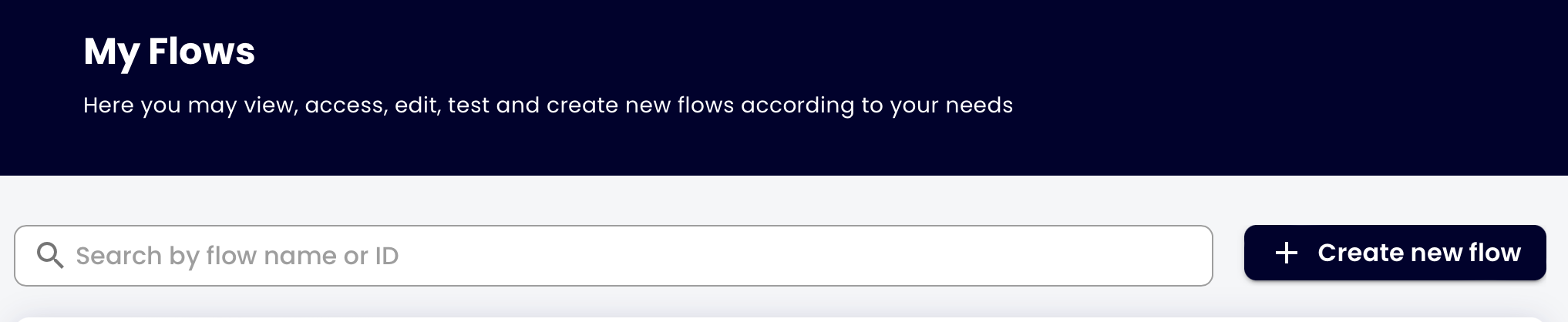
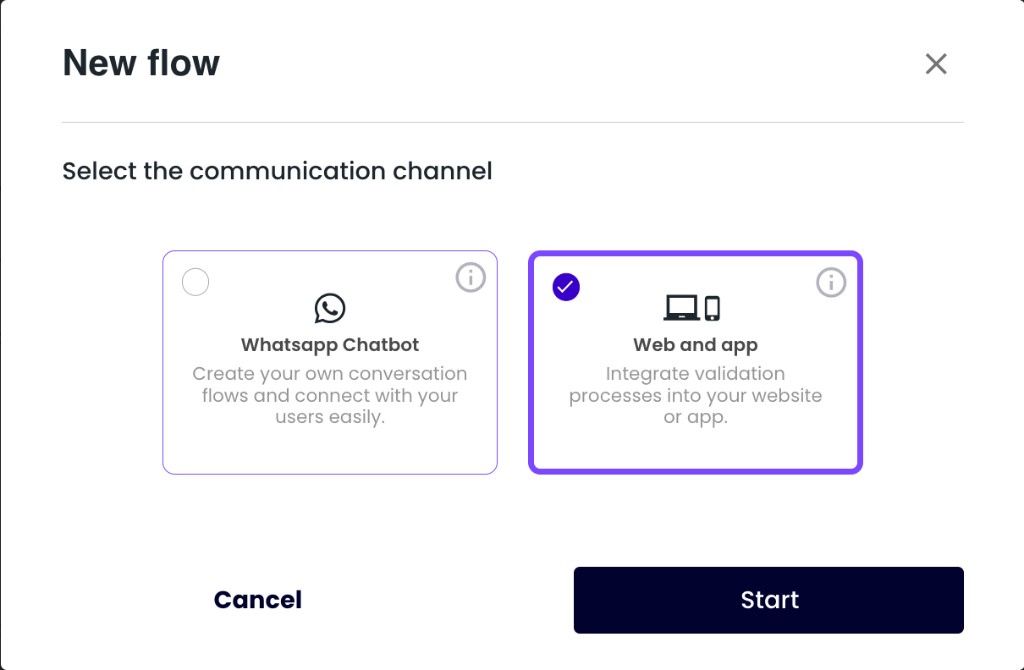
View your flows: In the flows’ dashboard, you will see a table listing all your existing flows. Each row displays the flow’s name, status, channel, last update date, and available options. You can search for a specific flow by name or ID. To access the Advanced Blocks, click on the name of an existing Web flow, or create a new one by clicking the Create New Flow button and selecting the Web and app channel.
-
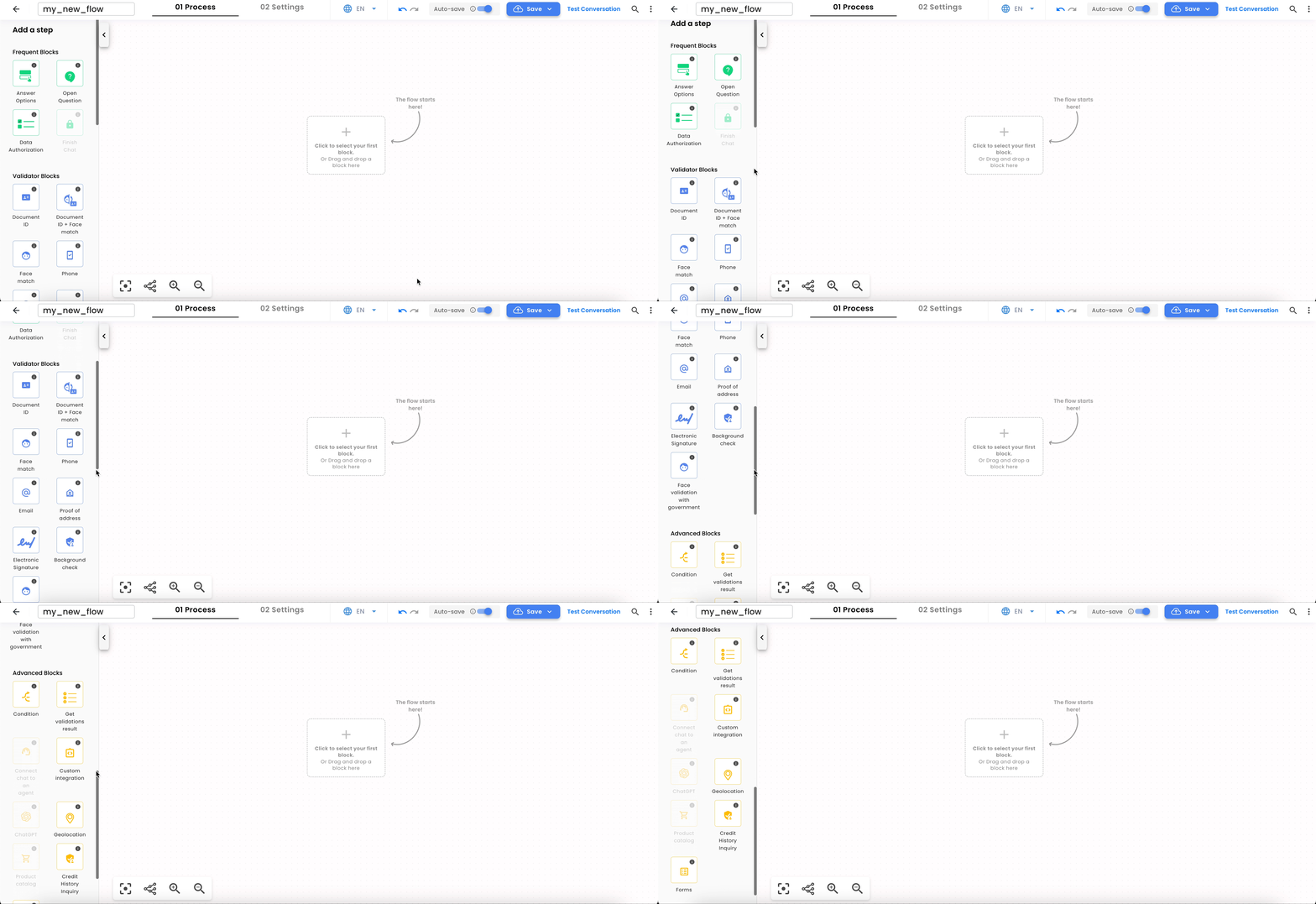
Locate the Advanced Blocks: Inside the Flow Builder, you will find a left sidebar titled Add a step. The blocks are organized into three sections:
- Frequent Blocks — Common blocks for basic interactions (e.g., open questions, button responses, data authorization).
- Validator Blocks — Identity verification blocks (e.g., Document ID, Face Match, Phone, Email).
- Advanced Blocks — Blocks for advanced logic, integrations, and specialized features.
Scroll down in the sidebar to the Advanced Blocks section. From there, drag and drop any block into your flow canvas to start configuring it.
Advanced Blocks overview
The image below shows the Advanced Blocks section as it appears in the Flow Builder sidebar. Blocks displayed in gray are not available for the Web channel.
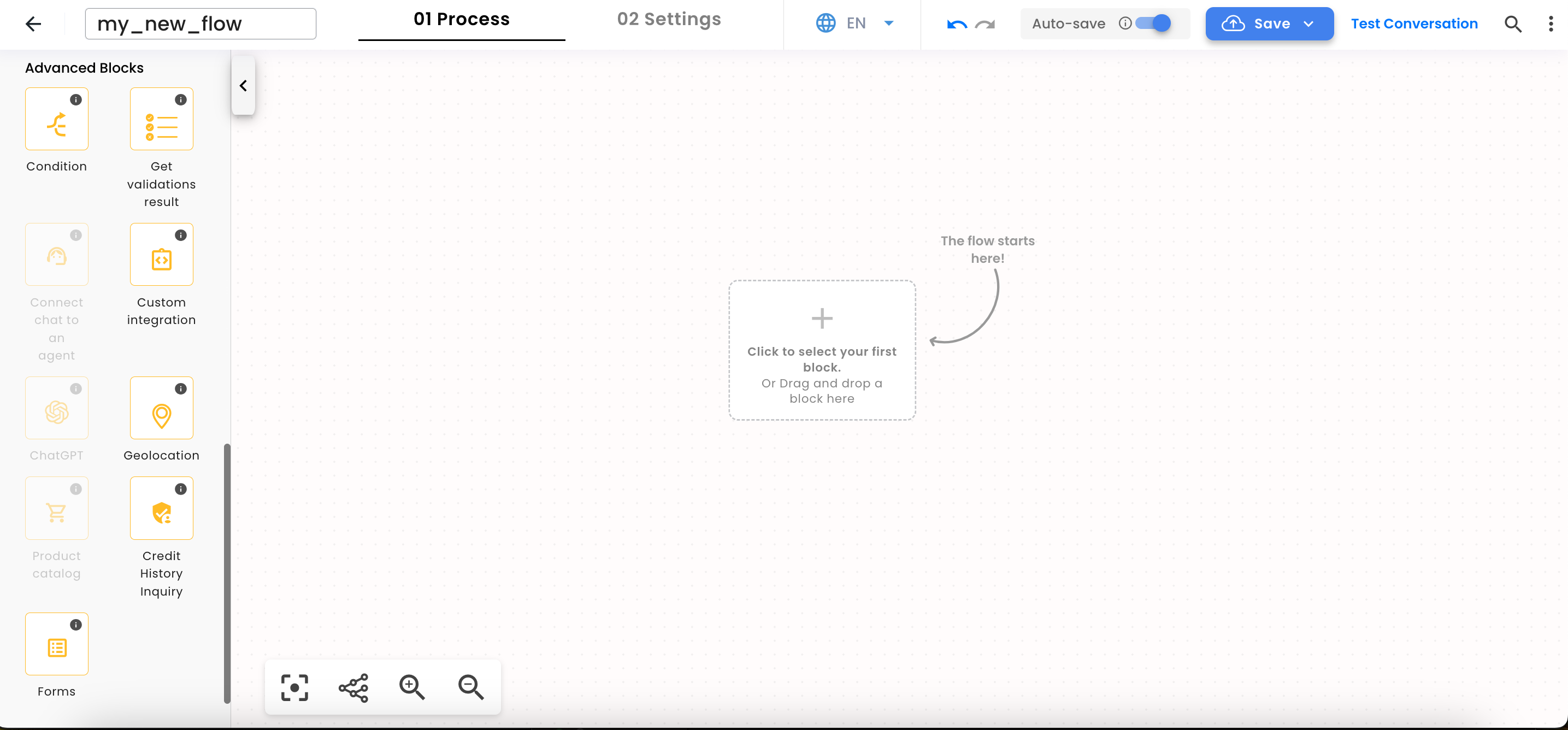
The following table provides a quick summary of all the Advanced Blocks, their purpose, and their availability on the Web channel:
| Block | Available on Web | Description |
|---|---|---|
| Condition | Yes | Create branching logic based on variables from previous blocks |
| Get Validations Result | Yes | Display validation feedback to your users |
| Custom Integration | Yes | Connect external APIs to send and receive data within your flow |
| Geolocation | Yes | Capture the real geographic location of your users |
| Forms | Yes | Send custom forms, surveys, or questionnaires to your users |
| Credit History Inquiry | Yes (MX only) | Obtain the user’s financial report from authorized financial information institutions |
| Connect Chat with an Agent | No (WhatsApp only) | Route conversations to a CRM agent (e.g., HubSpot, Zendesk) |
| ChatGPT | No (WhatsApp only) | Connect conversations to an OpenAI model for contextualized responses |
| Product Catalog | No (WhatsApp only) | Send a product catalog message for user selection |
Blocks available on Web
Condition
The Condition block allows you to create branching logic within your flow. You can combine multiple conditions to evaluate variables from previous blocks and direct the flow through different paths based on the results.
This is particularly useful when you need to take different actions depending on user input, validation outcomes, or API response codes. For example, you can check whether a document validation was successful and route the user to a retry step or a confirmation message accordingly.
For a detailed guide on how to use conditions with decision variables, see the Using Decision Variables in Flow Conditions guide.
Get Validations Result
The Get Validations Result block lets you provide real-time feedback to your users about the validations they have completed during the flow. When a user finishes a validation step (such as document verification or face match), this block displays whether the validation was successful, declined, or pending.
This block helps keep users informed about their progress, so they know the outcome of each verification before moving on to the next step.
Note: This block is not available on the WhatsApp channel.
Custom Integration
The Custom Integration block connects your external systems to the flow through API requests. This allows you to send and receive data from third-party services during the flow execution, enabling use cases like user lookups, OTP verification through external providers, data enrichment, and more.
Before using this block, you need to create a custom integration that defines the API endpoints, authentication, and actions. Once configured, you can select the integration from the block’s settings, map input variables, and use the response data in subsequent blocks.
To learn how to set up a custom integration, see the Create a Custom Integration guide. For a step-by-step example of using the Custom Integration block within a Web flow, refer to the Configure your flows to perform API requests guide.
Geolocation
The Geolocation block captures the real geographic location of your users during the flow execution. It requests access to the user’s device location and records the latitude and longitude coordinates, which are then included in the process results.
Additionally, you can configure this block to restrict the use of VPN services, ensuring the location data reflects the user’s actual physical position.
For detailed instructions on configuring geolocation and VPN restrictions, see the Get Geolocation info guide.
Note: This block is not available on the WhatsApp channel.
Forms
The Forms block lets you send custom forms, surveys, or questionnaires to your users as part of the verification flow. You can create forms with multiple sections and input types, including text fields, dropdowns, date pickers, and more. Each input includes built-in validation to prevent incorrect data entry.
After selecting the Forms block in the flow, you choose from your existing forms, and the block automatically generates variables for each question, which can be referenced in subsequent blocks (such as electronic signatures or condition blocks).
For a complete guide on how to create forms and integrate them into your flow, see the Integrate a Form into a Validation Flow guide.
Credit History Inquiry
The Credit History Inquiry block allows you to obtain the user’s financial report by querying authorized financial information institutions. This block collects the required user data — such as RFC (tax ID), address, postal code, and neighborhood — and performs the credit history consultation directly within the flow.
Note: This block is only available for Mexico (MX) and requires activation by Truora. Contact your account manager or Truora’s support team to request access.
Blocks available only on WhatsApp
The following Advanced Blocks are designed exclusively for the WhatsApp channel and are not available in Web flows. However, understanding their purpose can help you design comprehensive verification strategies across channels.
Connect Chat with an Agent
The Connect Chat with an Agent block routes the conversation from the automated flow to a live agent in your CRM platform. This is useful for scenarios where the user needs personalized assistance, escalation for complex cases, or when an automated flow cannot resolve the user’s request.
Supported CRM integrations include HubSpot and Zendesk, among others. You must have a CRM integration configured before using this block.
ChatGPT
The ChatGPT block connects the conversation to an OpenAI language model, enabling contextualized, AI-powered responses within the flow. This is useful for creating more natural conversations, answering user questions dynamically, or providing intelligent assistance during the verification process.
Note: This block requires an OpenAI integration to be enabled and a Premium plan.
Product Catalog
The Product Catalog block sends a message containing products from your catalog, allowing users to browse and select items directly within the WhatsApp conversation. This is designed for commerce-oriented flows where product selection is part of the user journey.
Note: This block requires activation by Truora and a Premium plan. Contact your account manager or Truora’s support team to request access.
What’s next?
Now that you understand the Advanced Blocks available in the Flow Builder, here are some recommended next steps:
- Create a Web flow in 5 minutes or less — Learn how to build your first Web flow from scratch.
- Customize your Web flow — Configure your flow’s behavior, branding, and user recovery settings.
- Get Results — Learn how to retrieve and analyze the results of your verification processes.