
Guide to integrate Electronic Signature in WhatsApp Flows
When creating a WhatsApp Flow, you can select the Electronic Signature option from the validator blocks. This module lets you send a document, template, or envelope created in your ZapSign account so the user can review the files and complete the signing process inside WhatsApp.
Create ZapSign and Truora integration
To start using Electronic Signature as a validator, you must first configure the ZapSign integration in your Truora account. This process can be completed from the Truora platform or through the API.
To do it from the platform, follow these steps:
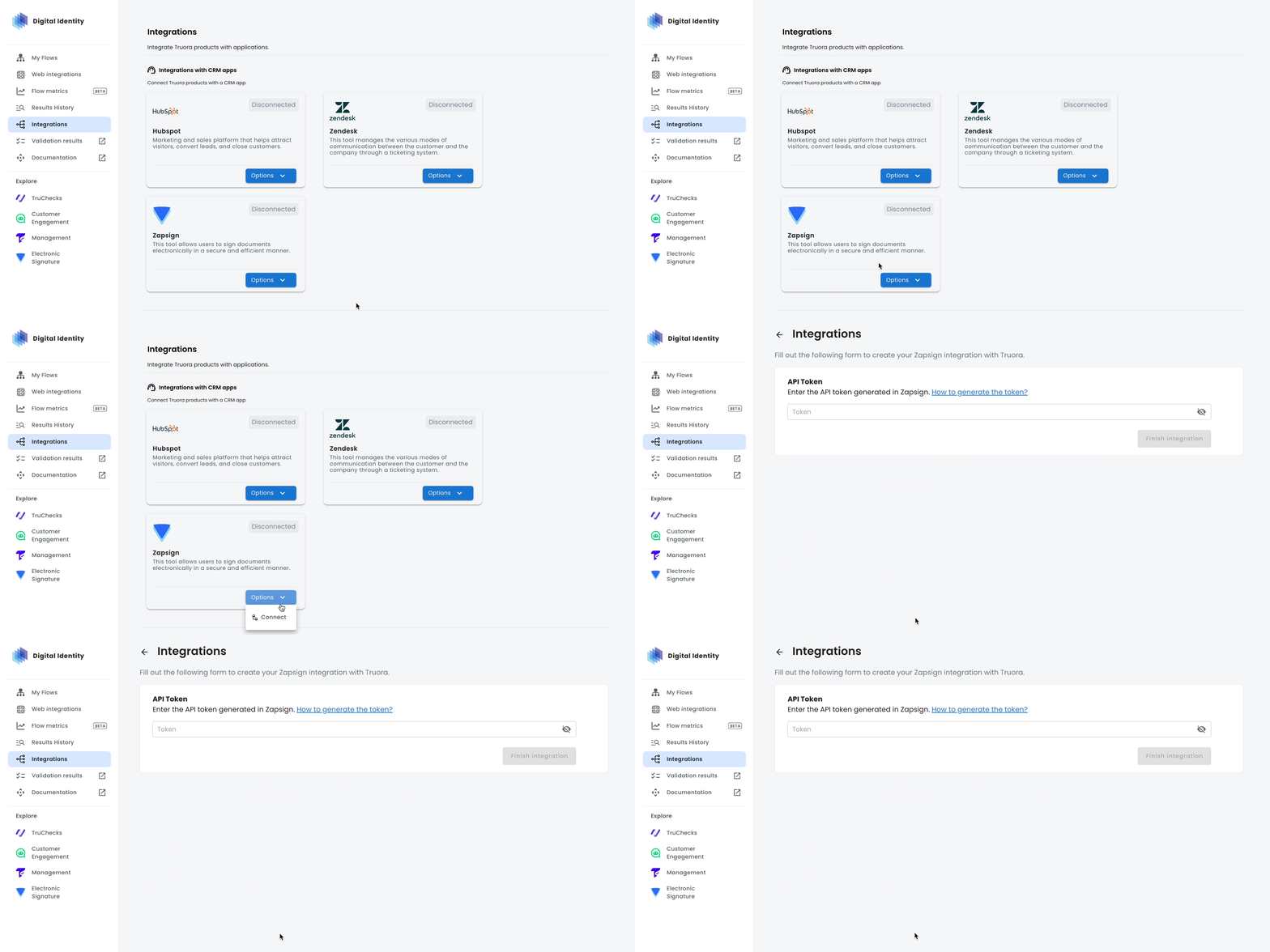
- After accessing the Truora platform, go to the Digital Identity section.
- Select Integrations.
- Find ZapSign, click Options, and then click Connect.
- Enter the API token generated in ZapSign.
Generate your ZapSign token
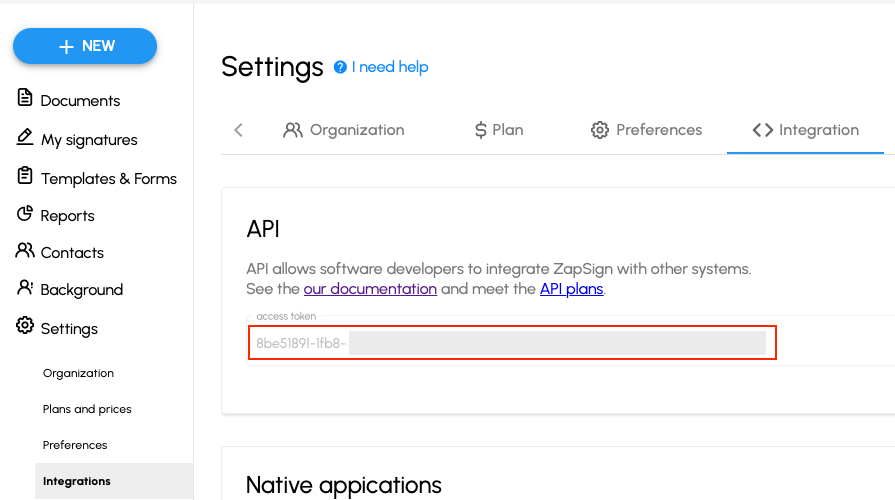
- Sign in to your ZapSign account or create one.
- In ZapSign, go to Settings > Integration.
- In the API section, copy your ZapSign token.
Create the flow
- Log in to the Truora dashboard. If you need help creating the flow itself, see Create a WhatsApp flow.
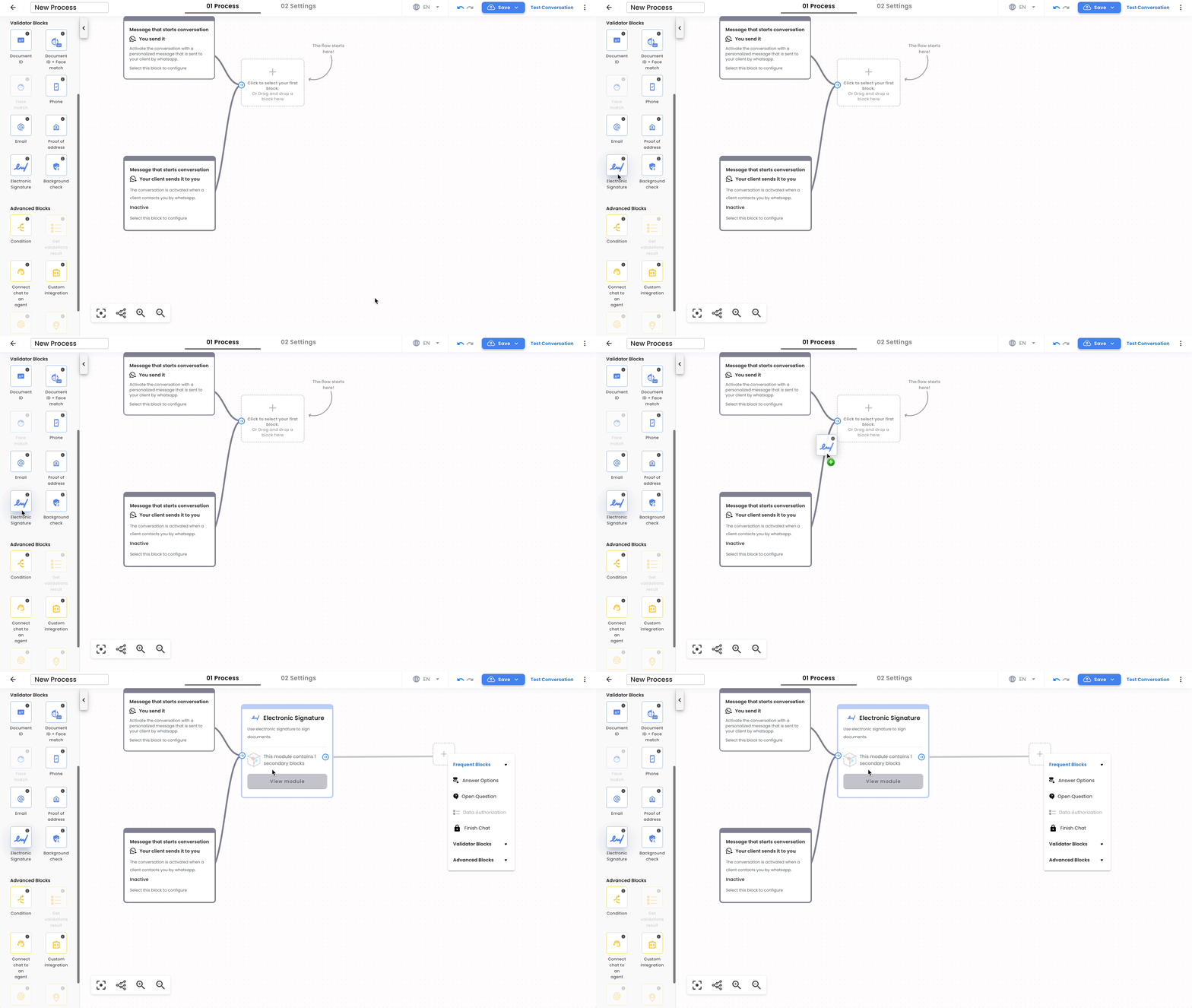
- Once the flow is created and named, go to the flow builder.
- Select Electronic Signature from the left-hand menu.
- Drag and drop the block into your flow.
Configure the Electronic Signature block
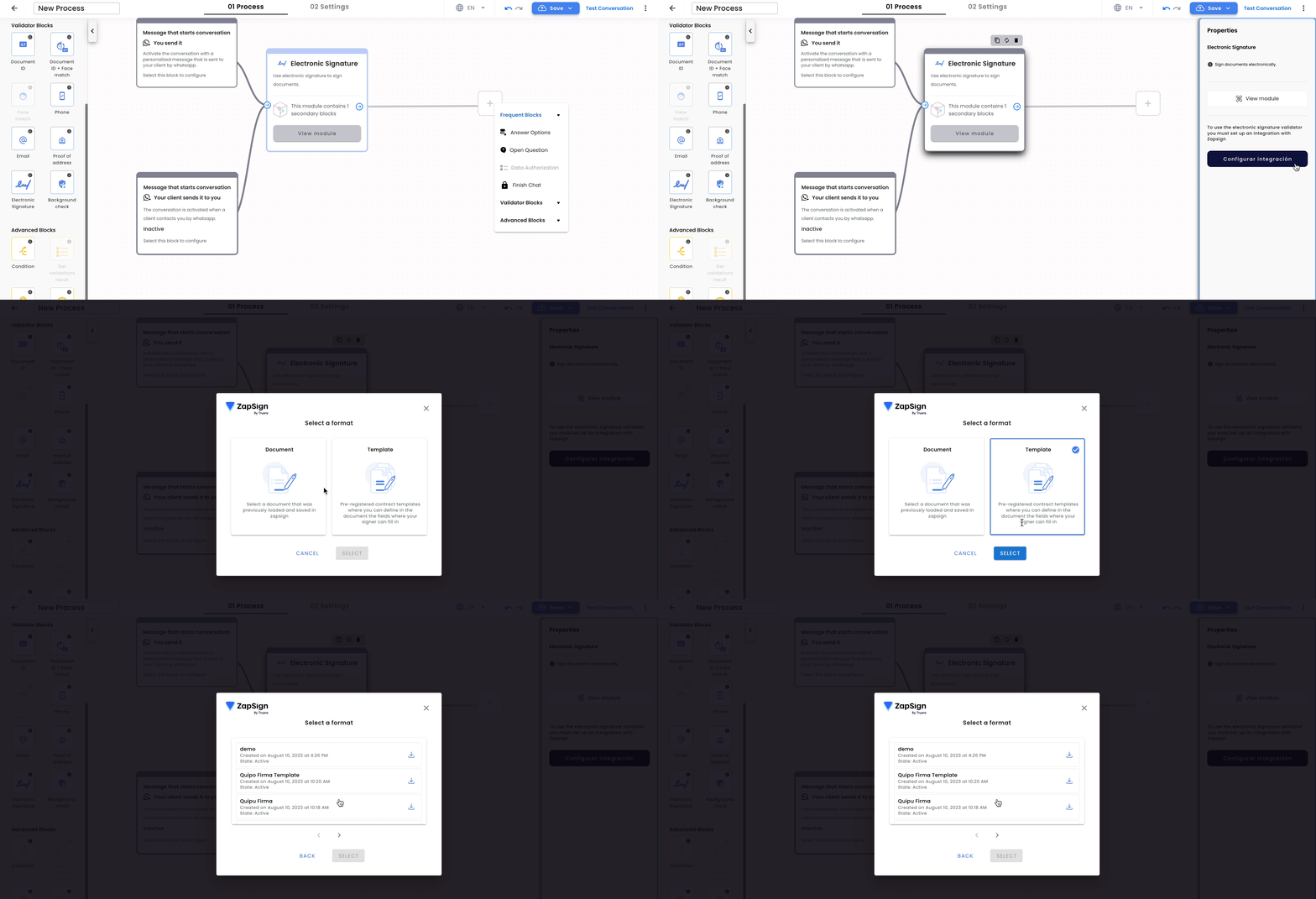
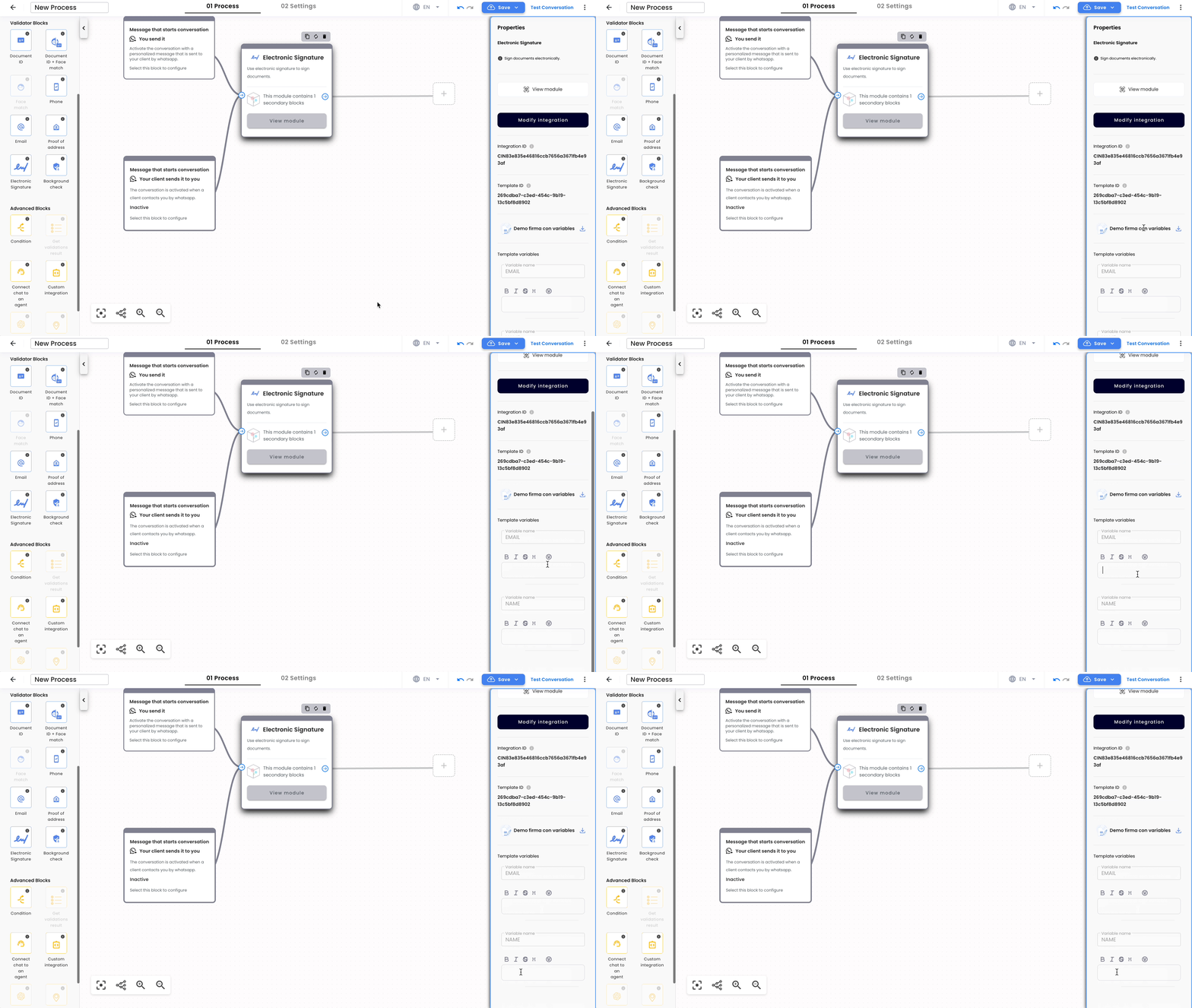
When you select the Electronic Signature block, the properties panel appears on the right side of the screen. You must configure the integration before saving and publishing the WhatsApp Flow.
- Click Configure Integration.
- Select the format you previously created in ZapSign.
- You can choose between Document and Template.
- After choosing the type, the available items created in ZapSign will appear so you can associate one with the validation.
Use templates
If you select the Template option, the variables created in ZapSign will appear in the configuration. You can either prefill those fields or leave them empty so the user can complete them during the signing process.
Documents, templates, and envelopes in OneClick
ZapSign OneClick is designed for simple, low-risk signing experiences, but the selected document can also include attached files grouped as an envelope. In that case, the signer is accepting the complete set of files, not only the main document.
In Truora WhatsApp Flows, when the selected item contains annexes or extra documents, the experience should clearly distinguish the main document from the annexed documents. This helps the client understand what was configured in the flow and helps the end user review every file before signing.
What is shown to the client in the builder
When a selected document includes annexes, the block configuration should display:
- The main document.
- The annexed or complementary documents included in the envelope.
This makes it easier to understand which file is the principal document and which files are supporting attachments that are also part of the signature request.
What the end user receives in WhatsApp
When [OneClick Signature] is used with a document or template that includes annexes, the user must receive all the files associated with the envelope before signing. The user should be able to review the documents in WhatsApp and then press the signing button to continue.
This is important because the signer’s consent applies to the full envelope. Showing all annexed documents improves transparency and reduces the risk of a user signing files they did not review.
Choose the signing method
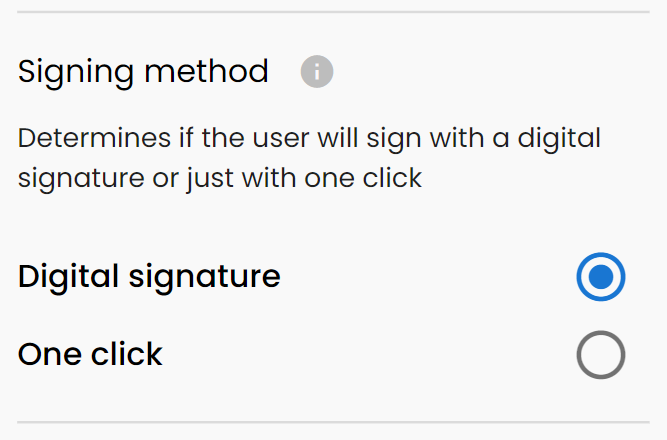
When configuring the Electronic Signature block, you can choose between two signing methods:
- Digital Signature: This is the default method. The user manually draws their signature on the screen when signing the document. This creates a visual representation of the signature.
- OneClick Signature: This method lets the user sign with a single click. To use it, the flow must include either an Email Verification block or a Phone Verification block before the Electronic Signature block, so the signer identity is verified first.
Important considerations for OneClick
- OneClick is available for WhatsApp flows only.
- If the document has annexes (extra/attached files), the system sends all files to the user via WhatsApp before signing. The user must receive and can review every file before clicking the sign button.
- This behavior is the same for documents and templates with extra files.
Save and test your flow
Finally, save and test your flow. Remember that the testing link is only intended for validation purposes and expires after 15 minutes. You can also review how to generate Inbound or Outbound messages from the dashboard.